Abandoned Cart Emails and Discount Coupons
Abandoned cart emails remind shoppers who left at checkout that their cart is still saved, and bring them back with one click. Shop Manager sends up to five of them, each with its own wait, text and, if you want, its own discount coupon. This guide shows how to set up the reminders, the coupon and the sender, and what your shoppers receive. Abandoned Cart Recovery is a Shop Manager Pro feature (Pro).
Before You Start
- ✅ Shop Manager Pro is active and the Abandoned Cart Recovery module is on. See Abandoned Cart Recovery for WooCommerce: How It Works.
- ✅ Your site can send email. Abandoned cart emails go out through WooCommerce, like your order emails.
Where to Set Up Abandoned Cart Emails
In your WordPress admin, go to Shop Manager → Modules → Abandoned Carts and click Reminder Emails in the row of sections. Changes in every section are saved together with Save Changes at the top of the page.
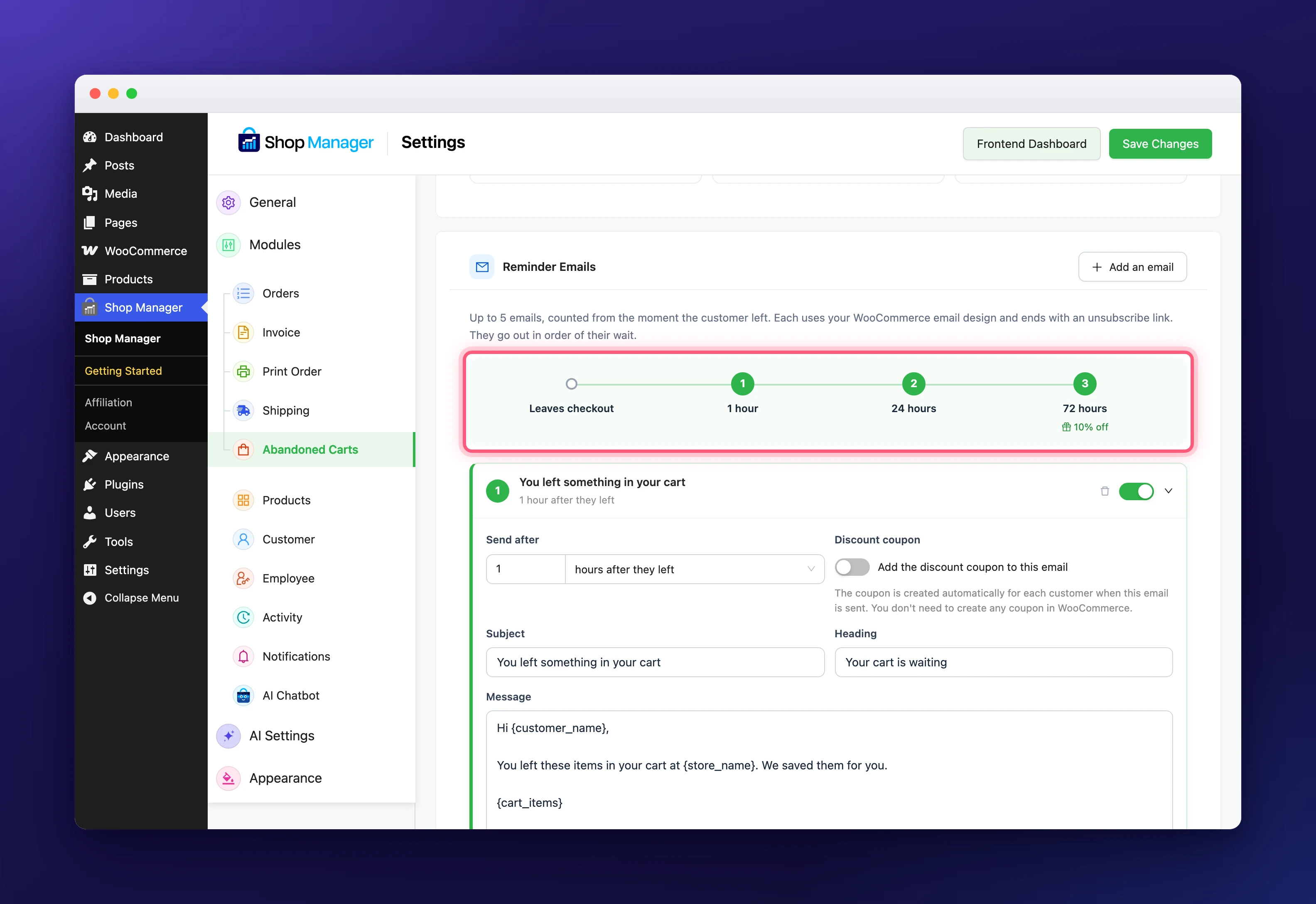
Shop Manager comes with three abandoned cart emails, counted from the moment the shopper left:
- After 1 hour: “You left something in your cart”.
- After 24 hours: “Your cart is still saved”.
- After 72 hours: “A little something to finish your order”, with a 10% coupon that lasts 2 days.
Only the last one has a discount, so shoppers do not learn to leave carts just to get a coupon. The timeline above the abandoned cart emails shows when each one goes out, with a gift and the discount on the email that has a coupon. A grey stop is an email that is off. Click a stop to open that email.
Edit One of Your Abandoned Cart Emails
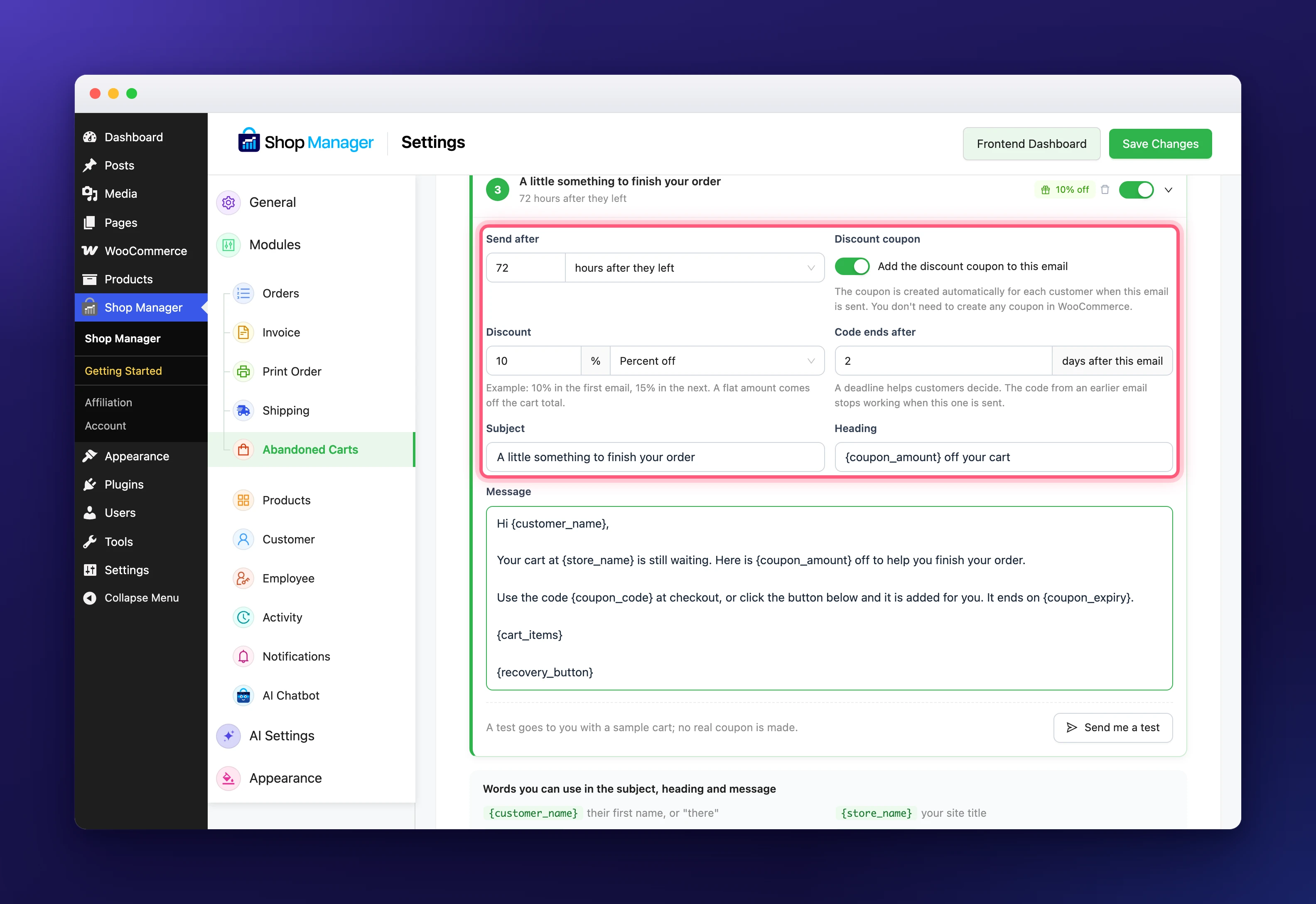
Click an email to open it. Its header shows the subject and the wait, a switch to turn the email on or off, and a bin icon to remove it. Inside you set:
- Send after: how long after the shopper left, in hours (up to 720) or days (up to 30).
- Discount coupon: turn on Add the discount coupon to this email to include a coupon. Each shopper gets their own code, made when this email is sent, so you never create coupons in WooCommerce yourself.
- Discount: a percent off (1 to 100) or a flat amount off the cart total. You can raise it from one email to the next, for example 10% and then 15%.
- Code ends after: how many days the code works after this email (1 to 60). The code from an earlier email stops working when this one is sent, so the shopper always has one code.
- Subject and Heading: the email’s subject line and the big title inside it.
Write the Message and Send a Test
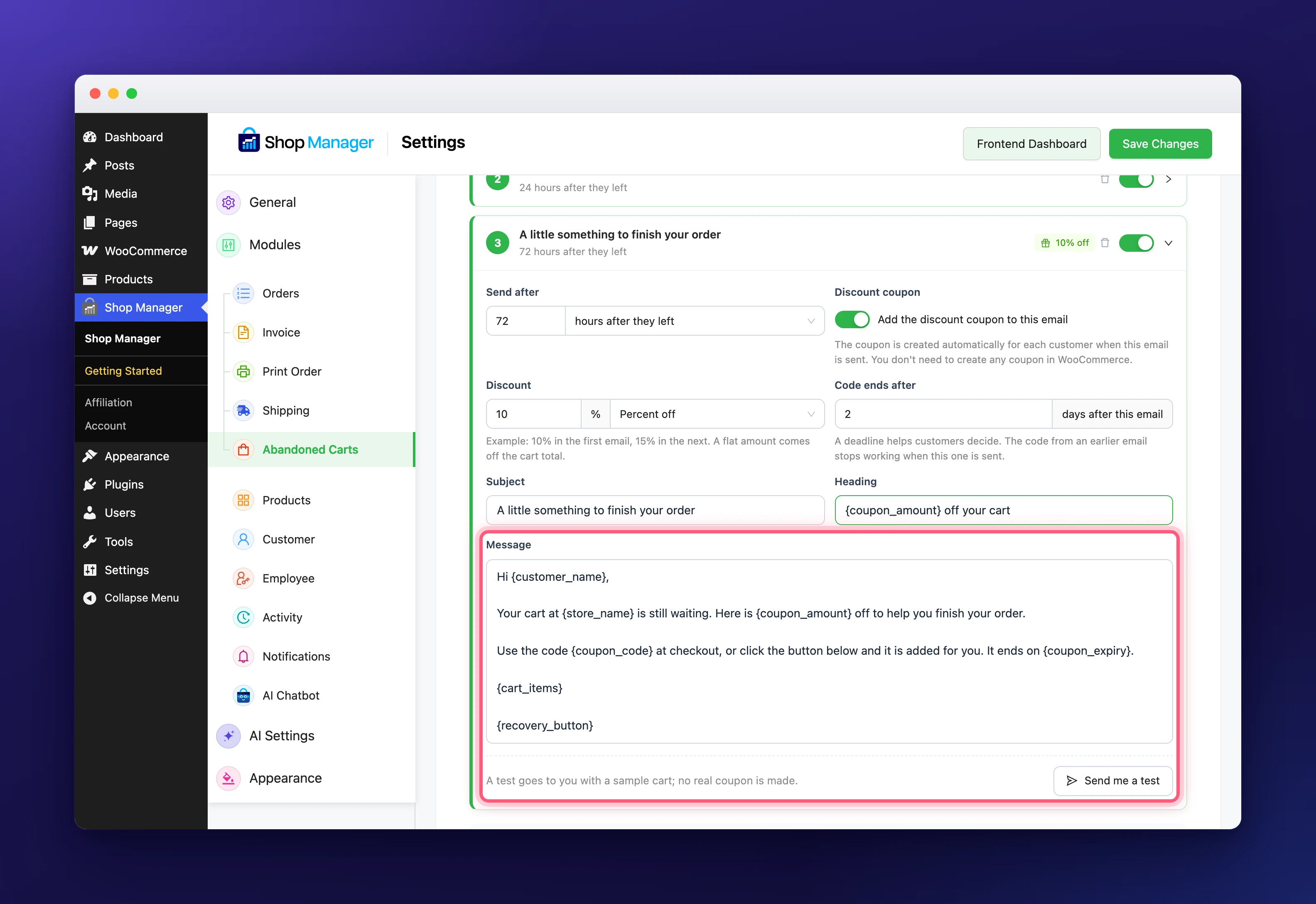
Write the email in Message. In abandoned cart emails, words in curly brackets are filled in for each shopper. When the coupon is on and the message has no {coupon_code}, a yellow warning reminds you to add it, so the shopper sees their code.
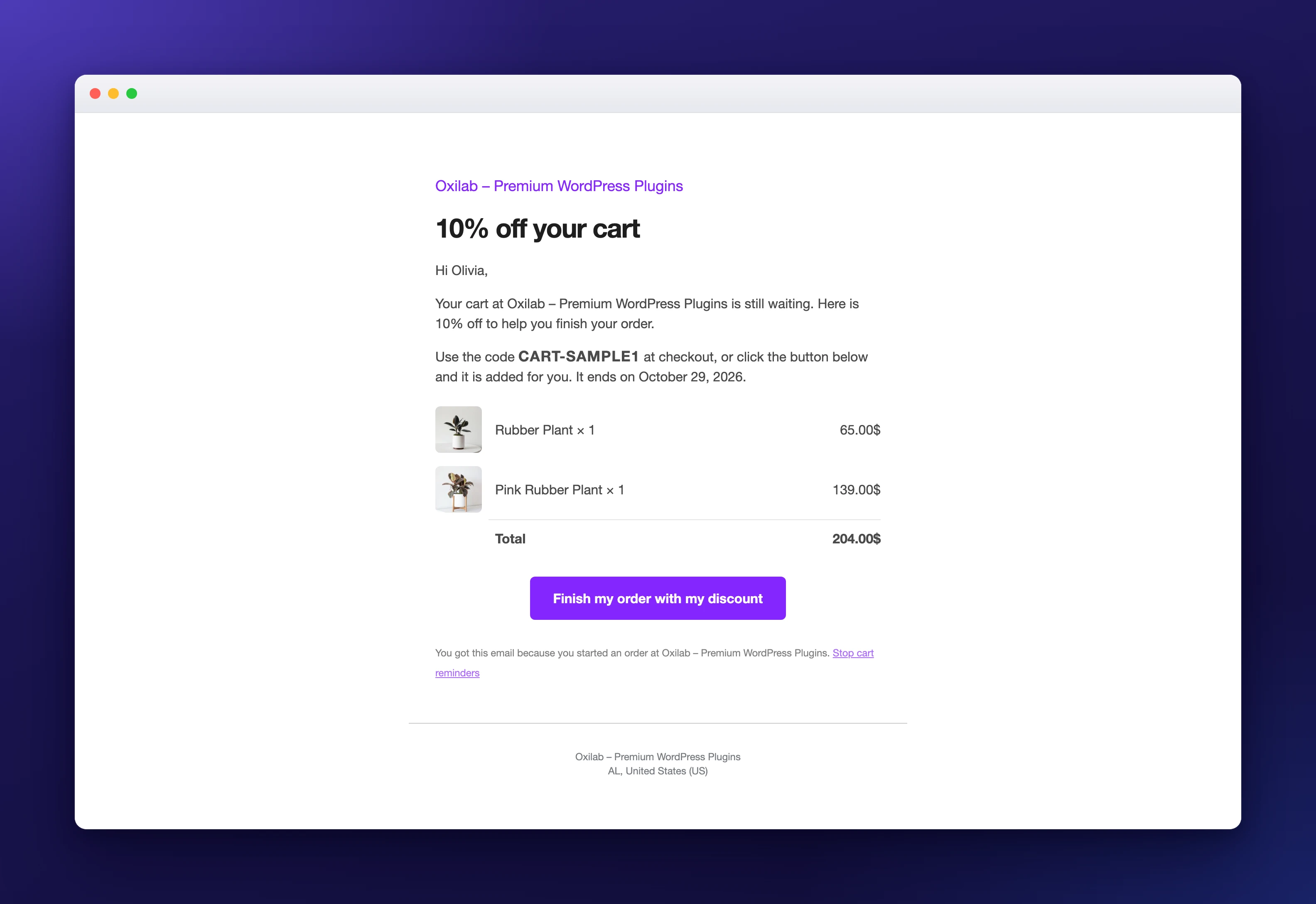
Click Send me a test to get the email yourself, with a sample cart and the sample code CART-SAMPLE1. No real coupon is made. The test uses what is on screen, so you can try changes before you save them.
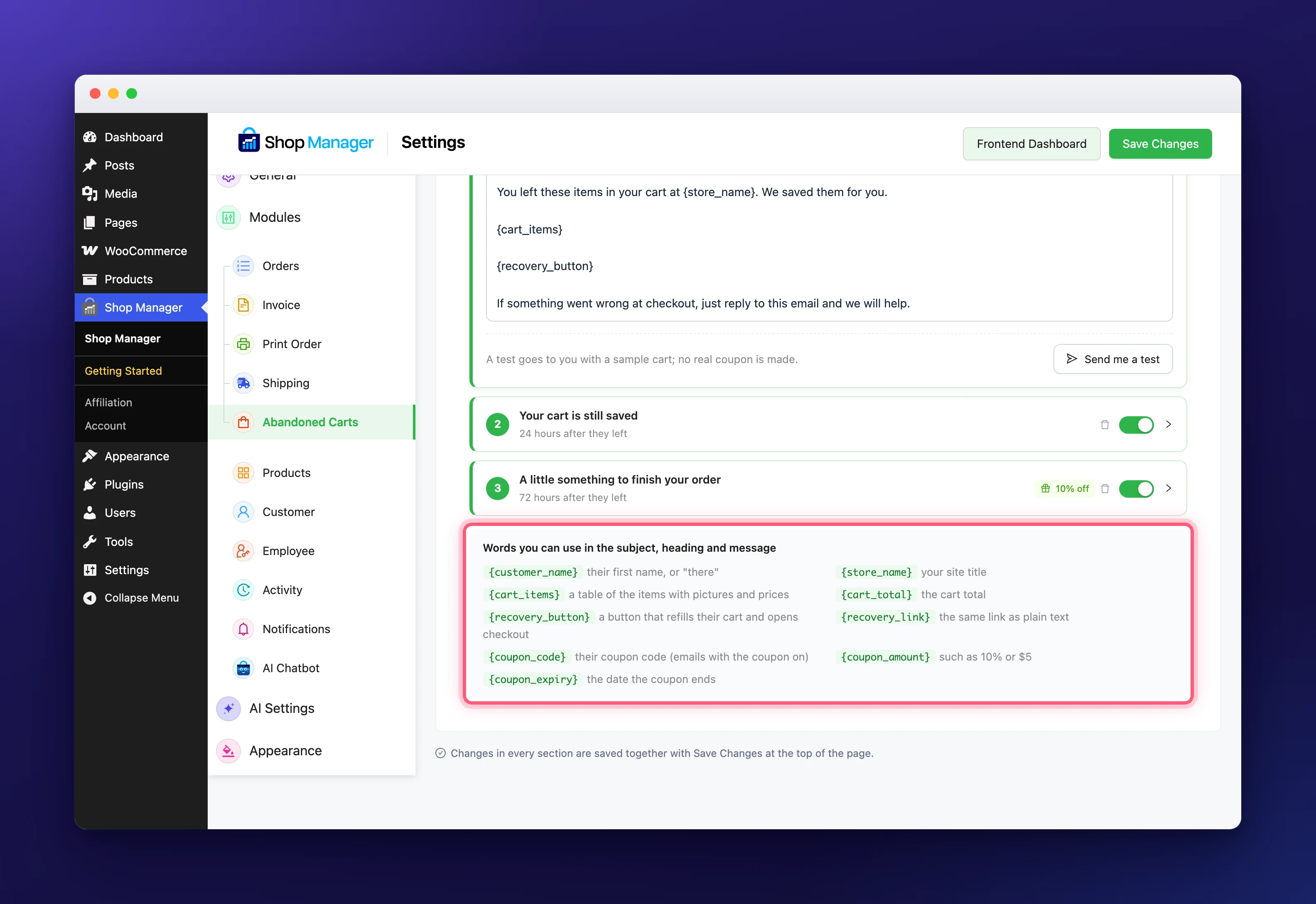
These are the words you can use in the subject, heading and message:
{customer_name}: their first name, or “there”.{store_name}: your site title.{cart_items}: a table of the items with pictures and prices.{cart_total}: the cart total.{recovery_button}: a button that refills their cart and opens checkout.{recovery_link}: the same link as plain text.{coupon_code},{coupon_amount}and{coupon_expiry}: their code, the discount (such as 10%) and the date it ends, in emails with the coupon on.
Add or Remove Abandoned Cart Emails
Click Add an email at the top of the Reminder Emails card to add another reminder, up to five in all. To remove one, click its bin icon and confirm. To pause one without losing its text, turn its switch off. The emails always go out in the order of their wait, whatever their place in the list.
Choose Who the Emails Come From
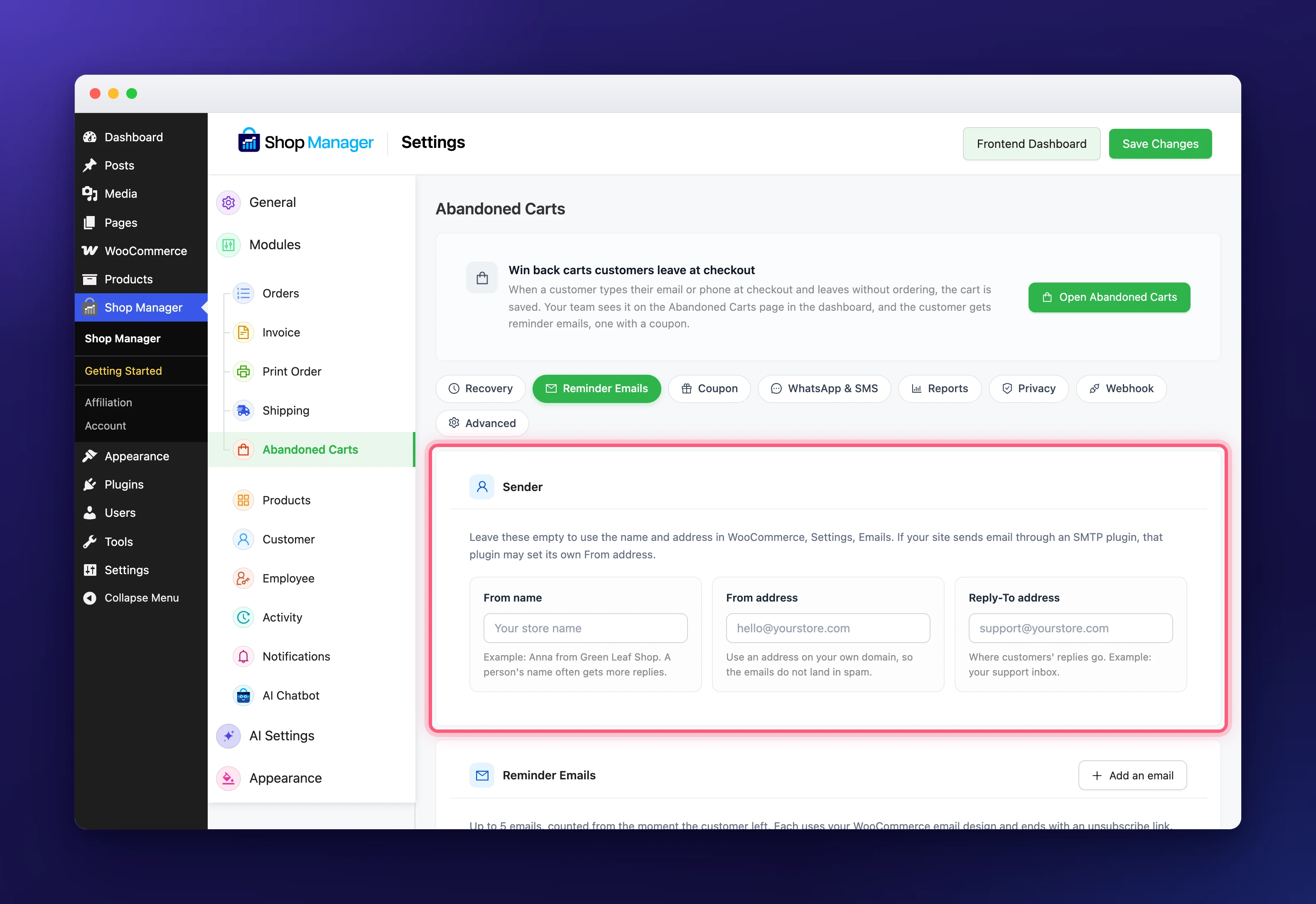
The Sender card at the top of the section sets the From name, the From address and the Reply-To address where shoppers’ answers go. Leave them empty to use the name and address in WooCommerce, Settings, Emails. A person’s name, such as “Anna from Green Leaf Shop”, often gets more replies, and an address on your own domain keeps abandoned cart emails out of spam. If your site sends email through an SMTP plugin, that plugin may set its own From address.
Set the Coupon Options
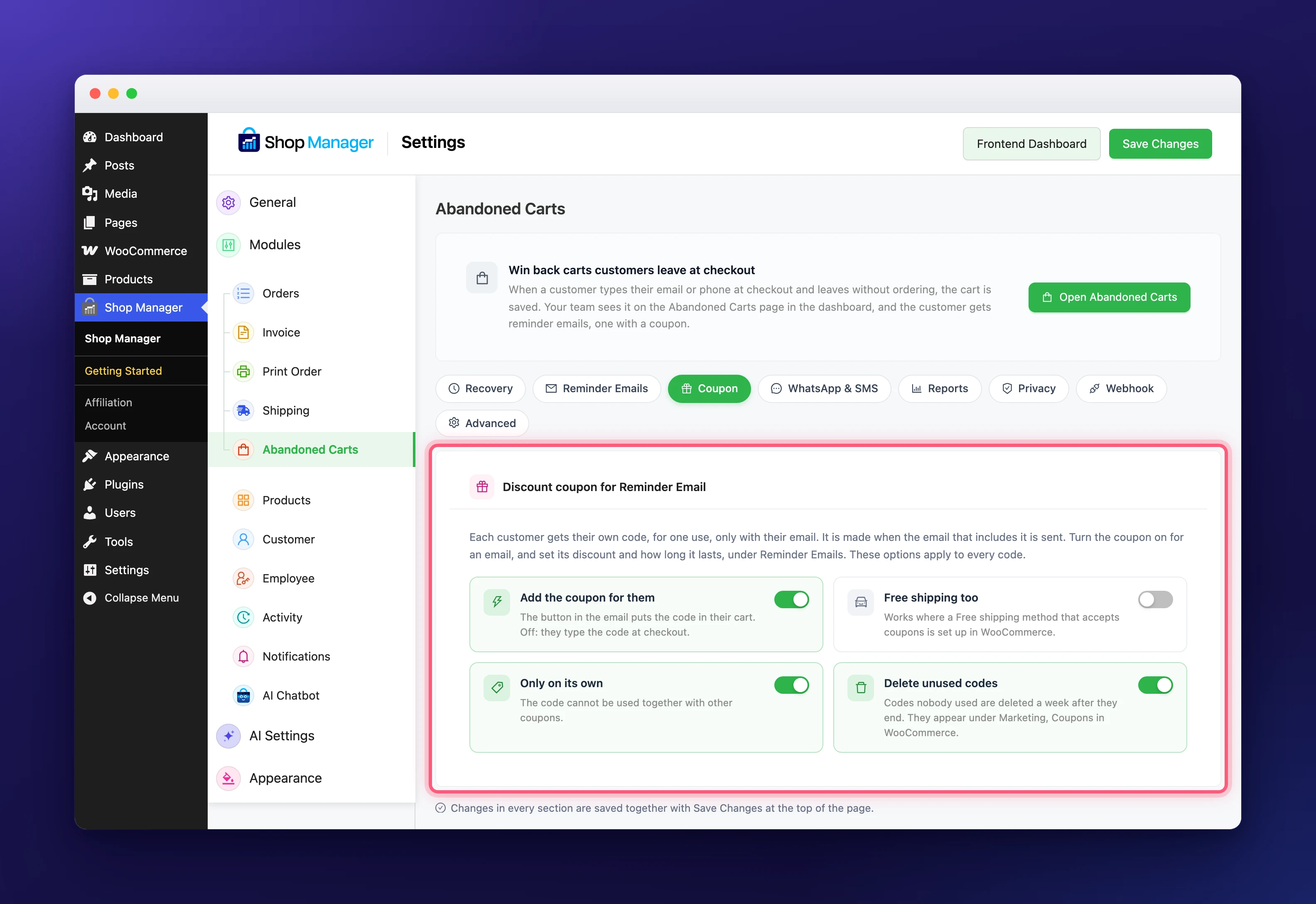
Click Coupon in the row of sections. Each code is for one use, only with the shopper’s own email, and starts with CART. These four options apply to every code:
- Add the coupon for them (on): the button in the email puts the code in their cart. Off: they type the code at checkout.
- Free shipping too (off): works where a Free shipping method that accepts coupons is set up in WooCommerce.
- Only on its own (on): the code cannot be used together with other coupons.
- Delete unused codes (on): codes nobody used are deleted a week after they end.
The codes appear under Marketing, Coupons in WooCommerce. If coupons are turned off in WooCommerce, an email that should carry a coupon is skipped, because its message would not make sense without one. Learn more about coupons in WooCommerce’s Coupon Management guide.
What Shoppers Receive
Abandoned cart emails use your WooCommerce email design. The shopper sees their items with pictures and prices, the total and a button: Finish my order, or Finish my order with my discount when the coupon is added for them. The button refills their cart, fills in the details they had typed and opens checkout. Every email ends with a Stop cart reminders link.
When Abandoned Cart Emails Are Not Sent
- The shopper ordered, clicked Stop cart reminders, or you deleted the cart.
- The shopper gave only a phone number. Contact them from the Abandoned Carts page with WhatsApp or a text instead.
- Nothing in the cart can be bought anymore.
- Your site’s scheduled tasks did not run for a while. Then only the latest reminder that is due goes out, never several at once.
Next Steps
- See every other option, from timing to privacy: Abandoned Cart Settings: Every Option Explained.
- Follow the orders your abandoned cart emails bring in with WooCommerce Order Management.
- Resend other WooCommerce emails from the dashboard: Resend WooCommerce Order Emails.