Employee Activity Log & Performance Reports
Every employee has a profile page, and most of it is about what they have done. The employee activity log keeps a running record of their actions in the dashboard, four cards above it count their recent orders, and with Pro an AI written summary of their last seven days sits in between. All of it is free except the summary.
Opening a Profile
In the dashboard sidebar, open Employees, then All Employees, and click a person’s name or the eye icon on their row.
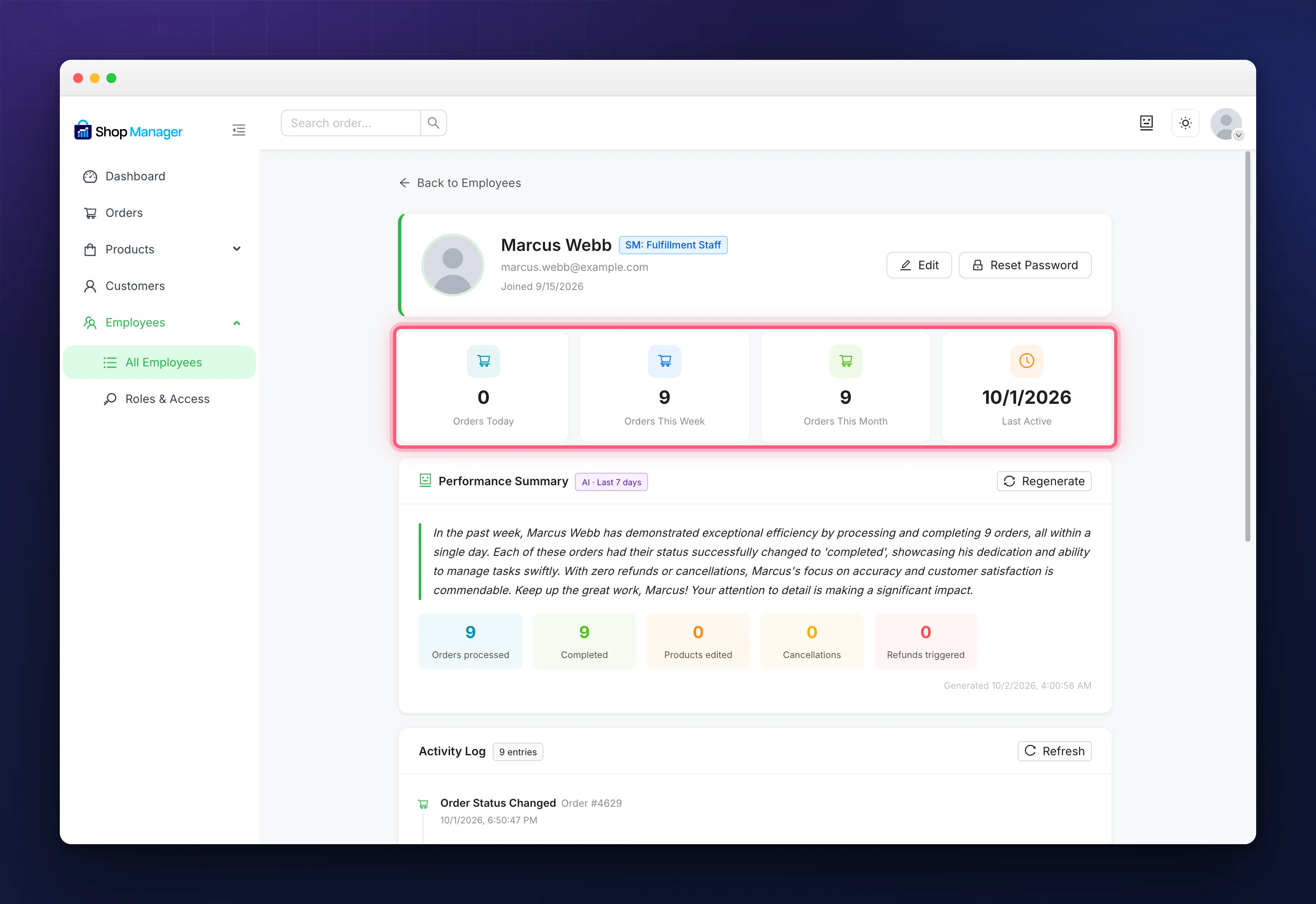
Across the top are Orders Today, Orders This Week, Orders This Month and Last Active. The three order counts are the number of order status changes this person has made in each window, where the week starts on Monday and the month on the 1st, both in your store’s timezone. Last Active is the time of whatever they did most recently, of any kind.
What the Log Records
The employee activity log is written whenever someone changes something through the dashboard. It covers orders (status changes, creating, trashing, restoring, resending emails, generating invoices, saving shipments), products (creating, editing, duplicating, deleting), categories and the other taxonomies, customers (address edits, notes, tags), reviews, and the employee and role screens themselves, so creating a role or resetting someone’s password is recorded too.
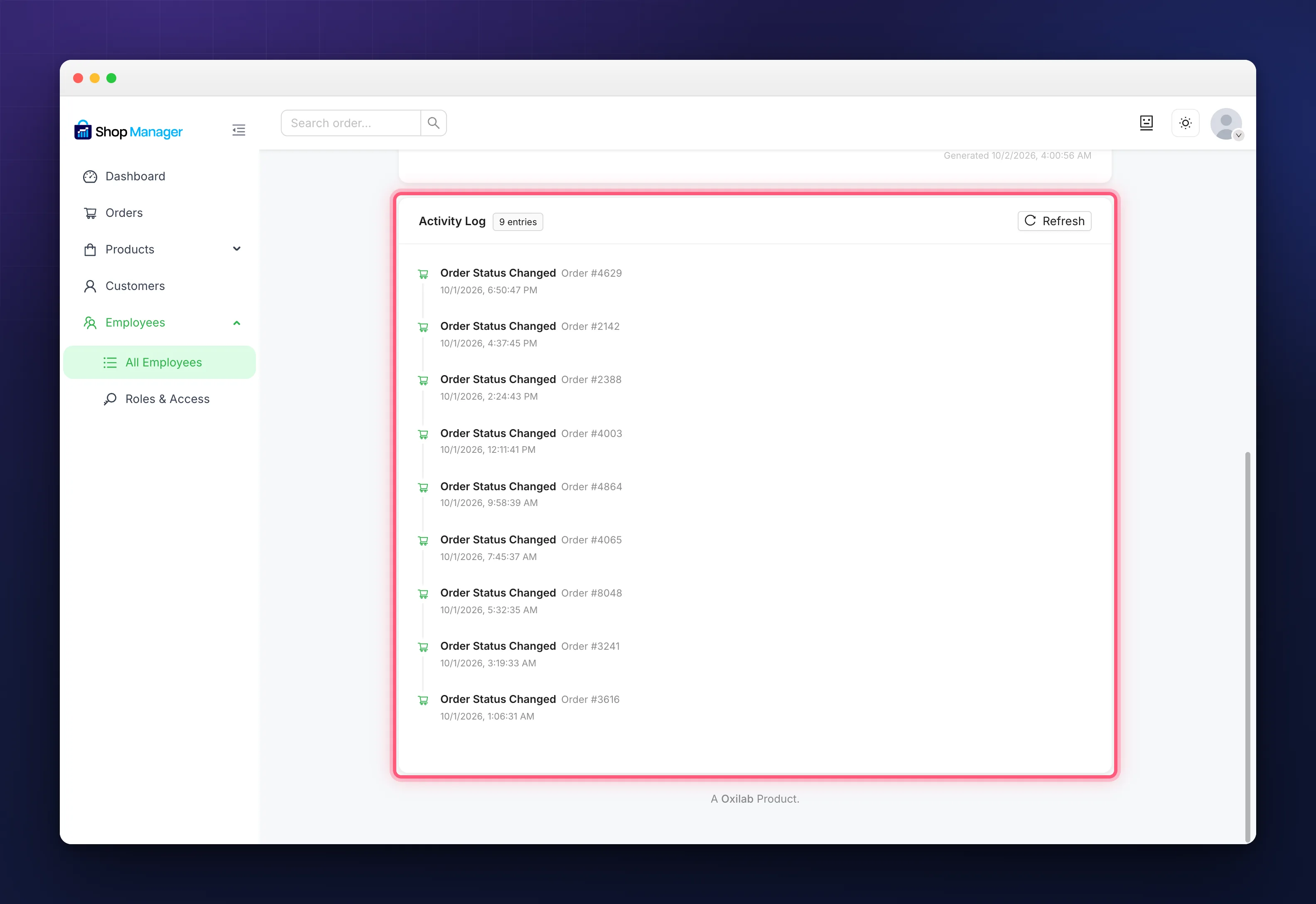
The employee activity log shows entries newest first, each with the action and the time. The badge beside the heading is the total number recorded for this person, but the page itself shows the most recent 20; there is no way to page further back from here. Reading the dashboard, searching and filtering are not logged, only changes.
An action is attributed to whoever was signed in when it happened. Changes made by an administrator or editor are recorded against them in the same way, so the log is a record of the whole team rather than only of employees.
The AI Performance Summary
With Pro and an AI provider key set up in AI Settings, the profile adds a Performance Summary panel: a few sentences in plain language about the person’s last seven days, next to five numbers taken from the log: Orders processed, Completed, Products edited, Cancellations and Refunds triggered.
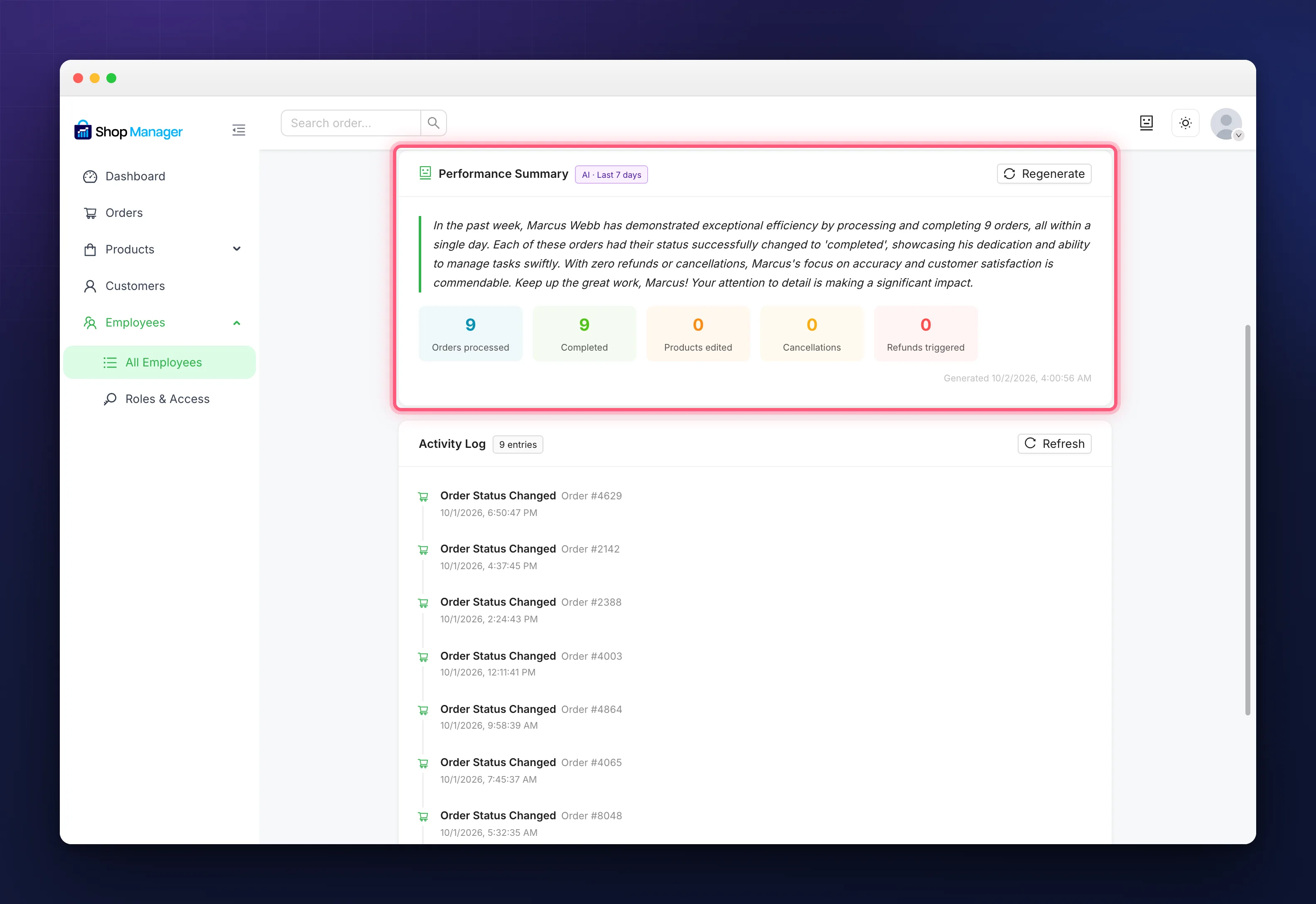
The summary is generated the first time you open a profile and then kept for an hour, so looking at the same person several times in a morning costs one call to your provider, not several. Regenerate throws the kept copy away and asks again. It runs on the same key as the rest of the AI features, so your provider bills you for it directly.
Without Pro the panel reads AI Performance Summary is a Pro Feature. With Pro but no key it says AI is not configured and links to AI Settings. If the person has done nothing in seven days it says so instead of inventing a report.
The Retention Setting
In the WordPress admin, under Shop Manager and then the Employee tab, Activity Log Retention is a choice of 30, 60 or 90 days, with 30 as the default. Once a day Shop Manager removes every entry older than that, which also trims the “entries” count on each profile. The job runs through WordPress’s own scheduler, so on a site with very little traffic it may run a few hours late, but it does run.
Troubleshooting
The log is empty for a new employee.
The employee activity log only starts when they change something. The first order status change they make will be the first entry.
Old entries have disappeared.
That is retention doing its job. Raise the setting to 60 or 90 days if you want a longer history.
The order counts are zero but they have been working.
Only status changes count toward the three order cards. Someone who views and prints orders all day without changing a status shows zero, though each print still appears in the log.
The summary says it failed to generate.
The provider rejected the request. Open AI Settings, run Test Connection, and check the account still has credit.
The summary has not changed since this morning.
It is kept for an hour. Click Regenerate if you need it fresh now.
Related Documentation
- WooCommerce Employee Management with Shop Manager: the employee list these profiles open from.
- Role Based Access Control for Your Store: deciding what an employee is allowed to do in the first place.
- Configure AI Settings & API Keys: the key the summary runs on.