How to Install Shop Manager for WooCommerce
Shop Manager is free on the WordPress plugin directory, so most stores have it running in a couple of minutes. This page covers the requirements and both ways to install it.
What You Need First
- WordPress 6.2 or higher
- WooCommerce 8.0 or higher, installed and active
- PHP 7.4 or higher, which most hosts already meet
- Administrator access to your WordPress site
Install WooCommerce first. Shop Manager is built on top of it. Without WooCommerce active, Shop Manager has nothing to manage and will show a notice instead of starting.
Install from the WordPress Dashboard
This is the easiest route and works for most stores.
- In your WordPress admin, go to Plugins → Add New.
- Search for Shop Manager for WooCommerce.
- Find the card by Oxilab and click Install Now.
- When the button changes to Activate, click it.
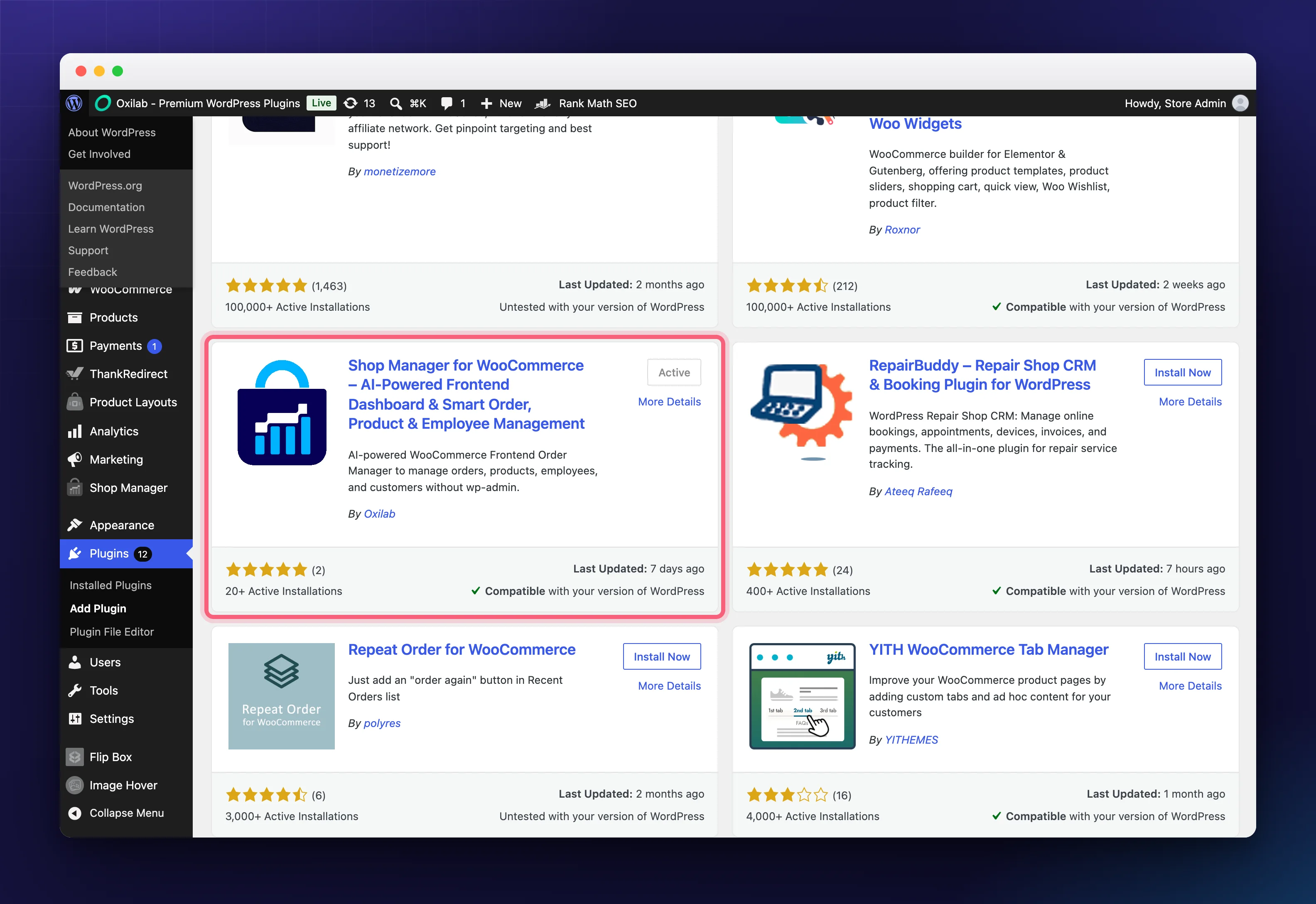
Shop Manager is usually not the first result, so look for the card by Oxilab, highlighted above. On your own site the button reads Install Now; it says Active here because the plugin was already installed on the site used for the screenshot.
Install from a ZIP File
Use this if you already have the .zip.
- Go to Plugins → Add New and click Upload Plugin.
- Click Choose File, select the ZIP, then click Install Now.
- When it finishes, click Activate Plugin.
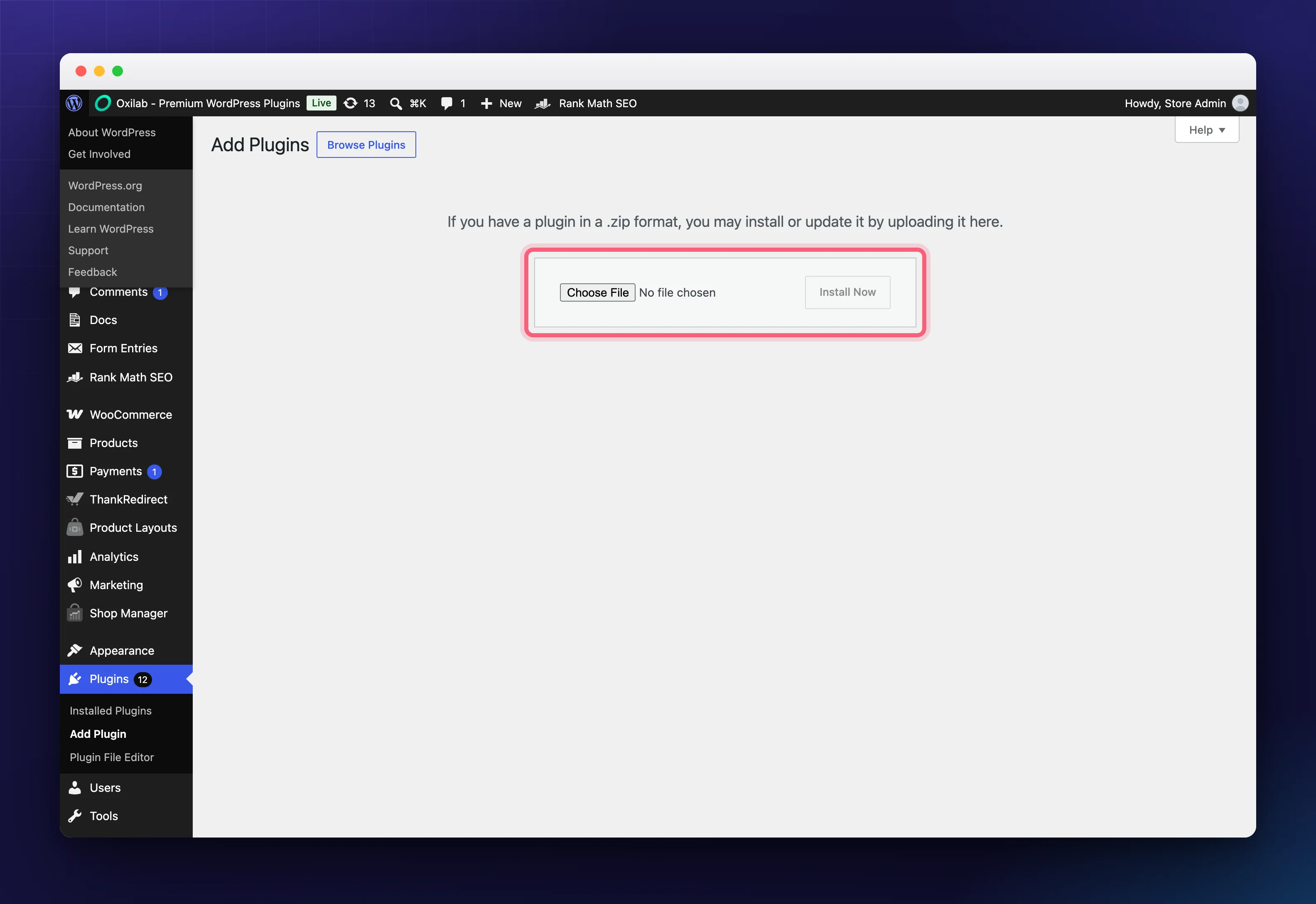
Upload the ZIP exactly as you downloaded it. Do not unzip it first, WordPress expects the compressed file. Once the upload panel is open, the button beside the Add Plugins heading changes to Browse Plugins, which takes you back to the directory search.
What Happens on Activation
- You land on the Shop Manager settings page.
- A Shop Manager item appears in the WordPress admin sidebar.
- Your dashboard page is created at
yoursite.com/sm-dashboard/, listed under Pages as SM Dashboard.
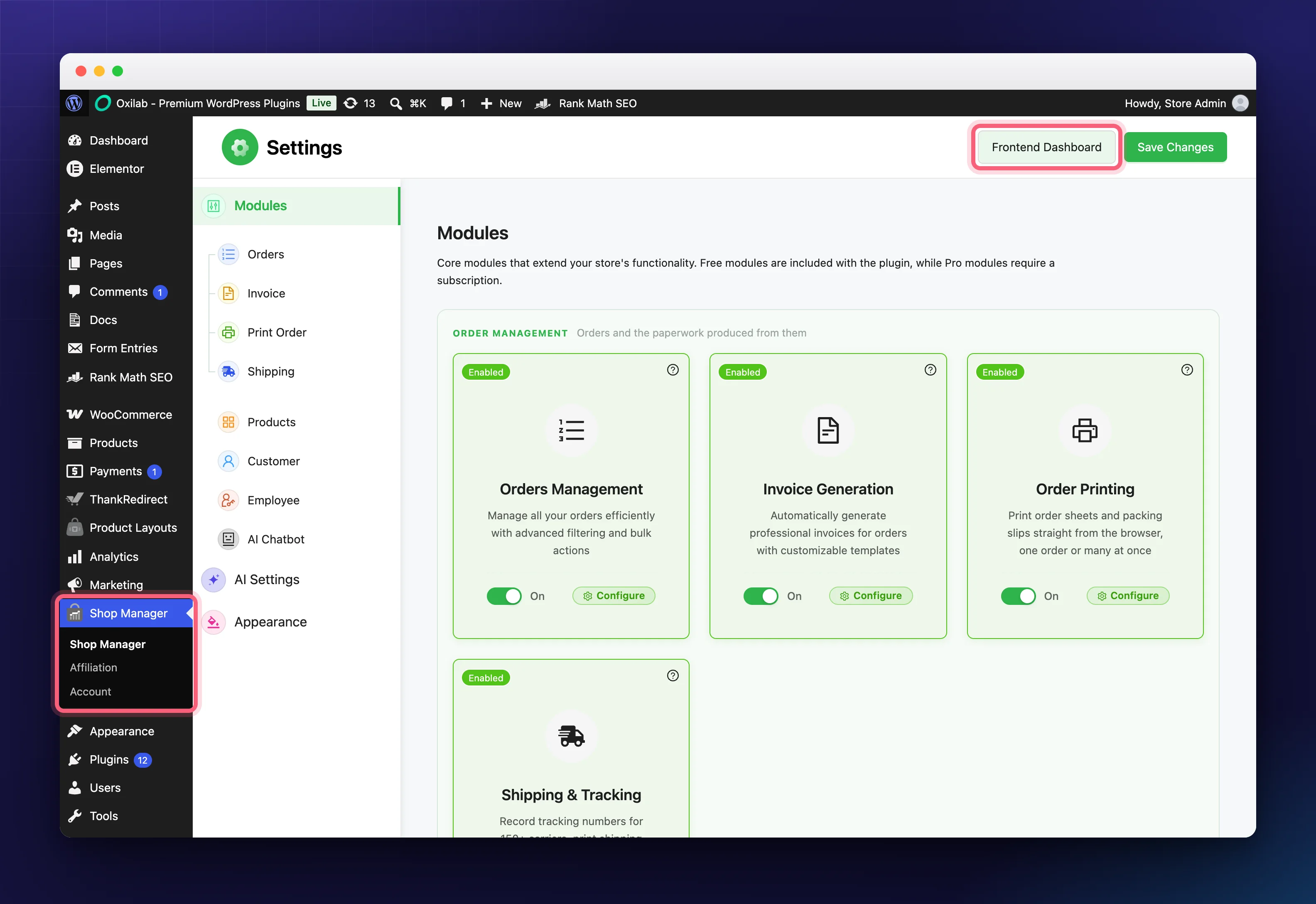
Two things are highlighted above. On the left, the Shop Manager entry in the admin sidebar, below WooCommerce and Products. On the right, the Frontend Dashboard button at the top of the settings screen, which jumps straight to /sm-dashboard/.
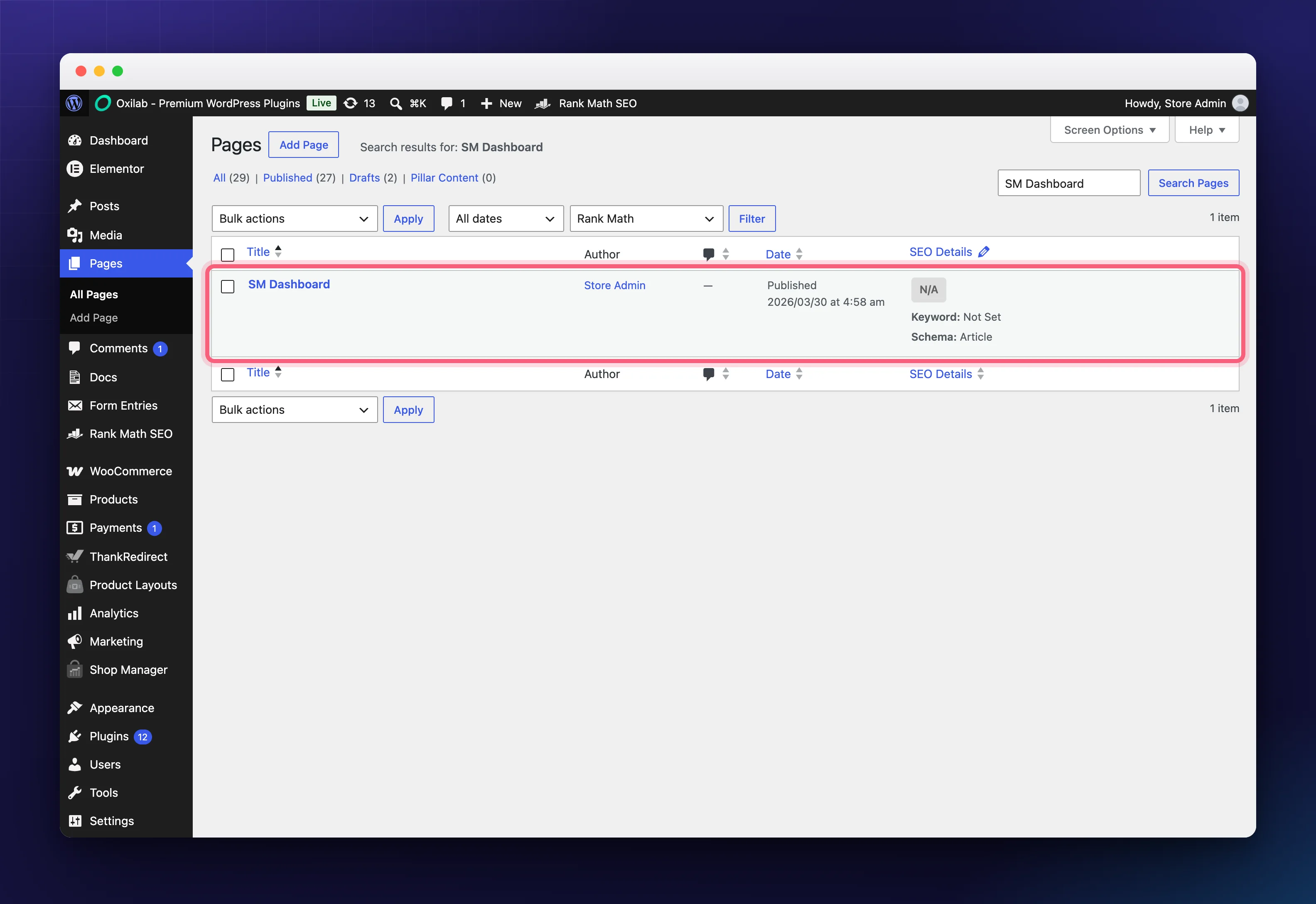
The SM Dashboard page holds your frontend dashboard. WordPress keeps the Trash link on its row, but the plugin blocks the deletion and explains why, so you cannot lose it by accident. Leave it alone unless you deliberately want to move the dashboard.
Troubleshooting
I cannot find the plugin when I search.
Search for the full name, Shop Manager for WooCommerce, and look for the card by Oxilab a few results down. You can also install it from the ZIP instead.
I see a notice saying WooCommerce is required.
Install and activate WooCommerce, then return to Shop Manager.
The ZIP upload fails or says the file is too large.
Your server upload limit is probably too low. Ask your host to raise it, or install from the dashboard instead.
The plugin activated but /sm-dashboard/ shows nothing.
Go to Settings → Permalinks and click Save Changes without changing anything. That refreshes WordPress’s links.
Related Documentation
- Set Up Your WooCommerce Frontend Dashboard: open and use the dashboard.
- Install & Activate Shop Manager Pro: add the paid plugin on top.
- All getting started guides