Manage WooCommerce Product Attributes Easily
Attributes are the characteristics of a product: Size, Colour, Material. Their values, called terms, are Small, Red, Cotton. They matter because variations are built from them, and they are the same attributes WooCommerce itself uses.
Your role needs Attributes access. Adding, editing and deleting are separate permissions, so see role-based access control if something is greyed out.
Global or Per-Product
Attributes come in two kinds, and it is worth knowing which you want before you start:
- Global: reusable, like Size with the terms Small, Medium and Large, applied to as many products as you like. These live on the Attributes screen, and only these can drive variations.
- Per-product: a one-off you type straight onto a single product, for something no other product needs.
The rest of this page is about the global kind.
The Attributes Screen
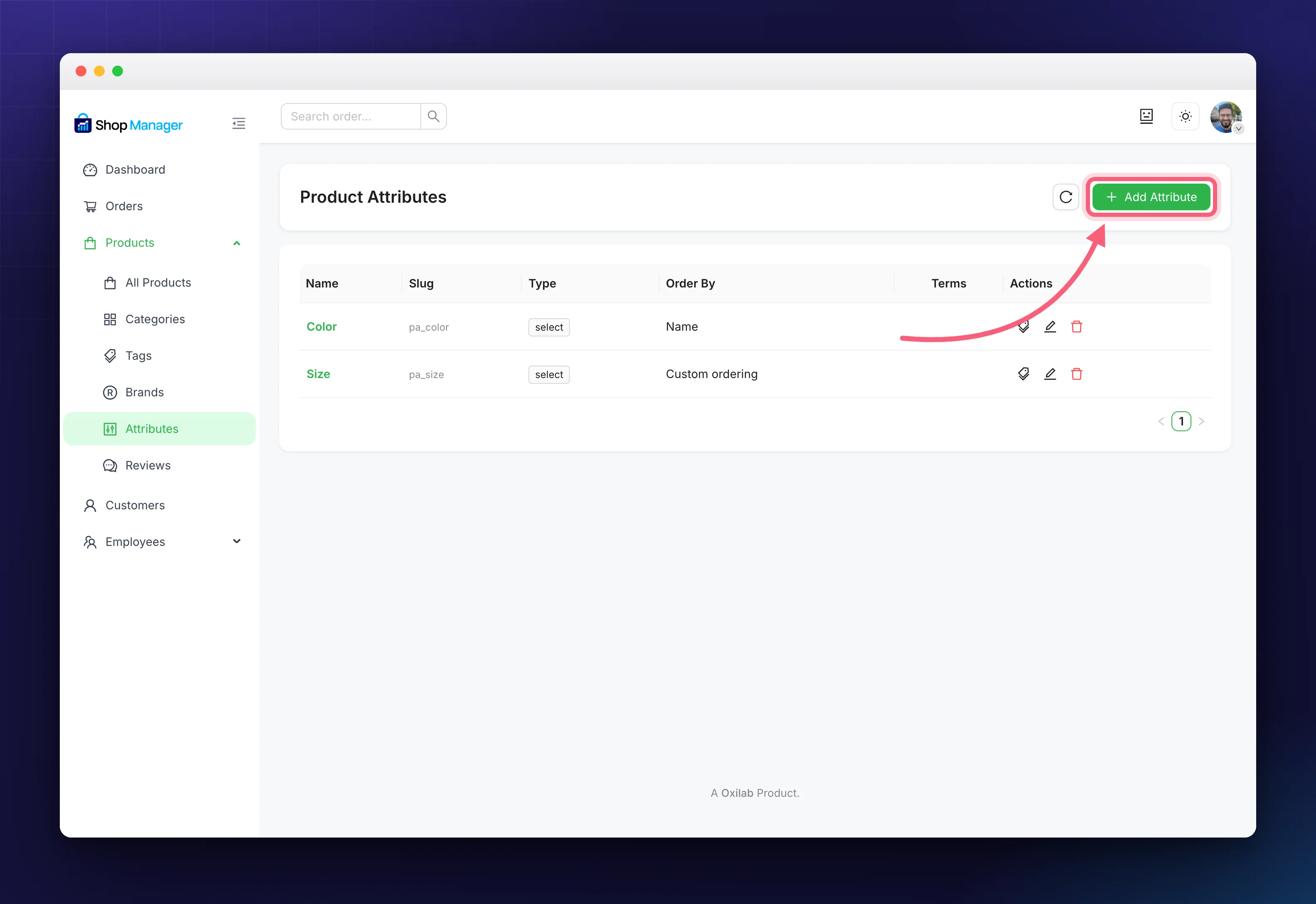
Open Products → Attributes. The screen lists every global attribute you have, with Add Attribute and a reload icon at the top right.
Creating an Attribute
- Click Add Attribute. The Add New Attribute dialog opens.
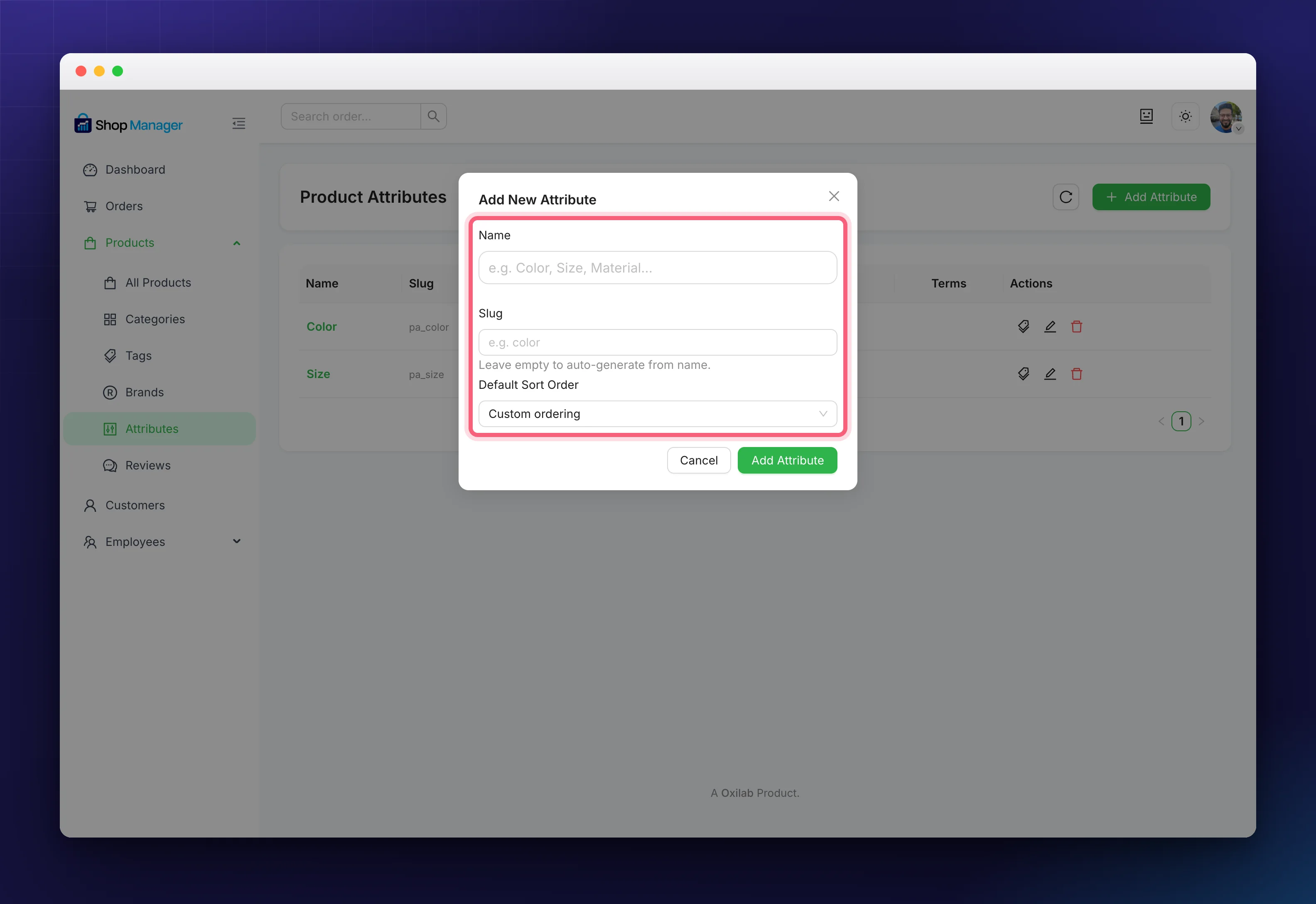
- Fill in:
- Name (required), e.g. “Color.”
- Slug: leave empty to auto-generate it from the name.
- Default Sort Order: Custom ordering, Name, Name (numeric), or Term ID.
- Click Add Attribute to save, or Cancel to back out.
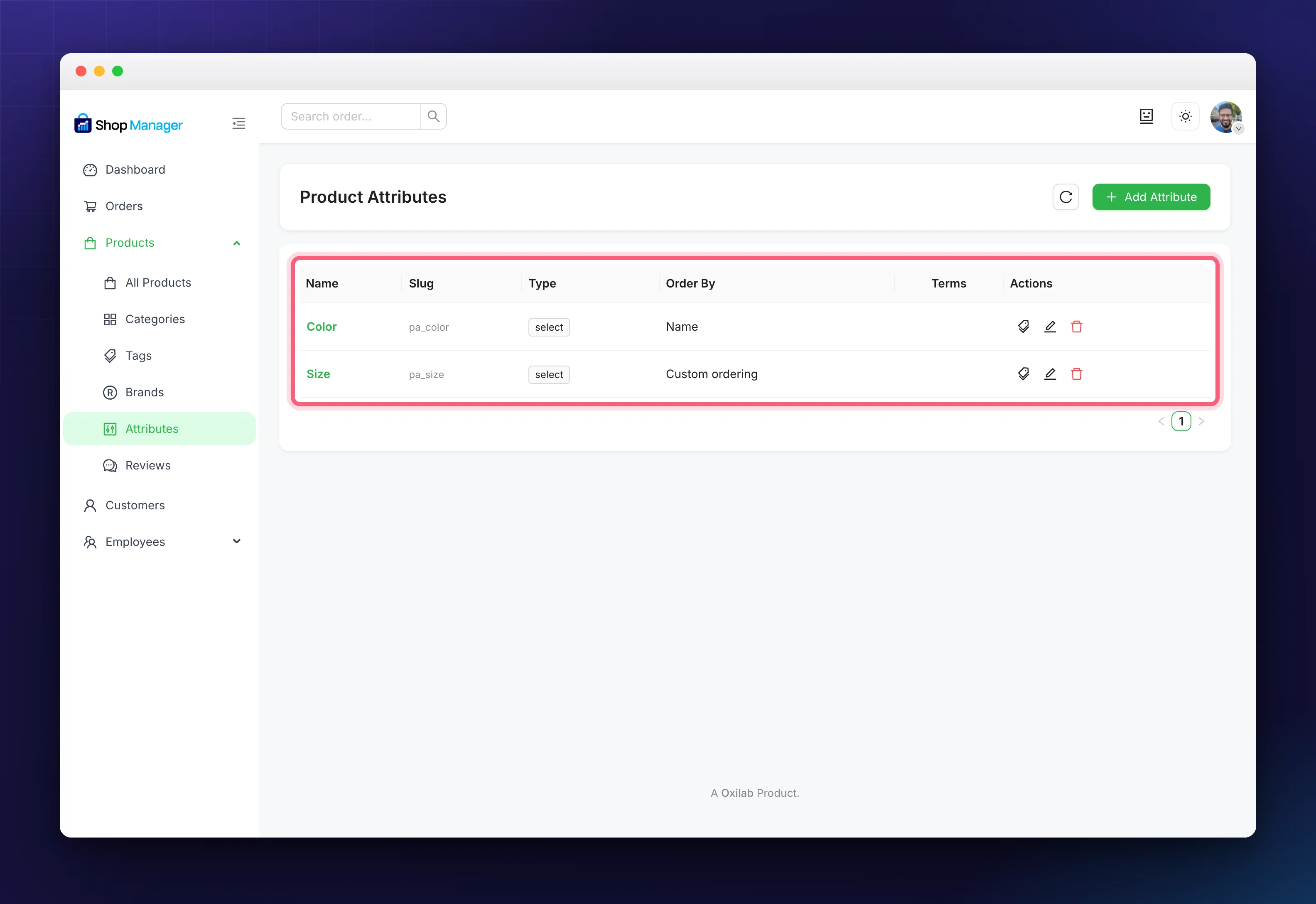
WooCommerce puts a pa_ prefix on every global attribute, so Color is stored as pa_color. That is what the table shows, and what you will see anywhere else WooCommerce names it.
Reading the Attributes Table
The columns are Name, Slug, Type, Order By, Terms and Actions. The row actions are Manage Terms, Edit and Delete. Deleting takes the attribute and every one of its terms with it, so check before confirming.
Adding Terms to an Attribute
- Click an attribute’s name (or the Manage Terms icon). A Terms panel opens beside the table.
- Click Add Term.
- Enter the term Name (e.g. “Red”) and an optional Description.
- Click Add Term.
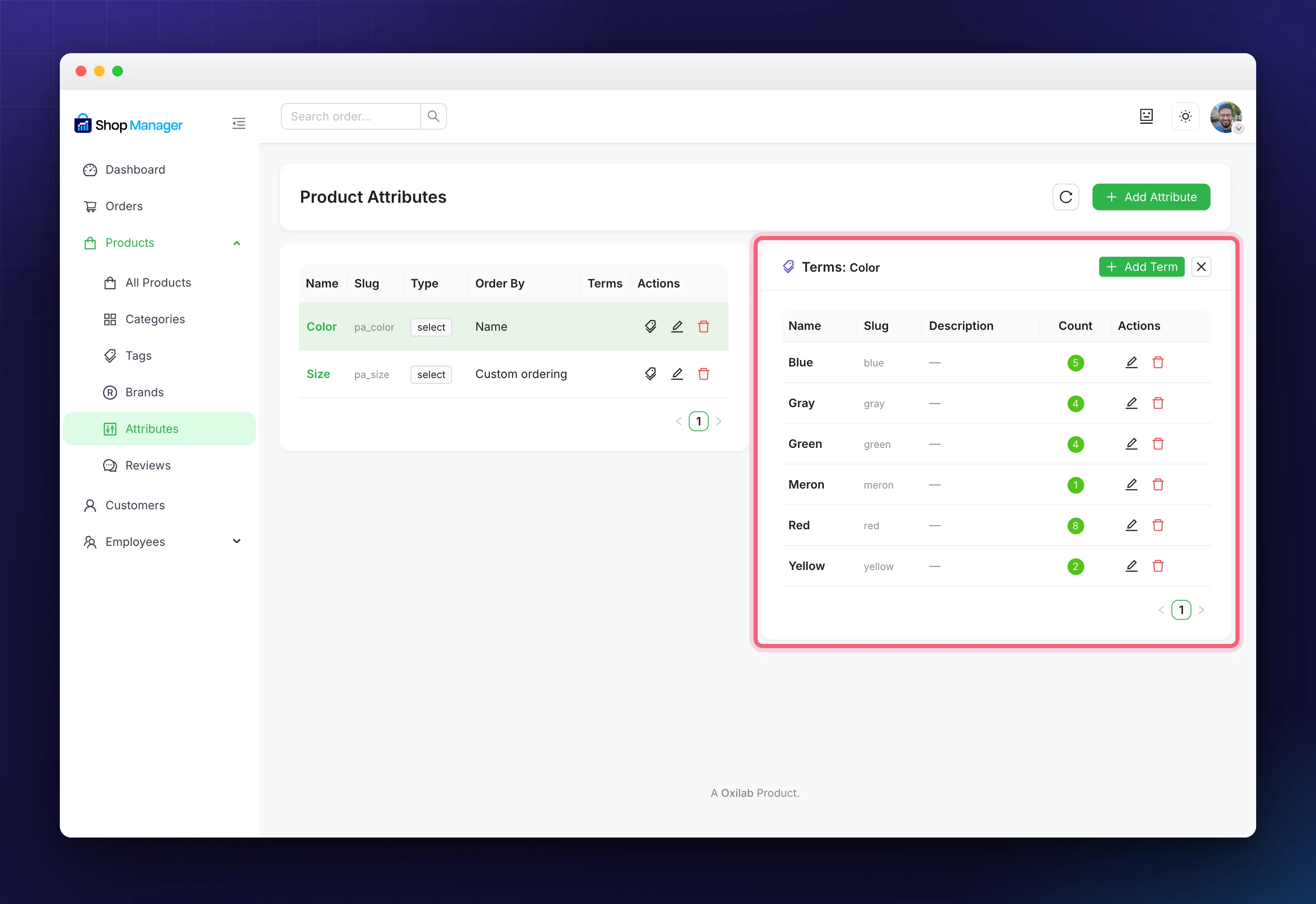
Each term shows its name, slug, description and a Count of the products using it, which is how you spot options nothing is assigned to. Edit and delete from the same panel, and close it with the ✕. The attribute’s row stays highlighted so you can see which one you are working on.
Putting an Attribute on a Product
On a product’s Attributes tab (in the Add/Edit Product form), you can:
- Select a global attribute and pick which of its terms apply, or
- Add a custom attribute just for that product.
For attributes that create variations (like Size and Color), mark them “Used for variations.” See How to Add a WooCommerce Product.
Building Variations From Them
To sell one product in several options, set its type to Variable, add the attributes with their terms, tick Used for variations, then generate the variations. Each gets its own price, stock and image.
This is the reason to set attributes up properly first: every term becomes a choice in the dropdown a customer sees. Name them the way a shopper reads them, so Small rather than S1. Sort order is worth setting when you create the attribute too: Name suits colours, but sizes need Custom ordering or you get Large, Medium, Small.
This is why it pays to set up your WooCommerce product attributes carefully before you build variable products: every term you define becomes a choice your customers can pick on the product page.
Troubleshooting
Terms will not load.
Click the attribute name again to reopen the panel, then try the reload icon at the top of the screen.
My attribute is not offered for variations.
On the product’s Attributes tab it has to be both added and ticked as Used for variations. Only then can you generate anything from it.
I can’t add or delete attributes.
Those actions require the add/delete attribute permissions. Ask an administrator to enable them for your role.
Frequently Asked Questions
How is an attribute different from a tag?
A tag is a loose keyword for discovery. An attribute is a structured characteristic with defined terms, and only an attribute can drive variations.
Do these sync with WooCommerce?
They are not a copy. These are WooCommerce’s own attributes and terms, so a change here is a change everywhere.
Can I add a one-off attribute to just one product?
Yes. Add a custom attribute on that product’s Attributes tab instead of creating a global one.
Can I change an attribute’s type later?
No. The type is fixed once the attribute exists, so create a new one if you need a different setup.
Related Documentation
- How to Add a WooCommerce Product: put attributes on a product and build variations.
- WooCommerce Product Categories, Tags & Brands: the other ways to organise products.
- WooCommerce Product Management from Frontend: the full product list.