Set up Your WooCommerce Frontend Dashboard
Your frontend dashboard is the screen where you run the store day to day. Shop Manager creates it for you when you activate the plugin, so there is nothing to build. You do not need a page or a shortcode. This page shows you how to open it, what is on it, and who can get in.
Three Ways to Open It
1. From the Settings Page
Click Shop Manager in your WordPress sidebar, then the Frontend Dashboard button at the top right.
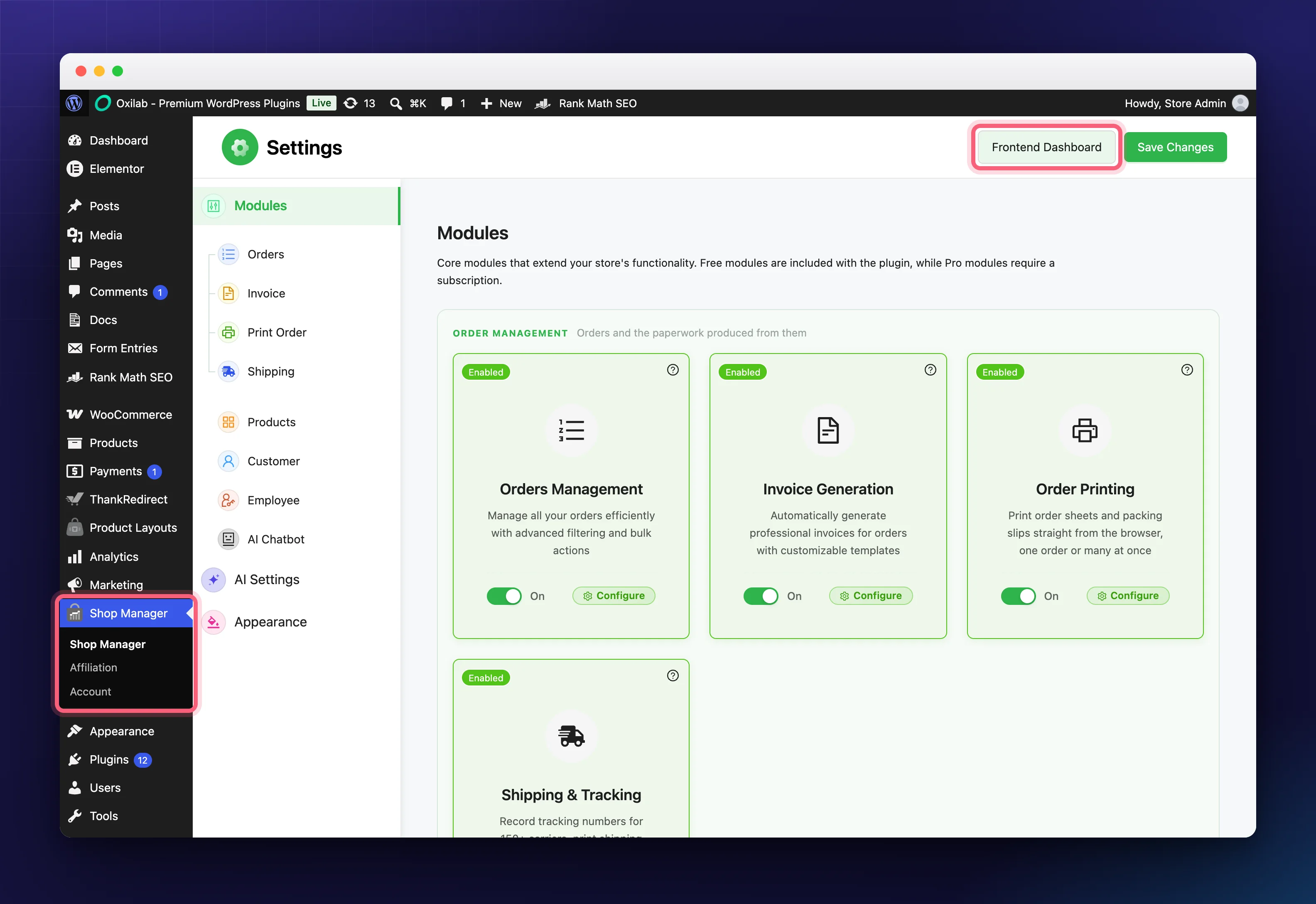
Both parts are highlighted above: the sidebar entry on the left, and the Frontend Dashboard button on the right, next to Save Changes. It takes you straight to /sm-dashboard/, which is the quickest route when you are already in wp-admin.
2. Straight to the Address
Open yoursite.com/sm-dashboard/ in your browser. Bookmark it, and you and your staff can reach it in one click every day.
3. From the Pages List
Go to Pages, find SM Dashboard, hover the row and click View.
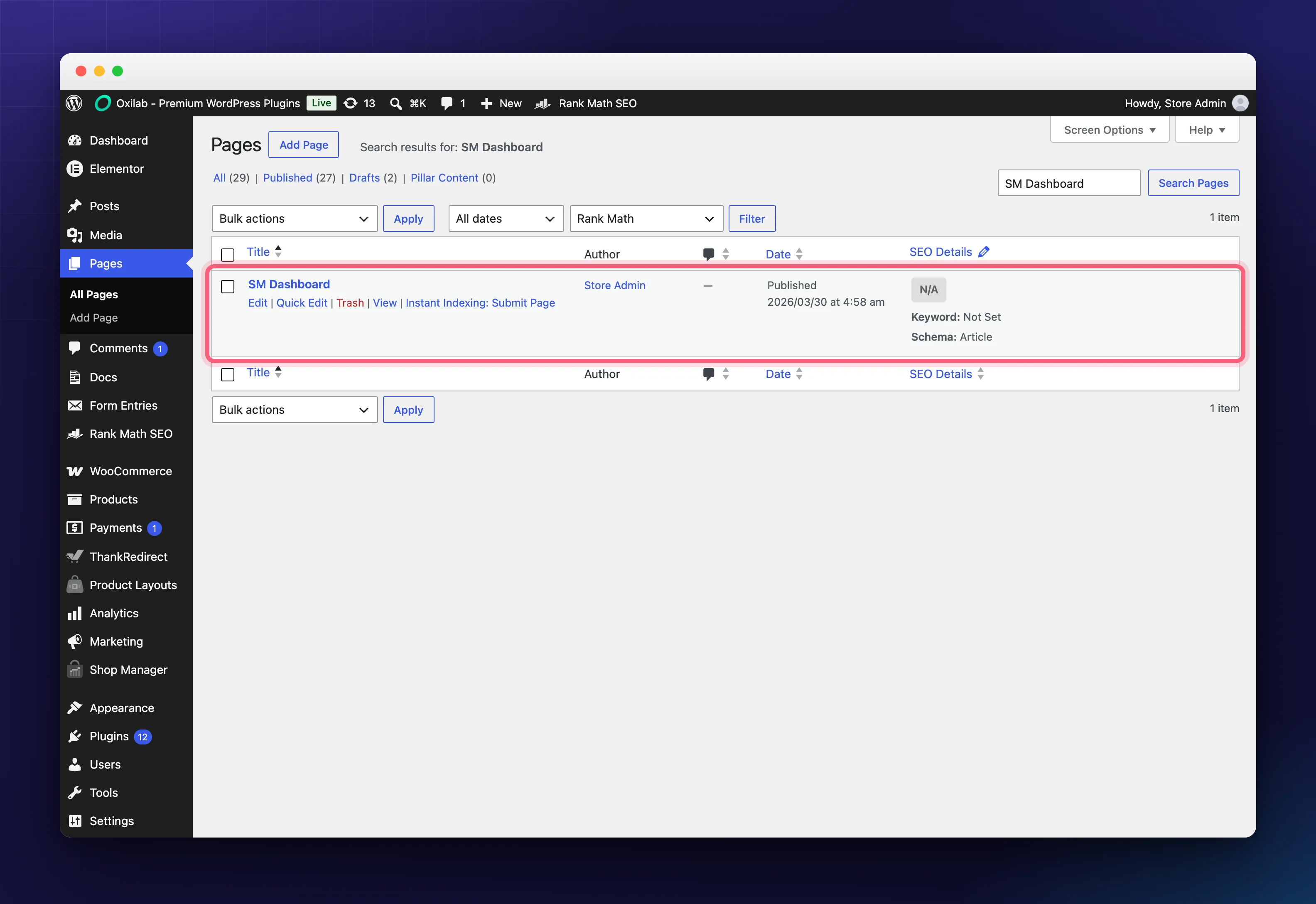
The page is protected rather than hidden. WordPress still offers Trash on the row, but the plugin stops the deletion with “This page is required for the Shop Manager plugin and cannot be deleted.” Leave its slug alone too: the dashboard is built around /sm-dashboard/, and changing it breaks navigation.
What Is on the Screen
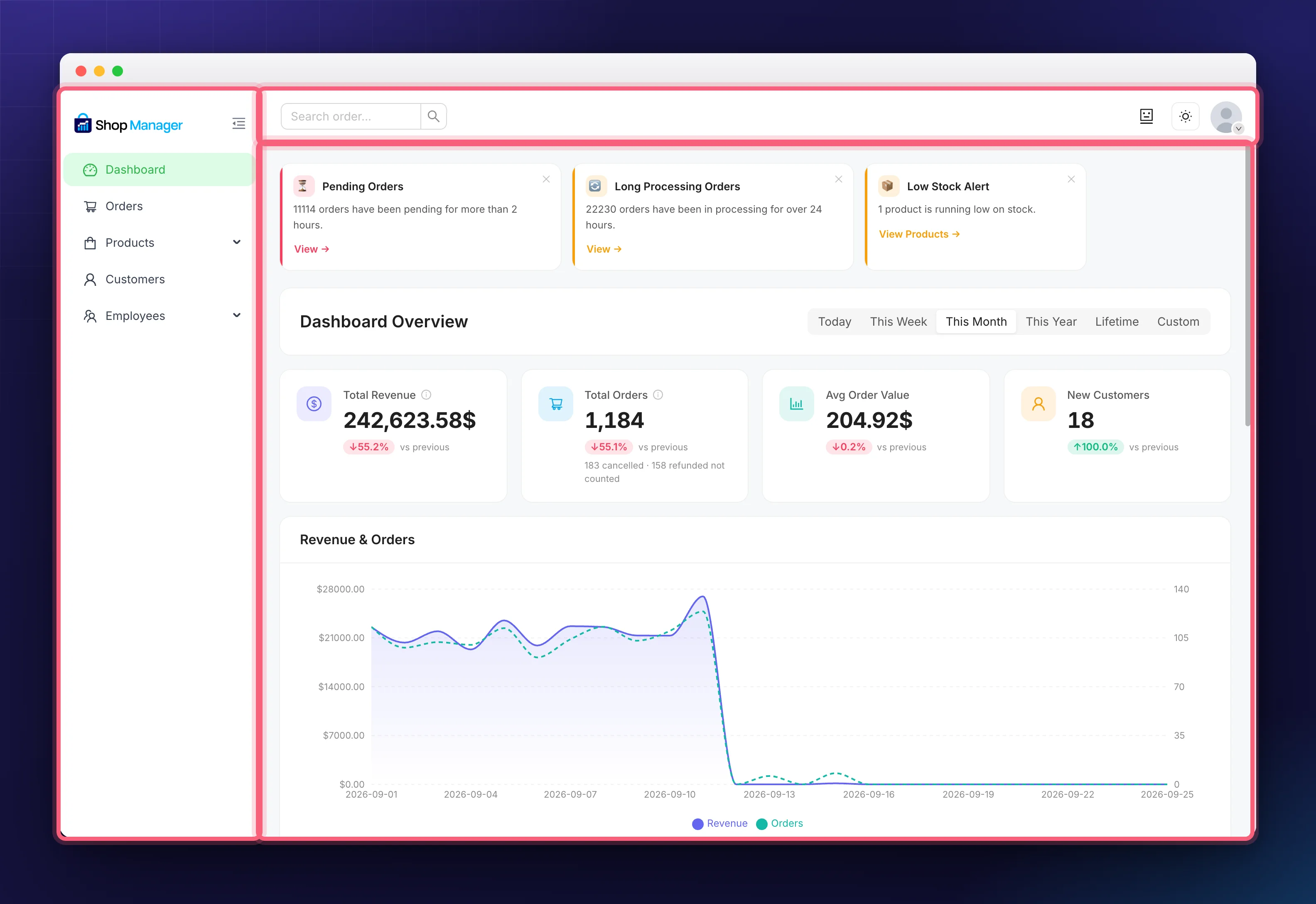
- Left sidebar. Your navigation: Dashboard, Orders, Products, Customers and Employees. Products and Employees expand into sub-items.
- Top header. An order search box, the AI Assistant button, a light and dark mode toggle, and your account avatar.
- Main area. Whatever you have opened. On the Dashboard itself, that is your live numbers and store alerts.
Which menu items you see depends on the modules you have switched on and, for staff, on what their role allows. On the free plugin an Upgrade to Pro card also sits at the bottom of the sidebar, and disappears once Pro is active.
Collapsing the Sidebar
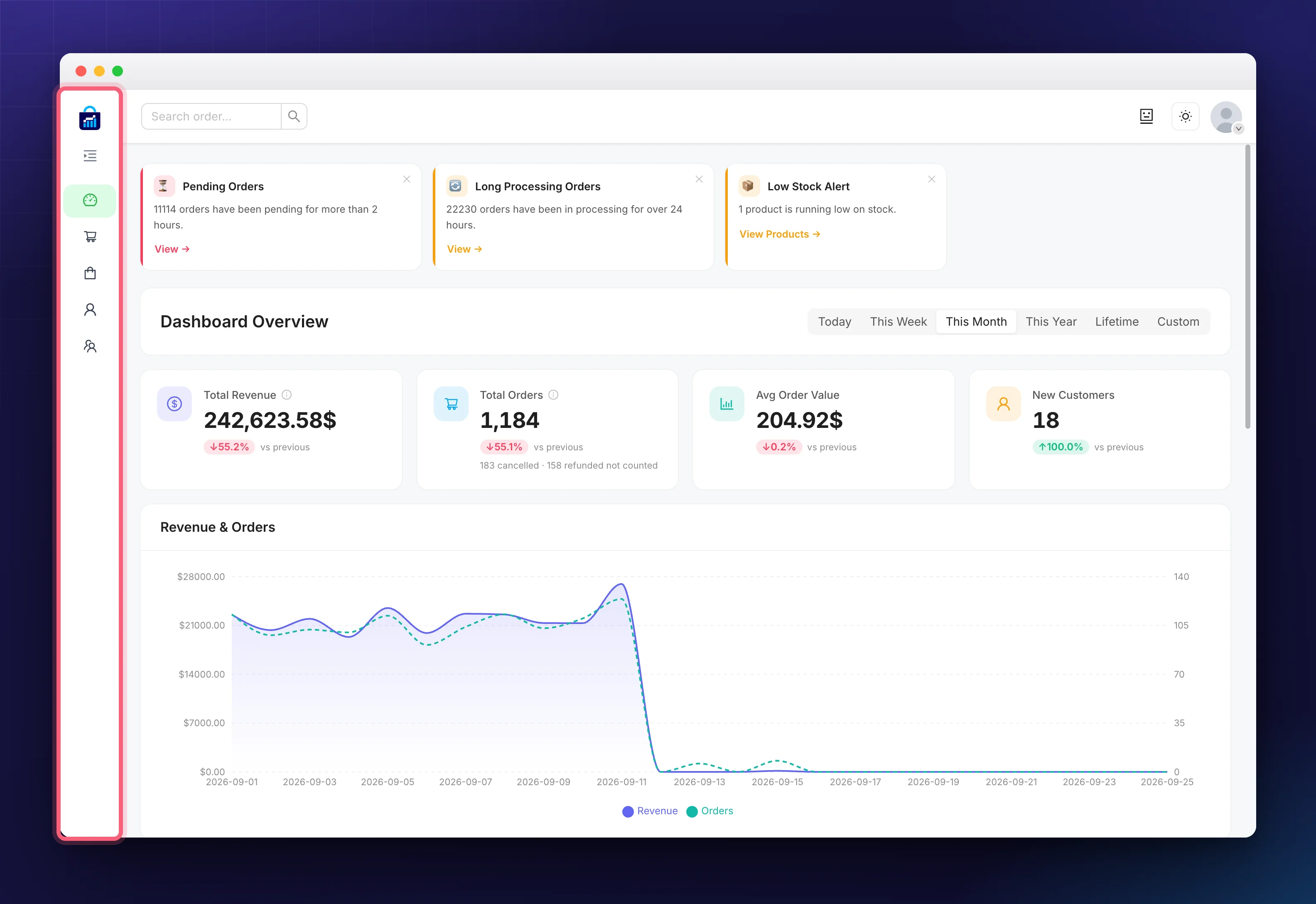
The icon beside the Shop Manager logo collapses the sidebar to icons, which gives the main area more room on a small screen. Click it again to bring the labels back.
The Account Menu
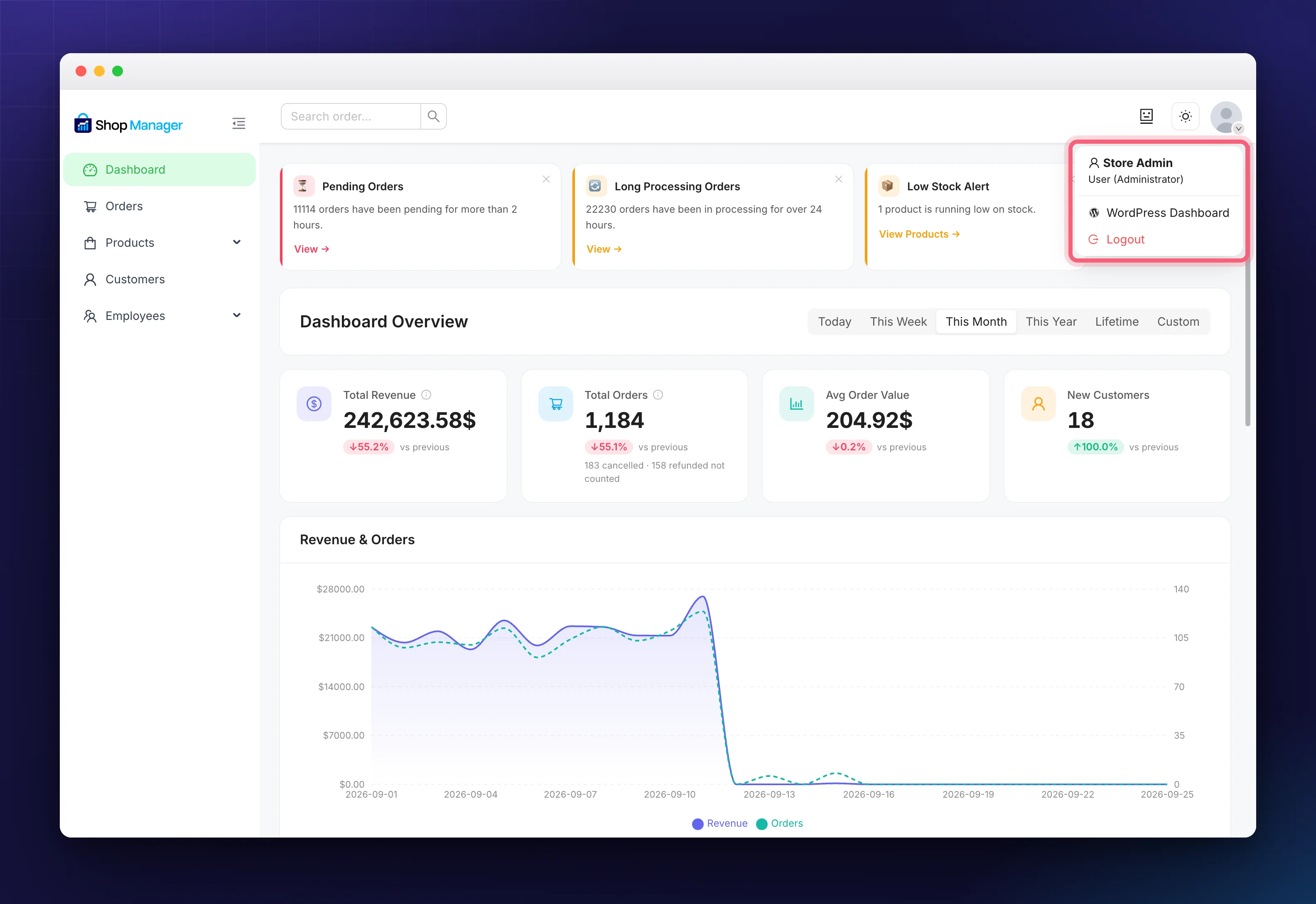
Clicking your avatar shows your name and role, a WordPress Dashboard link back to wp-admin, and Logout.
Who Can Get In
The dashboard is not public, so customers and visitors cannot see it. Access is limited to administrators and store managers, who see everything, and to employees you have added, who see only what their role allows.
Staff in a Shop Manager role are redirected out of wp-admin and into the dashboard automatically, so they only ever work in this one place. That also means you do not need to add a menu link for your team: logging in is enough.
Troubleshooting
“Page not found” at /sm-dashboard/.
Go to Settings → Permalinks and click Save Changes without changing anything. That refreshes WordPress’s links.
The page is blank or will not load.
Clear your caching plugin and browser cache, then reload. A conflicting theme or plugin can also interfere, so switching to a default theme is a quick way to test.
I am sent to the login screen.
The dashboard needs you logged in with an allowed role. Use an administrator account, or a Shop Manager employee account.
Related Documentation
- WooCommerce Dashboard Analytics: the numbers on the main screen.
- Employee Management: give your team access.
- All getting started guides