WooCommerce Product Management from Frontend
The All Products screen is your catalogue on the front end of your own site: browse it, search it, filter it, edit or duplicate a product, and export a CSV, without opening wp-admin. Open it from Products → All Products in the sidebar.
If you are an employee rather than an administrator, your role needs Products access. Editing, duplicating, deleting, exporting and creating are each separate permissions, so a missing button usually means a missing permission.
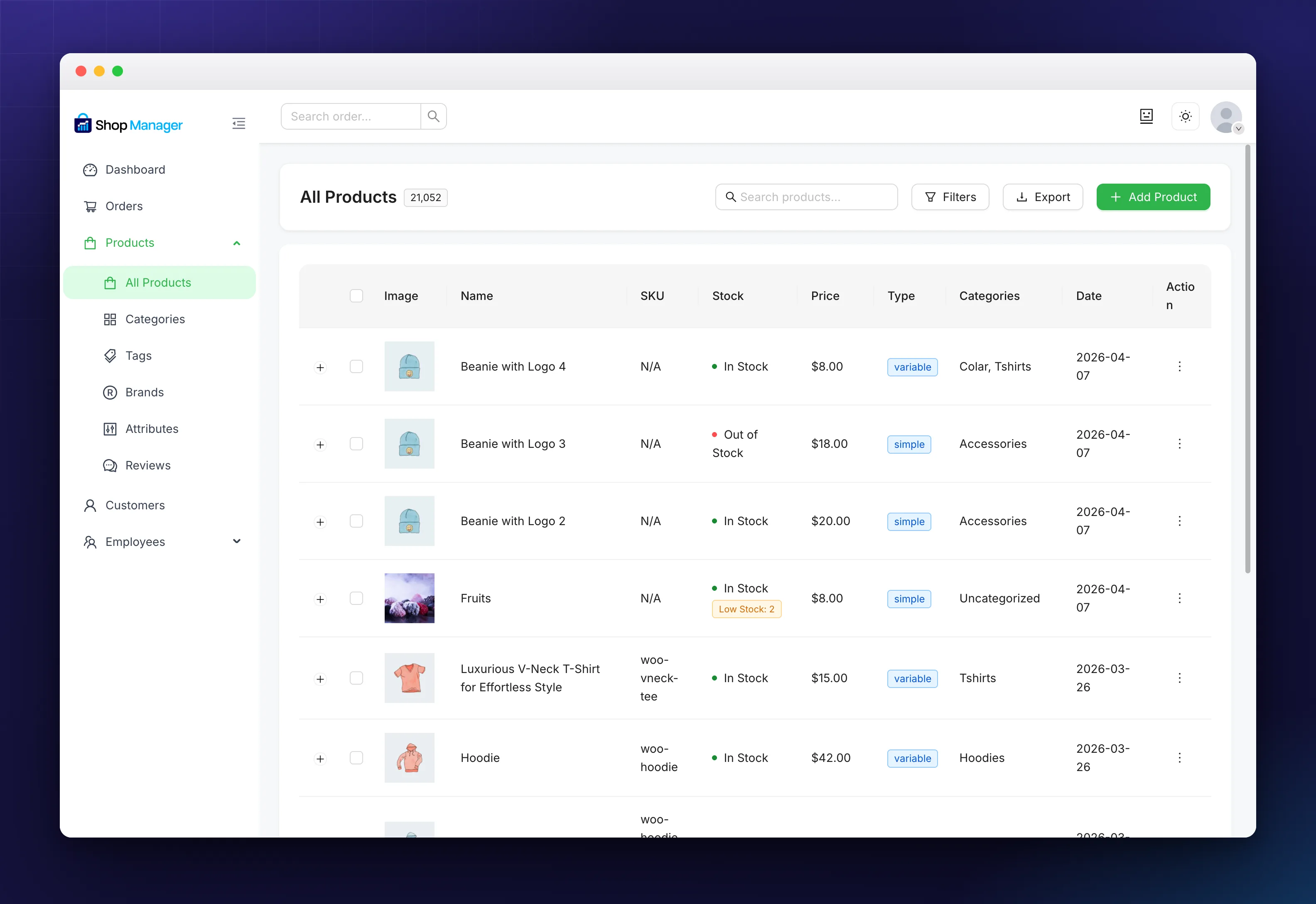
Reading the Table
The columns are Image, Name, SKU, Stock, Price, Type, Categories, Date and Action. A product with no SKU shows N/A, and a draft carries a Draft tag next to its name.
The Stock column is the one worth watching: it shows In Stock or Out of Stock, and adds a Low Stock tag with the remaining quantity once a product drops to your low stock threshold.
The + at the start of a row expands it to show the product’s description, tags and brand, which saves opening the product just to check one of them.
Searching and Filtering
The Search products… box in the header matches as you press Enter. For anything more precise, click Filters.
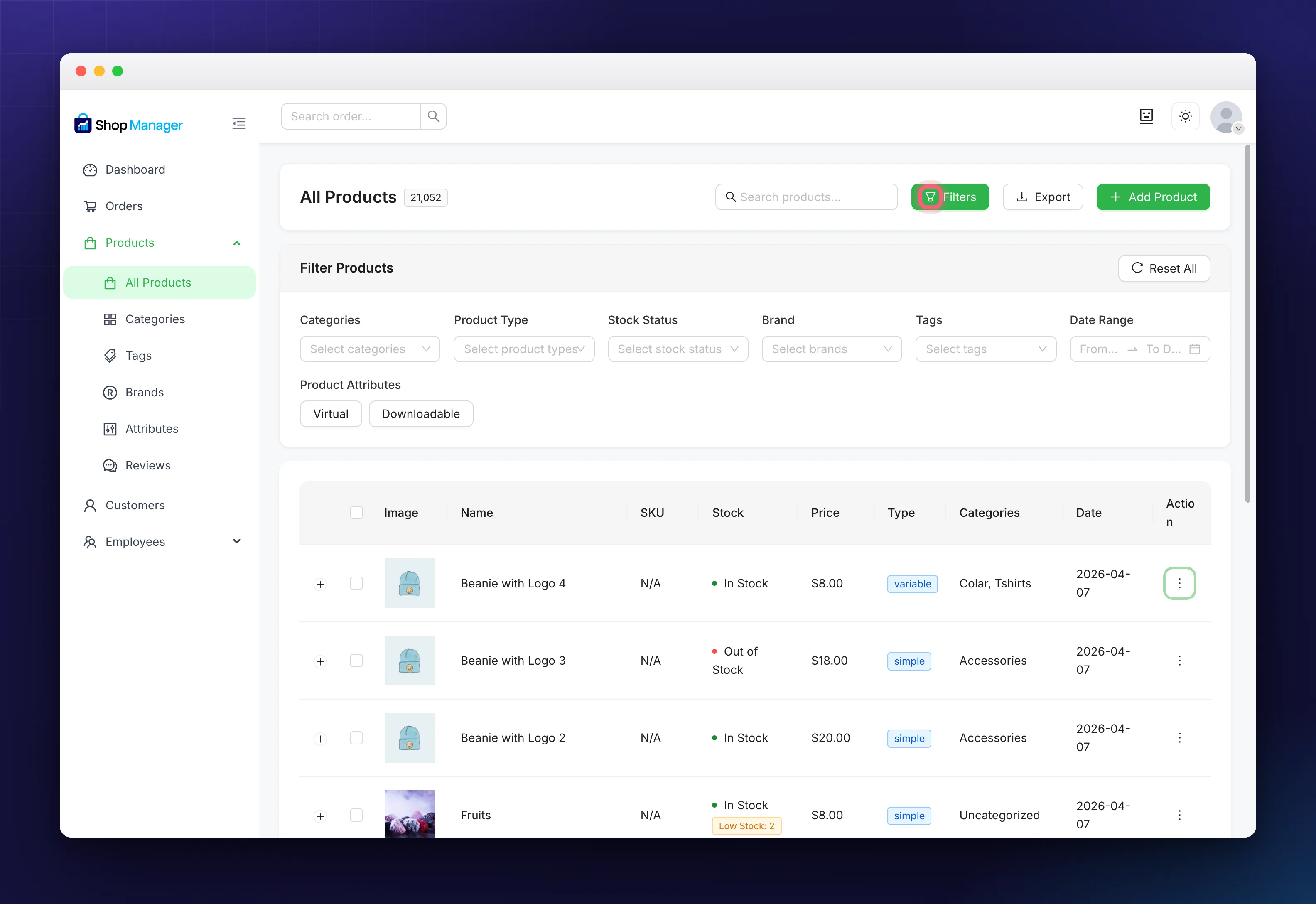
The panel opens inline under the header, with Categories, Product Type, Stock Status, Brand, Tags, Date Range, and Product Attributes toggles for Virtual and Downloadable. Stock Status includes a Low Stock option, which is the fastest way to build a restock list. Reset All clears everything.
Unlike the order filters, these need no setting up. They are there from the start.
What You Can Do to a Product
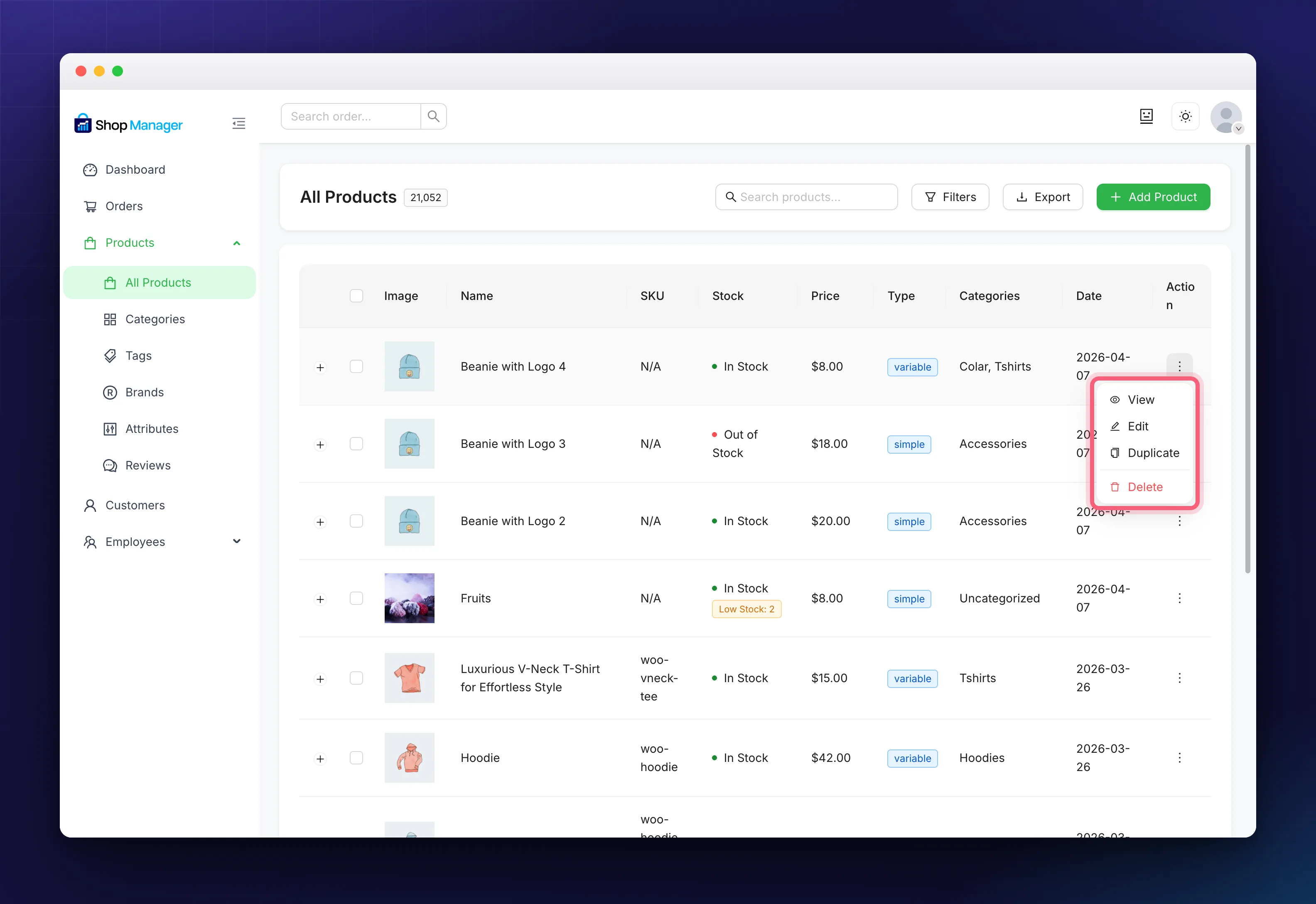
- View: opens the product’s public page in a new tab.
- Edit: opens the full product form. Clicking the product name does the same.
- Duplicate: makes a copy straight away, which is the quickest way to build a product that is nearly the same as one you already have.
- Delete: removes the product, after a confirmation.
Delete here is permanent. The product is not sent to the WordPress trash, so there is nothing to restore afterwards. If you only want it off the shop for now, edit it and set its status to Draft instead.
Working on Several at Once
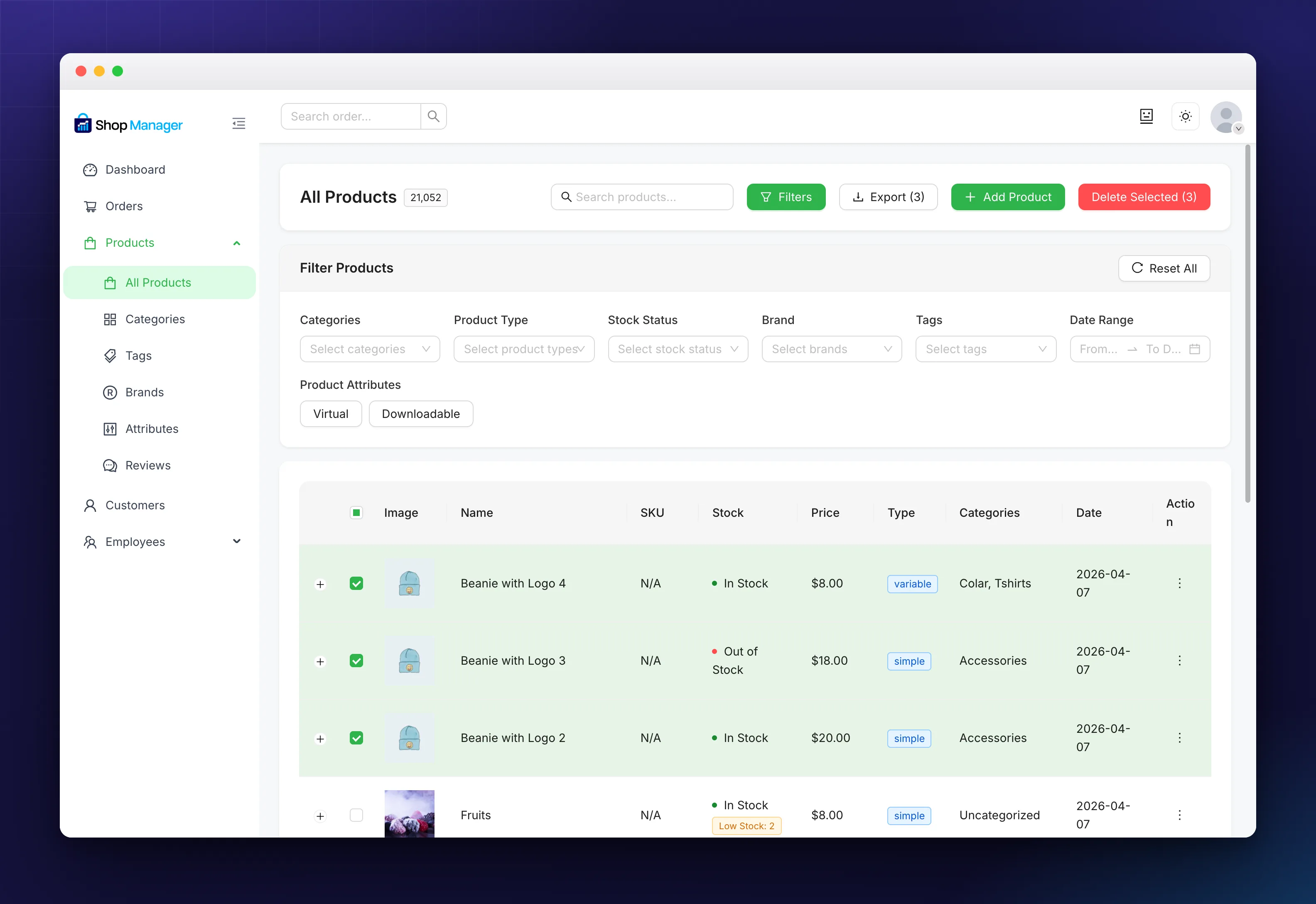
Tick some products and the header buttons pick up a count: Export (3) and Delete Selected (3). Deleting in bulk is permanent in the same way, and it asks first.
Exporting to CSV
Tick the products you want, or select none to export everything matching your current filters, then click Export. You get a file named products-YYYY-MM-DD.csv with columns for ID, Name, SKU, Type, Price, Stock Status, Categories and Date.
There is no import here, only export. For bringing products in, use WooCommerce’s own importer.
Troubleshooting
No products at all.
A filter is probably still applied. Click Reset All, and check your store really has published products.
Out of stock products are missing.
Show Out of Stock Products under Shop Manager → Settings → Products hides them. That switch is shared with WooCommerce, so it also affects your shop.
A button is missing.
Add, Export, Duplicate and Delete each depend on a permission. Ask an administrator to adjust your role.
Related Documentation
- How to Add a WooCommerce Product: the full product form.
- Categories, Tags & Brands: organise the catalogue.
- All product management guides