Role-Based Access Control for Your Store
Not everyone on your team needs to see everything. Shop Manager’s role-based access control decides, permission by permission, what each role can open and what it can change. Grant nothing and the sidebar item disappears; grant viewing but not deleting and the delete button is simply not there.
Role-based access control is free to review and to change. Only building a brand new role needs Pro.
Opening Roles and Access
In the dashboard sidebar, open Employees, then Roles & Access.
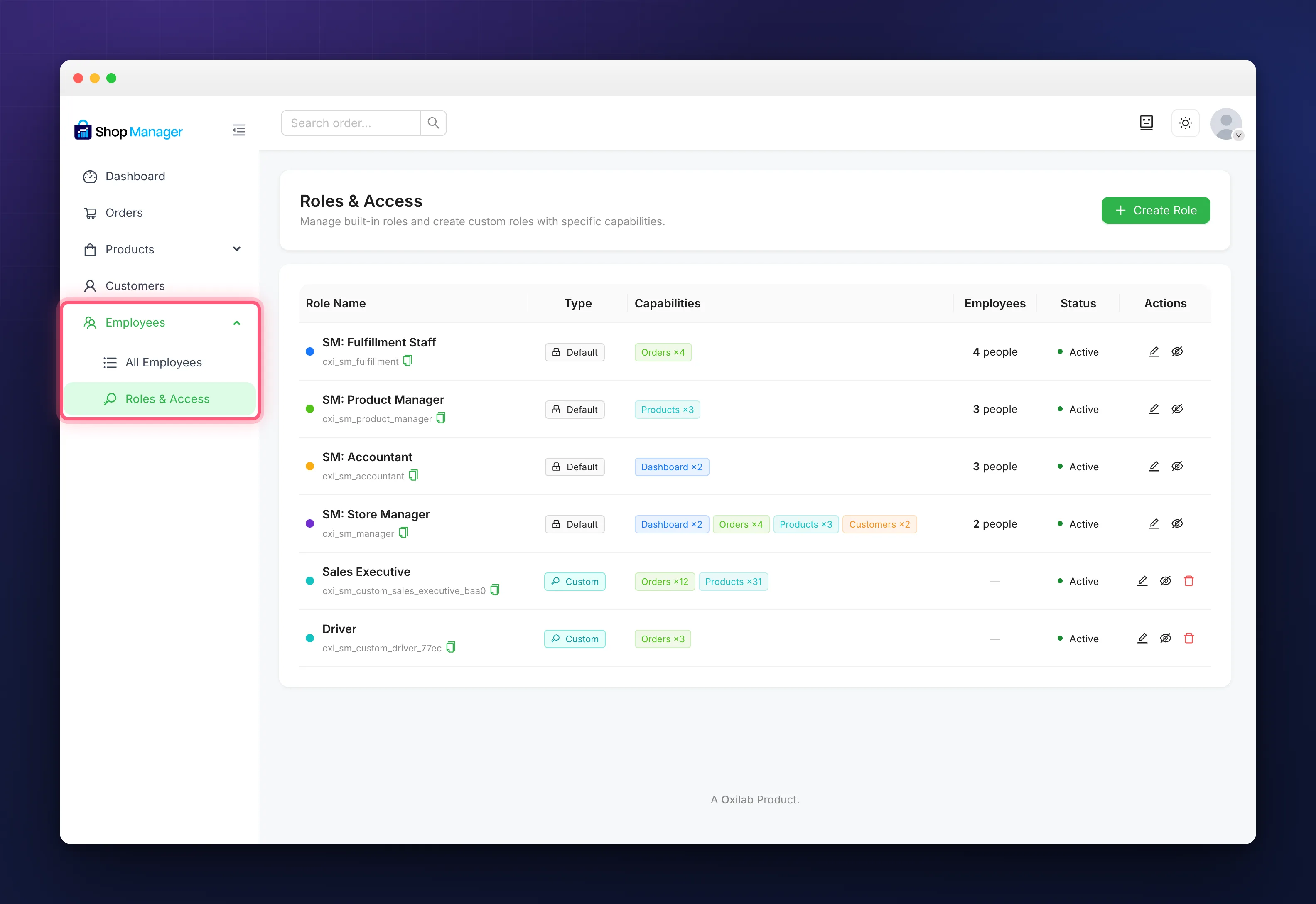
Each row is one role, with its internal key under the name, a Type of Default or Custom, a summary of its Capabilities, how many Employees hold it, a Status of Active or Hidden, and the buttons under Actions.
Those buttons are edit capabilities, hide or restore the role, and delete it. The delete button only appears on custom roles: the four built-in ones cannot be removed, though they can be hidden and their permissions can be changed freely.
What You Can Grant
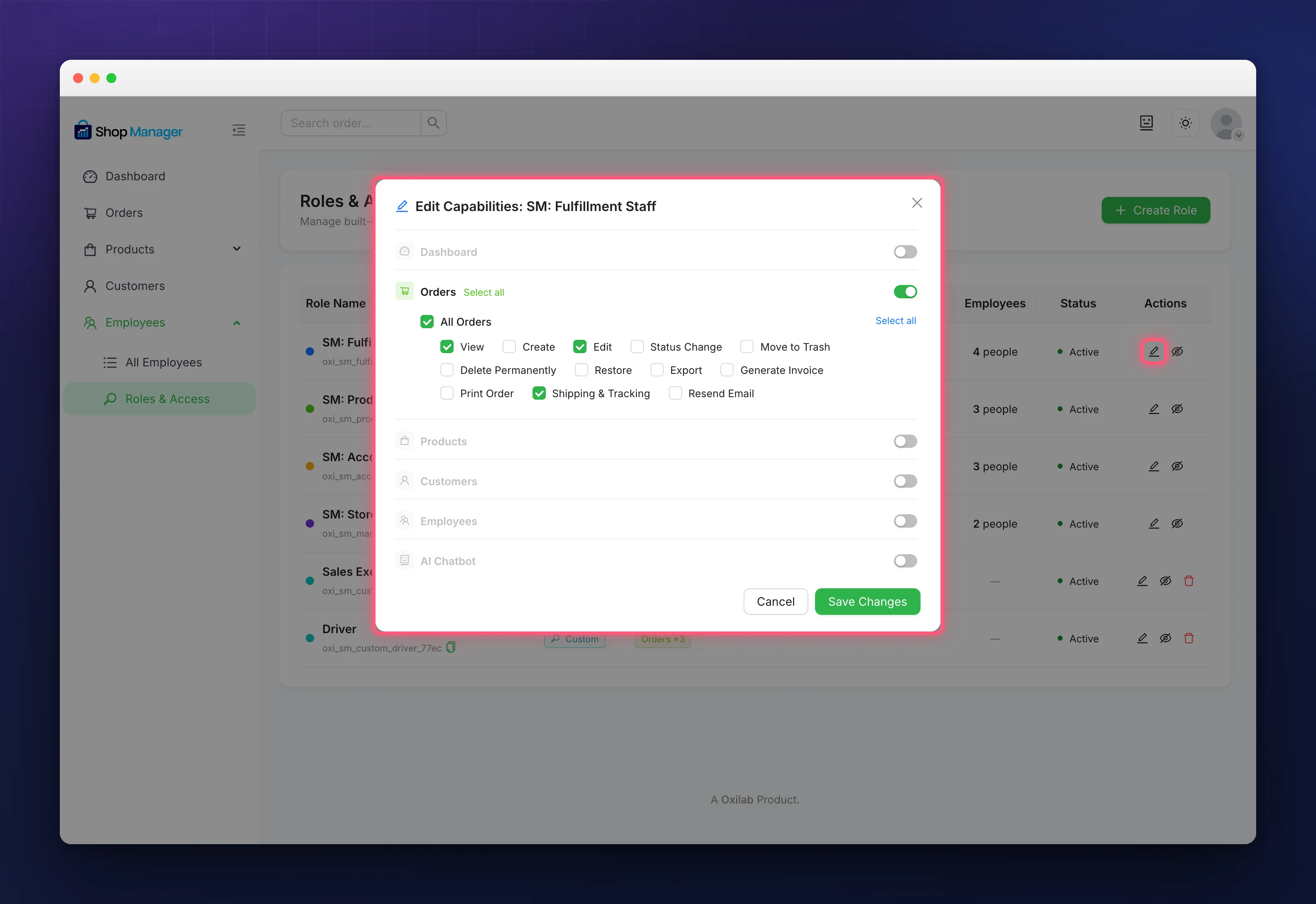
Role-based access control is built from six groups. Open a role with the pencil and you get all of them. Each group has a master switch, each section inside it has an access checkbox, and each action has its own box, with a select all on every level.
| Group | Sections and actions |
|---|---|
| Dashboard | View Dashboard, with View Reports and Export Reports |
| Orders | All Orders, with View, Create, Edit, Status Change, Move to Trash, Delete Permanently, Restore, Export, Generate Invoice, Print Order, Shipping & Tracking and Resend Email |
| Products | All Products, with Add New, Edit, Duplicate, Delete and Export. Then Categories, Tags, Brands and Attributes, each with Add New, Edit and Delete. Then Reviews, which has only Edit and Delete |
| Customers | All Customers, with View, Edit and Delete |
| Employees | All Employees, with View, Add New, Edit and Delete. Then Roles & Access, with Create Role, Edit and Show / Hide |
| AI Chatbot | Use AI Assistant |
Work top down, because role-based access control is strict about order: a section’s access box is what puts the screen in front of them at all, so ticking Delete without it achieves nothing.
The Four Built-in Roles
SM: Fulfillment Staff, SM: Product Manager, SM: Accountant and SM: Store Manager arrive already configured and are marked Default. They are a starting point, not a fixed menu: open any of them and change the ticks, and the new set applies to everyone already holding that role.
None of them can manage employees out of the box. If you want someone other than an administrator to add staff, you have to grant the Employees permissions yourself.
Hiding a Role and Adding New Ones
Hiding a role keeps it working for the people who already have it, but takes it out of the role dropdown so nobody new can be put in it. It is the tidy way to retire a role you no longer hand out.
Deleting is only possible for custom roles, and anyone still assigned to one loses their access, so move them first. Create Role needs Pro: without a licence the button carries a padlock and sends you to the upgrade page, and any custom role you already have shows Pro Required and grants nothing until the licence is active. See Create Custom Employee Roles.
None of this applies to administrators. Administrators, editors and the WordPress Shop Manager role bypass these permissions entirely, so testing from your own account will always show everything. Check your work by signing in as the employee, or ask them.
Troubleshooting
An employee cannot see a section at all.
The group’s master switch is off, or the section’s access box is unticked. Both have to be on before anything inside them shows up.
They can see the screen but a button is missing.
That one action is not granted. Delete, Export and Status Change are each separate ticks, so a role can read orders without being able to touch them.
A role shows Pro Required.
It is a custom role on a site without an active licence. It stays listed but grants nothing. See Install & Activate Shop Manager Pro.
I changed a permission and nothing happened.
Have the employee reload the dashboard. The sidebar and the buttons are built from their capabilities when the page loads.
Related Documentation
- Add Employees & Assign Roles: putting someone into a role.
- Create Custom Employee Roles: building a role of your own, with Pro.
- WooCommerce Employee Management with Shop Manager: how the whole thing fits together.