AI Product Description Generator for WooCommerce
Writing product copy is the part most shop owners put off. The AI product description generator writes a first draft for you, inside the product form, in the tone you pick. It needs Shop Manager Pro and an AI provider key, which you set up in AI Settings. Without Pro the button carries a PRO tag.
Opening It
Open the product form and click Generate With AI at the top.
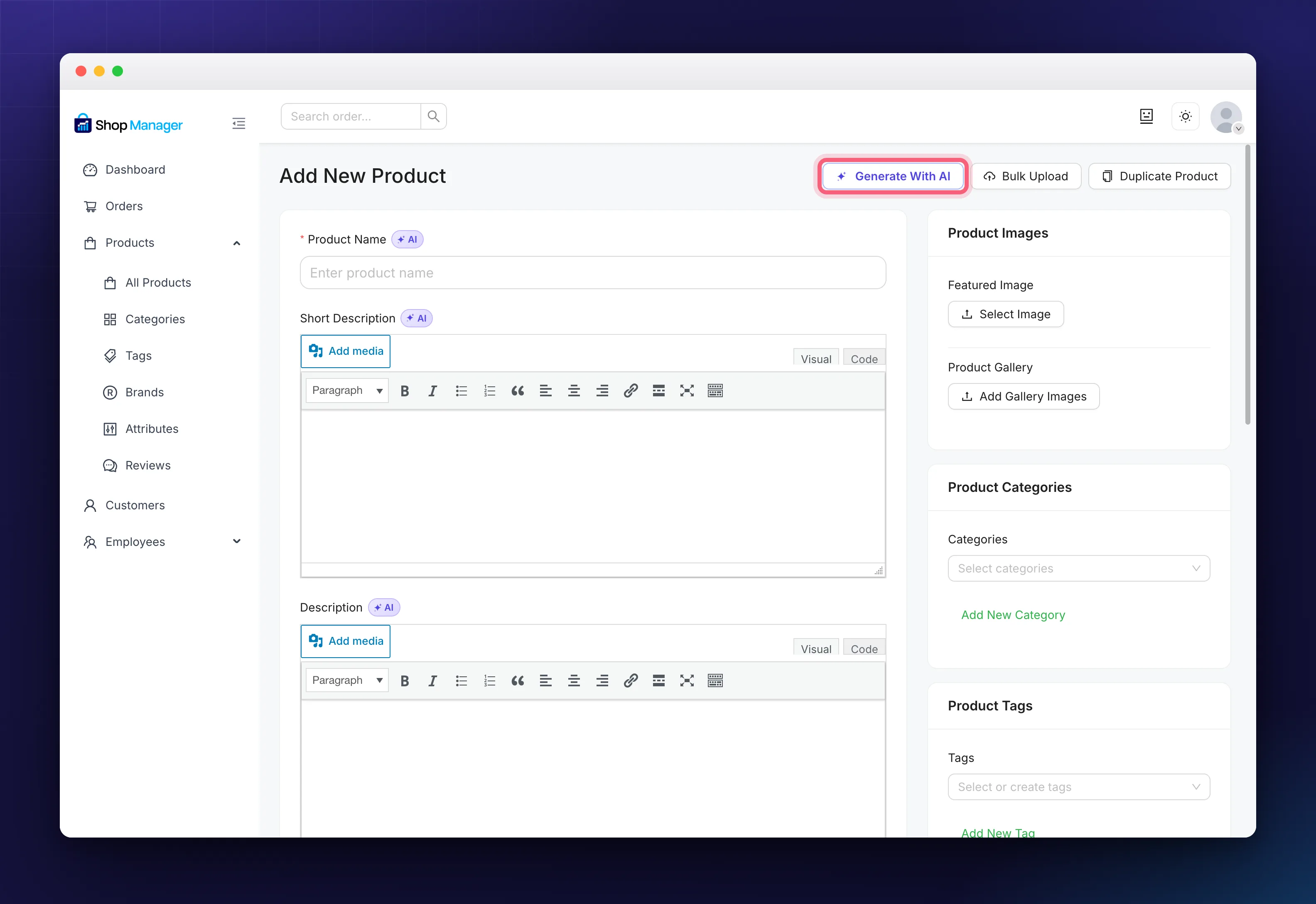
There are also small AI badges beside the short description and description fields. Those open the same window but return only that one field, which is what you want when the rest of the product is already written.
Telling It What to Write
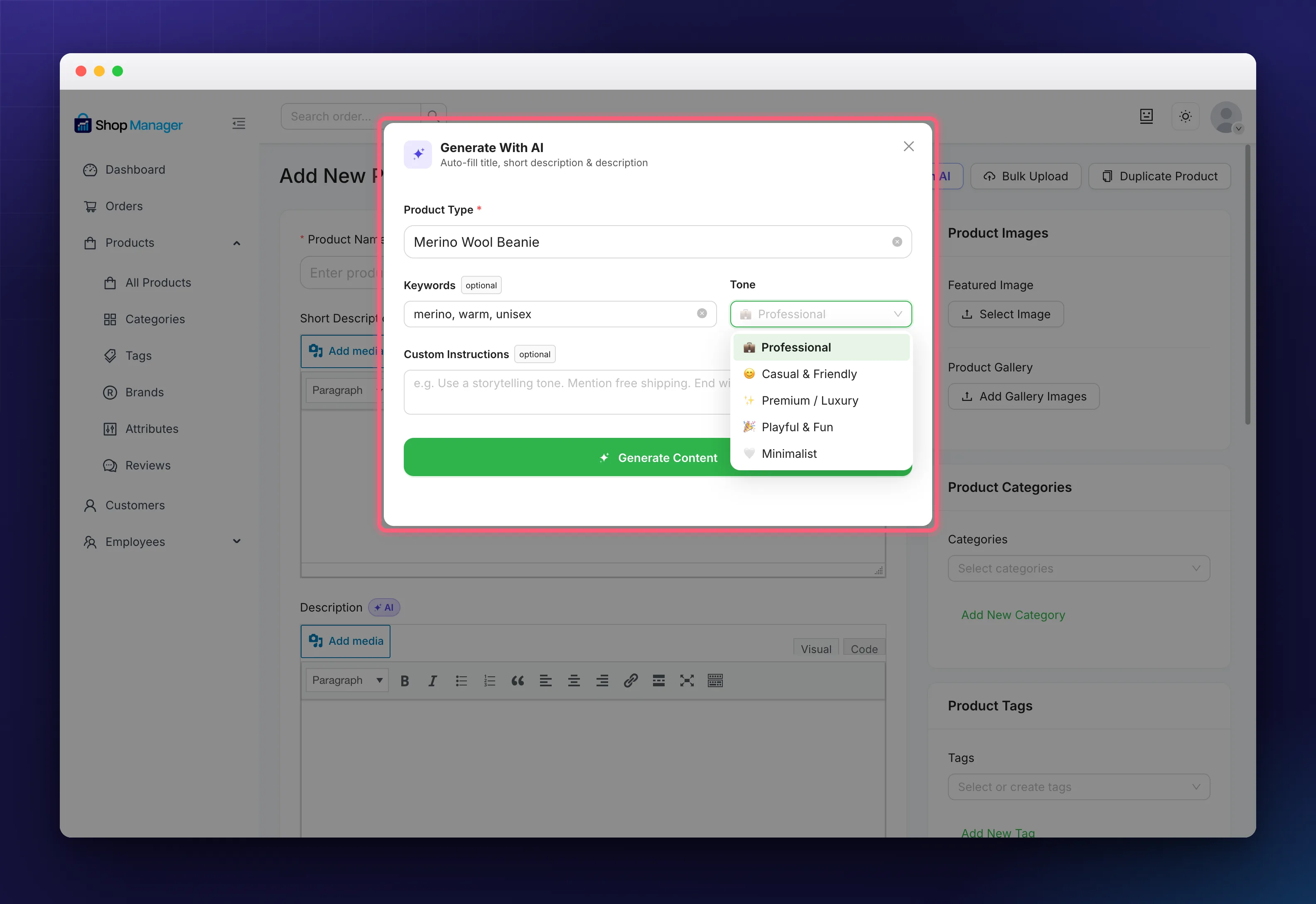
- Product Type is the only required field. Describe the thing plainly: Merino Wool Beanie, Leather Wallet.
- Keywords are words to work in, such as merino, warm, unisex.
- Tone offers five voices: Professional, Casual & Friendly, Premium / Luxury, Playful & Fun, and Minimalist.
- Custom Instructions is where the real control is. Anything you write here sits on top of the tone: mention free shipping, end with a call to action, write in French.
Then press Generate Content. The better your inputs, the less editing you will do afterwards: a vague product type gives vague copy.
Using What Comes Back
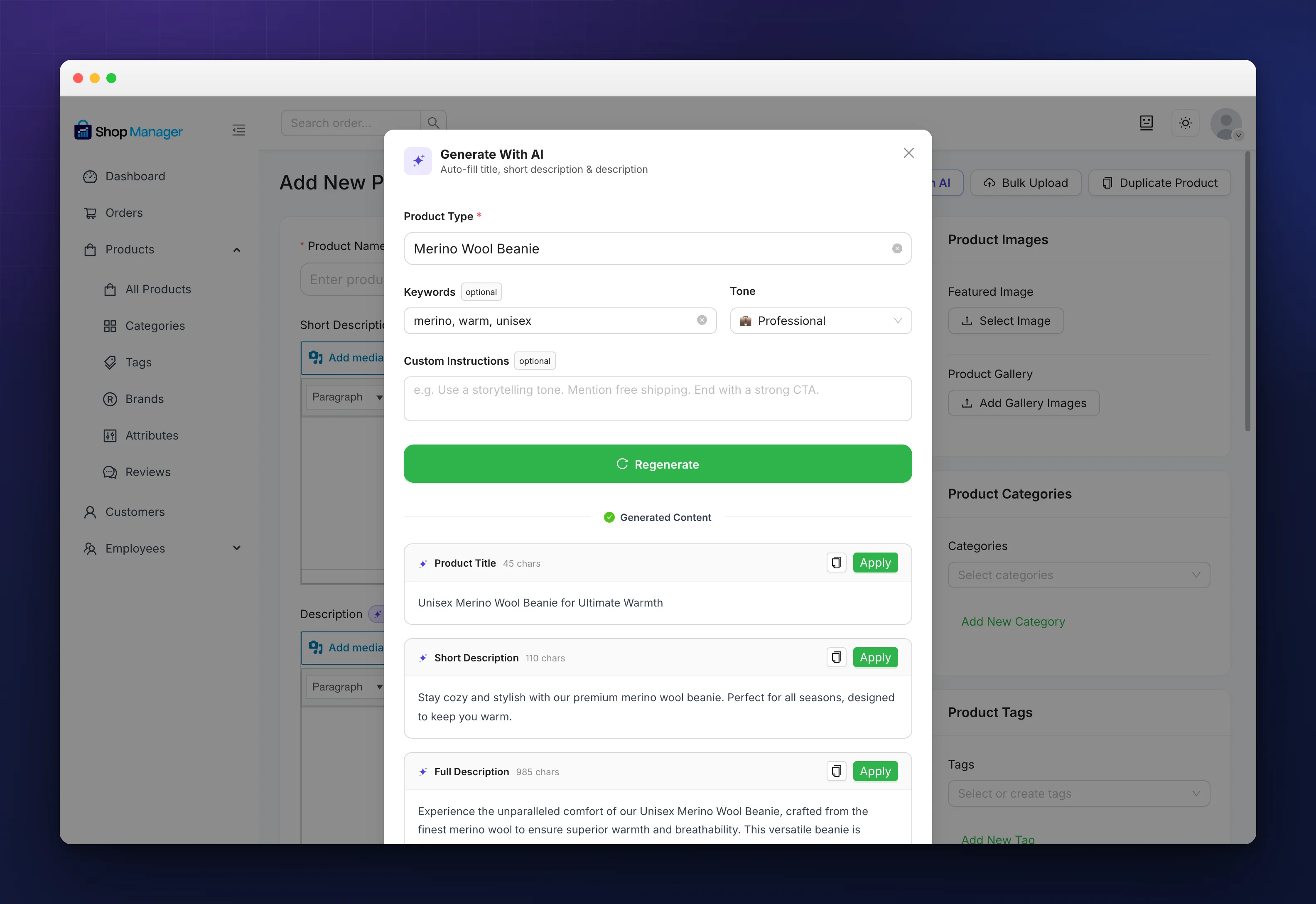
You get three pieces, each as its own card: a Product Title, a Short Description and a Full Description in formatted HTML. Each card has a Copy button and an Apply button that drops it into the form, and Apply All to Form takes the lot in one go.
Not happy with it? The main button now reads Regenerate, so you can run it again without retyping anything.
Read it before you publish. The model does not know your materials, sizing or guarantees, and it will happily invent something plausible. Treat the output as a first draft and put the facts in yourself.
What It Costs
The feature comes with Pro, but the generation runs on your provider key, so Anthropic, OpenAI or Google bills you directly for usage. For an average shop that is a few dollars a month. There is no markup from us and no separate AI subscription.
Troubleshooting
The button is locked with a PRO tag.
Generation needs Pro. See Install & Activate Shop Manager Pro.
A connection or API error.
Check the key in AI Settings with its Test Connection button, and make sure the provider account still has credit.
The text is empty or stops mid-sentence.
Give the product type and keywords more to work with, or raise the max tokens in AI Settings if you want longer descriptions.
Related Documentation
- Configure AI Settings & API Keys: pick a provider and add the key.
- How to Add a WooCommerce Product: the form this sits in.
- All product management guides