Configure AI Settings & API Keys in Shop Manager
Every AI feature in Shop Manager, from product descriptions to the chat assistant to employee summaries, runs on an account you hold with an AI provider. AI settings is where you tell the plugin which provider, which key and which model to use. The screen is in the free plugin; the features that use it need Shop Manager Pro.
Opening AI Settings
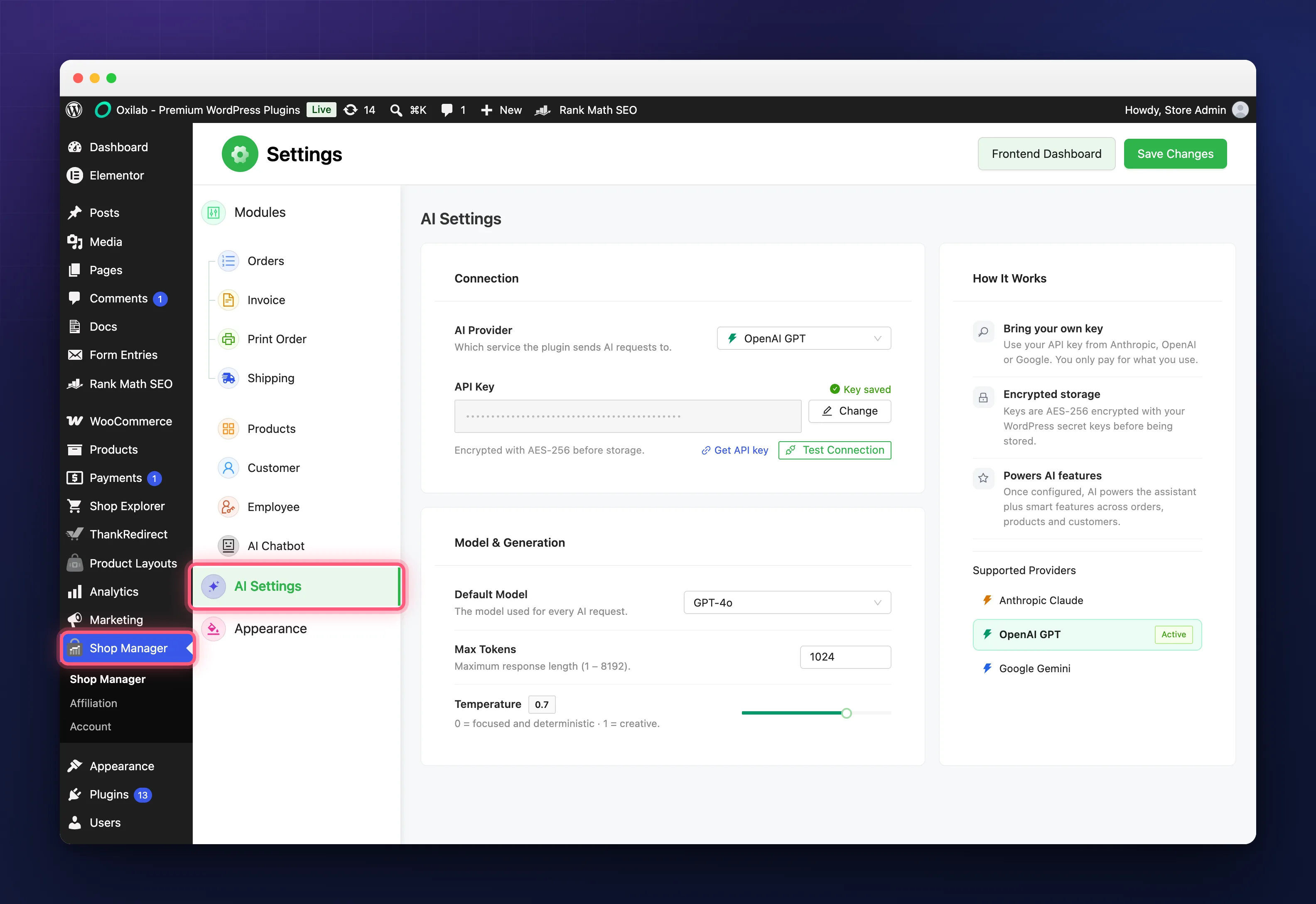
In the WordPress admin, go to Shop Manager, then AI Settings in the left hand list.
Provider and Key
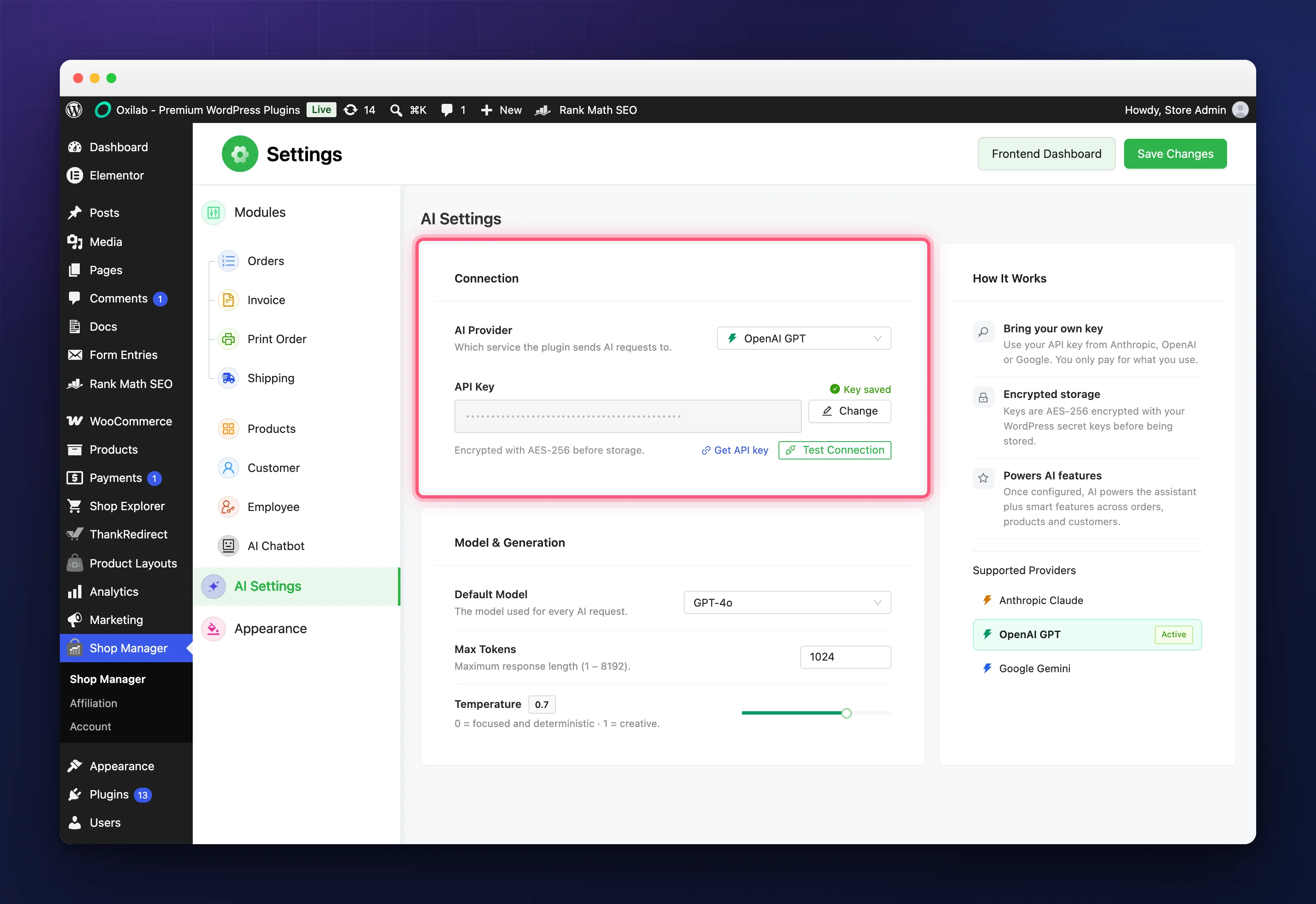
Pick an AI Provider: Anthropic Claude, OpenAI GPT or Google Gemini. Whichever you already pay for is the right one. The Get API key link beside the key field opens that provider’s own key page: Anthropic, OpenAI or Google.
Paste the key into API Key and click Save Changes at the top right. That one button saves every tab of the settings page, so there is nothing separate to save here. Once saved, the field is replaced by a Key saved note and a row of dots with a Change button; the dots are a stand in, not your key.
The key is encrypted before it is stored, with AES-256 and a secret derived from your site’s own AUTH_KEY and AUTH_SALT. The admin page never receives the key back, only a yes or no that one exists, so it cannot be read out of the browser or a page export.
Test Connection
Test Connection lights up as soon as a key is typed or saved. It sends a tiny request to the provider, a single word with a ten token limit, so it costs a fraction of a cent, and reports Connection successful: the API key is valid or the provider’s own error. It works in the free plugin, but only for administrators; employees do not get this button.
Model, Length and Temperature
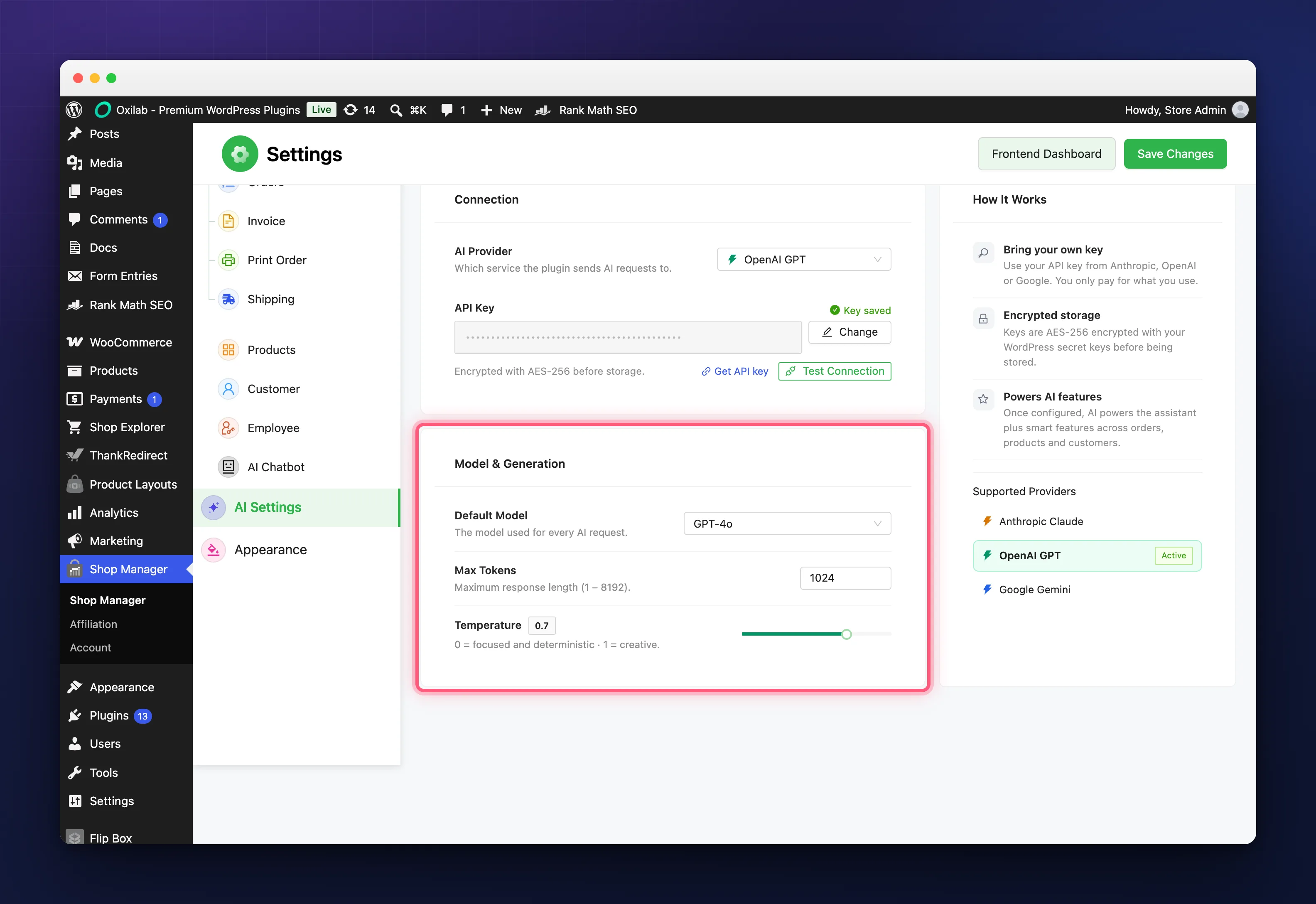
- Default Model is used for every AI request. Each provider’s list tags its entries Recommended, Fastest or Most Capable, and Gemini adds a Lightweight option. Out of the box it is Claude Sonnet 5. If a model you saved earlier is later dropped from the list, it stays selected and is shown with a Saved tag.
- Max Tokens, from 1 to 8192 with 1024 as the default, caps the length of each reply. Raise it if full product descriptions come back cut short; every extra token is billed by the provider.
- Temperature, from 0 to 1 in steps of 0.1 with 0.7 as the default: 0 is focused and repeatable, 1 is more inventive.
What Uses These Settings
Three features read the AI settings, and each needs Pro: the AI product description generator, the AI assistant, and the employee performance summary. Shop Manager adds nothing on top of the provider’s price; for a typical store the usage is a few dollars a month.
Troubleshooting
Test Connection fails.
Check the key matches the provider you selected, that it was pasted whole, and that the provider account has credit. The message under the button is the provider’s own wording, so it usually says which.
The key will not save.
If a key is already stored you have to click Change before the field accepts a new one, then Save Changes. Cancelling the change keeps the old key.
AI features are still locked after saving.
A key alone unlocks nothing. The generator, assistant and summary all need an active Pro licence.
I switched provider and everything broke.
Keys are not interchangeable. After changing the provider, click Change, paste that provider’s key, pick one of its models, and test again.
Related Documentation
- AI Product Description Generator for WooCommerce: the feature most people set this up for.
- WooCommerce AI Assistant: Ask About Your Store: the chat assistant that runs on the same key.
- Install & Activate Shop Manager Pro: unlocking the features themselves.