Add Employees & Assign Roles in Shop Manager
You add employees from the Shop Manager dashboard in about a minute: a name, an email, a role. Shop Manager creates the WordPress account, picks a password nobody ever sees, and emails the person a link to set their own. This page covers adding someone, changing their role later, and removing them.
Who Can Add Employees
Administrators can, along with anyone holding the WordPress Editor or Shop Manager role. None of the four built-in Shop Manager employee roles can, including SM: Store Manager, which despite the name carries no employee permissions at all out of the box.
If you want one of your staff to be able to add employees, an administrator has to grant the create employees permission on the Roles and Access screen first. Until then the Add Employee button simply will not be there for them.
Adding an Employee
- In the dashboard sidebar, open Employees, then All Employees.
- Click Add Employee at the top right.
- Enter their Full Name and Email Address, and choose a Role. All three are required, and there is nothing else to fill in.
- Click Create Employee.
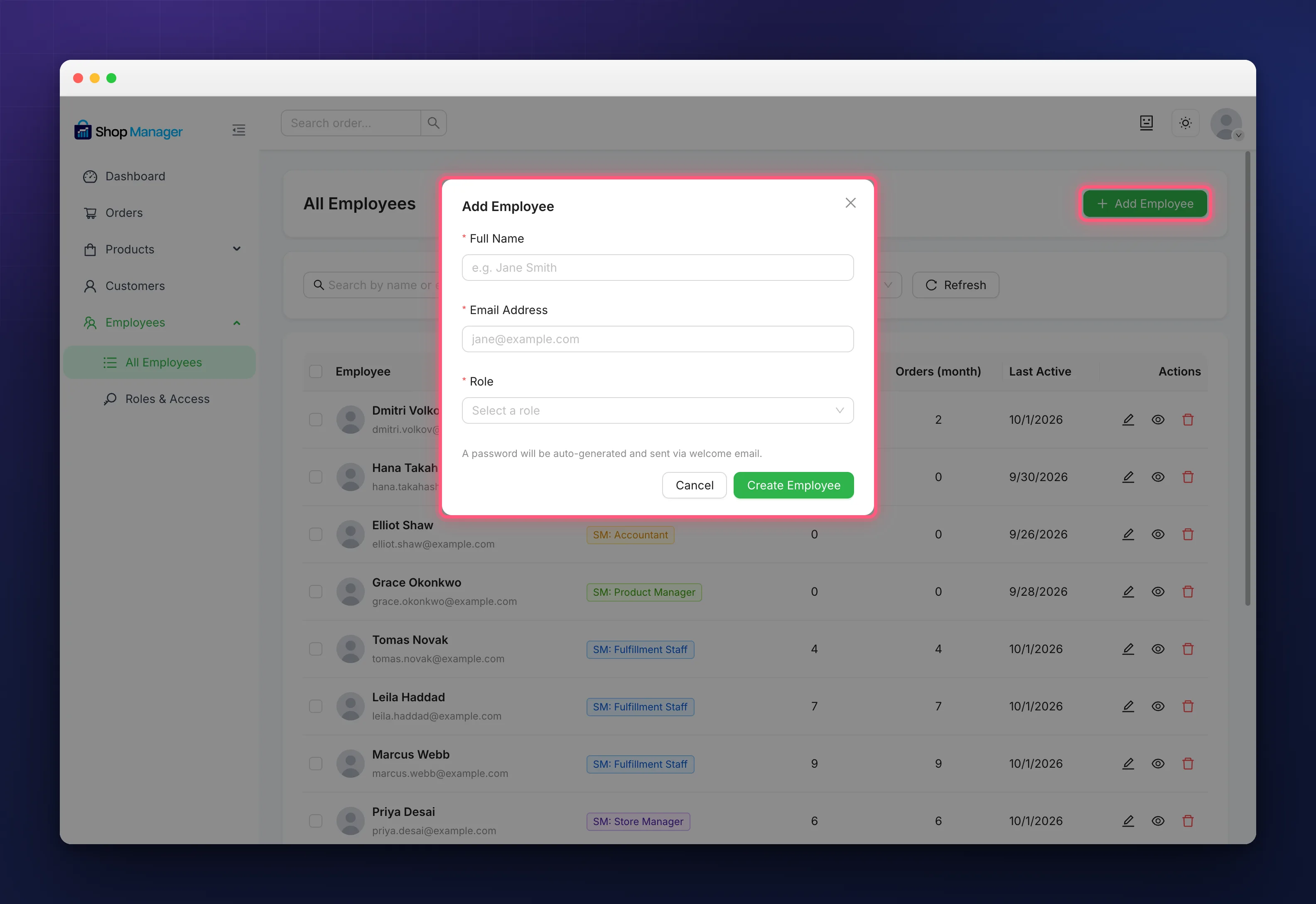
The email has to be one that no WordPress user already holds. If it is taken you get “An account with this email already exists”, and the fix is to give that existing user a Shop Manager role rather than creating a second account for them.
What the New Employee Receives
A welcome email goes out every time, with a link that lets them choose their own password. No password is ever sent in the message, and you never see one either. The link is good for 24 hours.
Once it is set they land in the dashboard. If the link expires there is a lost password form on the dashboard itself, so an employee never needs to visit wp-login.php. You can also open their profile and click Reset Password to send a fresh link yourself.
Which Role to Pick
| Role | What it gives them |
|---|---|
| SM: Fulfillment Staff | Viewing and editing orders, plus recording tracking numbers and printing labels |
| SM: Product Manager | Viewing and editing products |
| SM: Accountant | The dashboard and analytics, nothing editable |
| SM: Store Manager | Orders and products as above, plus analytics, plus customers to look at but not change |
Start with the narrowest role that covers the job; widening it later takes a few seconds. Every one of these can be adjusted permission by permission in Role Based Access Control, and with Pro you can build a role of your own.
Changing a Role, and Removing People
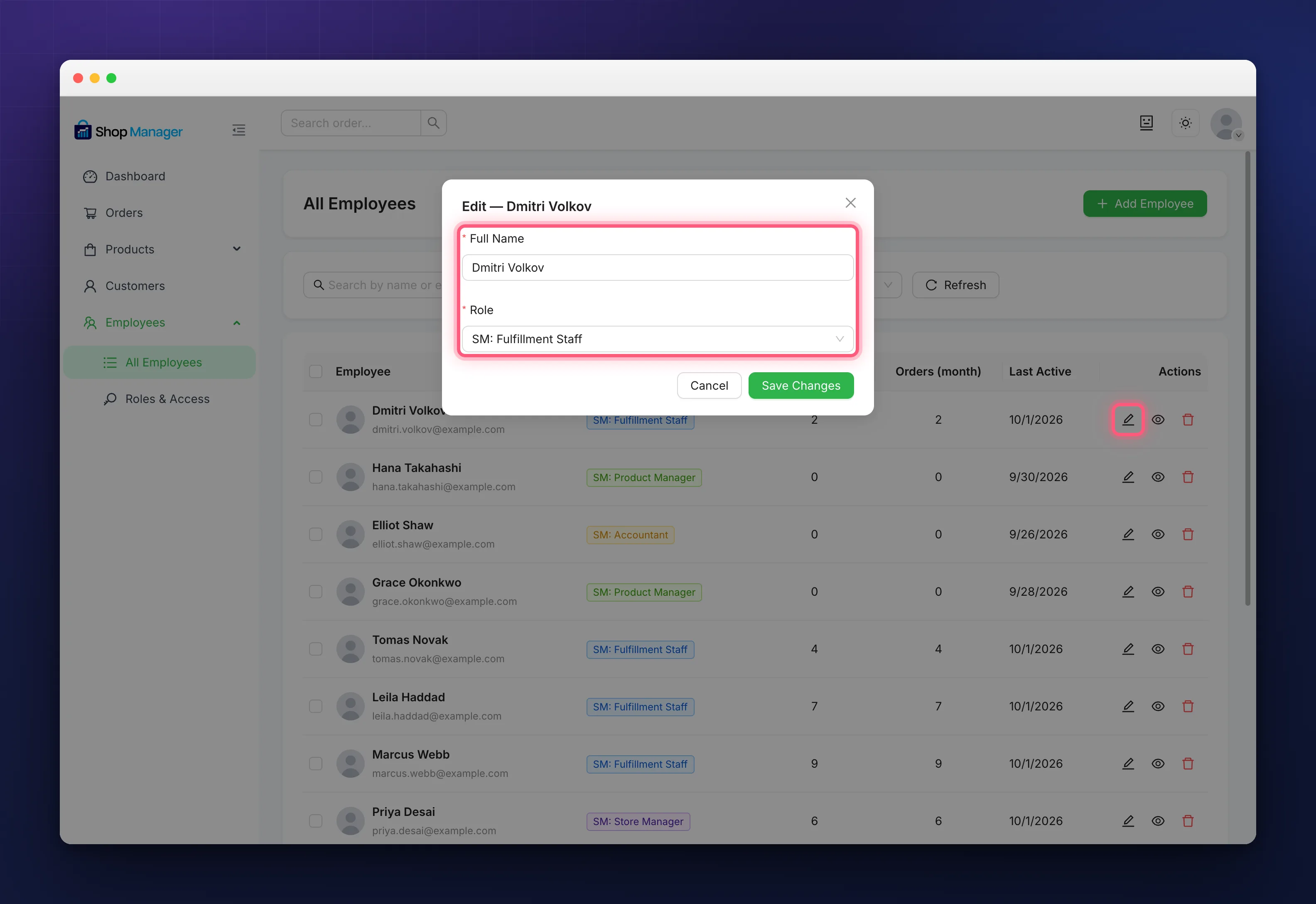
The pencil icon on a row opens an edit form holding just two things: Full Name and Role. Their email address is not editable here, so changing it means editing their WordPress user profile instead. An employee holds exactly one Shop Manager role, and picking a new one replaces the old.
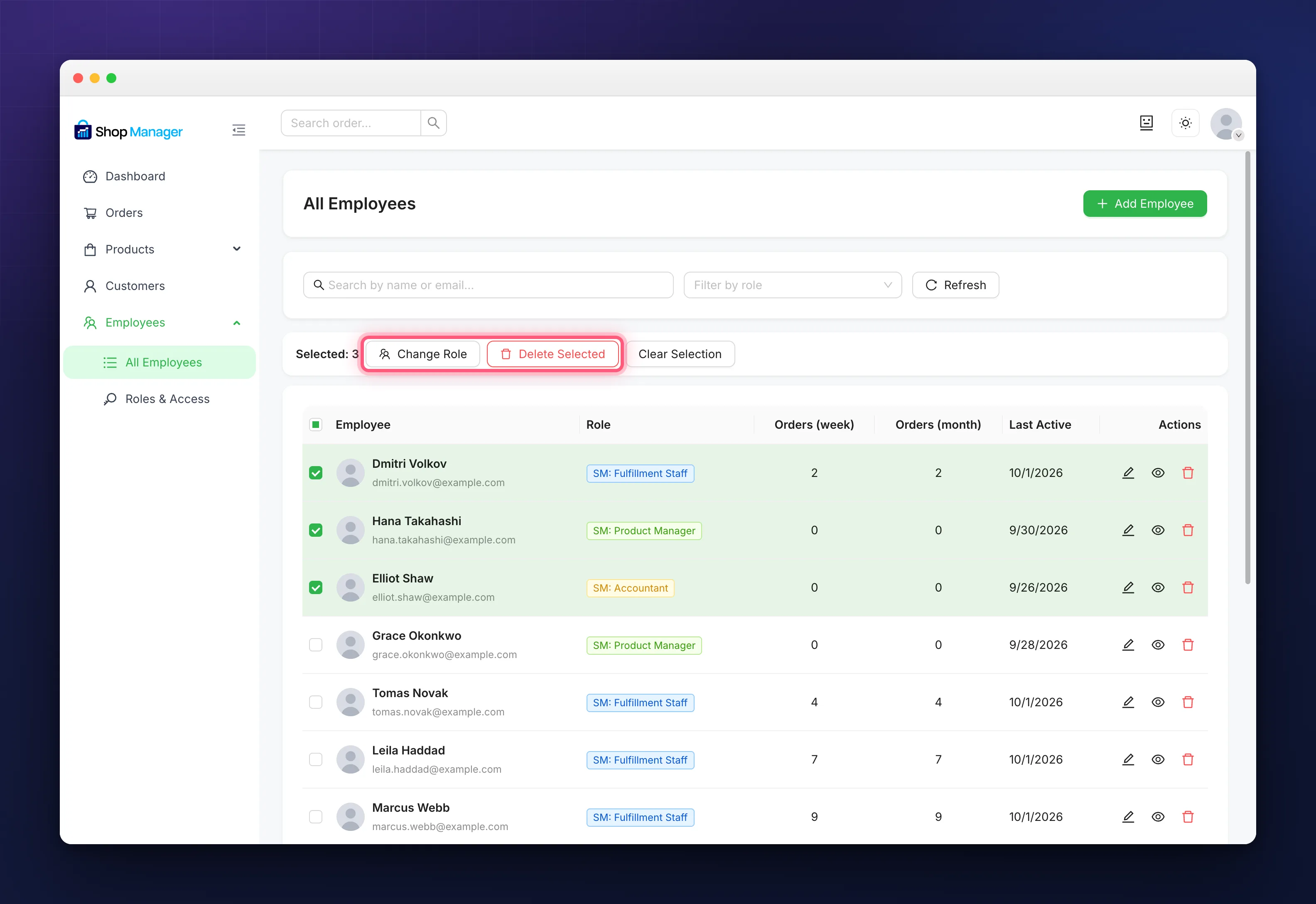
Ticking several rows brings up Change Role and Delete Selected, which is the quick way to move a group of people at once.
Delete removes the WordPress account for good. It is not a suspend button and there is no undo. When someone leaves but you want their history intact, move them to a role with nothing enabled instead.
Troubleshooting
There is no Add Employee button.
Your role does not have the create employees permission. See Who Can Add Employees above.
An account with this email already exists.
That address is already a WordPress user. Give that user a Shop Manager role rather than making a duplicate.
The welcome email never arrived.
It is always sent, so this is a mail delivery problem. Most WordPress sites cannot send reliably without an SMTP service configured. Set one up, then use Reset Password on the employee’s profile to try again.
The set password link no longer works.
It lasts 24 hours. Send a new one with Reset Password, or point them at the lost password form on the dashboard.
Related Documentation
- WooCommerce Employee Management with Shop Manager: how the whole thing fits together.
- Role Based Access Control for Your Store: every permission behind these roles.
- Create Custom Employee Roles: build your own role, with Pro.