Customize Your Shop Manager Dashboard Appearance
The Shop Manager dashboard does not have to look like everyone else’s. The dashboard appearance settings let you put your own logo in the sidebar, choose how dense or airy the layout feels, pick the accent colour, and decide which dark palette your team gets when they flip the switch. None of it touches your storefront; this is the back office only, and it is all in the free plugin.
Opening Appearance
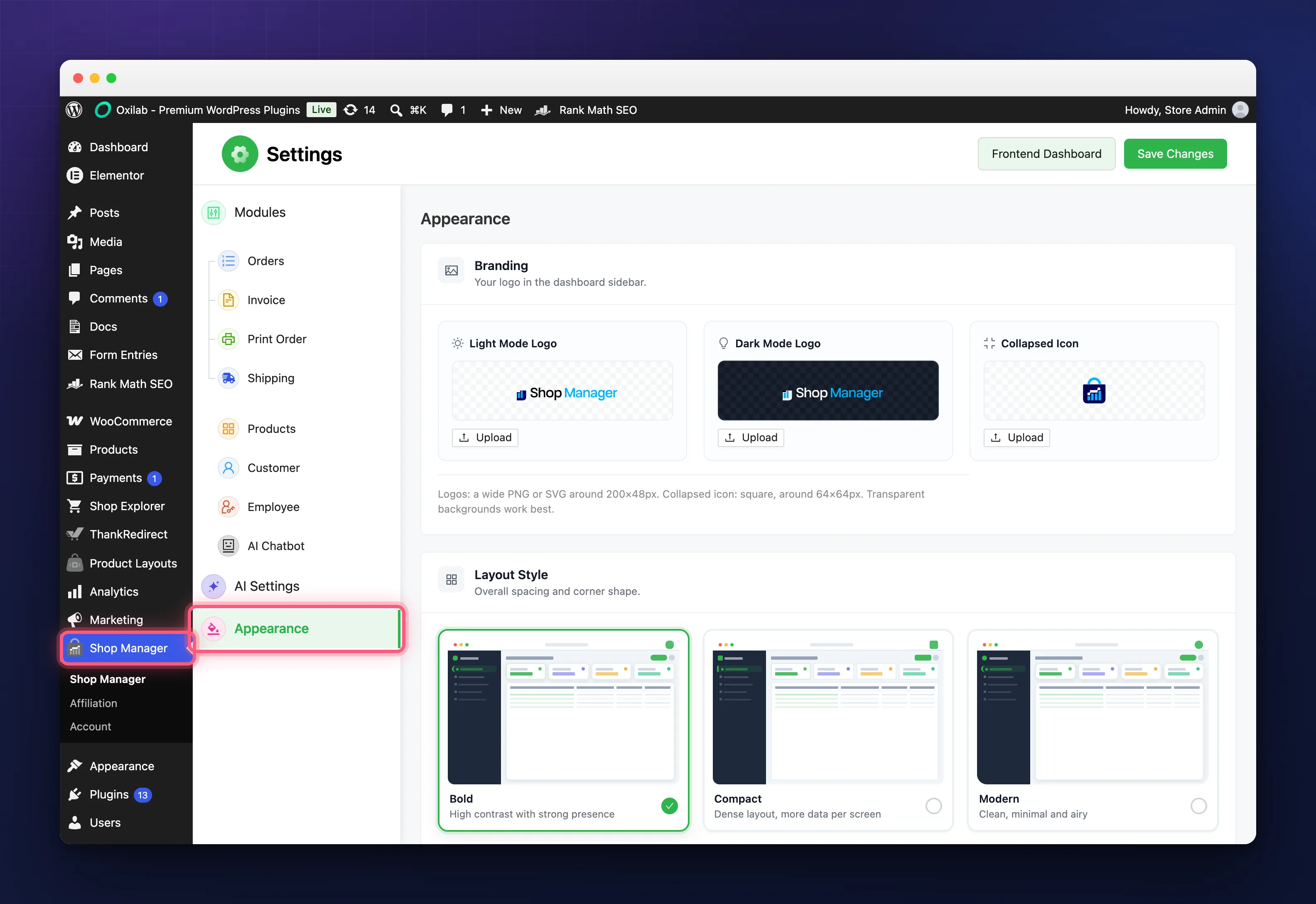
All the dashboard appearance choices live on one tab. In the WordPress admin, go to Shop Manager, then Appearance in the left hand list. Each choice is a tile; click one and it is selected. Nothing is applied until you click Save Changes at the top right, which saves every tab of the settings page at once.
Branding
Three logo slots, each picked from your media library: Light Mode Logo, Dark Mode Logo and Collapsed Icon. Leave a slot empty and the dashboard uses the bundled Shop Manager mark. If you set a light logo but no dark one, the dark palettes reuse the light logo, so you only need the second slot when your logo does not read well on a dark background. The Collapsed Icon is the small square shown when the sidebar is folded down to icons. The screen’s own guidance is a wide PNG or SVG of roughly 200 by 48 pixels for the logos, a square of roughly 64 by 64 for the icon, and transparent backgrounds throughout.
Layout Style
Five layouts, which change spacing and corner shape across every screen:
- Bold: high contrast with a strong presence.
- Compact, the default: dense, more data per screen.
- Modern: clean, minimal and airy.
- Classic: traditional, structured and bordered.
- Soft: rounded, friendly and approachable.
Colour Combination and Dark Mode Style
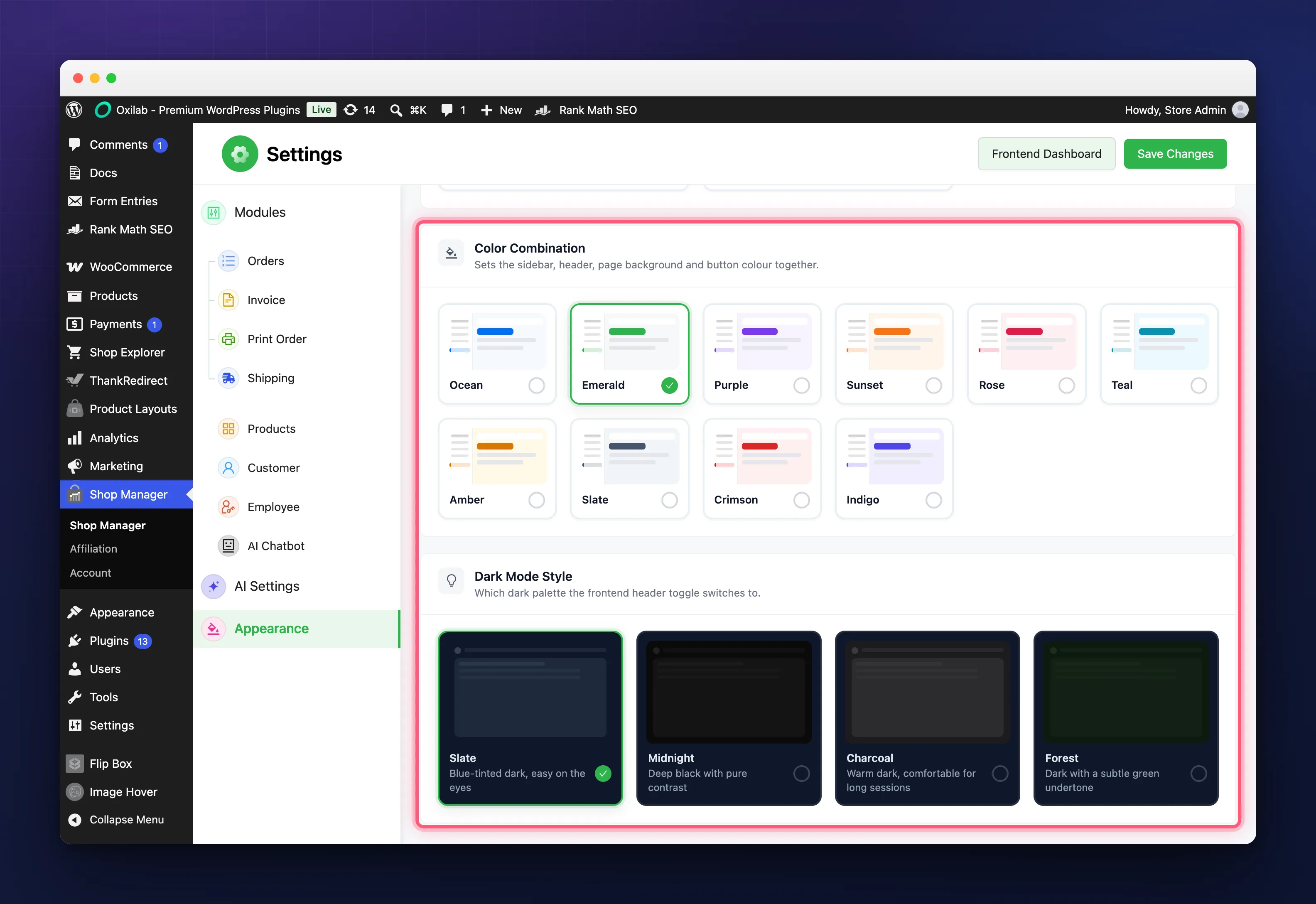
A Color Combination sets the sidebar, header, page background and button colour together. There are ten, and all of them keep a clean white sidebar and differ in the accent: Ocean (the default), Emerald, Purple, Sunset, Rose, Teal, Amber, Slate, Crimson and Indigo. Pick the one closest to your brand colour and the buttons and active menu item follow it.
Dark Mode Style is not a switch that makes the dashboard dark. It chooses which dark palette the toggle in the dashboard header switches to: Slate (the default, blue tinted and easy on the eyes), Midnight (deep black, pure contrast), Charcoal (warm, comfortable for long sessions) or Forest (a subtle green undertone). The dashboard itself always loads in light mode.
Light or Dark, Per Person
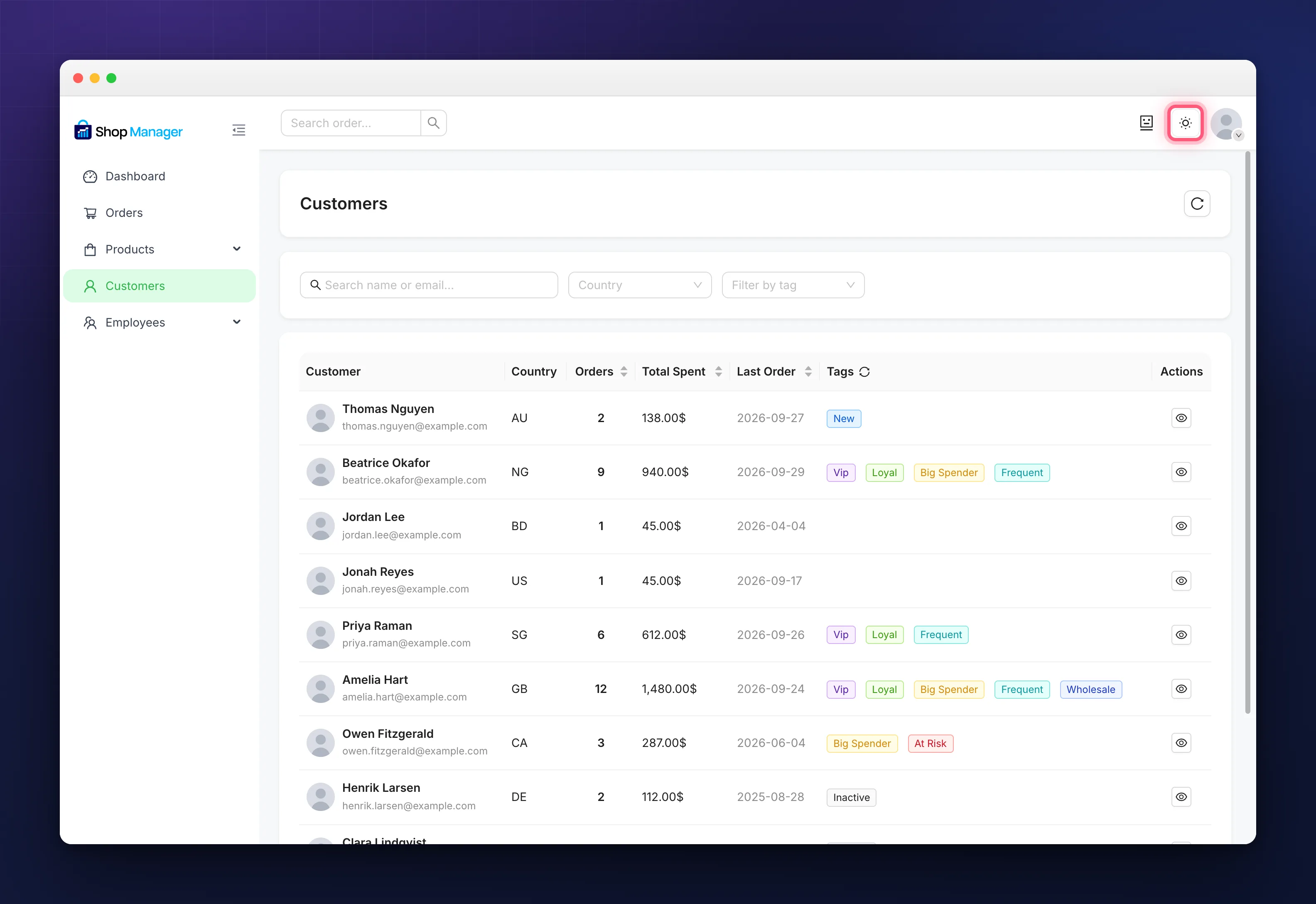
Everyone who opens the dashboard sees the same layout, colours and logo, because those dashboard appearance settings are store wide. Dark or light is personal: the sun icon in the header flips between light and your chosen dark style, and the choice is remembered in that browser, so one person can work in Charcoal on their laptop while a colleague stays in light on theirs. It is stored per browser rather than per account, which means a new device starts in light again.
The sidebar’s own collapse arrow folds it down to icons for more room. That one is not remembered at all; the sidebar opens full width again on the next page load.
Troubleshooting
I picked a tile and nothing changed.
Dashboard appearance only updates after a save. Click Save Changes, then reload the dashboard. If you are on a cached host, the dashboard page itself is not cached but the settings request can be, so a hard refresh clears it.
I chose a dark style and the dashboard is still light.
That is expected. Use the header toggle; the setting only decides which dark palette the toggle gives you.
My logo looks wrong in dark mode.
The dark palettes reuse the light logo unless you fill the Dark Mode Logo slot. Upload a version with light lettering there.
The collapsed sidebar shows the Shop Manager mark, not mine.
The folded sidebar uses the Collapsed Icon slot, which is separate from the two logo slots. Add a square version of your mark there.
Related Documentation
- Set Up Your WooCommerce Frontend Dashboard: where these settings show up.
- Shop Manager Settings Reference: every tab of the settings page.
- What Is Shop Manager for WooCommerce?: the overview.