Automatic Customer Segmentation for WooCommerce
Shop Manager sorts your shoppers into groups on its own, so you can see at a glance who is worth rewarding and who is slipping away. Automatic customer segmentation is rule based, not AI: it reads your order history, compares it against numbers you control, and writes a tag. Nothing is sent anywhere, and it is part of the free plugin.
Tags appear in the Tags column of the customer list and on each profile.
The Seven Tags
Automatic customer segmentation uses seven tags. Each has one rule and a default you can change, and a customer can hold several at once: a good one is often VIP, Loyal and Frequent together.
| Tag | Applied when | Default |
|---|---|---|
| VIP | Lifetime spend is over the amount, or order count is over the number | over 500 spent, or over 10 orders |
| Loyal | Order count reaches the minimum and the last order is recent | 5 or more orders, last one within 60 days |
| New | Registered inside the window and has at least one order | registered within 30 days |
| Big Spender | Any single order is over the amount | over 200 in one order |
| Frequent | Enough orders inside a recent window | 3 or more orders in 30 days |
| At Risk | Has 2 or more orders, and the gap since the last is past the At Risk mark but not yet the Inactive one | no order for 90 to 180 days |
| Inactive | Ordered before but not for a long time, or registered long ago and never ordered | no order for over 180 days |
Both VIP rules use “over”, not “at least”, so with the default of 500 a customer who has spent exactly 500 is not yet VIP.
When Tags Are Recalculated
Automatic customer segmentation stores its tags rather than working them out on every page load, which is what keeps the customer list quick on a busy store. They are rewritten when:
- a customer places an order, or one of their orders changes status;
- you click Refresh all tags, the small circular arrow in the Tags column heading, which redoes every customer;
- you click Refresh on the Tags card of one customer’s profile.
At Risk and Inactive are the exception. Because they depend on time passing rather than on anything the customer does, they are re-checked on their own roughly once a day per customer.
On an existing store, a banner tells you how many customers are still being analyzed the first time you open the list. Tagging fills in page by page as you browse.
Changing a threshold does not retag anyone by itself. Saving a new number only decides how the next calculation comes out. To apply it to everyone you already have, click Refresh all tags on the customer list. At Risk and Inactive are the only two that will pick up a new number on their own, within about a day.
Changing the Rules
The numbers behind automatic customer segmentation live in the WordPress admin, not in the Shop Manager dashboard. Go to Shop Manager in the WordPress sidebar, then the Customer tab. Every field carries the tag it belongs to, so you can see what you are about to change.
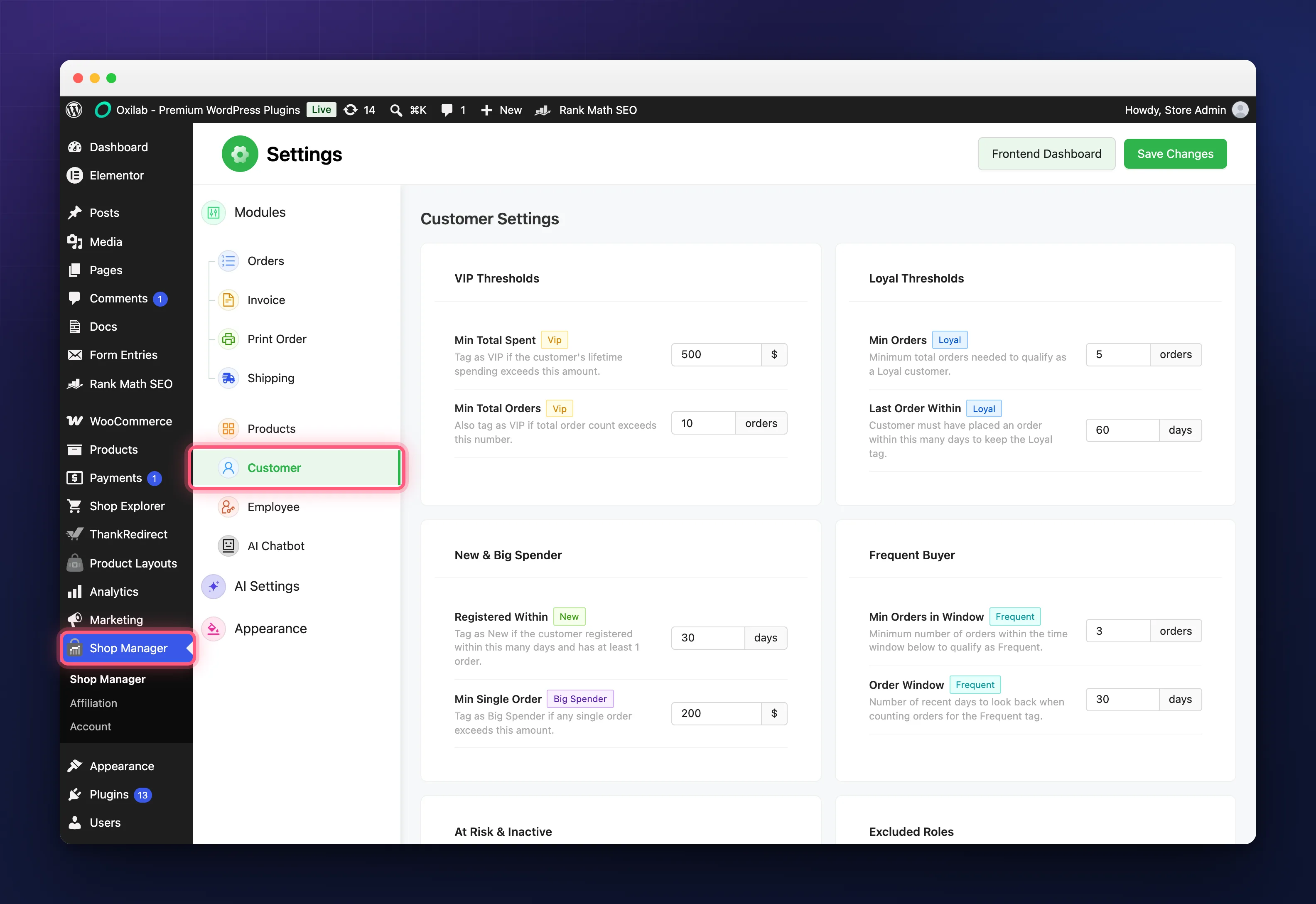
- VIP Thresholds: Min Total Spent, Min Total Orders.
- Loyal Thresholds: Min Orders, Last Order Within.
- New & Big Spender: Registered Within, Min Single Order.
- Frequent Buyer: Min Orders in Window, Order Window.
- At Risk & Inactive: one day count each. Both fields are labelled No Order Since, so go by the coloured tag beside the label to tell them apart. Keep the Inactive number larger than the At Risk one, or nobody will ever be At Risk.
Set these against your own prices. A big spender at a coffee roastery is nowhere near one at a camera shop, and borrowed numbers leave most customers untagged.
Keeping Your Team Out of It
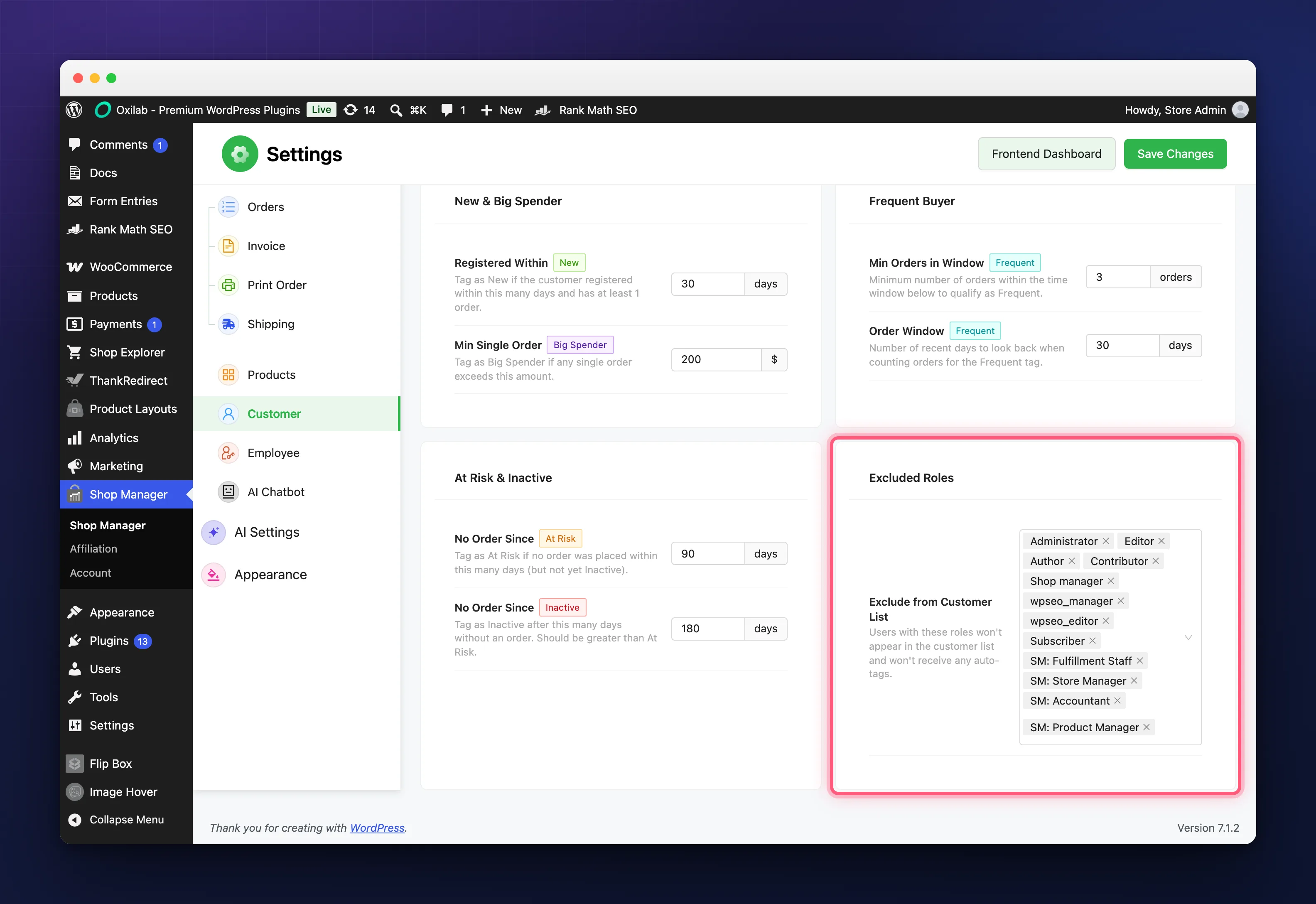
Roles listed under Excluded Roles are skipped by automatic customer segmentation entirely: no tags, and no row in the customer list.
Two things to know first. Whatever you save replaces the built in list rather than adding to it, so saving it with only Administrator selected makes your editors and shop managers show up as customers: put every role you want skipped in the box. And the Shop Manager employee roles are not excluded out of the box, so add SM: Fulfillment Staff, SM: Product Manager, SM: Accountant and SM: Store Manager if you use them.
Troubleshooting
I changed a threshold and nothing moved.
Expected. Click Refresh all tags on the customer list to apply the new rule to customers you already have.
Everyone has the same tags, or nobody has any.
The numbers are too loose or too strict. If every customer is VIP, raise Min Total Spent. If nobody is Frequent, widen the Order Window.
My staff are tagged as customers.
Add their roles to Excluded Roles, remembering that the box replaces the built in list, so include the ordinary staff roles as well as your Shop Manager employee roles.
A customer’s numbers look too high.
Guest orders count toward a customer when the billing email matches their account, so someone may carry history from before they registered.
Related Documentation
- WooCommerce Customer Management & CRM Guide: where the tags appear, and how to add your own by hand.
- Role Based Access Control for Your Store: the employee roles you may need to exclude.
- WooCommerce Order Management from the Frontend: the orders every tag is calculated from.