WooCommerce Product Categories, Tags & Brands
Categories, tags and brands are what turn a pile of products into a catalogue people can browse. All three live under Products in the sidebar, and all three are the real WooCommerce taxonomies, so anything you change here shows up in WooCommerce and on your storefront.
- Categories are the shelves: the main structure, such as Clothing then T-Shirts. They nest.
- Tags are the labels: cross-cutting keywords like summer or sale. They do not nest.
- Brands are the maker. They nest too, which is useful for a brand with sub-labels.
Keep categories broad and tags specific, and do not nest more than two or three deep. Shoppers get lost below that.
Categories
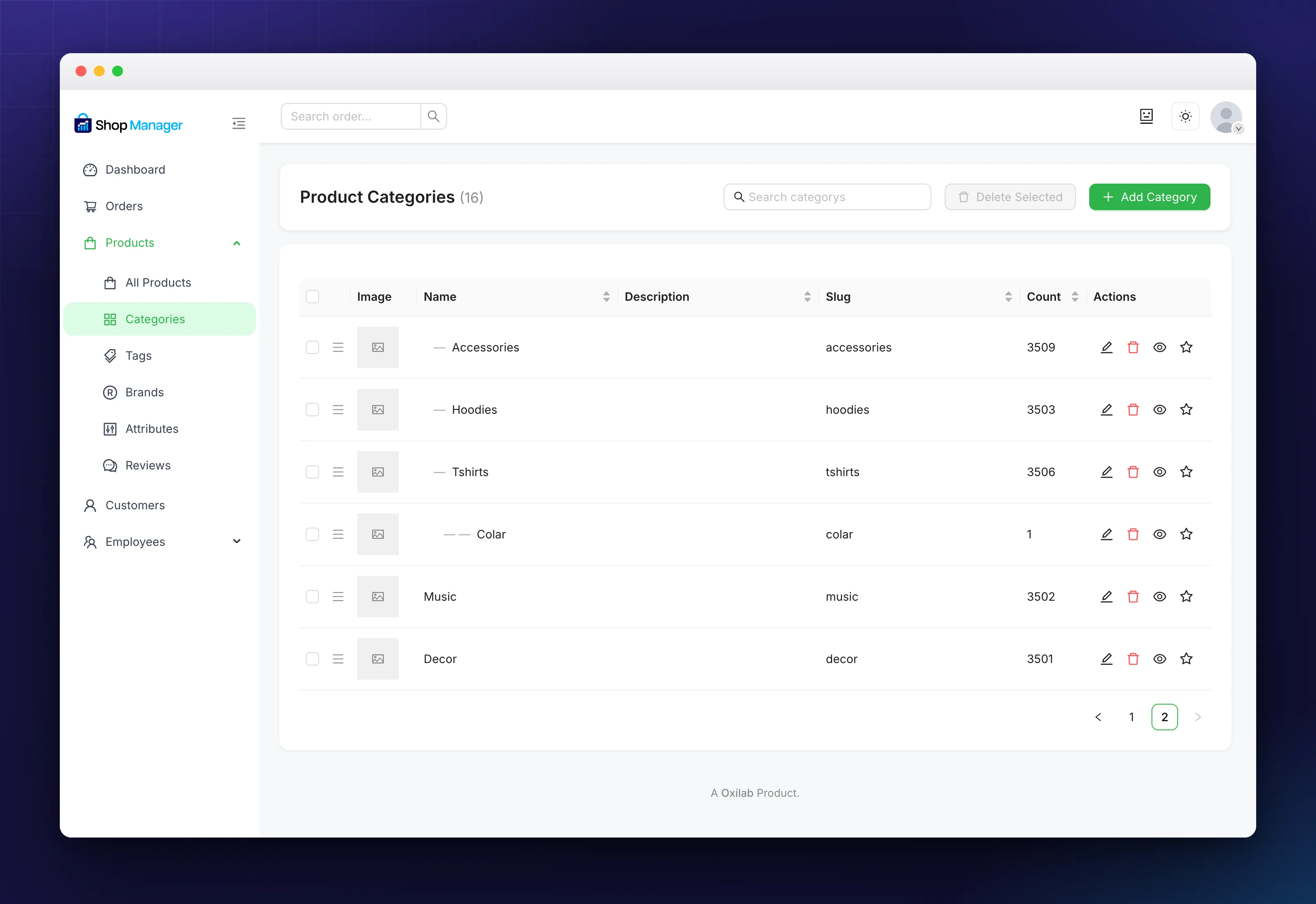
Go to Products → Categories. The table shows the image, name, description, slug and a product Count for each one. From here you can search, drag rows to reorder them, mark a default with the star, and bulk delete a selection.
Click Add to open the form.
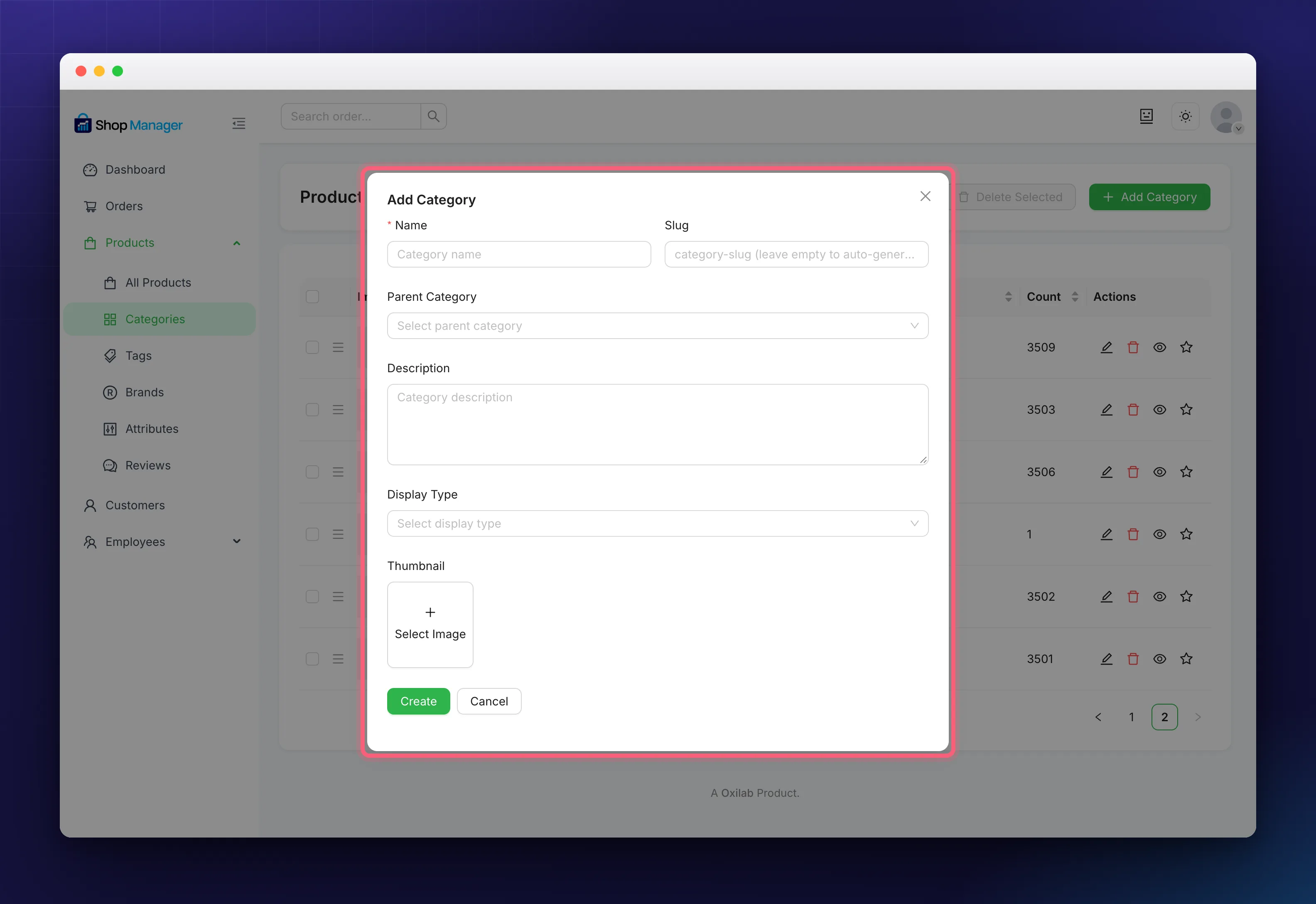
- Name, the only field you must fill in.
- Slug. Leave it empty and it is generated from the name.
- Parent Category, which is how you make a subcategory. The list is indented so you can see the hierarchy.
- Description.
- Display Type: Default, Products, Subcategories or Both, which controls what the category page shows.
- Thumbnail, via Select Image. Worth adding, because it makes the shop page far more visual.
Click Create, or Update when you are editing.
Tags
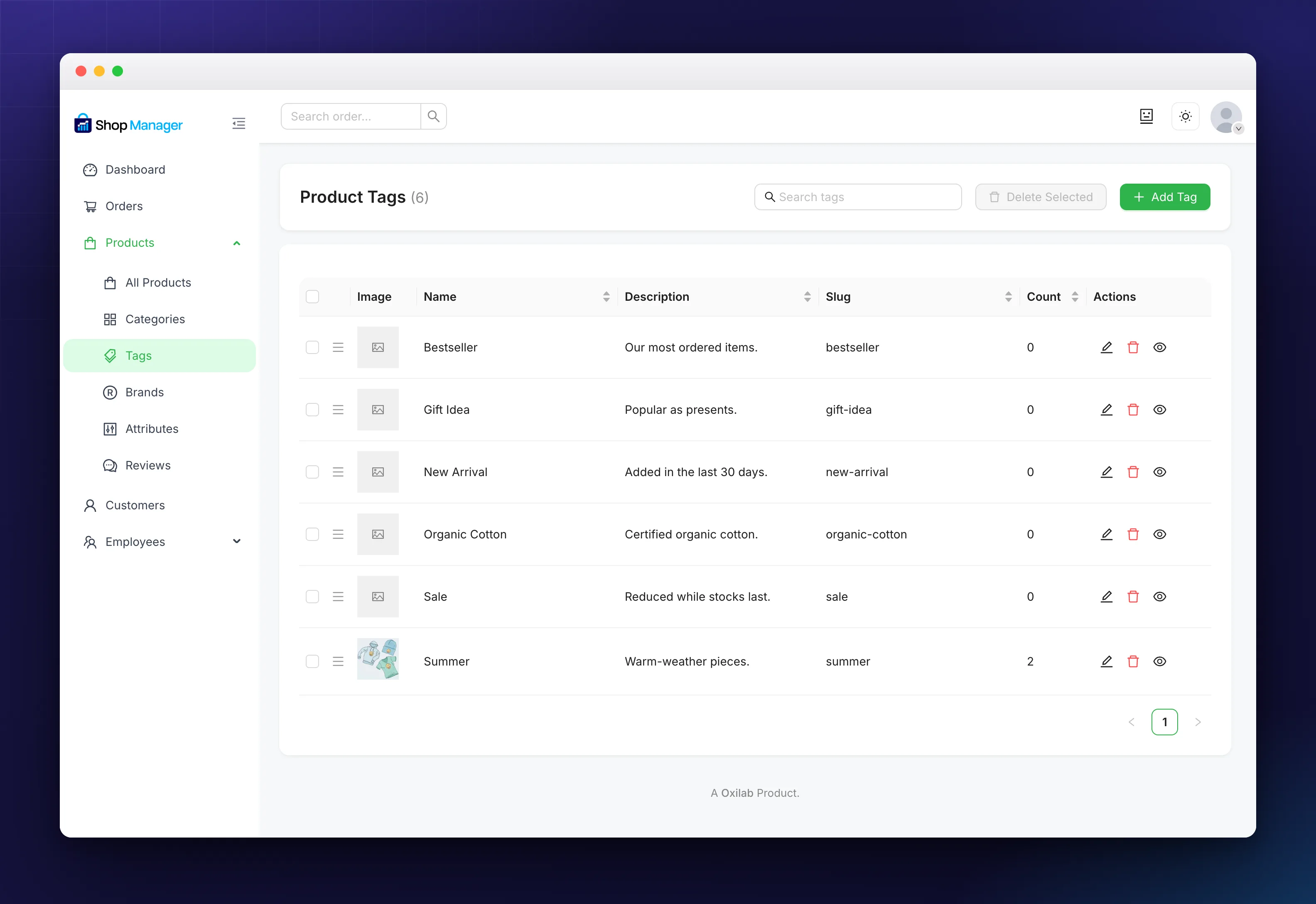
Products → Tags works the same way, with Name, Slug, Description and a Thumbnail. There is no parent field, because tags are flat by design. That is the point of them: a product can carry any combination without disturbing your category structure.
Brands
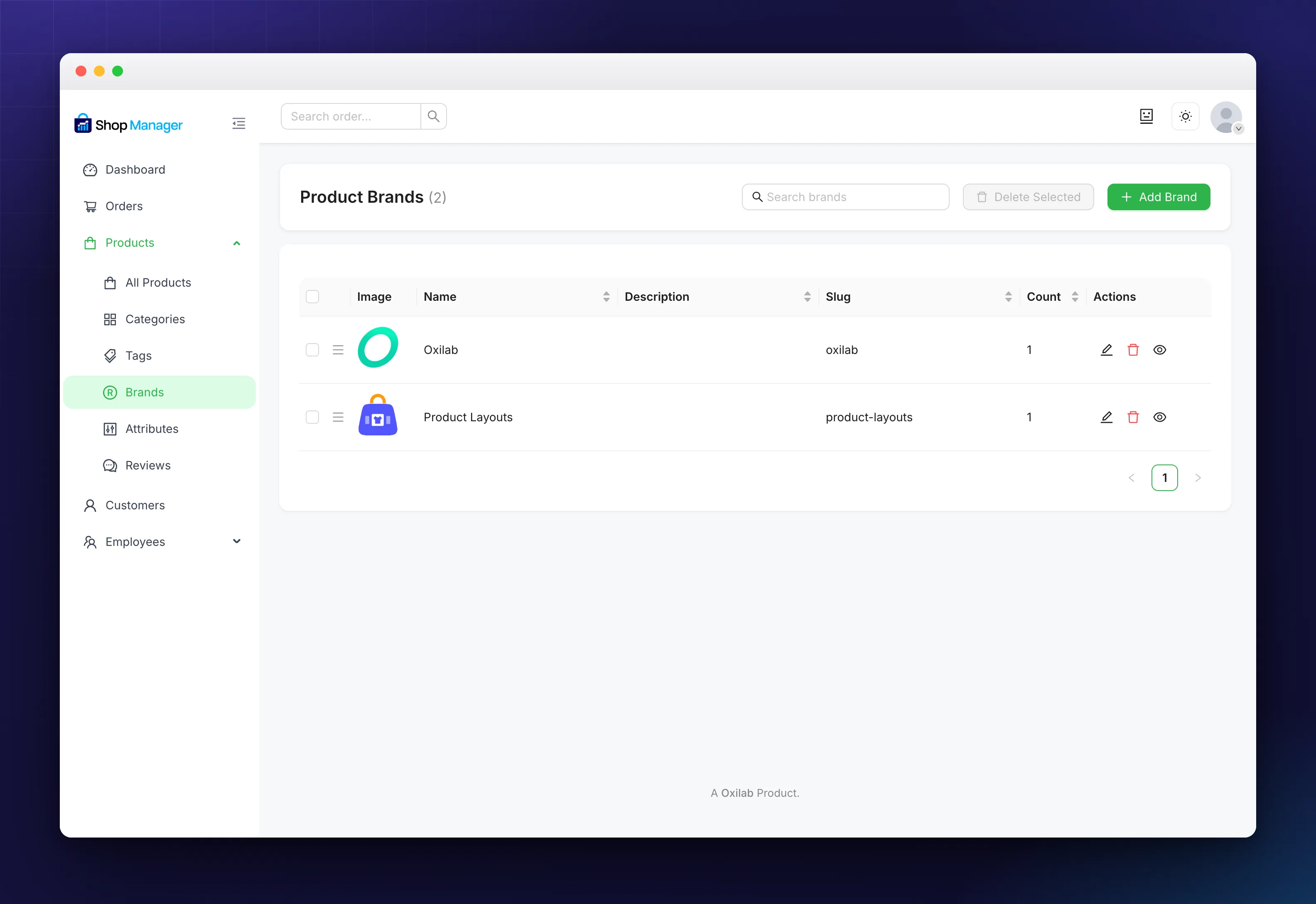
Products → Brands adds Name, Slug, Parent Brand, Description and a Thumbnail for the logo. Because brands take a parent, you can put a house brand’s sub-labels underneath it rather than listing them side by side.
Putting Them on a Product
In the sidebar of the product form, tick the categories, add the tags and choose the brand. Each box has an Add New link, so you can create one without leaving the product you are working on.
Once they are assigned, they also become filters on the product list, which is how you find everything from one brand or one category later.
Troubleshooting
My new category or tag is not on the storefront.
An empty one has nothing to show. Assign it to a product, then clear any cache. Whether it appears at all also depends on your theme.
Reordering does not stick.
Dragging saves by itself. If the order springs back, reload and check your role has edit permission for categories.
There is no Brands menu item.
Brands need the feature to be available on your store and your role to have access to it.
I deleted a category by mistake.
The products are fine. Deleting a category only removes the label from them, it never deletes products.
Related Documentation
- How to Add a WooCommerce Product: assign all three while you build a product.
- Product Attributes: the other way to describe a product, and what variations are built from.
- All product management guides