Dashboard Insight Cards: Store Alerts at a Glance
Dashboard insight cards are the small, colored alert cards that appear at the top of your Shop Manager dashboard. Each one summarizes something happening in your store right now, in plain English, so you can spot problems and act on them without digging through reports. This guide explains what they are, the alerts you might see, and how to act on them.
What They Are
Dashboard insight cards are automatic, rule-based alerts generated from your own WooCommerce data. Shop Manager checks your store for a handful of common situations, like orders stuck waiting or products running low, and surfaces them as easy-to-read cards.
A few important points:
- They’re included free with Shop Manager.
- They’re rule-based, not AI. They don’t send your data anywhere or call any external service.
- They’re color-coded by importance: red (urgent), amber (warning), and blue (informational).
Note: Dashboard insight cards are different from the Pro AI Assistant. Insight cards are automatic alerts; the AI Assistant is a chat tool you ask questions. See WooCommerce AI Assistant.
Where to Find Them
Dashboard insight cards appear as a row of cards across the top of the Dashboard screen (/sm-dashboard/). If there’s more than will fit, you can scroll the row sideways.
You’ll only see them if your role has analytics access, and admins and store managers always do.
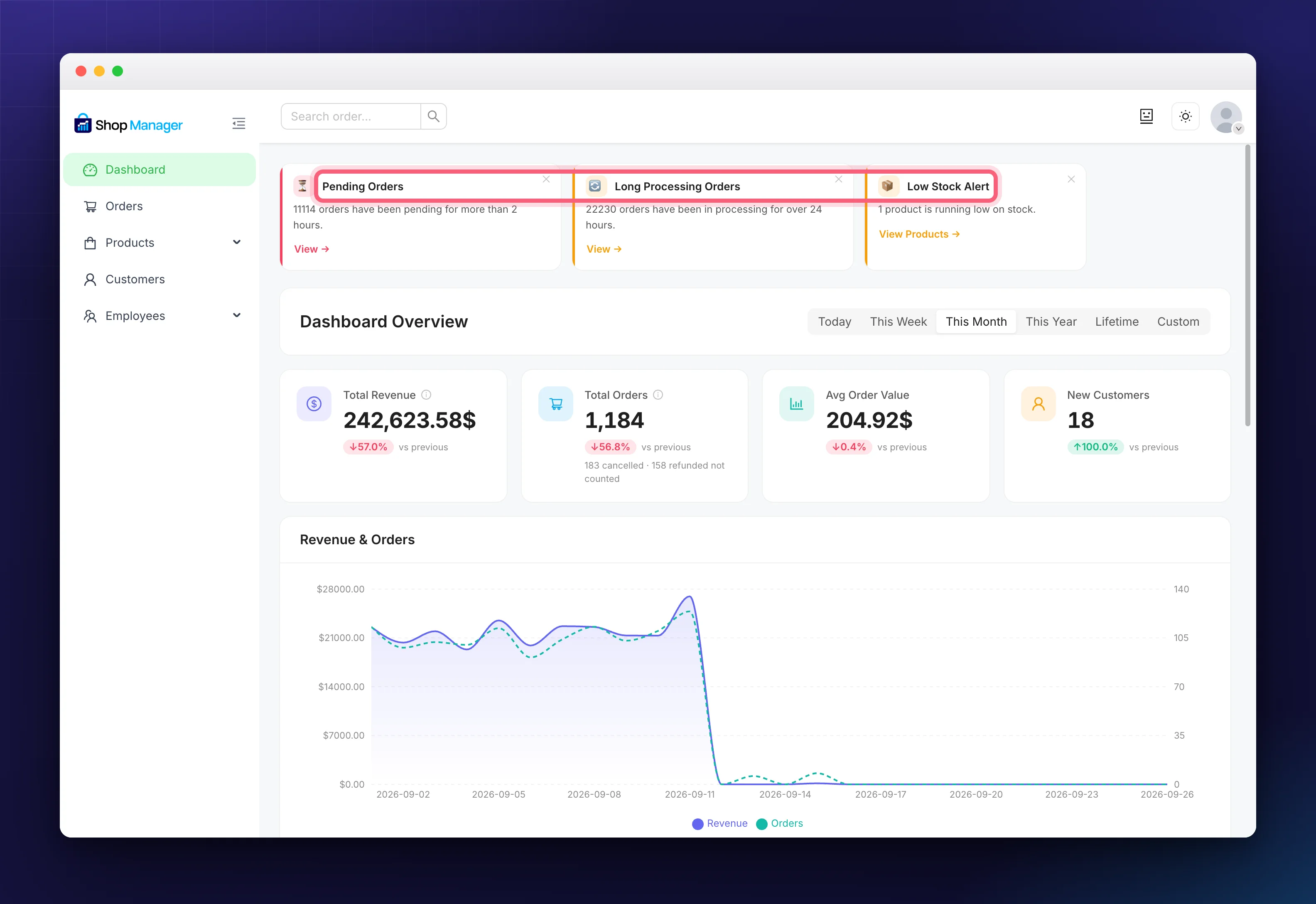
Each card carries a coloured left edge matching its importance, an icon, a one-line message with the exact count, a ✕ in its top-right corner, and, on most cards, an action link. They sit above the Dashboard Overview heading, so they’re the first thing you read.
The Six Checks
Shop Manager checks for six situations and shows the six most important at any time, sorted so the most urgent appears first:
- ⏳ Pending Orders: orders that have been pending for more than 2 hours. The more orders, the more urgent the card: blue up to 2 orders, amber from 3, red above 5.
- 🔄 Long Processing Orders: orders stuck in processing for over 24 hours.
- 📦 Low Stock Alert: products at or below your low-stock threshold, but not yet zero.
- ↩️ Refund Spike: refunds this week are more than 50% higher than last week.
- 📉 Revenue Drop: today’s revenue so far is more than 40% below yesterday’s total.
- ⭐ Pending Reviews: product reviews waiting for your approval.
Note: A card only appears when there’s actually something to report. On a healthy, quiet day, you might see few cards or none, and that’s normal.
Acting on an Insight
Most cards include an action link that takes you straight to the right place:
- Pending Orders / Long Processing Orders → the order list filtered to that status.
- Low Stock Alert → your product list filtered to low-stock items.
- Refund Spike → refunded orders.
- Pending Reviews → the reviews screen.
Just click the link (for example, View Products →) to jump there and handle it.
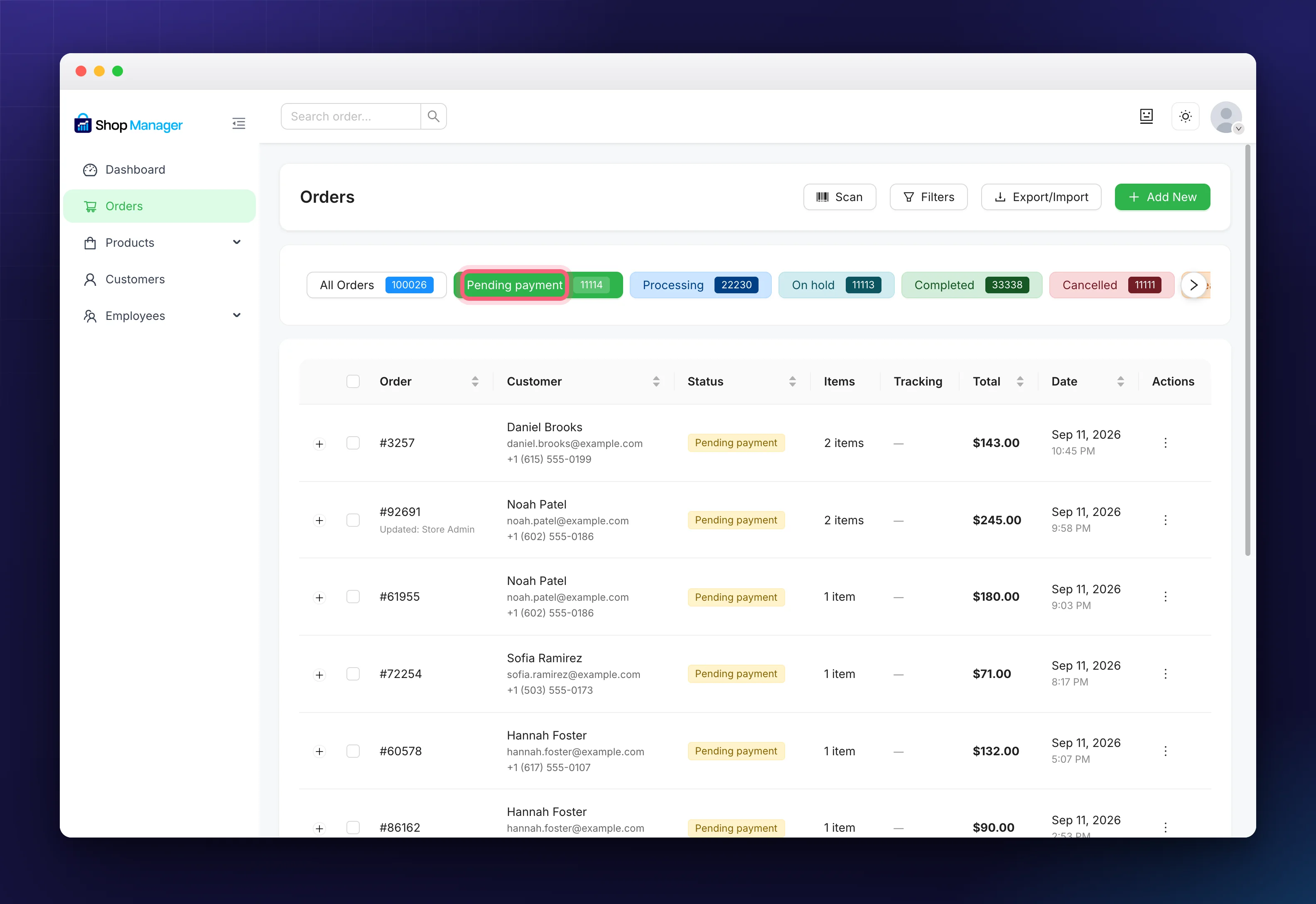
The link carries the filter with it. Clicking View → on the Pending Orders card lands you on /sm-dashboard/orders/pending, with the Pending payment status tab already selected, so you can start working through exactly those orders immediately.
Revenue Drop is the one card without an action link, because there is no single screen that fixes it.
Dismissing a card
If a card isn’t relevant right now, click the ✕ in its top-right corner. That card is hidden for 24 hours, then it can reappear if the situation still applies. When you’ve dismissed all cards, you’ll see “All alerts dismissed.” with a Show again button to bring them back immediately.
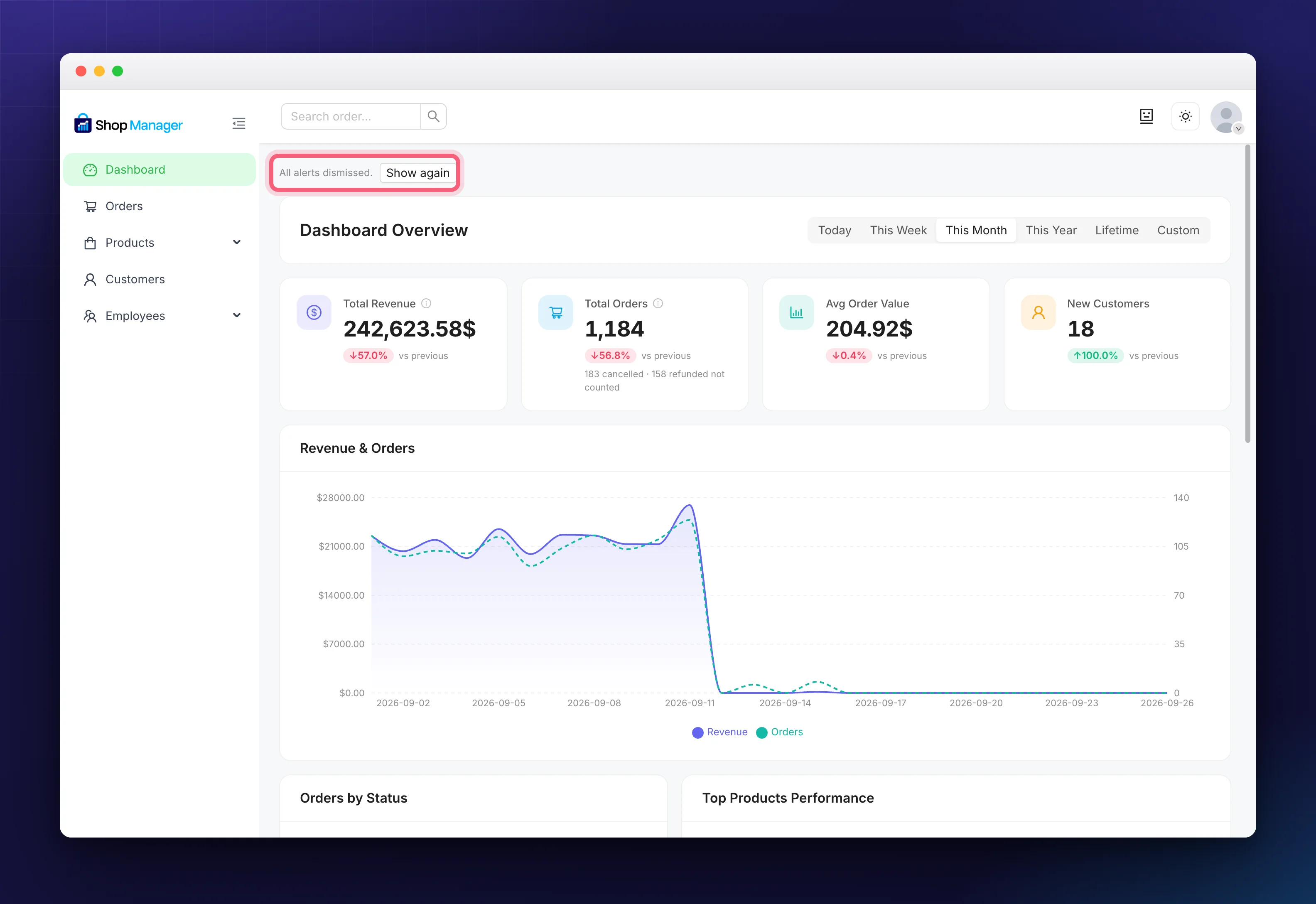
The row collapses to that single line, so your dashboard insight cards take almost no space while they are hidden.
How Often They Update
Dashboard insight cards stay fresh automatically:
- They’re recalculated regularly and cached for 15 minutes for speed.
- The cache is cleared automatically when relevant things change: a new order, an order status change, a stock change on a product or variation, or a product being saved.
- The dashboard also re-checks every 10 minutes while it’s open.
So you don’t need to refresh manually, because cards update on their own as your store changes.
Setting the Low Stock Threshold
The Low Stock Alert card counts against one number, and you can set it from either settings screen because they edit the same WooCommerce option.
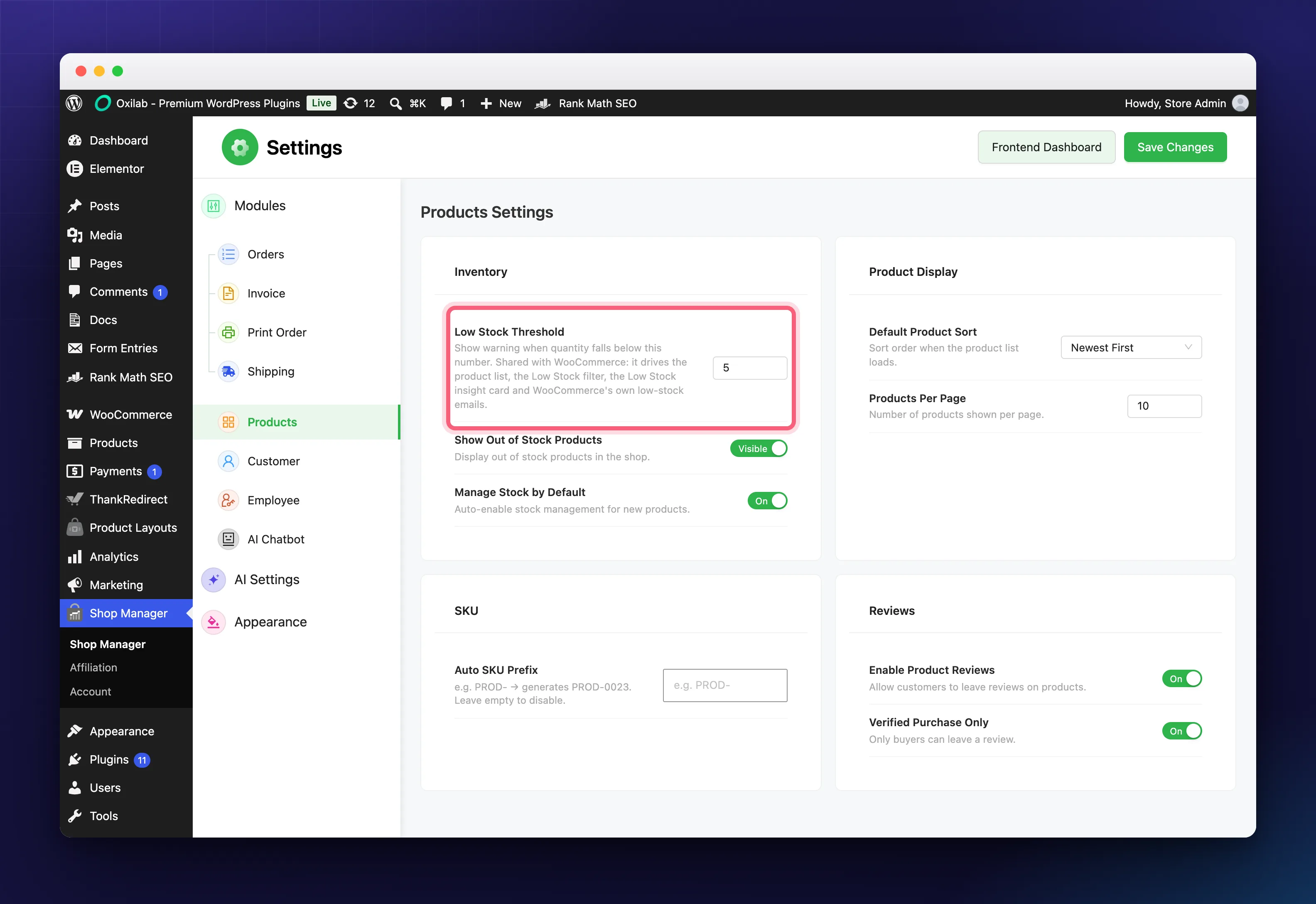
Shop Manager’s Low Stock Threshold sits under Settings → Products → Inventory, highlighted above. It is the number this card counts against: a published product is listed only while its stock is at or below that number and still above zero, and only if the product has stock management switched on.
The same number also appears in WooCommerce’s own inventory settings, shown below. Both screens edit one shared value, so you can change it in whichever place is convenient.
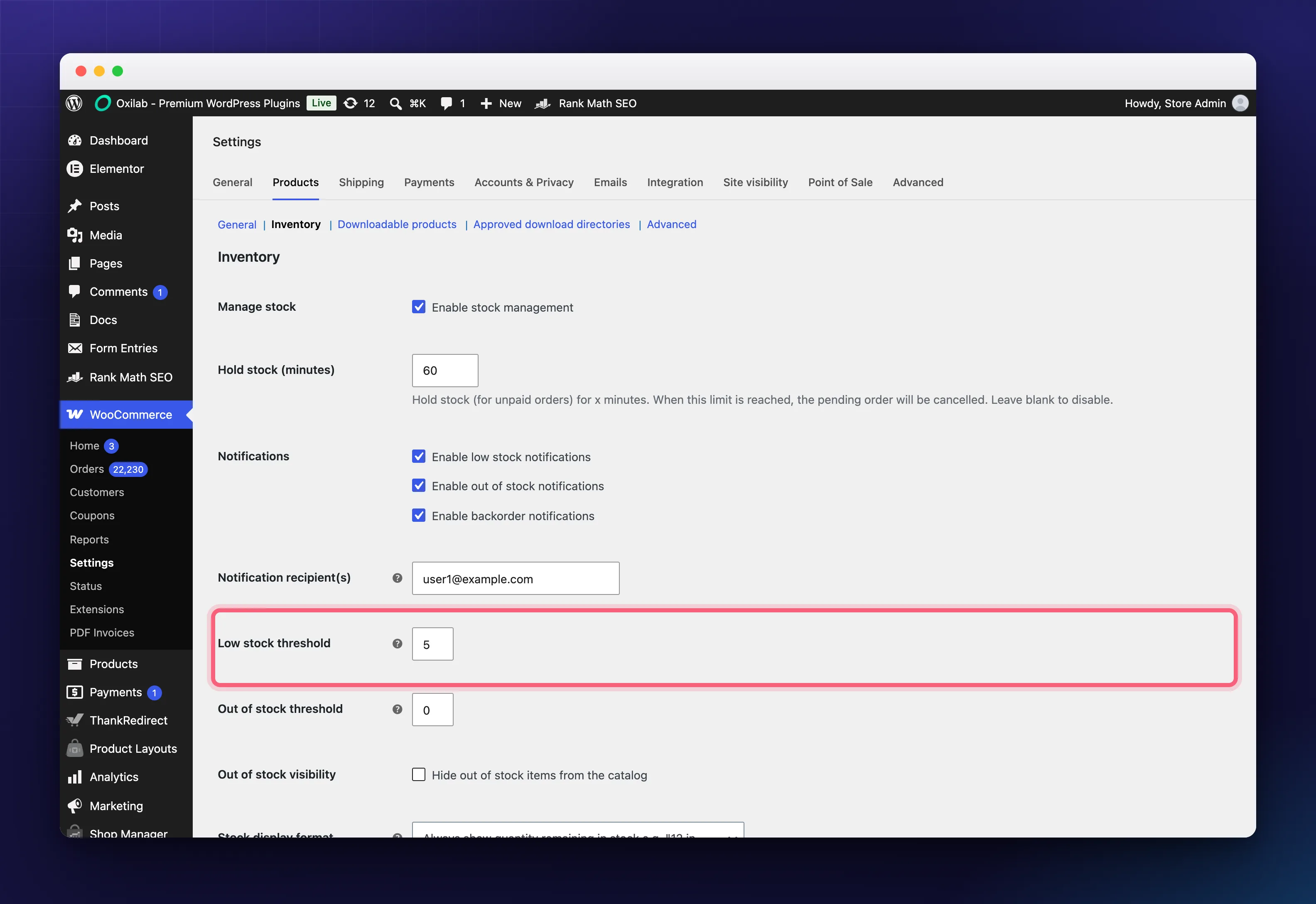
You’ll find it under WooCommerce → Settings → Products → Inventory, in the same panel as Out of stock threshold and the low-stock notification options. Because it is a single setting, this card, the product list badge, the Low Stock filter and WooCommerce’s low-stock emails always agree on what counts as low.
Troubleshooting
I don’t see any insight cards.
Either there’s nothing to report (good news), or your role lacks analytics access. Also make sure you have some orders and products in your store.
A card seems out of date.
The data is cached briefly and refreshes on store changes. Reload the dashboard, or wait a few minutes for the next automatic refresh.
The Low Stock card never appears.
Confirm the affected products are published, have stock management enabled, and hold a quantity at or below your low-stock threshold but above zero.
Frequently Asked Questions
Are dashboard insight cards AI-generated?
No. They’re calculated from your store data using built-in rules, with no AI or external service involved. (The AI chat assistant is a separate Pro feature.)
Can I permanently turn off a card?
You can dismiss a card for 24 hours. There isn’t a permanent per-card off switch, and dismissed cards return only if the situation still applies.
Do my employees see the same cards?
Employees see insight cards only if their role has analytics access. Dismissals are stored per user, so dismissing a card only affects your own view.
Why do I never see more than six cards?
Six is the limit. Shop Manager runs all its checks, sorts the results by urgency, and keeps the top six dashboard insight cards so the row stays readable.
Related Documentation
- WooCommerce Dashboard Analytics in Shop Manager: the metrics and charts below your insight cards.
- WooCommerce Order Management from the Frontend: handle the orders your cards point to.
- WooCommerce AI Assistant: Ask About Your Store: the Pro chat tool (not the same as insight cards).