Manage WooCommerce Abandoned Carts in Your Dashboard
The Abandoned Carts page in your Shop Manager dashboard shows every cart a shopper left at checkout after giving their email or phone number. From one screen you see how much money is waiting, follow up with each shopper by email, phone, WhatsApp or text, turn a cart into an order, and export or delete abandoned carts. This guide walks through the whole page. Abandoned Cart Recovery is a Shop Manager Pro feature (Pro).
Before You Start
- ✅ Shop Manager Pro is active and the Abandoned Cart Recovery module is on. See Abandoned Cart Recovery for WooCommerce: How It Works.
- ✅ You are an administrator, or your role has the Abandoned Carts permissions (see the end of this guide).
Open the Abandoned Carts Page
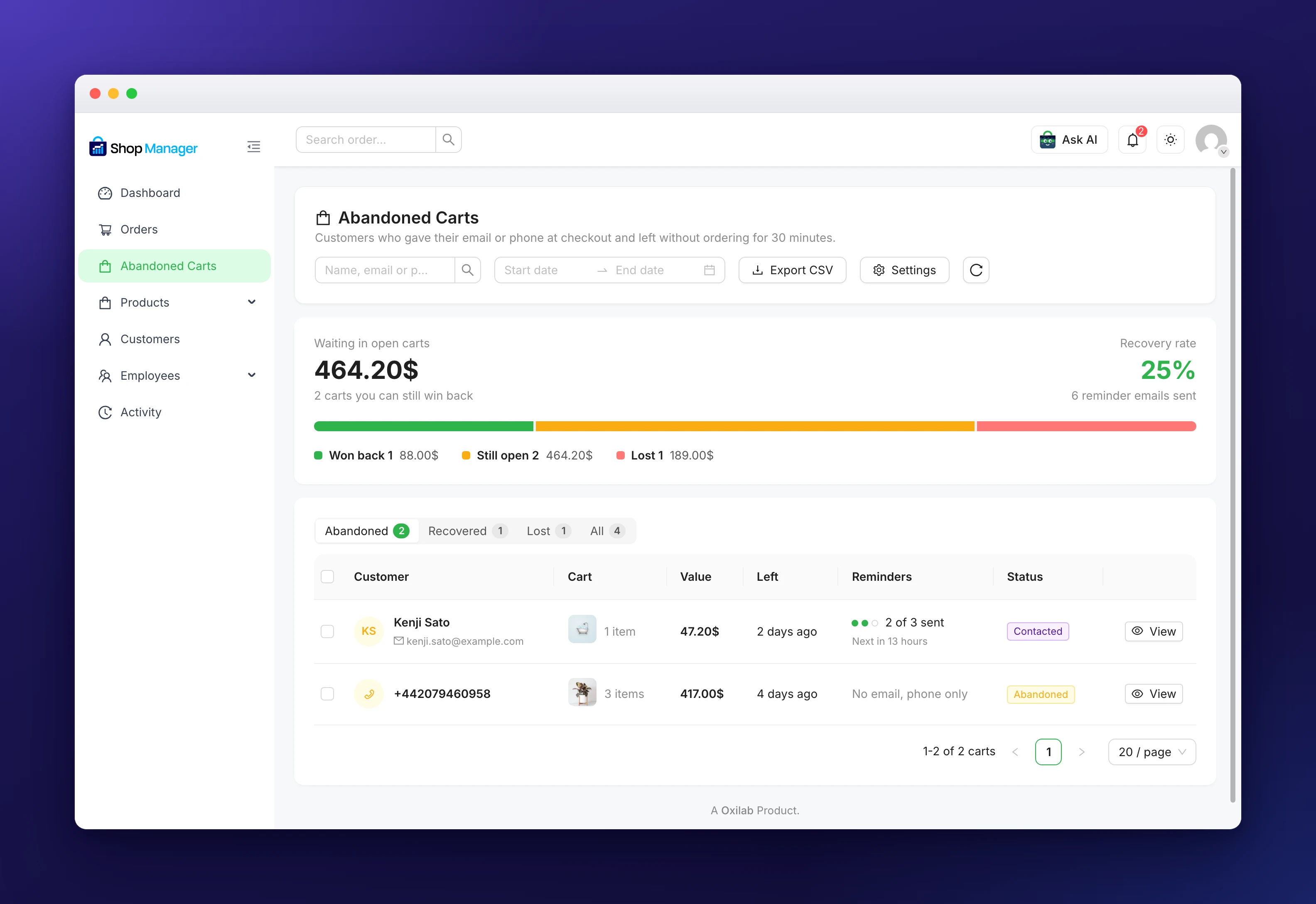
Open the Shop Manager dashboard and click Abandoned Carts in the sidebar, right after Orders. The line under the title tells you after how many minutes a cart counts as abandoned. Administrators also see a Settings button, which opens the Abandoned Carts settings in a new tab, and the round button next to it reloads the list.
Read the Abandoned Carts Summary
The card at the top sums up your abandoned carts:
- Waiting in open carts: the value of the carts you can still win back, and how many there are.
- Recovery rate: the share of all carts left at checkout that were won back.
- Reminder emails sent: how many reminders went out.
- The bar: carts won back in green, still open in amber and lost in red, with their number and value. Click an item under the bar to open its tab.
Find Abandoned Carts With Tabs, Search and Dates
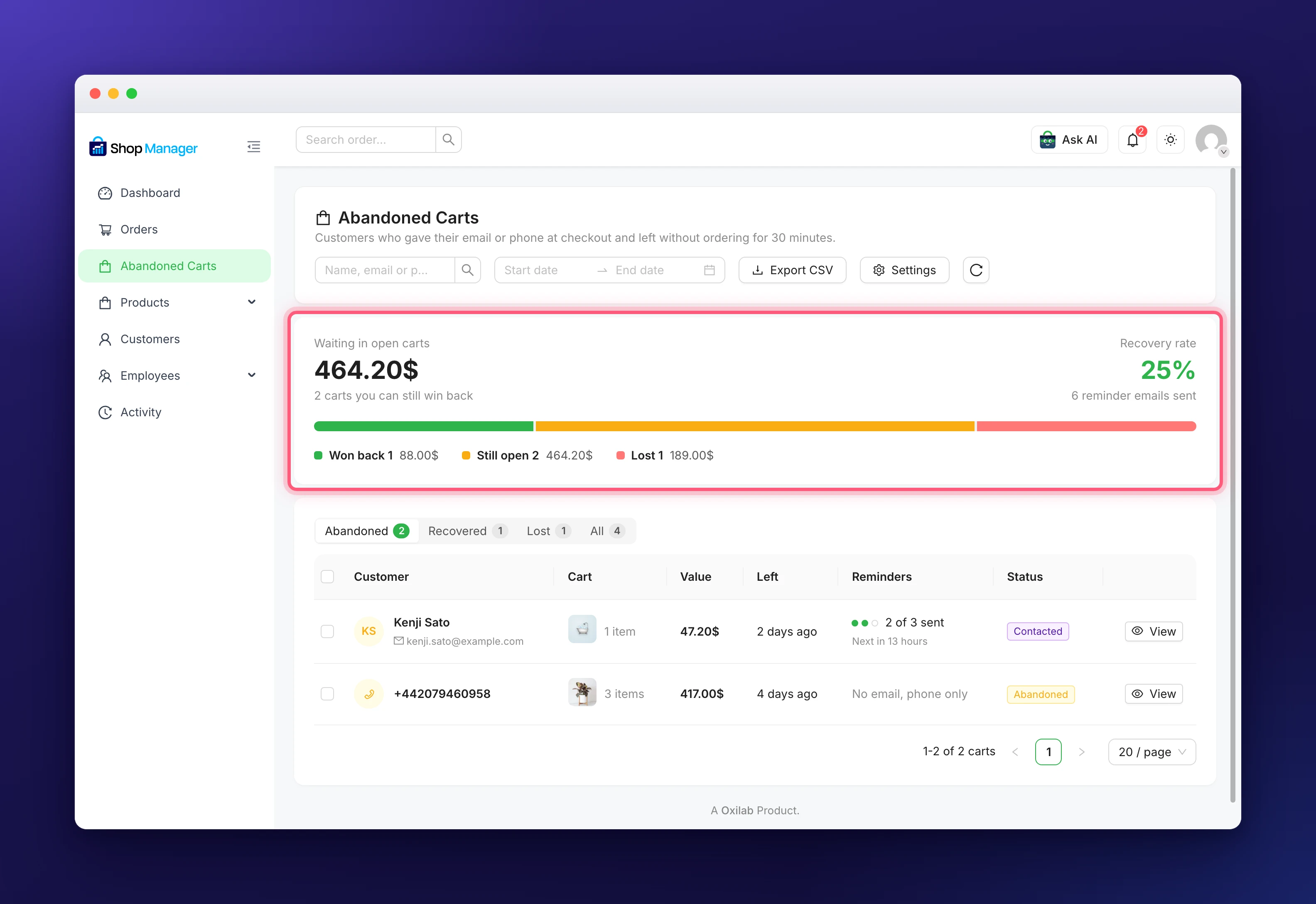
The tabs sort the carts by what happened to them, with a count on each tab:
- Abandoned: carts still waiting for the shopper. This tab opens first.
- Recovered: carts that turned into an order.
- Lost: carts still not ordered after every reminder and the days you chose.
- All: every saved cart.
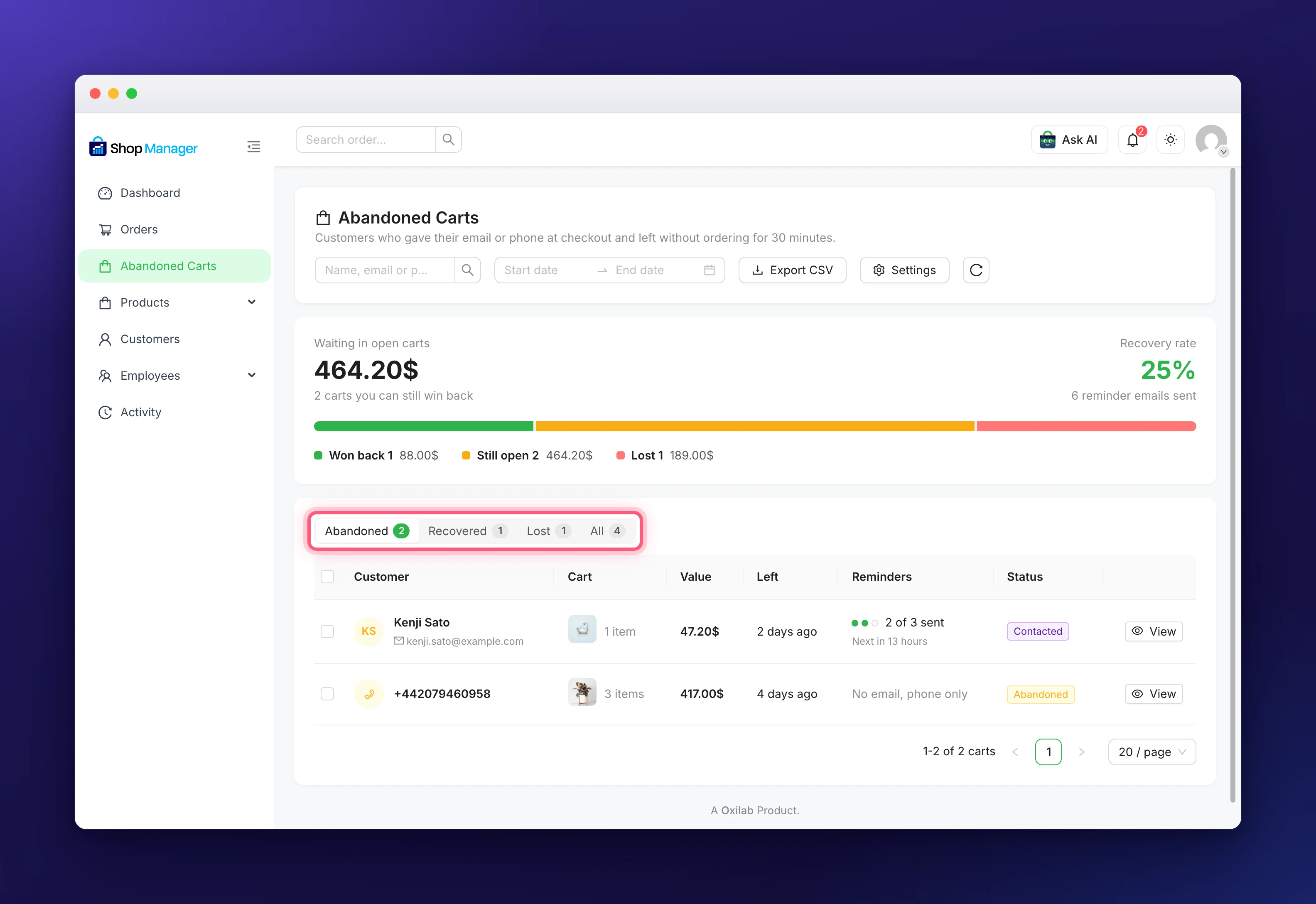
Each row shows the shopper, what was in the cart, its value, when they left, the reminders sent with the time of the next one, and the status. A shopper who gave only a phone number shows “No email, phone only”, because reminders go by email.
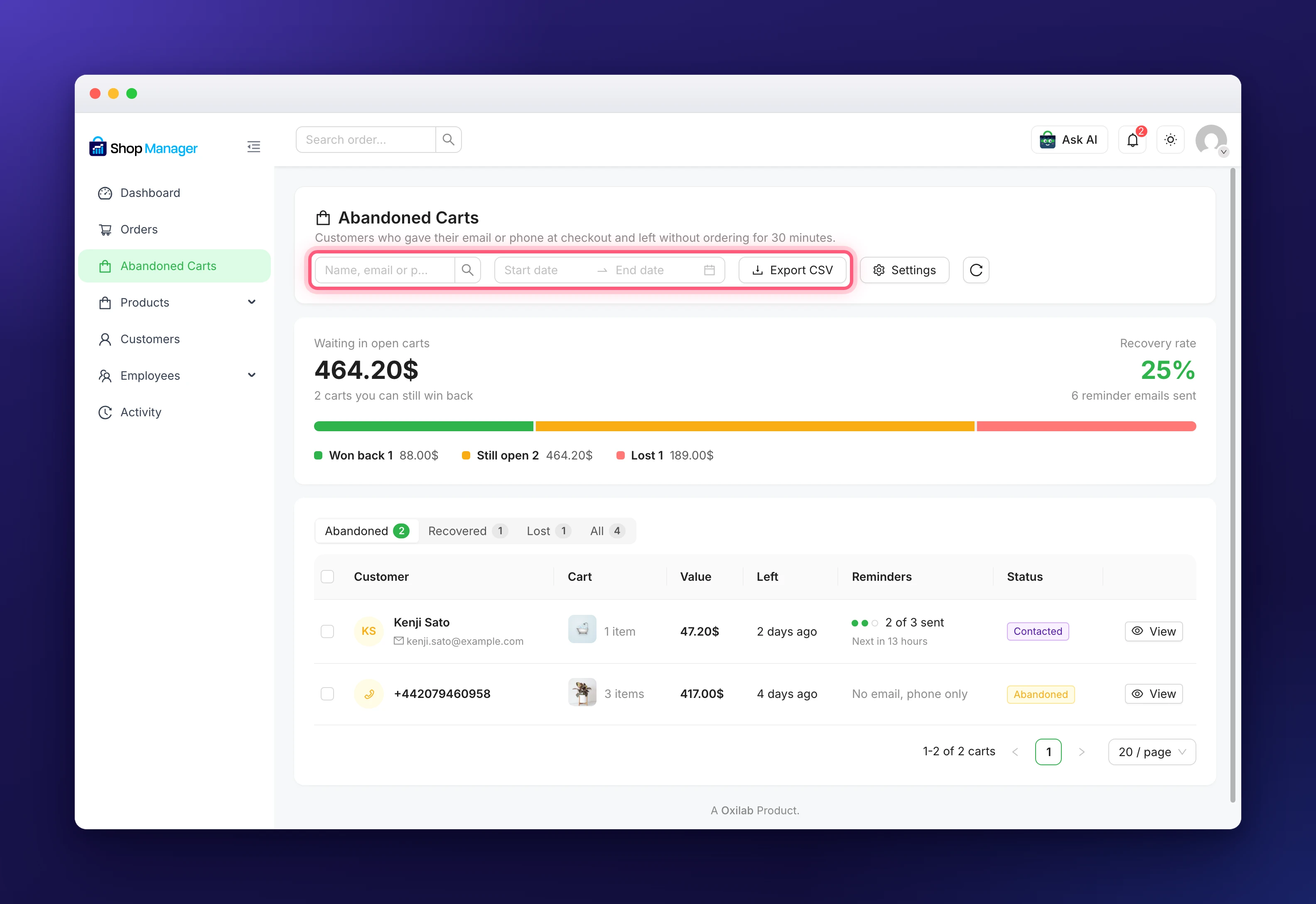
To narrow the list, type a name, email or phone number in the search box, or pick a start and end date. Export CSV downloads the carts that match the tab, the search and the dates you chose (up to 5,000) as a CSV file, with the cart, status, name, email, phone, items, total, last activity, reminders sent and order.
Open a Cart and Contact the Shopper
Click View on a row to open the cart panel. At the top you see the cart value, the number of items, when the shopper left and the status, then their email, phone and country. Below that, a row of buttons lets you act on the cart:
- Email opens your email app with the shopper’s address.
- Call opens your phone app with their number.
- WhatsApp opens WhatsApp with their number and a ready message, which you can change before sending.
- Text opens your messages app with the same message.
- Copy link copies a link that refills this cart and opens checkout, to paste into any message.
- Create order turns the cart into an order (see the next section).
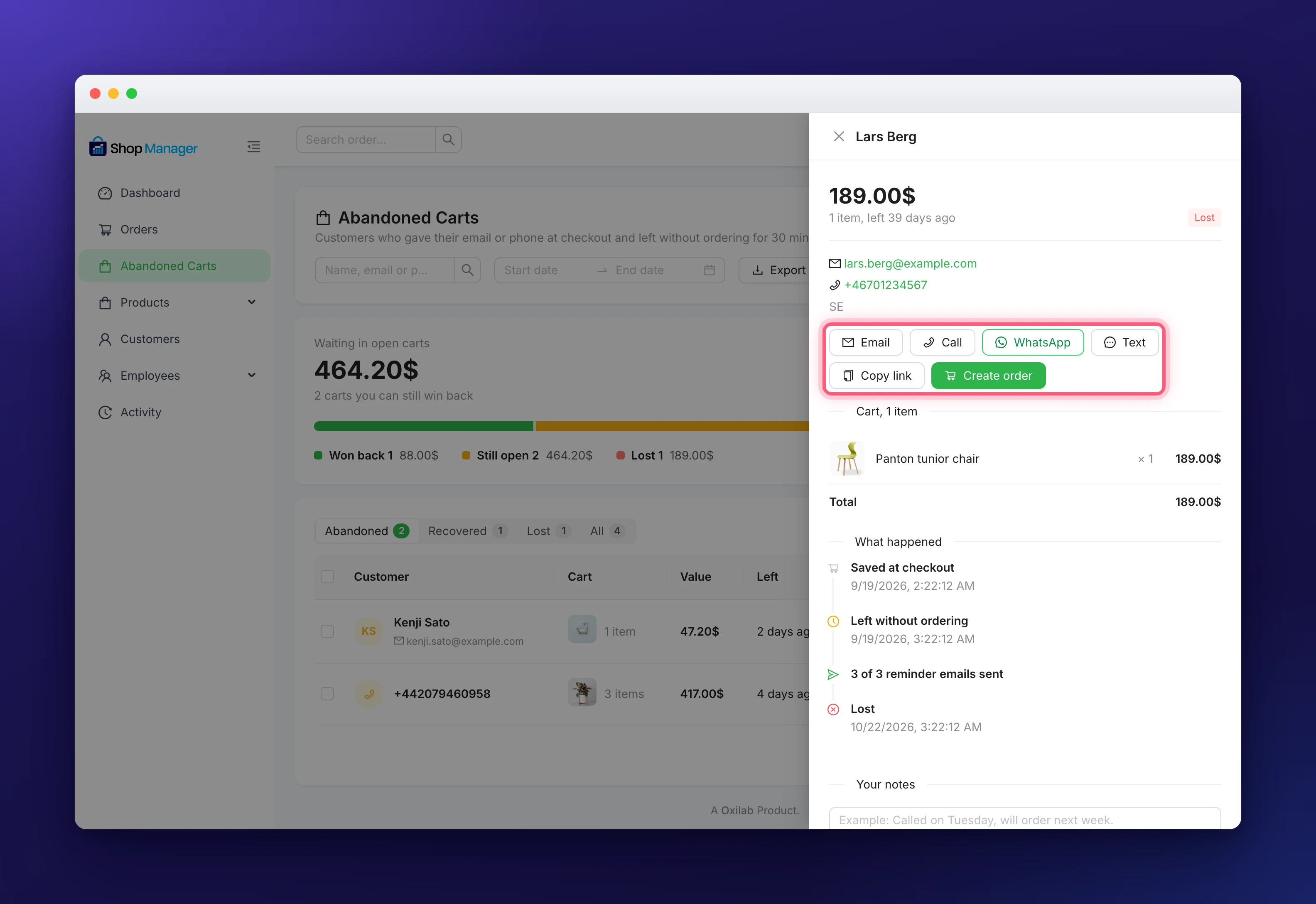
Further down, the panel lists the items with their prices and a What happened timeline: when the cart was saved, when the shopper left, the reminders sent, whether they opened the reminder link or started paying, and when the cart was recovered or lost. You set the WhatsApp and text message, and turn those two buttons on or off, in the WhatsApp & SMS section of the settings.
Create an Order From an Abandoned Cart
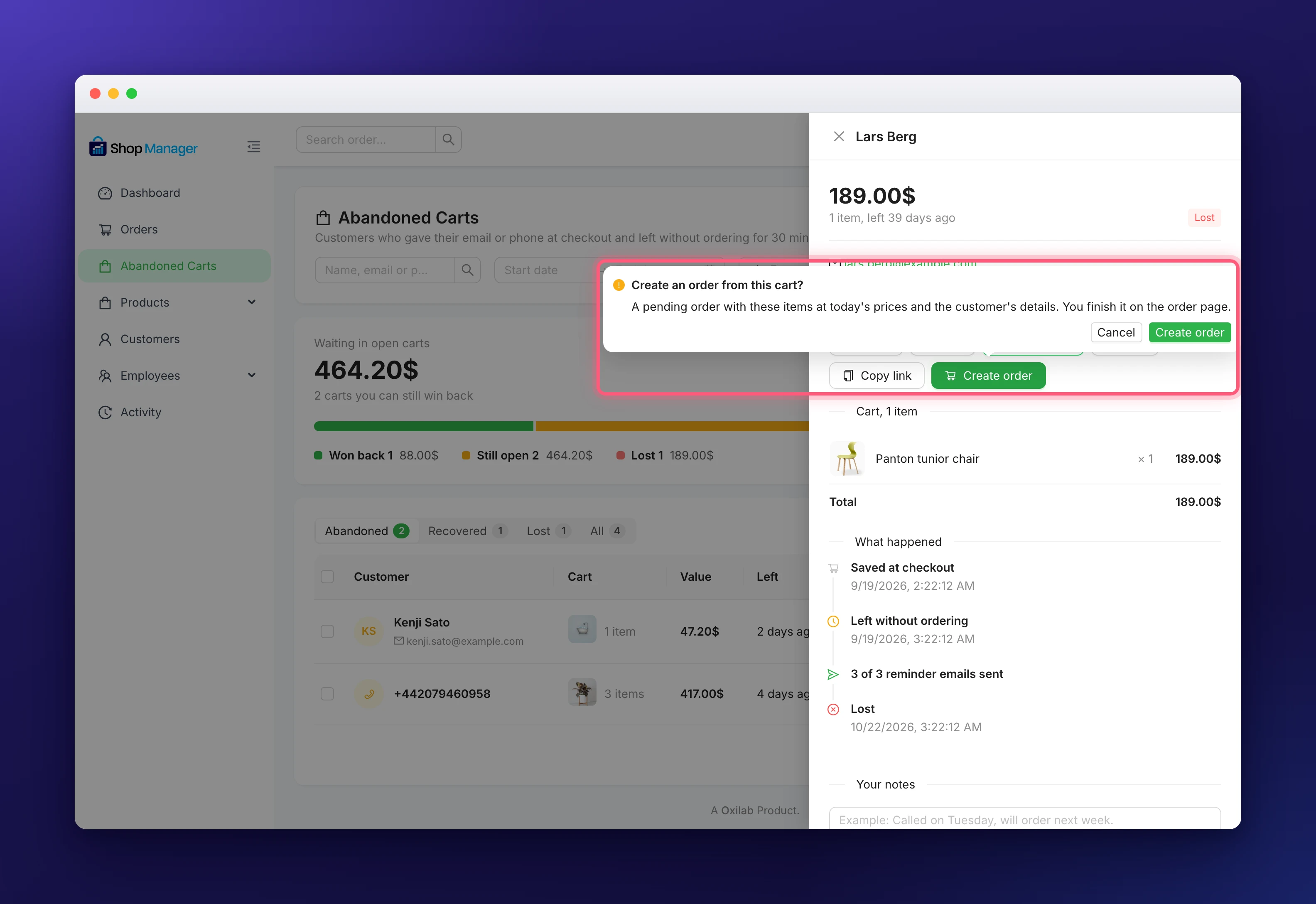
When a shopper tells you they still want the items, for example on the phone, click Create order and confirm. Shop Manager creates a pending order with the items at today’s prices and the shopper’s details. You finish it on the order page, for example to add shipping or send the payment link. Someone who cannot edit orders sees the new order number and a note that a colleague who can edit orders can finish it. To learn more about orders made by hand, see Create WooCommerce Orders.
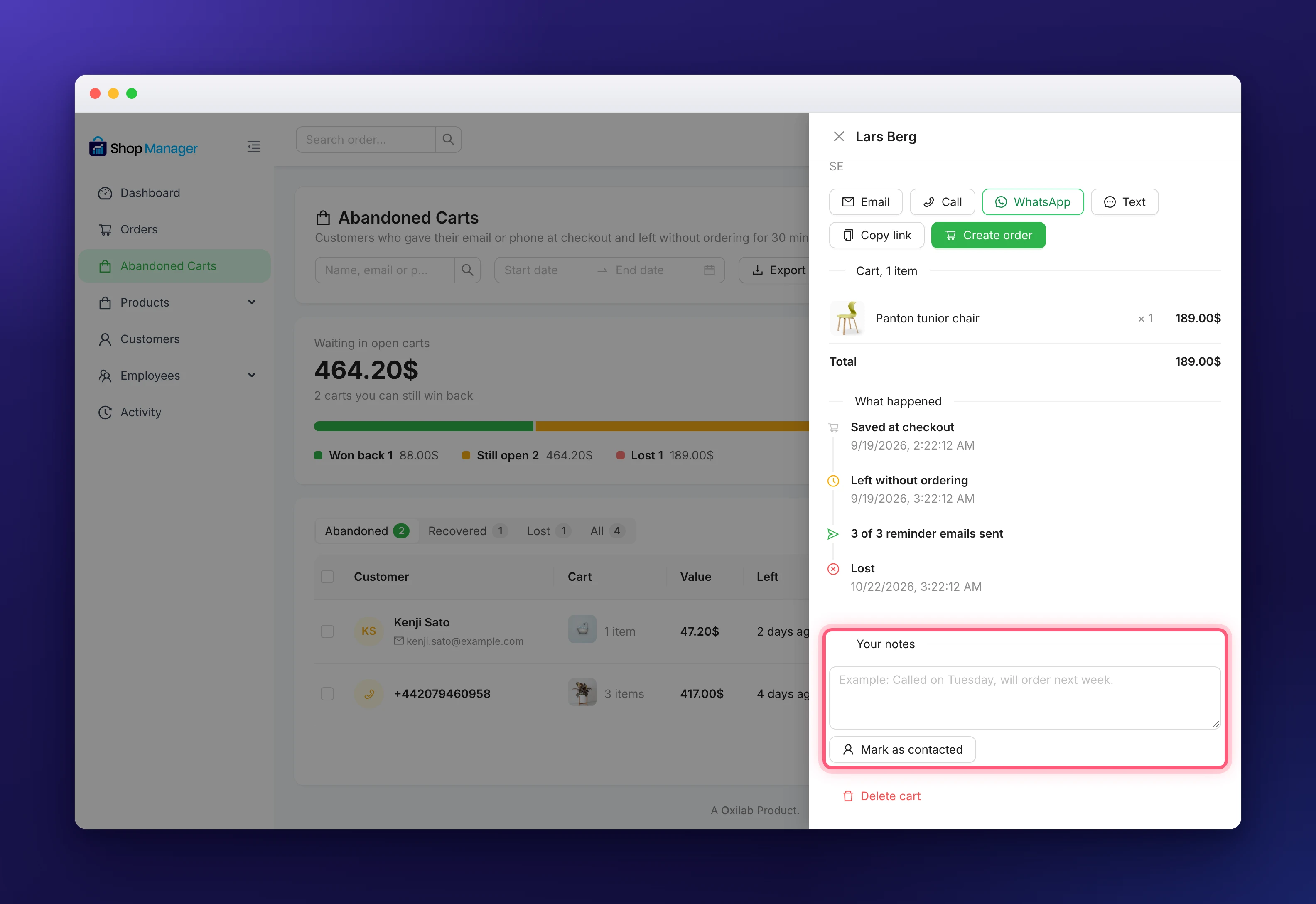
Add Notes and Mark a Cart as Contacted
At the bottom of the panel, write what happened under Your notes, for example “Called on Tuesday, will order next week”, and click Mark as contacted. The cart then shows a purple Contacted tag in the list, so your team knows someone already followed up. Later you can change the note with Save note, or click Mark as not contacted.
Delete Abandoned Carts
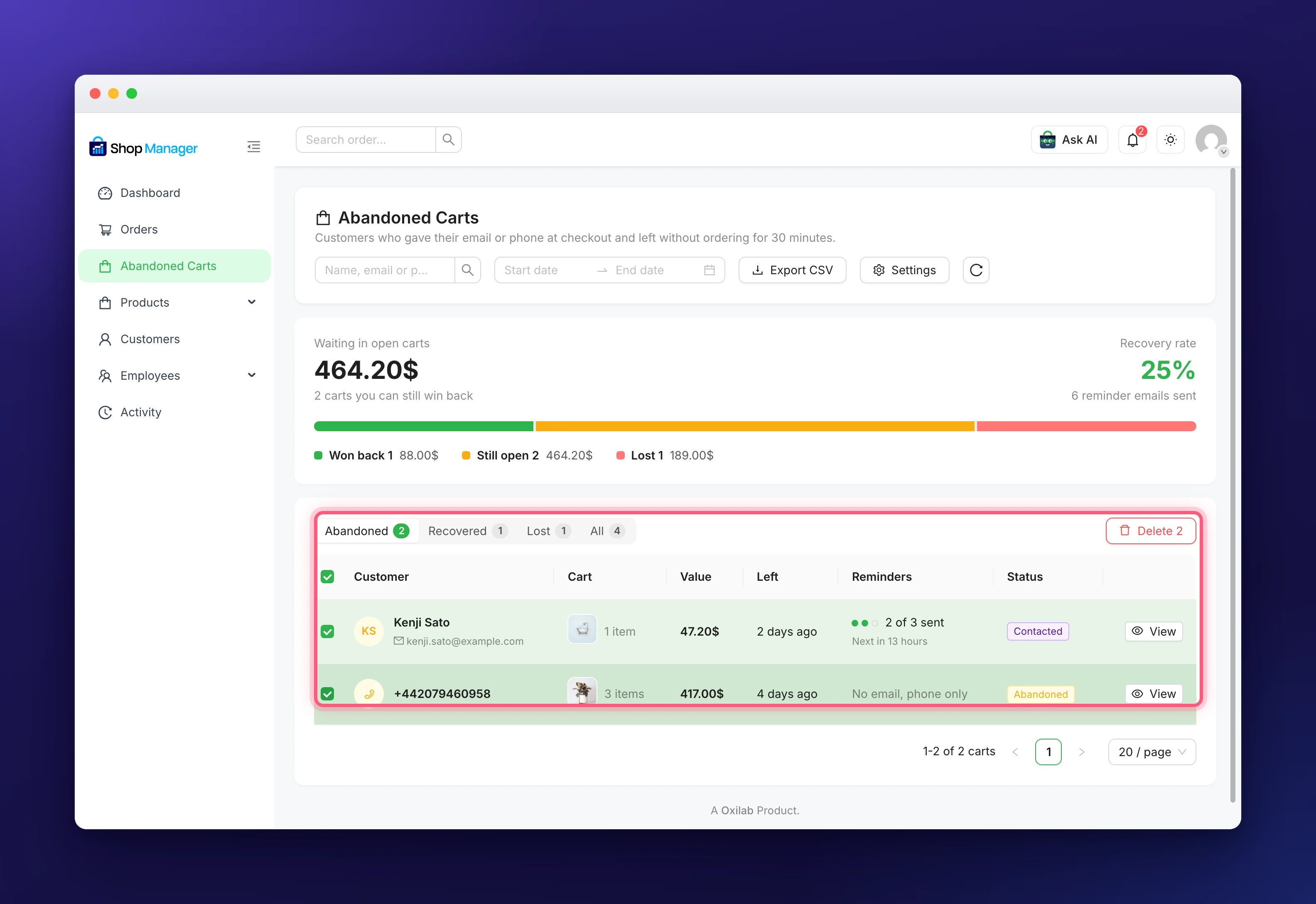
To delete one cart, click Delete cart at the bottom of its panel. To delete several, tick their boxes in the list and click the red Delete button that shows the number you picked. Either way you confirm first. The saved cart and the shopper’s details are removed, and no more reminders are sent for it.
Who Can Use the Abandoned Carts Page
WordPress administrators, editors and WooCommerce shop managers can do everything on the page. For your staff, go to Employees → Roles & Access in the dashboard and set the Abandoned Carts group for each role:
- Abandoned Carts: open the page and the cart panel. The other four need this one.
- Contact Customers: the WhatsApp, Text and Copy link buttons, notes and Mark as contacted.
- Create Order: the Create order button.
- Delete: delete carts.
- Export: the Export CSV button.
The built-in SM: Store Manager role has all five. See Role-Based Access Control for Your Store for how roles work.
Next Steps
- Write the reminders your shoppers get: Abandoned Cart Emails and Discount Coupons.
- Change the timing, the WhatsApp message and more: Abandoned Cart Settings: Every Option Explained.
- Follow the orders your recovered carts bring in with WooCommerce Order Management, or read how WooCommerce itself handles orders in Managing Orders.