Abandoned Cart Recovery for WooCommerce: How It Works
Abandoned cart recovery in Shop Manager saves the cart when a shopper types their email or phone number at checkout and then leaves without ordering. It shows those carts on one page in your Shop Manager dashboard and sends the shopper friendly reminder emails, with a discount coupon in the last one, so more of them come back and finish their order. This guide explains how it works and how to turn it on. Abandoned Cart Recovery is a Shop Manager Pro feature (Pro).
Before You Start
- ✅ WooCommerce and Shop Manager are installed and active.
- ✅ Shop Manager Pro is installed and its license is active. Pro saves the carts, sends the reminder emails and adds the Abandoned Carts page.
- ✅ You can open the Shop Manager dashboard.
Turn On Abandoned Cart Recovery
Abandoned cart recovery is a module, so you can switch it on or off like the other parts of Shop Manager.
- In your WordPress admin, go to Shop Manager → Modules.
- Find the Abandoned Cart Recovery card under Order Management.
- Turn the switch On. The card shows Enabled.
- Click Save Changes at the top of the page.
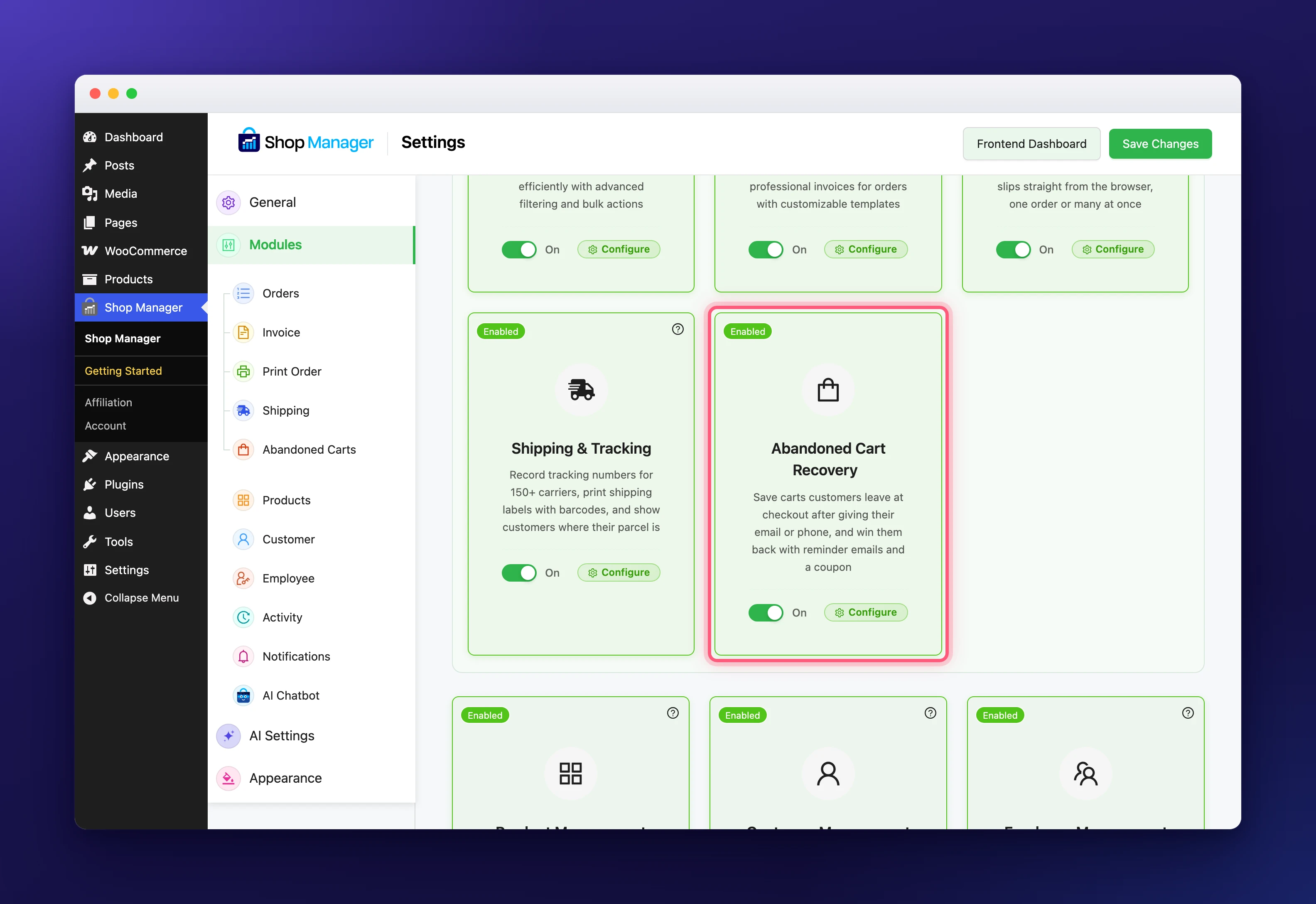
With Pro active, abandoned cart recovery starts saving carts from your checkout right away. The Configure button on the card opens the Abandoned Carts settings, where you choose the timing, the reminder emails and the coupon. You find the same settings under Modules → Abandoned Carts. The settings work without Pro too, so you can set everything up first. To learn more about switching modules, see Enable or Disable Shop Manager Modules.
When a Cart Is Saved
A cart is saved as soon as a shopper with items in their cart types an email address or a phone number at checkout. It is saved even when they close the page right after. Shoppers who are logged in are saved when they open the checkout page, because their email is already known. This works with both the classic checkout and the block checkout.
Under the email field, shoppers see a short notice that their email and cart are saved, with a No thanks link. A shopper who clicks No thanks is not saved, and anything already saved for them is deleted.
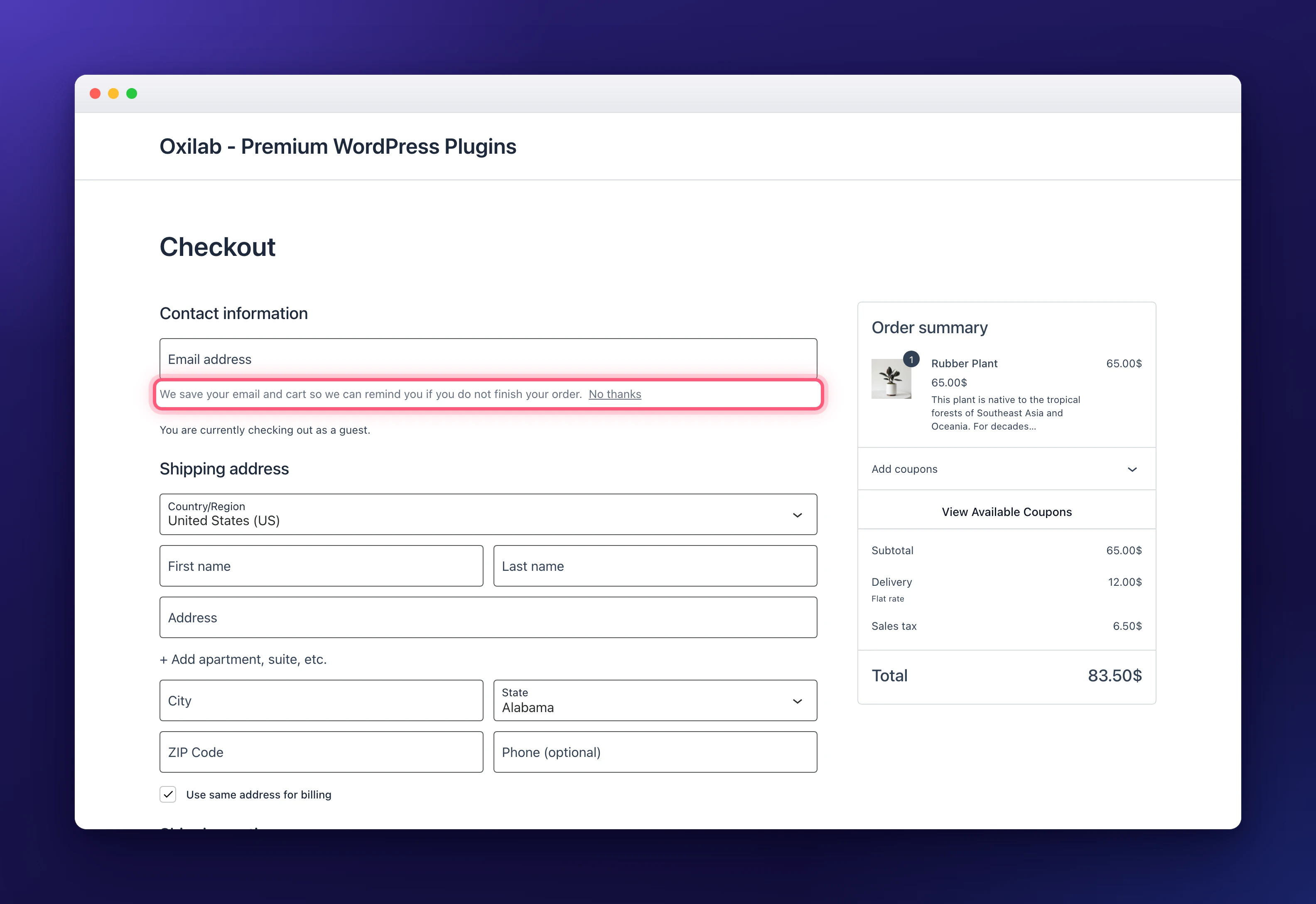
Tip: You can change the notice and the link text, or turn them off, in the Privacy section of the Abandoned Carts settings.
Carts That Are Never Saved
- Your team. Carts of the roles under Do not save carts for are never saved. By default that is administrators, shop managers, other roles that manage WooCommerce or edit orders, and the Shop Manager staff roles. Guests and customers are always saved.
- Shoppers who clicked No thanks at checkout.
- Everyone, while Save new carts is off. This switch in the Recovery settings pauses saving without turning the module off.
How Abandoned Cart Recovery Works
Every saved cart moves through a few steps. These are the default times; you can change each of them in the settings.
- Abandoned. When nothing happens in the cart for 30 minutes, it counts as abandoned. It shows on the Abandoned Carts page in your dashboard and, when the Notifications module is on, in the notification bell.
- Reminder emails. The shopper gets a reminder 1 hour after they left, a second one after 1 day, and a third one after 3 days. Only the third email has a discount coupon: 10% off, valid for 2 days. Each email has a button that refills their cart and opens checkout.
- Recovered. When the shopper places an order with the status Processing, Completed or On hold, the cart counts as recovered and the reminders stop. A payment that failed or is still pending does not count, so that shopper keeps getting reminders.
- Lost. When a cart is still not ordered after 30 days and every reminder went out, it counts as lost.
Reminders also stop when the shopper clicks the link to stop cart reminders in an email, when you delete the cart, or when nothing in the cart can be bought anymore. Saved carts are kept for 60 days and then deleted.
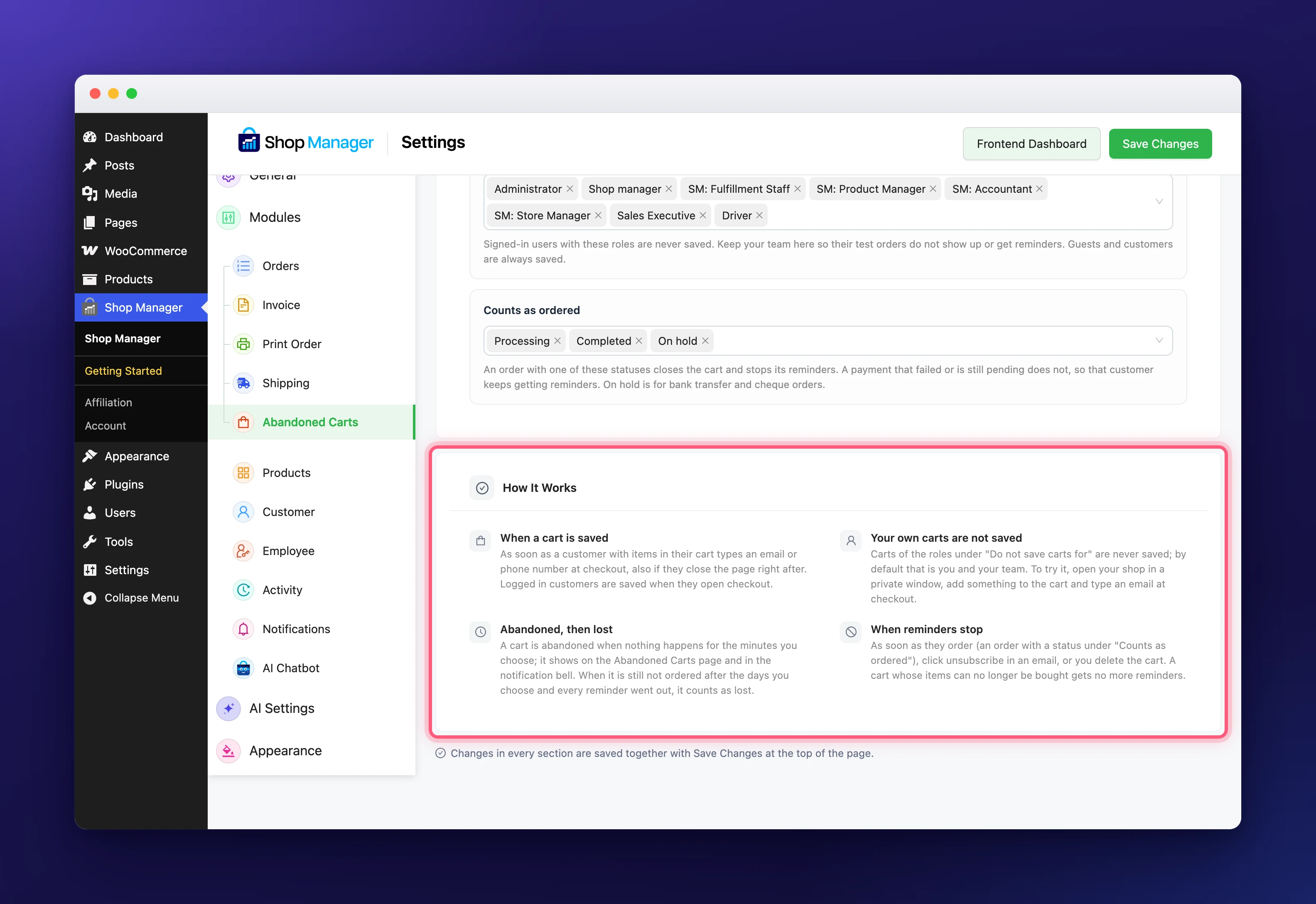
The How It Works panel at the bottom of the Recovery settings sums up these rules, so you can check them any time.
Where Abandoned Cart Recovery Shows Your Carts
Open your Shop Manager dashboard and click Abandoned Carts in the sidebar, right after Orders. The page shows the money waiting in open carts, your recovery rate, the reminder emails sent, and the carts on the Abandoned, Recovered, Lost and All tabs. Click View on a cart to see what was in it and to contact the shopper.
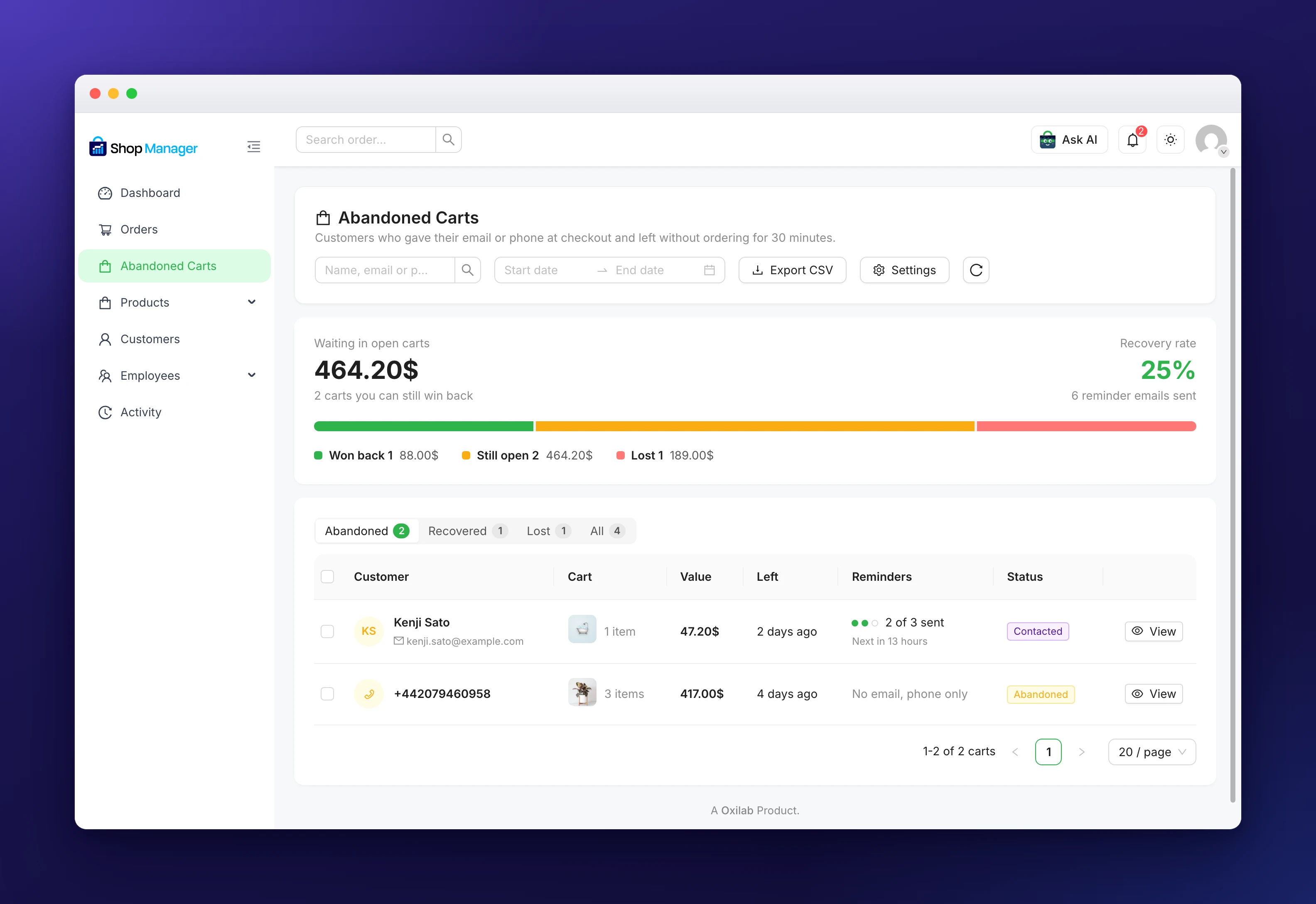
Staff can open this page only when their role has the Abandoned Carts permissions. See Role-Based Access Control for Your Store to give them access.
Test Abandoned Cart Recovery Yourself
Your own carts are never saved while you are logged in, so the list stays empty if you test as an administrator. To see abandoned cart recovery at work:
- Open your store in a private browser window, where you are not logged in.
- Add a product to the cart and go to checkout.
- Type your own email address in the email field, then close the window.
- After 30 minutes, the cart shows on the Abandoned Carts page.
- About 1 hour after you left, the first reminder email arrives at the address you typed.
Tip: Reminder emails are sent by WordPress’ scheduled tasks, which run when someone visits your site. On a quiet store, an email can arrive a little later than planned.
Next Steps
- Learn how the checkout page works in WooCommerce: Customizing the Cart and Checkout.
- See every Shop Manager settings tab in the Settings Reference.
- Manage the orders your recovered carts bring in with WooCommerce Order Management.