Shop Manager General Settings: Dashboard Page and Pagination
The general settings page is the first screen of Shop Manager’s settings. It holds two things every store sets once: the page your staff dashboard runs on, and how many rows each dashboard list shows. This guide walks through both, step by step.
Before You Start
- ✅ Shop Manager for WooCommerce 1.3.9 or later is installed and active.
- ✅ You are logged in to WordPress as an administrator. Only an administrator can change the dashboard page.
- ✅ If you plan to use a new page, it is already published in Pages.
Open the General Settings
- In your WordPress admin, click Shop Manager in the left menu.
- The settings open on General, the first item in the Shop Manager menu. The page title reads General Settings.
- You see two cards: Dashboard page and Pagination.
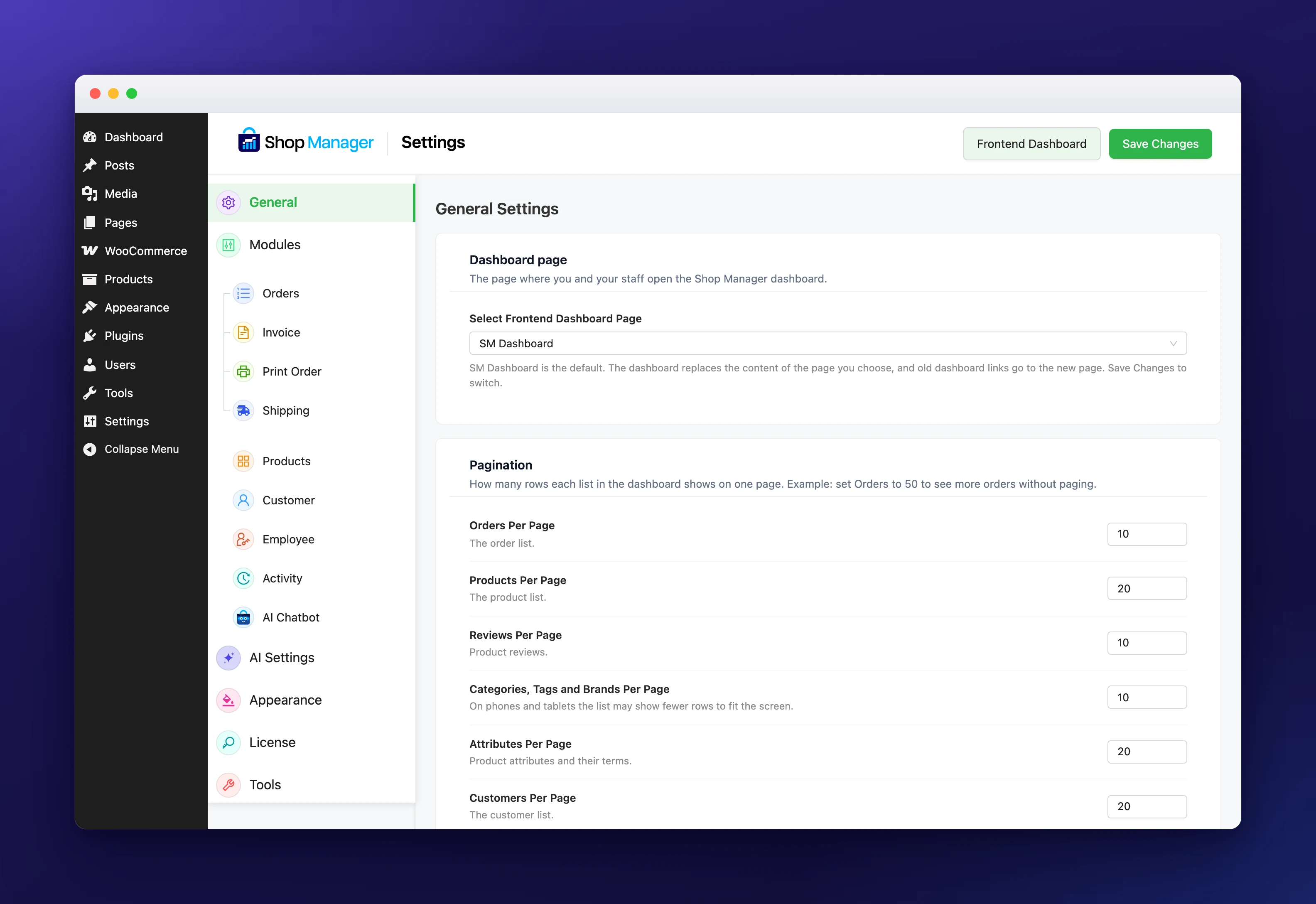
Choose Your Dashboard Page in General Settings
Shop Manager creates a page called SM Dashboard when you activate it, and your staff dashboard runs there by default. You can move the dashboard to any other published page, for example a page called “Staff” or “Team”.
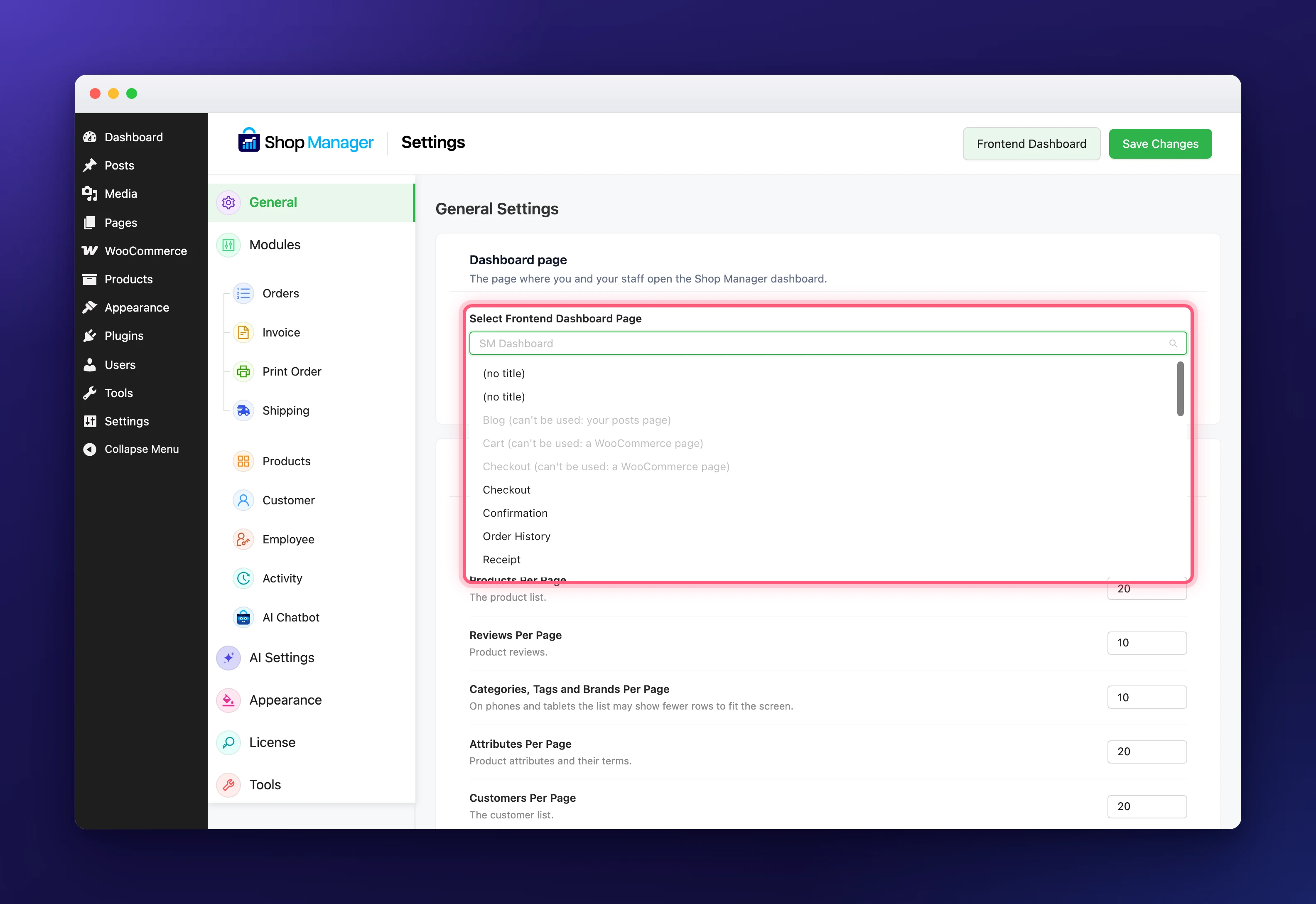
- In the Dashboard page card, open Select Frontend Dashboard Page.
- Pick a page from the list. You can type to search when you have many pages.
- Click Save Changes at the top right.
- Click Frontend Dashboard to open the dashboard on its new page.
Here is what changes once you save:
- The page shows the dashboard. The dashboard replaces whatever the page held, and every dashboard screen lives under its address, such as
yoursite.com/staff/orders/all. A child page works too. - Old links keep working. Bookmarks and links to
/sm-dashboard/, including a link to a single screen, now open the same screen on the new page. - New emails use the new address. The welcome email for a new employee and the password reset email link to the page you chose.
- The page is protected. WordPress will not let anyone trash or delete the dashboard page. It shows “This page is required for the Shop Manager plugin and cannot be deleted.” The same goes for the SM Dashboard page.
Pages the Dashboard Can’t Use
Because the dashboard replaces the whole page, some pages would break your store if they held it. They still appear in the list, greyed out, with the reason after the name:
- Your home page and your posts page, when your site uses a static front page (set under Settings, Reading in WordPress).
- WooCommerce pages: Shop, Cart, Checkout, My account and Terms.
Only published pages are listed. If a chosen page later becomes your home page or stops being published, the dashboard goes back to SM Dashboard on its own, so your staff are never locked out.
Go Back to SM Dashboard
Open Select Frontend Dashboard Page, choose SM Dashboard and click Save Changes. The dashboard is back at /sm-dashboard/, and the page you used before shows its own content again.
Set Rows Per Page in General Settings
The Pagination card sets how many rows each list in the dashboard shows on one page. Type any whole number from 1 to 100 and click Save Changes. For example, set Orders to 50 to see more orders without paging.
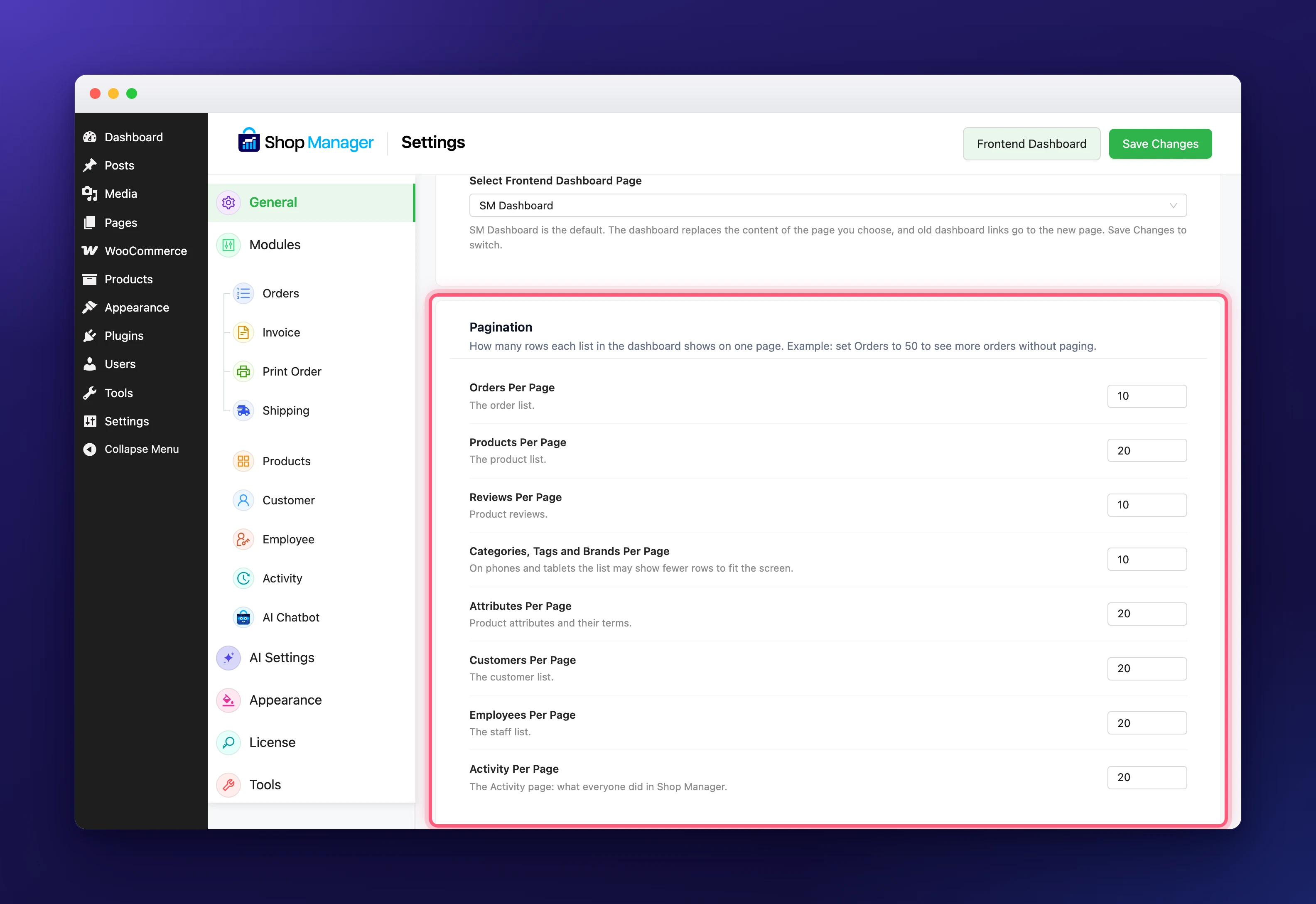
| Setting | The list it changes | Default |
|---|---|---|
| Orders Per Page | The order list | 10 |
| Products Per Page | The product list | 20 |
| Reviews Per Page | Product reviews | 10 |
| Categories, Tags and Brands Per Page | The three product taxonomy lists | 10 |
| Attributes Per Page | Product attributes and their terms | 20 |
| Customers Per Page | The customer list | 20 |
| Employees Per Page | The staff list | 20 |
| Activity Per Page | The Activity page | 20 |
Every list in the dashboard also has its own rows per page menu (10, 20, 50 or 100) and a Go to box at the bottom. Use them for a quick change while you work; that choice is not saved, and the list opens with your general settings number next time. On phones and tablets the Categories, Tags and Brands lists may show fewer rows to fit the screen.
Tip: big numbers show more at once but load a little slower on a large store. 20 to 50 is a good range for most shops.
Export, Import and Reset
- Export (Shop Manager, Tools) saves your general settings with the rest: the list sizes, and the dashboard page by its address.
- Import on another site uses the page with the same address. If that site has no such page, or the page can’t hold the dashboard, the page is skipped and everything else is imported.
- Reset all settings puts the list sizes back to the defaults above. Your dashboard page stays as it is.
Troubleshooting
The page I want is missing from the list.
Only published pages are listed. Publish it in Pages, then reload the general settings.
A page says “can’t be used”.
It is your home page, your posts page or a WooCommerce page. Create a new page for the dashboard instead.
Staff still open the old address.
That is fine: /sm-dashboard/ links send them to the new page automatically.
A list still shows the old number of rows.
Check you clicked Save Changes, then reload the dashboard. A size picked in the list’s own menu lasts only until you leave the list.
Related Documentation
- Set Up Your WooCommerce Frontend Dashboard: what is on the dashboard and who can get in.
- Shop Manager Settings Reference: every settings tab in one place.
- Enable or Disable Shop Manager Modules: turn whole features on or off.
- WooCommerce Order Management: the order list your Orders Per Page number sets.
- Add Employees and Assign Roles: the welcome email that links to your dashboard page.