Shop Manager Settings Reference (All Tabs)
Every Shop Manager settings screen lives on one page in the WordPress admin, split into eleven tabs down the left. This page is the map: what each tab holds, in one line, and where the full guide for it is. Nothing here is explained twice; follow the link for the detail.
Where the Settings Live
Click Shop Manager in the WordPress admin sidebar to reach the Shop Manager settings page. It opens on the Modules tab, with the rest listed beneath it; the four order related tabs are indented together because they belong to the same group of modules. Eight of the eleven tabs only show while their module is switched on, so a tab you cannot find is almost always a module that is off, not a missing feature.
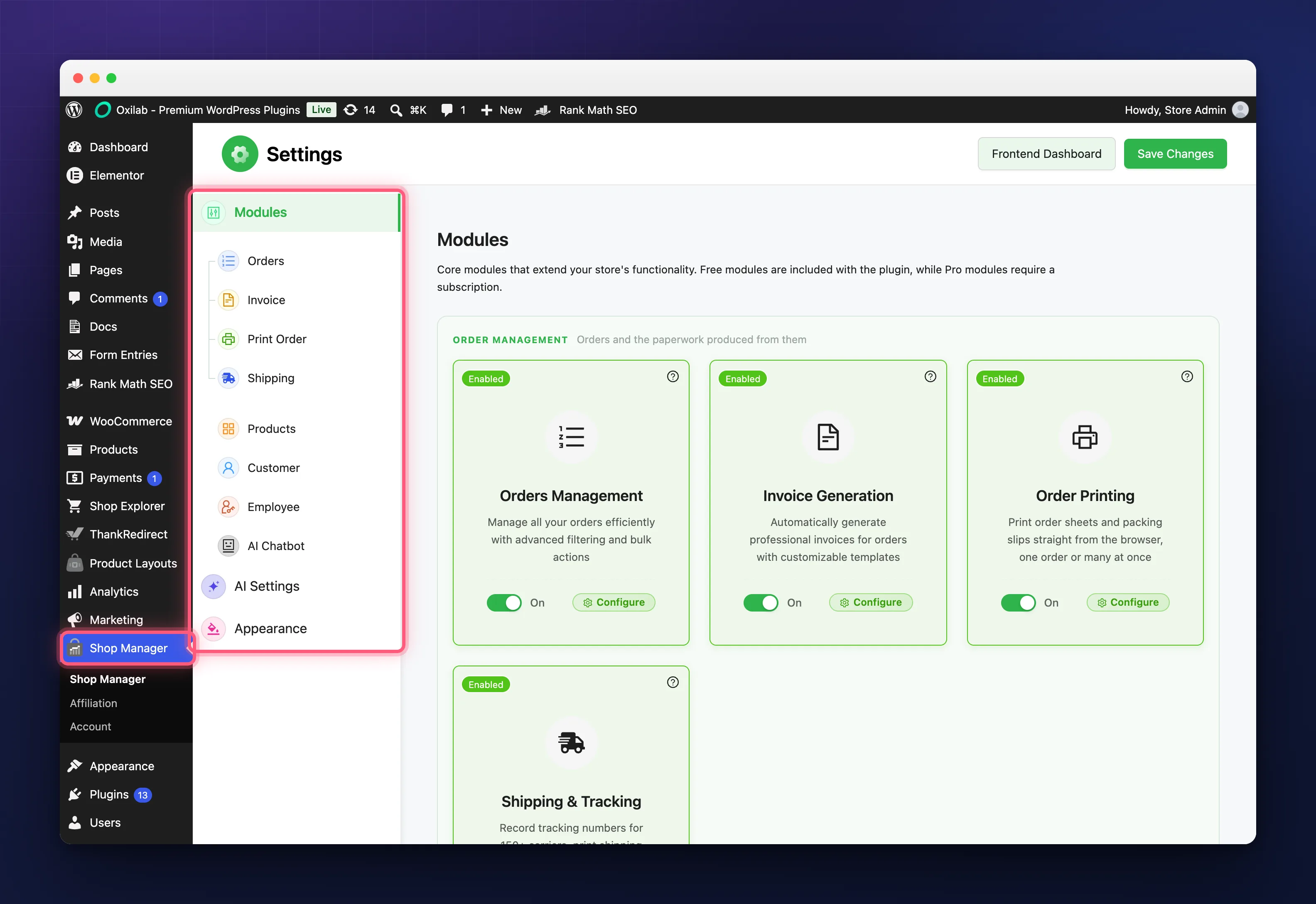
The Eleven Tabs
| Tab | What it holds | Full guide |
|---|---|---|
| Modules | The on and off switch for each of the eight parts of the plugin. Always visible. | Enable or Disable Shop Manager Modules |
| Orders | Which order statuses show and in what colour, custom statuses of your own, and the advanced filter set. | Custom Order Status, Advanced Order Filters |
| Invoice | Company details and logo, general options, content, template, colours and footer, with a live preview of the invoice. | WooCommerce PDF Invoices |
| Print Order | Company, general, content, colours and footer for printed order sheets and packing slips, with a live preview. | WooCommerce Order Management from the Frontend |
| Shipping | Which of the 151 carriers you use, label company details, content, tracking options, colours and footer, with a live label preview. | Shipping Labels, Order Tracking |
| Products | Inventory, product display, SKU prefix and review options for the product screens. | WooCommerce Product Management |
| Customer | The thresholds behind the seven automatic customer tags, and the roles to leave out of the customer list. | Automatic Customer Segmentation |
| Employee | How long the activity log is kept. | Employee Activity Log & Performance Reports |
| AI Chatbot | The assistant’s on switch, the employee message limit, tool transparency, custom instructions and usage. | WooCommerce AI Assistant |
| AI Settings | Provider, API key, model, token limit and temperature for every AI feature. Always visible. | Configure AI Settings & API Keys |
| Appearance | Logo, layout style, colour combination and dark palette for the dashboard. Always visible. | Customize Your Dashboard Appearance |
Roles and permissions are not on this page at all. They are managed from the dashboard itself, under Employees and then Roles & Access; see Role Based Access Control.
Saving
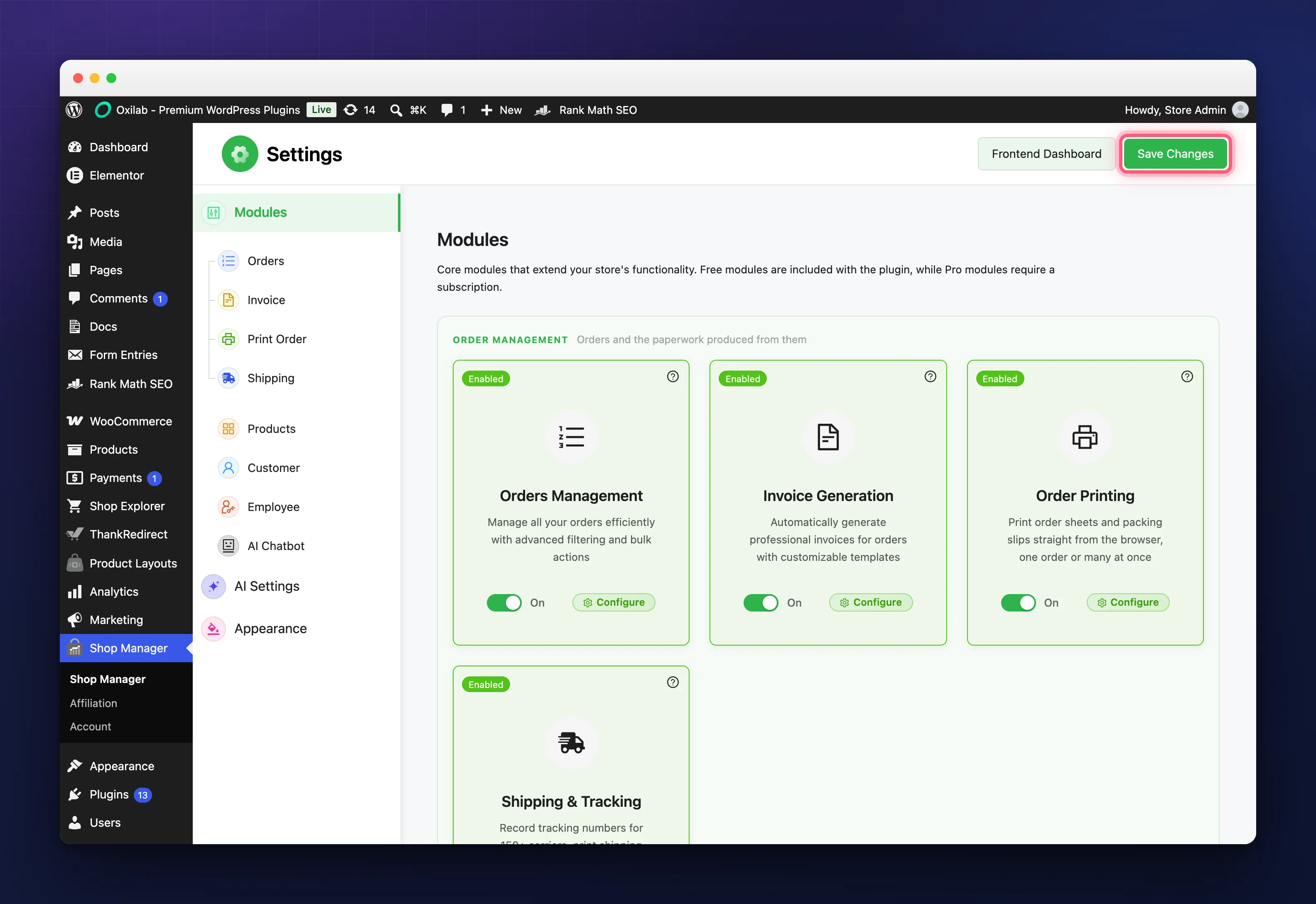
There is one Save Changes button, top right, and it saves every tab at once. You can move between tabs freely and press it when you are done; you do not have to save each tab on its own. The Shop Manager settings are store wide and apply to everyone who opens the dashboard on their next page load. The only choice that belongs to an individual is the light or dark toggle in the dashboard header.
Two things on these tabs are not stored by Shop Manager at all: the low stock threshold, and the switches for showing out of stock products and for reviews. Those are WooCommerce’s own options, shown here so you do not have to leave the page, and changing them in either place changes both.
Troubleshooting
A tab I used to have is gone.
Open Modules and check the switch for that feature. The Orders, Invoice, Print Order, Shipping, Products, Customer, Employee and AI Chatbot tabs each disappear when their module is off.
My change did not stick.
Save Changes was not pressed before leaving the Shop Manager settings page. Reload, make the change again, and click it.
I want everything back to how it shipped.
There is no single reset. Each tab’s defaults are described in its own guide; set them back by hand and save once.
Related Documentation
- Enable or Disable Shop Manager Modules: the tab that decides which other tabs you see.
- Set Up Your WooCommerce Frontend Dashboard: the dashboard these settings shape.
- Install & Activate Shop Manager Pro: which features need a licence.