Enable or Disable Shop Manager Modules
Shop Manager is built from eight switchable parts. If your store never prints packing slips or has no staff, you can turn those Shop Manager modules off and the dashboard simply stops showing them, with nothing deleted and the switch ready to flip back. Every one of the eight is available in the free plugin.
Opening the Modules Tab
In the WordPress admin, go to Shop Manager. The Modules tab is the first one and opens by default. The order related cards sit together under an “Order Management” heading, with the rest below. Flip a switch, then click Save Changes at the top right; nothing changes until you do.
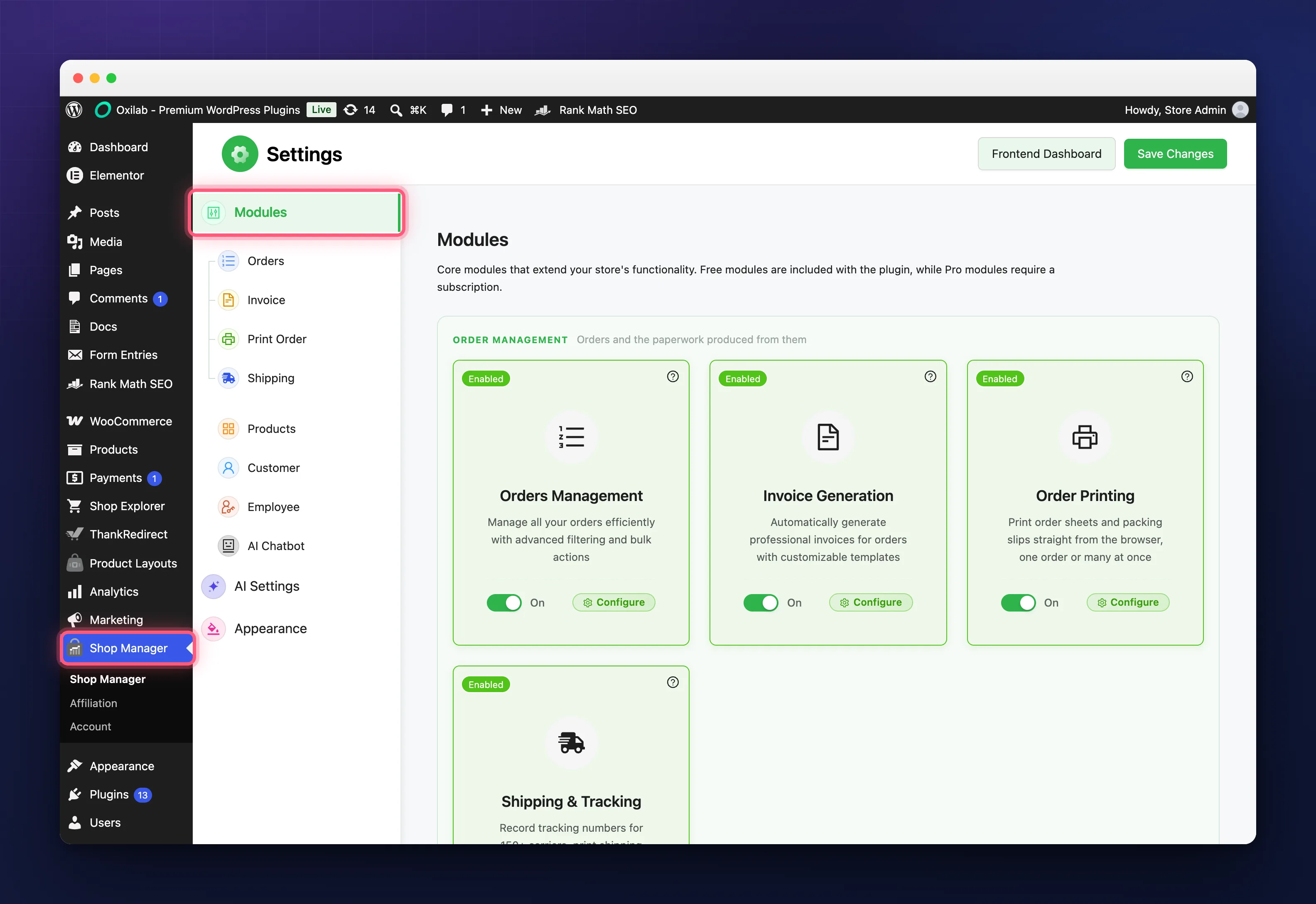
The Eight Modules
- Orders Management: the order list, filters and bulk actions.
- Invoice Generation: invoices for orders, with templates you can adjust.
- Order Printing: order sheets and packing slips printed from the browser, singly or in bulk.
- Shipping & Tracking: tracking numbers, shipping labels with barcodes, and parcel tracking shown to customers.
- Product Management: products, stock and pricing, plus categories, tags, brands, attributes and reviews.
- Customer Management: the customer list, profiles and tags.
- Employee Management: employees, roles and the activity log.
- AI Chatbot: the AI assistant panel in the dashboard header.
All eight switches work without Pro. Pro changes what some of the features can do once they are on, such as the AI assistant giving real answers, not whether the module can be enabled.
What Each Card Gives You
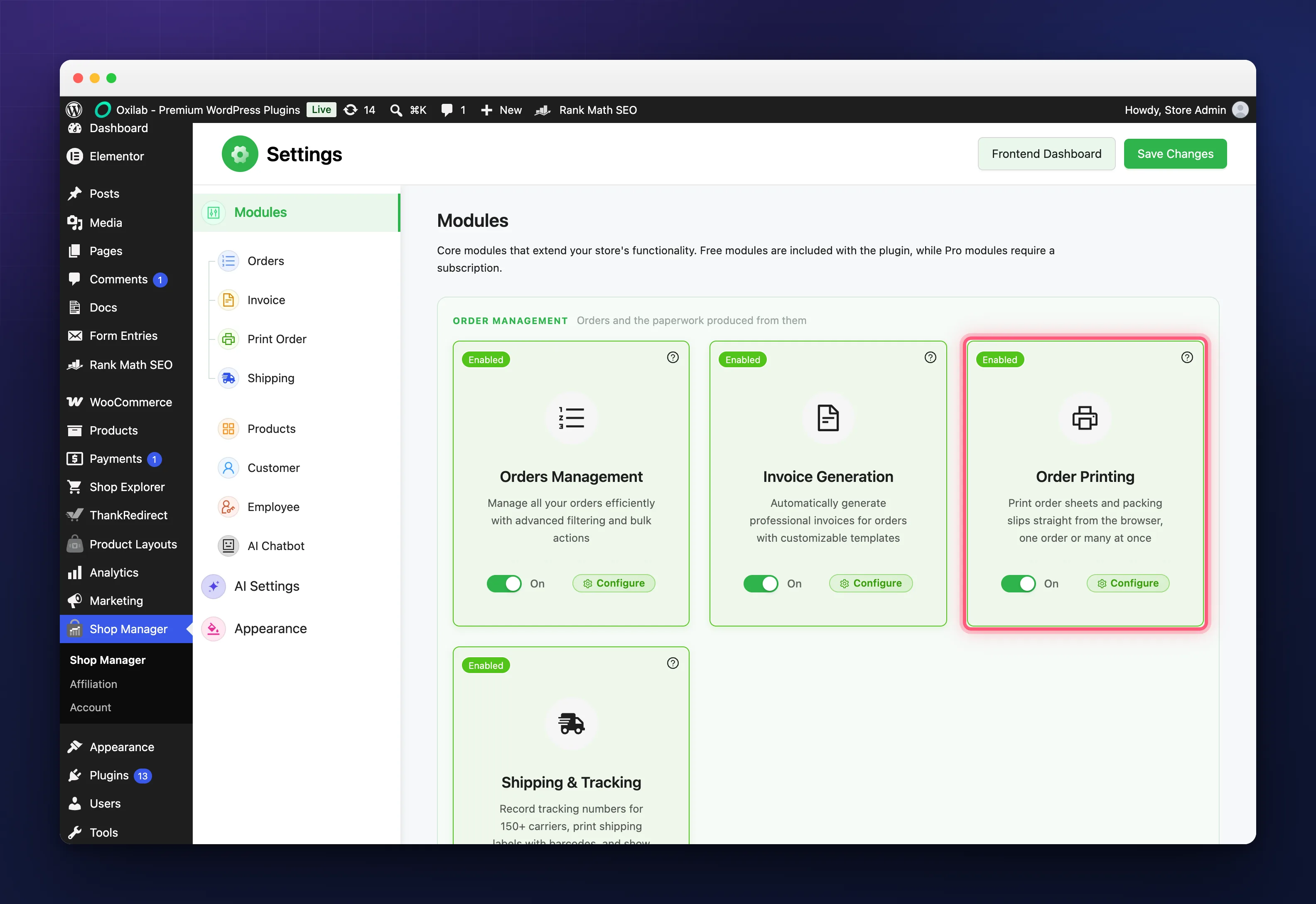
Each card carries an Enabled badge when it is on, the switch itself, and two shortcuts. Configure jumps to that module’s own settings tab and only appears while the module is on. The small question mark in the corner opens the module’s documentation page in a new tab.
What Switching One Off Does
Turning off any of the Shop Manager modules hides its settings tab in the WordPress admin. Beyond that, each one takes something out of the dashboard:
- Orders, Products, Customers or Employees off: that section leaves the dashboard sidebar for everyone, including administrators.
- Order Printing off: the print buttons disappear, and any print request is refused with “Order printing is disabled”.
- Shipping & Tracking off: the shipment controls disappear, and customers stop getting tracking in their emails and account pages.
- AI Chatbot off: the assistant icon leaves the header.
- Invoice Generation off: the Invoice settings tab is hidden. The invoice actions on orders are governed by the Invoice settings themselves rather than by this switch.
Nothing is removed from your store when Shop Manager modules are turned off. Orders, products, customers, employees, roles and logs all stay exactly where they were; the switch is a single yes or no in the plugin’s settings, and turning it back on brings the screen back as it was.
Troubleshooting
The switch goes back to where it was.
You flipped it but did not click Save Changes. The Shop Manager modules page is one form; nothing is stored until it is saved.
I turned a module off and an employee still sees it.
Have them reload the dashboard. The sidebar is built from the saved settings when the page loads.
A print or shipping button has vanished for everyone.
Check the Modules tab before checking roles. A module switched off hides those buttons for administrators too.
A module is on but the feature says it needs Pro.
The switch and the licence are separate things. See Install & Activate Shop Manager Pro.
Related Documentation
- Shop Manager Settings Reference: every tab behind the Configure buttons.
- WooCommerce Employee Management with Shop Manager: the Employee Management module.
- WooCommerce AI Assistant: Ask About Your Store: the AI Chatbot module.