WooCommerce AI Assistant: Ask About Your Store
The WooCommerce AI assistant is a chat panel inside the Shop Manager dashboard. Ask it a question in plain words, such as how many orders came in this week or which products are nearly out of stock, and it looks the answer up in your store right then rather than reciting a cached report. It needs Shop Manager Pro and a provider key saved in AI Settings, and it is for your team only; customers never see it.
Opening the Assistant
Click the AI Assistant icon in the dashboard header. It slides open as a panel on the right, with an Expand control if you want it wider, and starts with four suggested questions under “Try asking”. There is no separate page; the panel is the whole feature and it is there on every dashboard screen.
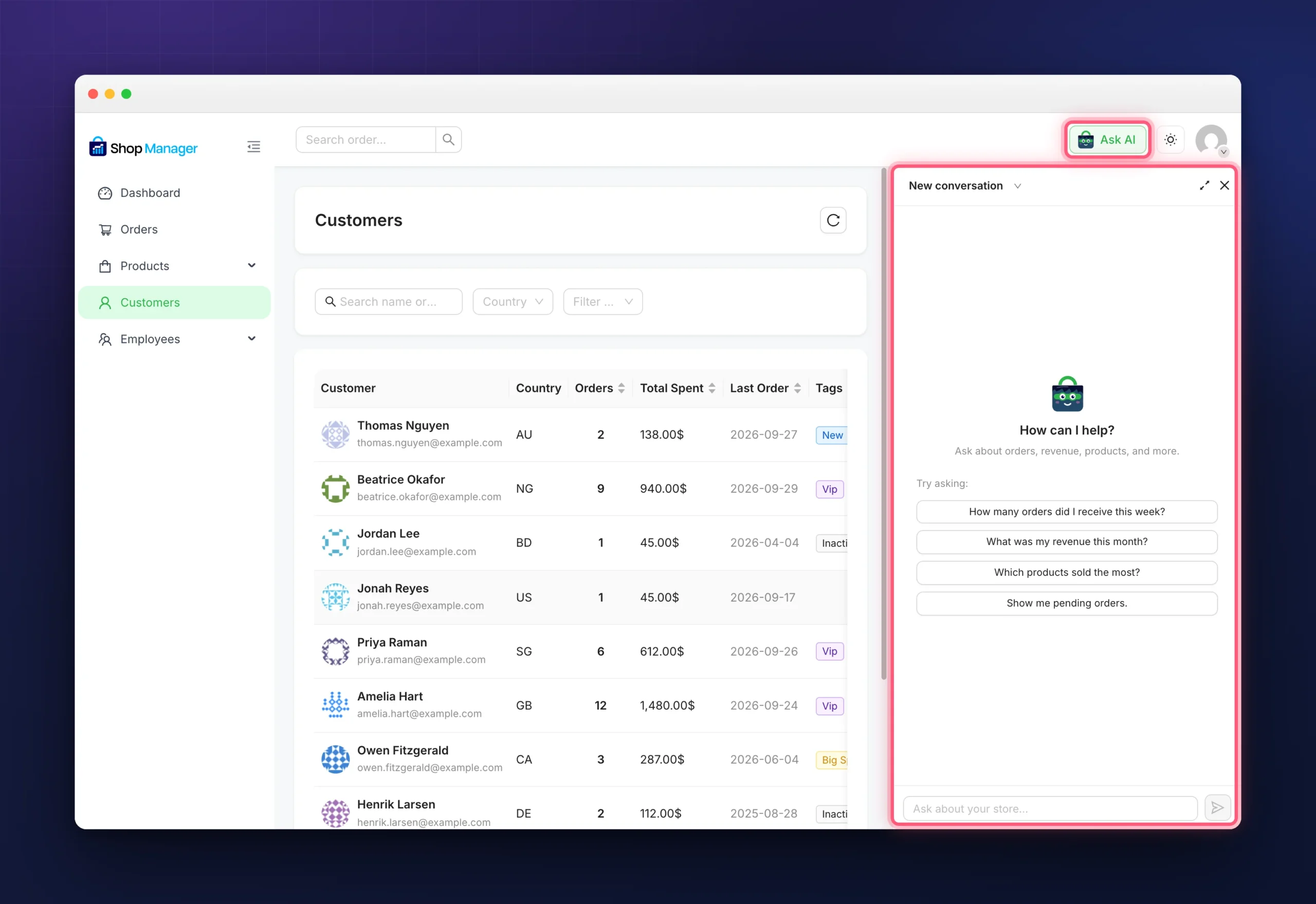
The icon only appears when the AI Chatbot module is on and your account is allowed to use it. Administrators always are; an employee needs the AI Chatbot permission on their role.
What It Can Look Up
Behind the chat are eight lookups, and every answer is built from them: order counts and totals for a period, a list of orders filtered by status or customer email, the most recent orders, revenue for a period, product sales and best sellers, products at or below a stock level (five by default), customer counts including new customers, and employee activity. It also knows your store’s name, currency, timezone and the current date, so “this month” means your month.
Everything it does is read only: it cannot change an order, edit a product or email a customer. Questions outside those eight lookups get a general reply or an honest “I can’t see that”. A message can be up to 2,000 characters, and one answer may run up to eight lookups.
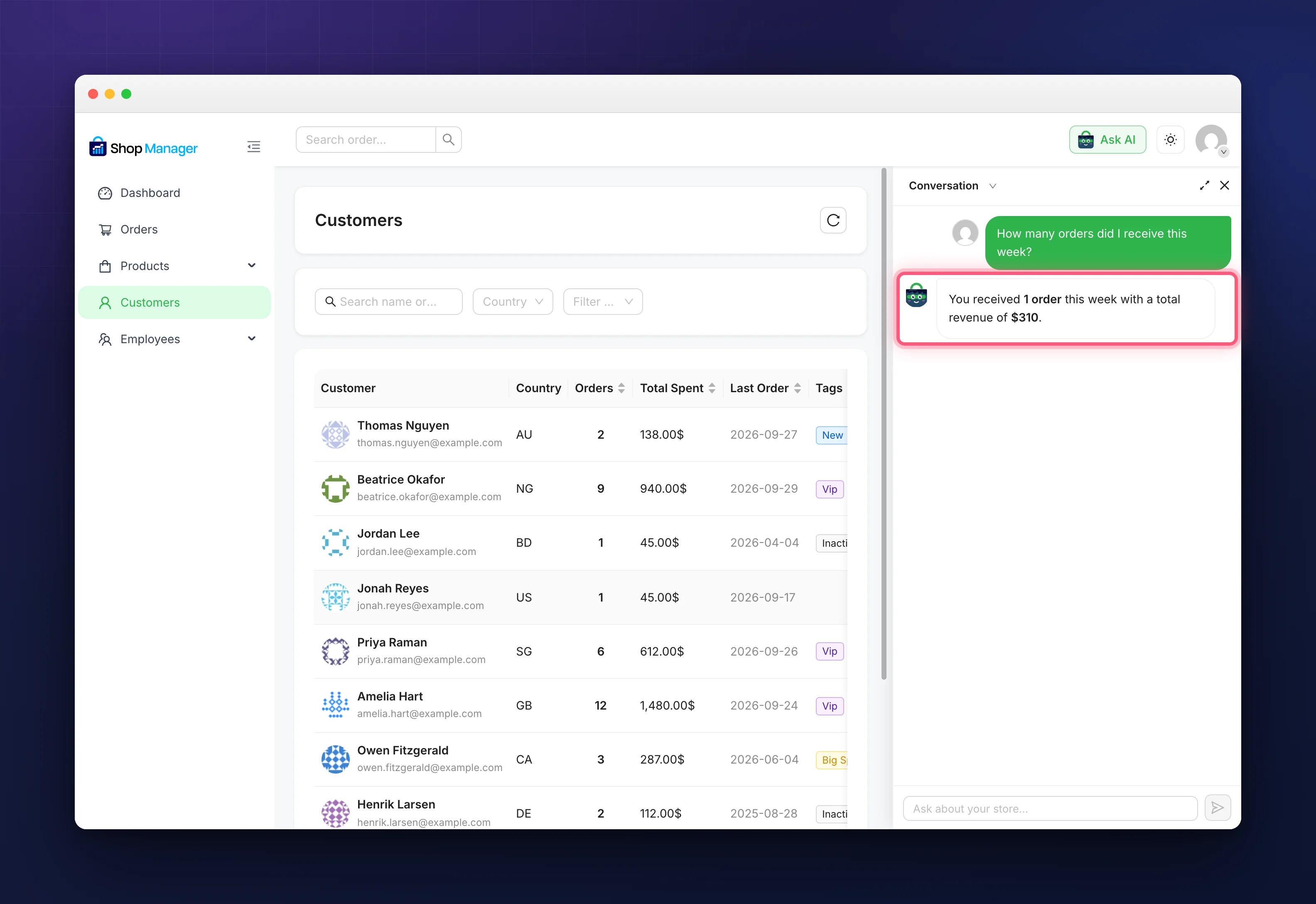
What an Employee Can Ask
Each lookup is tied to the matching section permission, so the WooCommerce AI assistant never tells someone more than their role allows. Orders and recent orders need the Orders access; products and low stock need Products; customer counts need Customers; employee activity needs Employees; revenue needs View Reports together with Orders access. Fulfillment staff can therefore ask about today’s orders and get a real answer, but a question about customers comes back with nothing. Administrators have every lookup.
Conversations
The WooCommerce AI assistant saves each chat under your own account, named after your first question. The Conversations list in the panel reopens any of them, New Conversation starts a clean one, and Delete removes one from the list. Nobody sees anyone else’s conversations, including administrators.
Settings and Limits
In the WordPress admin, under Shop Manager and then the AI Chatbot tab:
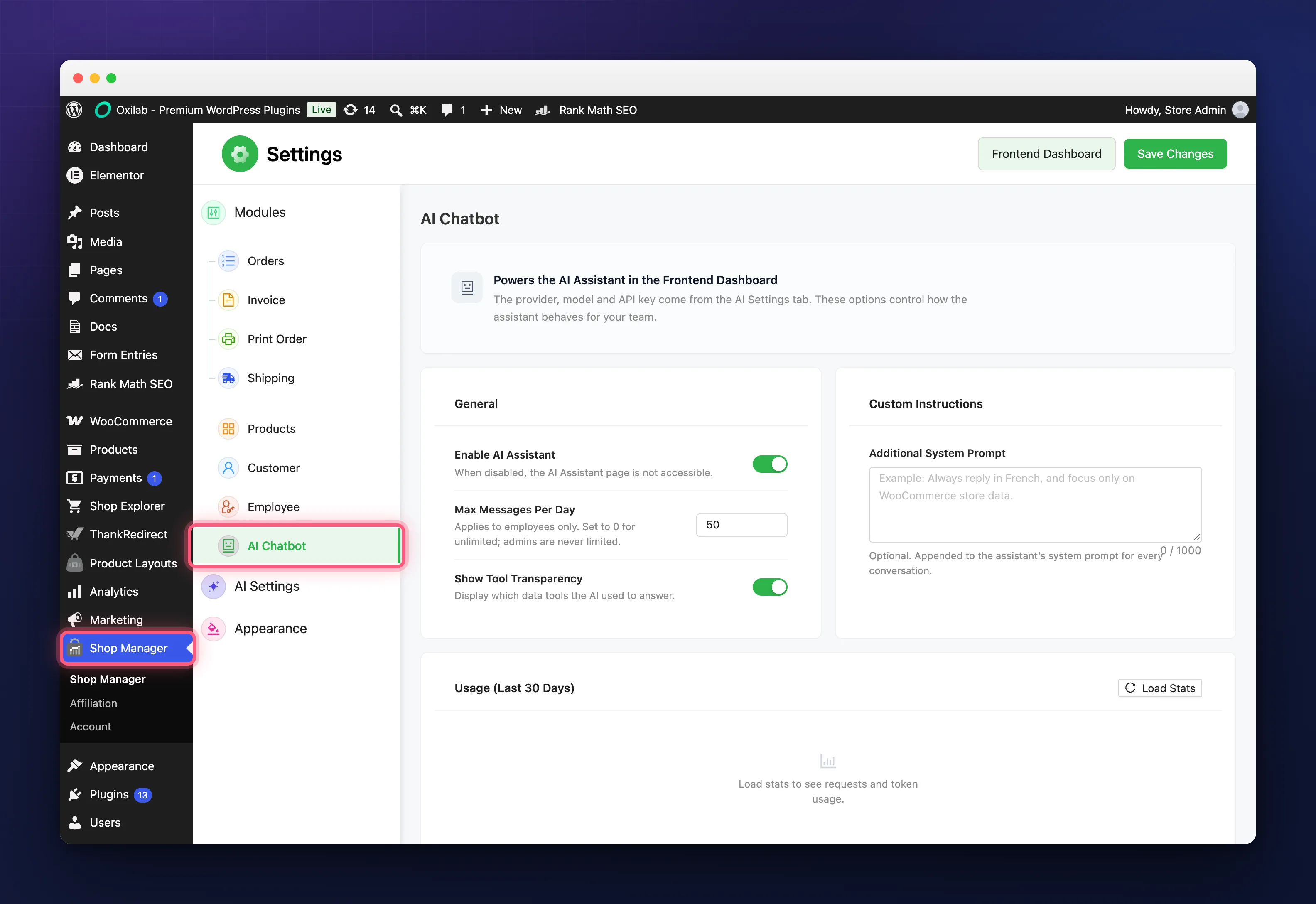
- Enable AI Assistant turns the whole thing off and on. Off, the icon disappears and any request is refused with “AI Assistant is currently disabled”.
- Max Messages Per Day caps how many questions an employee can send, 50 by default. Set it to 0 for no limit. Administrators are never limited. At the cap the employee sees “Daily message limit of 50 reached. Please try again tomorrow.”
- Show Tool Transparency adds a small “2 tools used” note under each answer, so you can see it looked at real data rather than guessing. Off by default.
- Additional System Prompt, under Custom Instructions, is text added to every request. “Always reply in French” or “Keep answers to two sentences” both work.
- Usage (Last 30 Days) shows, once you click Load Stats, the total requests and tokens for the month and a day by day table, which is what the provider will bill you for.
Your question, and the data the lookups return, are sent to the provider you chose in AI Settings, in the same way as the other AI features. The WooCommerce AI assistant sends nothing anywhere else.
Troubleshooting
There is no AI Assistant icon.
The WooCommerce AI assistant hides itself rather than showing a locked button. Check, in this order: Pro is active, the AI Chatbot module is on, Enable AI Assistant is on, and the person’s role has the AI Chatbot permission.
It answers with an error instead of a reply.
The provider turned the request down. Open AI Settings, run Test Connection, and check the account has credit.
An employee says they are blocked.
They have hit Max Messages Per Day. Raise it or set it to 0.
The answer is vague or about the wrong period.
Name the period: “last week”, “in September”, “all time”. Turn on Show Tool Transparency to confirm it actually ran a lookup.
Related Documentation
- Configure AI Settings & API Keys: the provider and key the assistant runs on.
- Role Based Access Control for Your Store: the AI Chatbot permission and the section permissions behind each lookup.
- Enable or Disable Shop Manager Modules: switching the AI Chatbot module on.