Create Custom Employee Roles for WooCommerce
When none of the four built-in roles fits a job, Shop Manager Pro lets you build custom employee roles with exactly the permissions you pick, down to single actions like changing an order status or deleting a product. A custom role behaves like a built-in one everywhere else: you assign it, edit it and hide it from the same screens.
This is the one part of employee management that needs Shop Manager Pro. Everything else, including editing the built-in roles, is free.
Creating a Custom Role
- In the dashboard sidebar, open Employees, then Roles & Access.
- Click Create Role at the top right.
- Give it a Role Name that says what the person does, such as Inventory Manager or Support Agent. Names have to be unique.
- Under Permissions, switch on the groups the role needs, tick each section inside them, then tick the individual actions. Ticking a section grants viewing on its own, so you only have to add what they may change.
- Click Create Role.
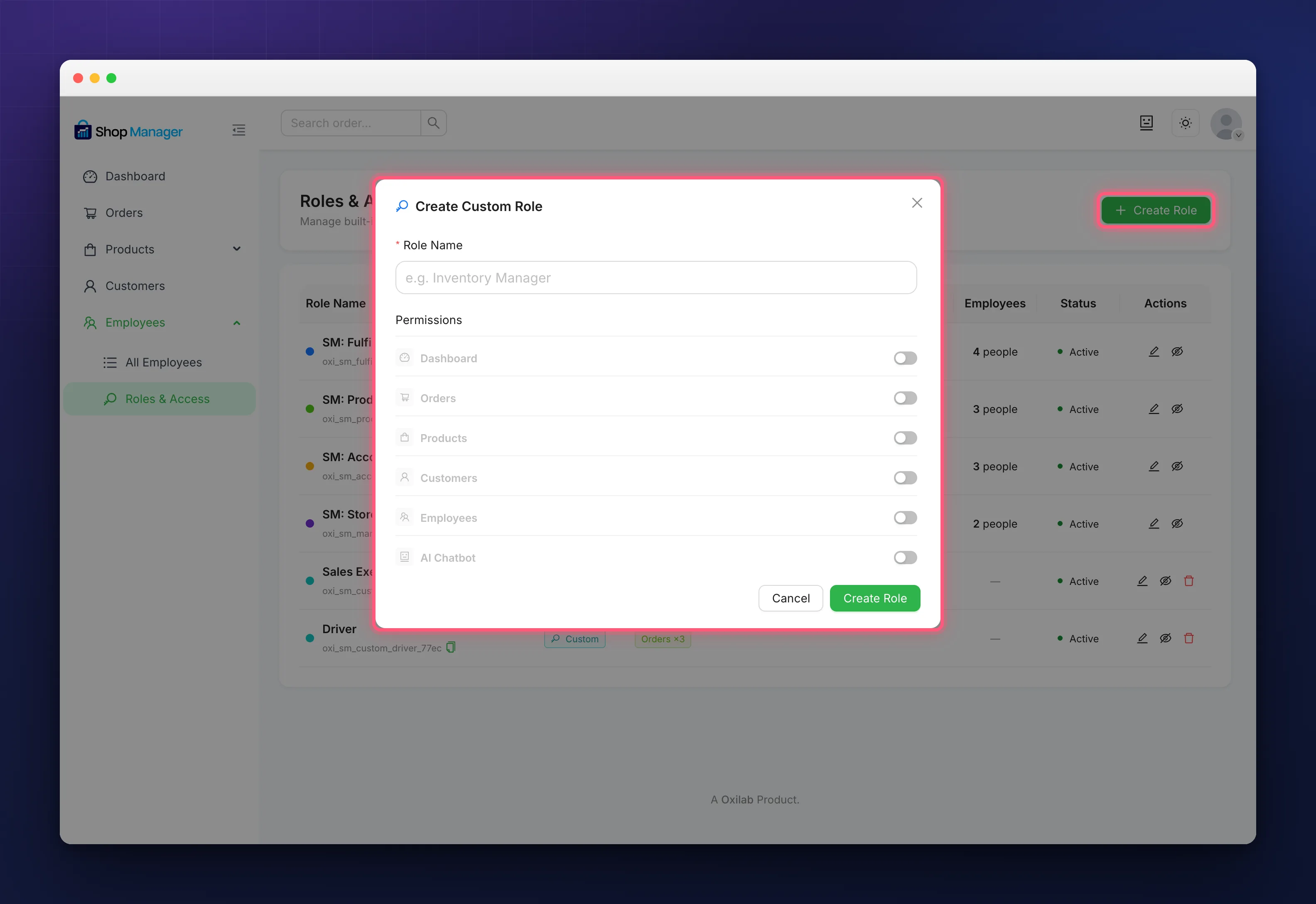
The six groups and every action inside them are the same ones you see when editing a built-in role, and they are listed in full in Role Based Access Control. There is no limit on how many custom employee roles you can have.
Give every role somewhere to land. A role with no section access at all gets an empty sidebar and an Access Restricted message. If you grant View Reports or Export Reports, the role also needs View Dashboard, because the reports are widgets on the dashboard page rather than a page of their own.
Giving It to Someone
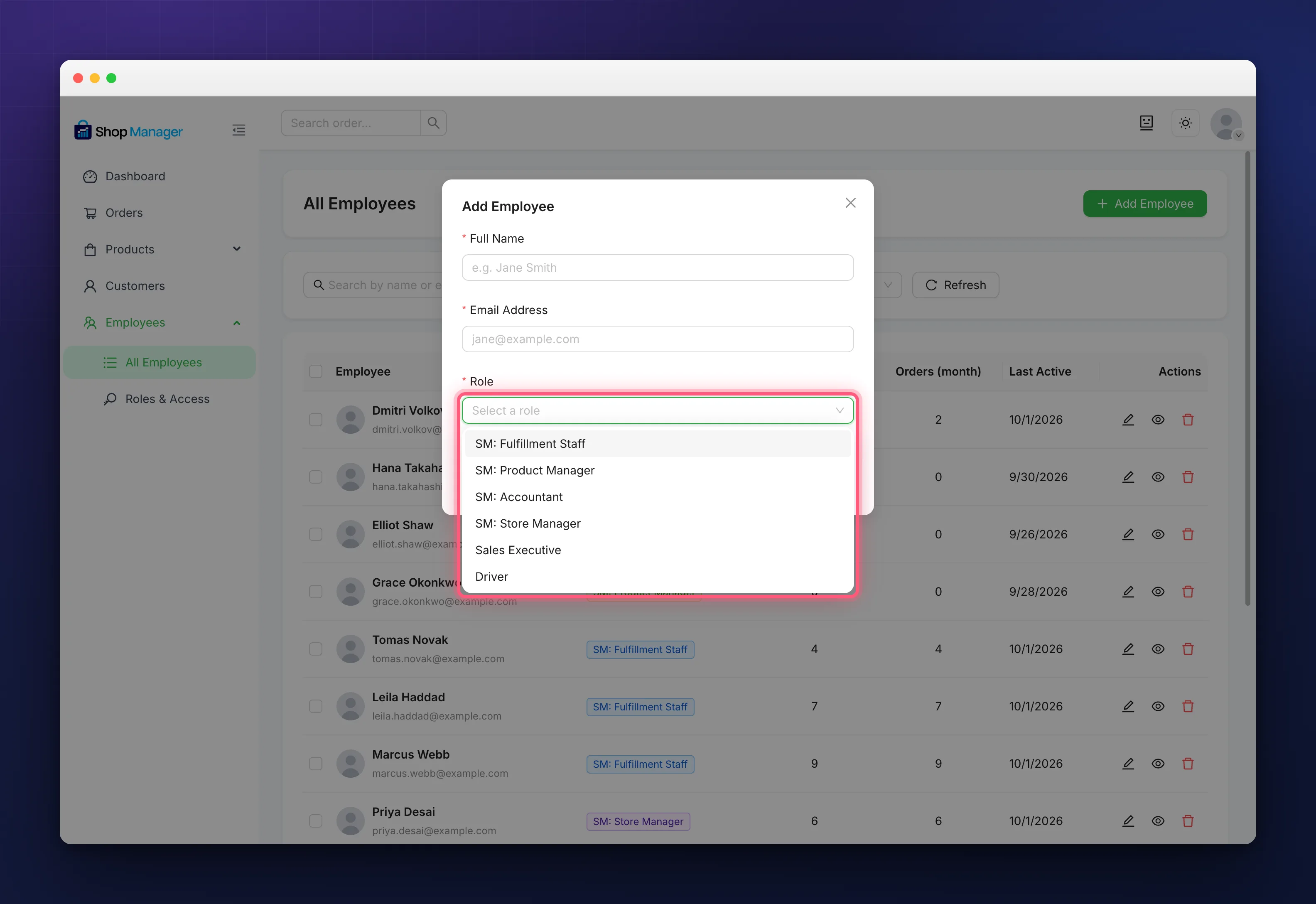
Custom employee roles show up in the Role dropdown next to the built-in four: when you add an employee, when you edit one, and in the bulk Change Role dialog. Pick it there and the person has it the next time they load the dashboard. See Add Employees & Assign Roles.
Changing, Hiding and Deleting
Back on Roles & Access, the pencil on a custom role reopens the same permission groups, and whatever you save applies to everyone who holds that role. The eye hides it, which keeps it working for current holders but takes it out of the Role dropdown. The bin deletes it outright.
Anyone still assigned to a role you delete loses their access, so move them to another role first. The bin only ever appears on custom roles: the four built-in ones can be edited and hidden but not removed.
What Happens if Pro Lapses
Custom employee roles stop working but are not thrown away. On Roles & Access they show Pro Required in the Type column. An employee who holds one sees an Access Restricted page when they open the dashboard, telling them the role needs an active Pro licence and to contact their administrator.
Those people stay in the All Employees list with a padlock beside the role, so you can move them to a built-in role in the meantime. The role definitions are kept exactly as you left them, and activating Pro again puts everything back without any work on your side.
Troubleshooting
Create Role has a padlock on it.
Pro is not active on this site. The button opens the upgrade page until it is.
A role with this name already exists.
Names are checked without regard to case, so Support Agent and support agent count as the same. Pick a different name or edit the existing role.
The new role is not in the Role dropdown.
It has been hidden. On Roles & Access its Status will say Hidden; click the eye to restore it.
An employee lands on Access Restricted.
Either Pro has lapsed, or their role has no section access ticked. Check the Type column first, then open the role and make sure at least one section is on.
Related Documentation
- Role Based Access Control for Your Store: every permission you can put in a role.
- Add Employees & Assign Roles: putting someone into the role you made.
- Install & Activate Shop Manager Pro: unlocking Create Role.