How to Add a WooCommerce Product (Full Guide)
The product form on the front end gives you everything wp-admin does: pricing, inventory, shipping, images, attributes and variations, on one screen. This page walks through it, then shows how to edit a product later.
Your role needs Create Products, and Edit Products to change existing ones. Administrators and store managers have both. See role permissions if a field is missing.
Opening the Form
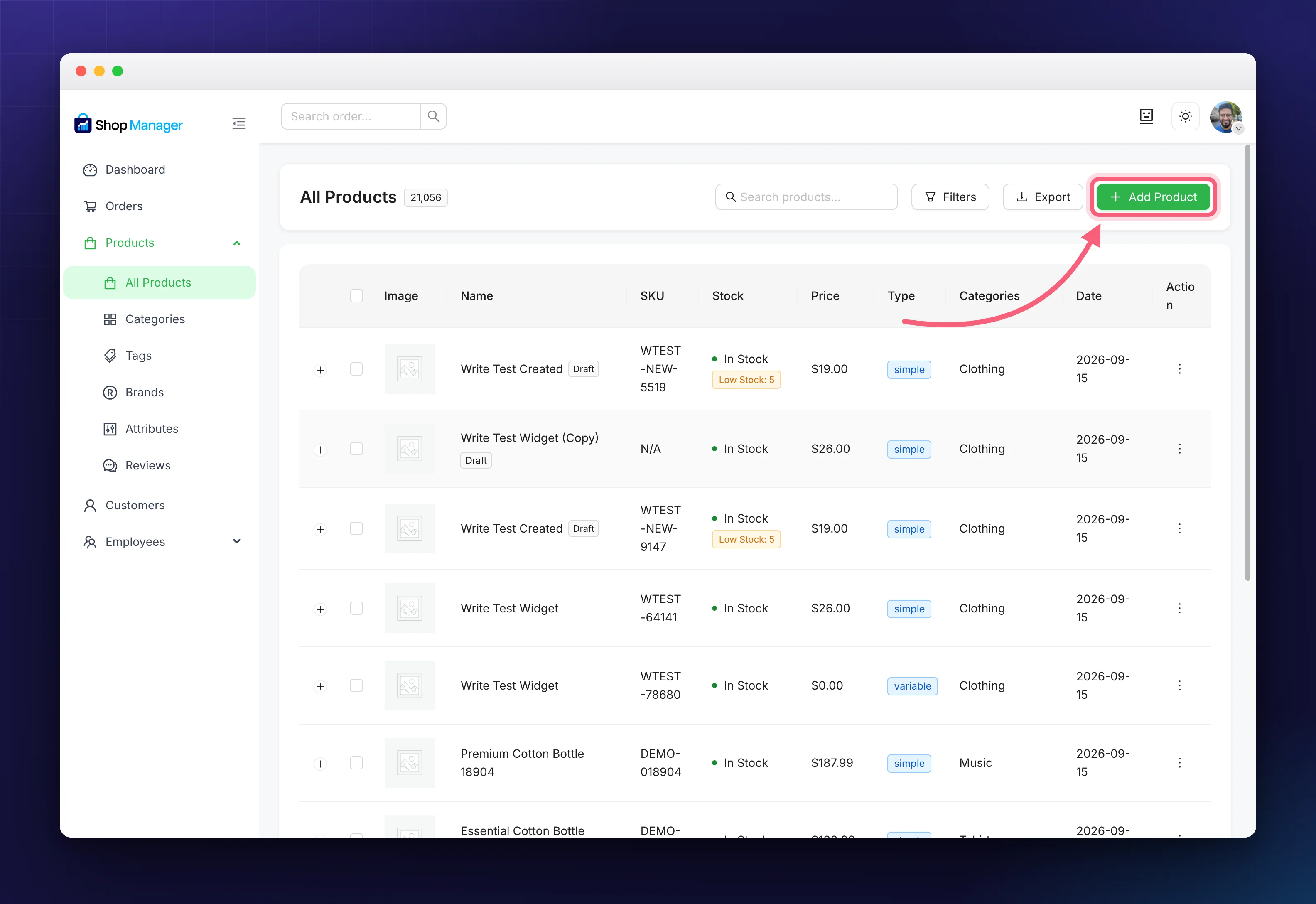
In the sidebar, go to Products → All Products, then click Add Product at the top right of the list.
Name and Descriptions
- Product name: the title customers see.
- Description: the full detail.
- Short description: the summary shown near the price.
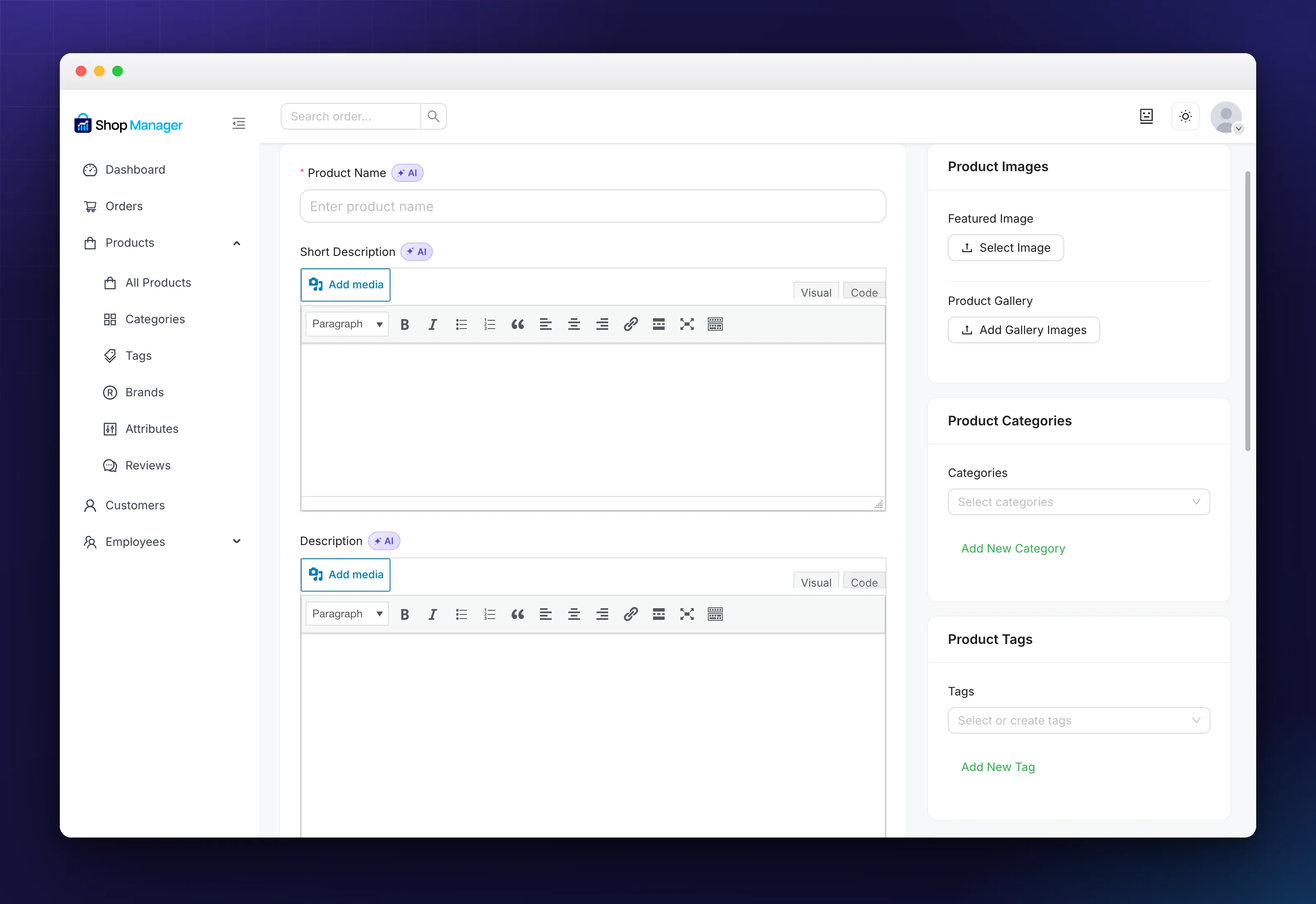
Both boxes are the WordPress editor you already know, with Visual and Code tabs and an Add media button.
With Pro, the AI buttons beside each field, and Generate With AI at the top of the form, can write the title and descriptions for you. See AI Product Description Generator.
Images and Gallery
- Featured image: the main photo. Click Select Image.
- Gallery: the extra photos customers can browse. Click Add Gallery Images.
Either button opens the WordPress media library, where you select existing images or upload new ones.
Choosing a Product Type
In the Product Data box, pick the product type:
- Simple product: a single standalone item.
- Grouped product: related products sold together. Adds a Grouped Products tab for choosing them.
- External/Affiliate product: links out to another site, and adds Product URL and Button Text.
- Variable product: has variations such as size or colour.
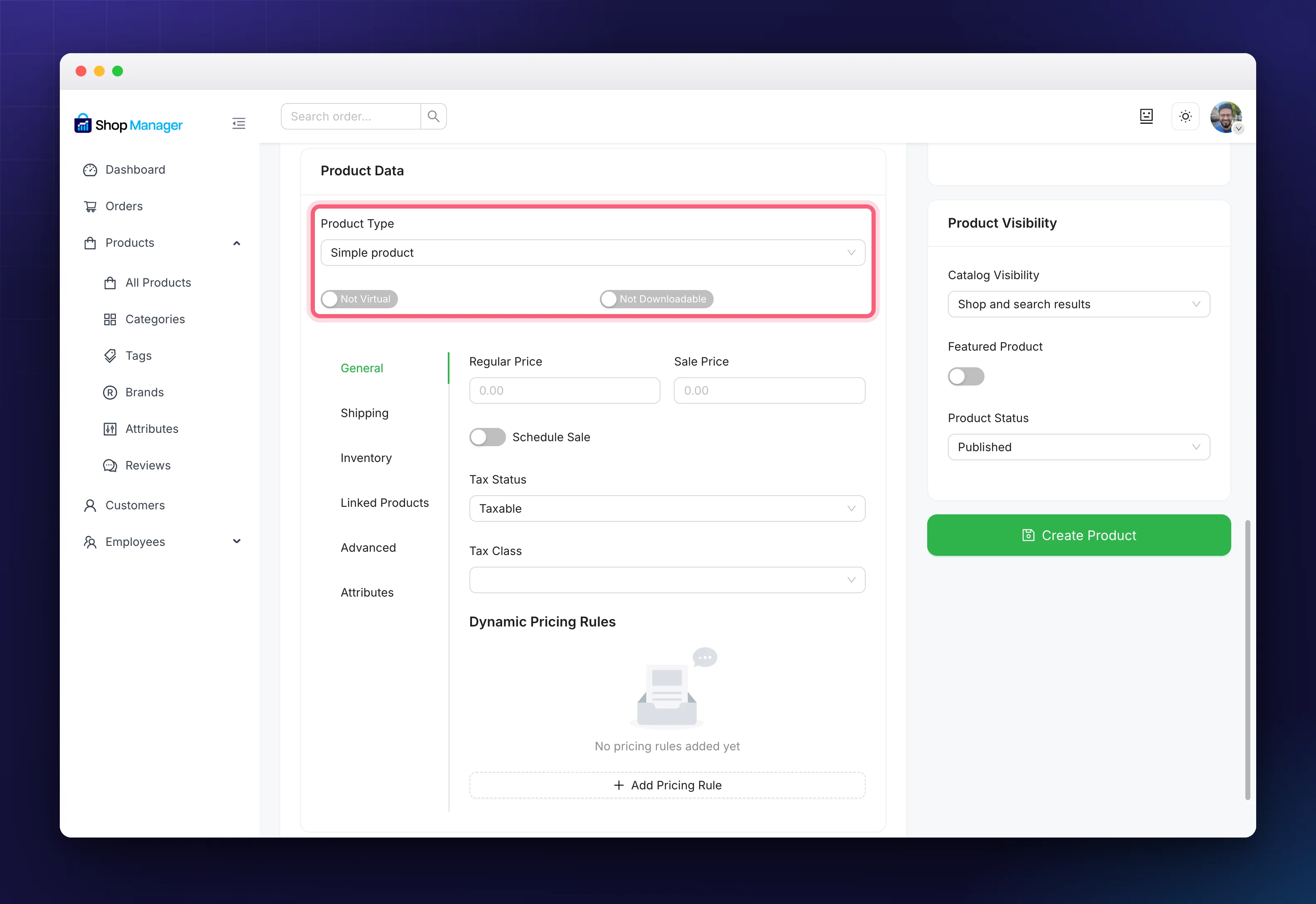
Beneath the selector sit two toggles, Virtual (no shipping) and Downloadable (a file customers download). They read Not Virtual and Not Downloadable until you switch them on. These are the standard WooCommerce product types, so they behave exactly as they do in wp-admin.
The Product Data Tabs
Which tabs appear depends on the product type you picked. Set the type first, because it changes the rest of the form.
General
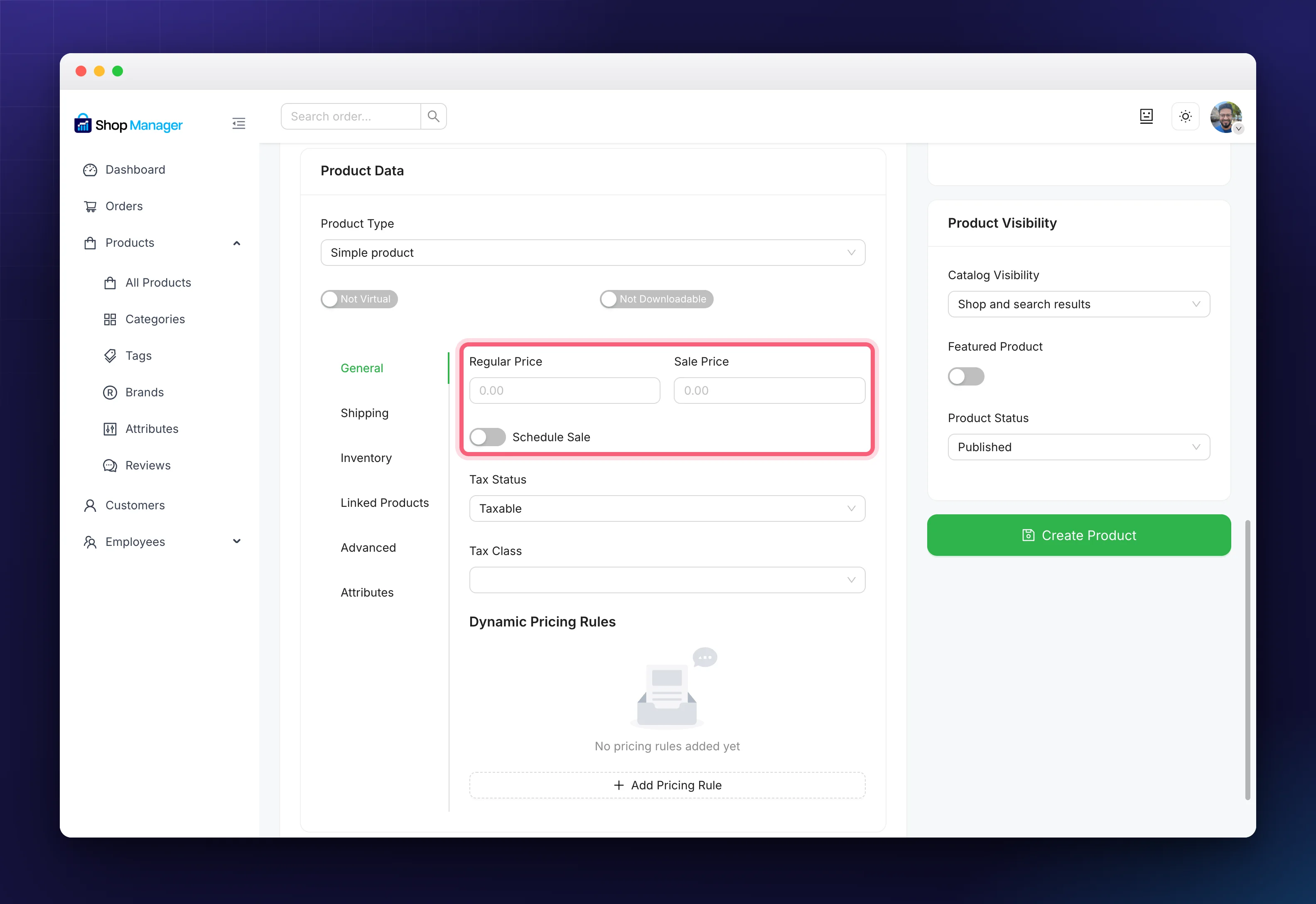
- Regular Price and Sale Price (the sale price can’t be higher than the regular price).
- Schedule Sale: start and end dates for the sale price.
- Tax Status (Taxable / Shipping only / None) and Tax Class.
- Dynamic Pricing Rules (simple products): Add Pricing Rule gives you bulk discounts, role-based pricing and purchase limits.
- Product URL and Button Text, for external products.
Inventory
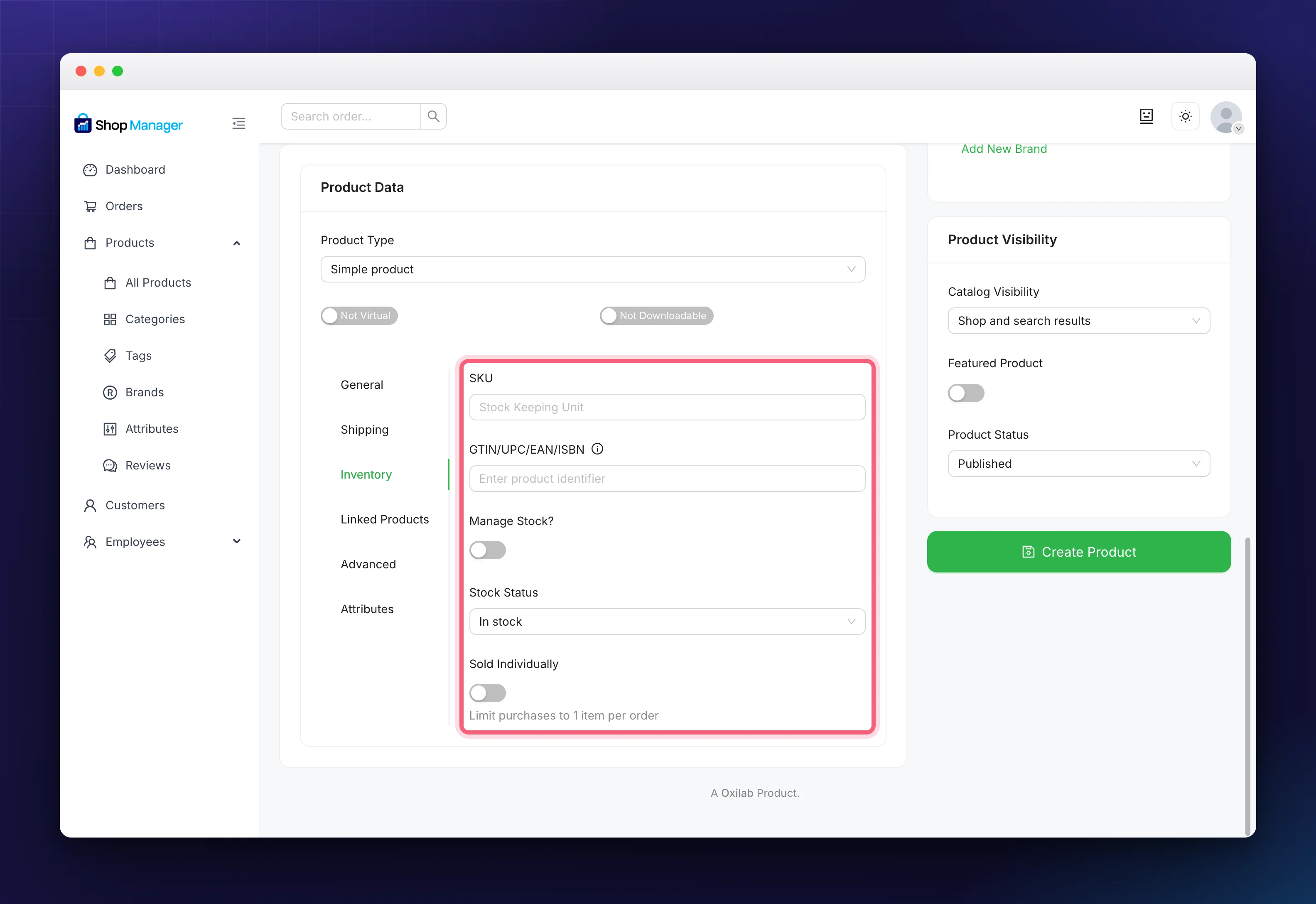
- SKU and the GTIN/UPC/EAN/ISBN identifiers. A clear SKU is worth the effort: it is what you search and export by.
- Manage Stock?: switch it on to count units, which reveals Stock Quantity and Allow Backorders (No, Notify, Yes). Left off, you just set a Stock Status of In stock, Out of stock or On backorder. That is why the quantity field seems to be missing until you turn the switch on.
- Sold Individually: one per order.
Shipping
- Weight, dimensions and shipping class. Hidden for virtual products, which do not ship.
Attributes
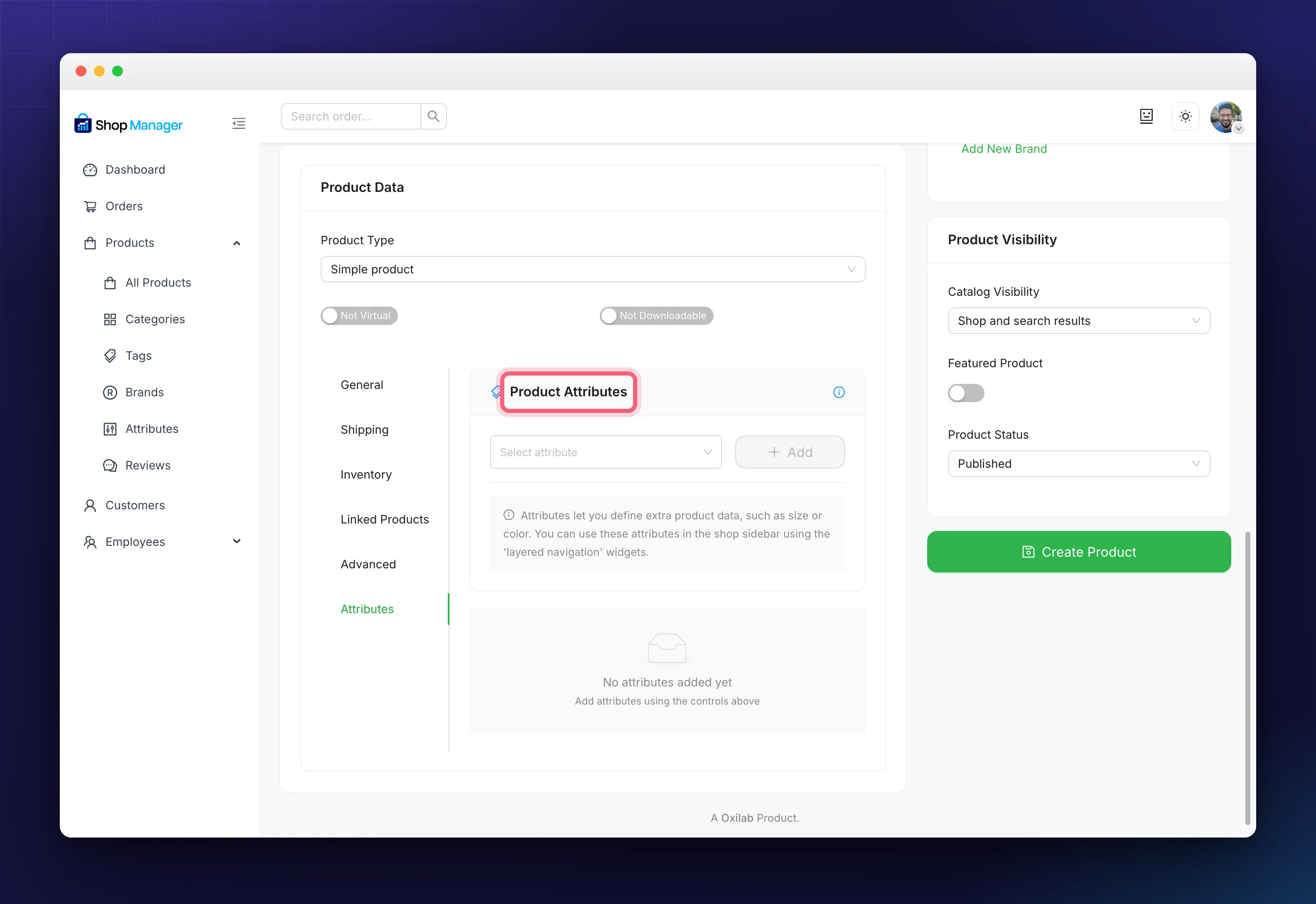
Pick an attribute from Select attribute and click Add. Attributes hold extra product data such as size or color, and for variable products they are what your variations are built from. See WooCommerce Product Attributes.
Variations (variable products)
- Generate and manage variations, each with its own price, stock, and image.
Linked Products
- Up-sells and cross-sells.
Advanced
- Extra options such as a purchase note and menu order.
Downloadable Files (downloadable simple products)
- Add the files customers receive after purchase.
Categories, Tags & Brands
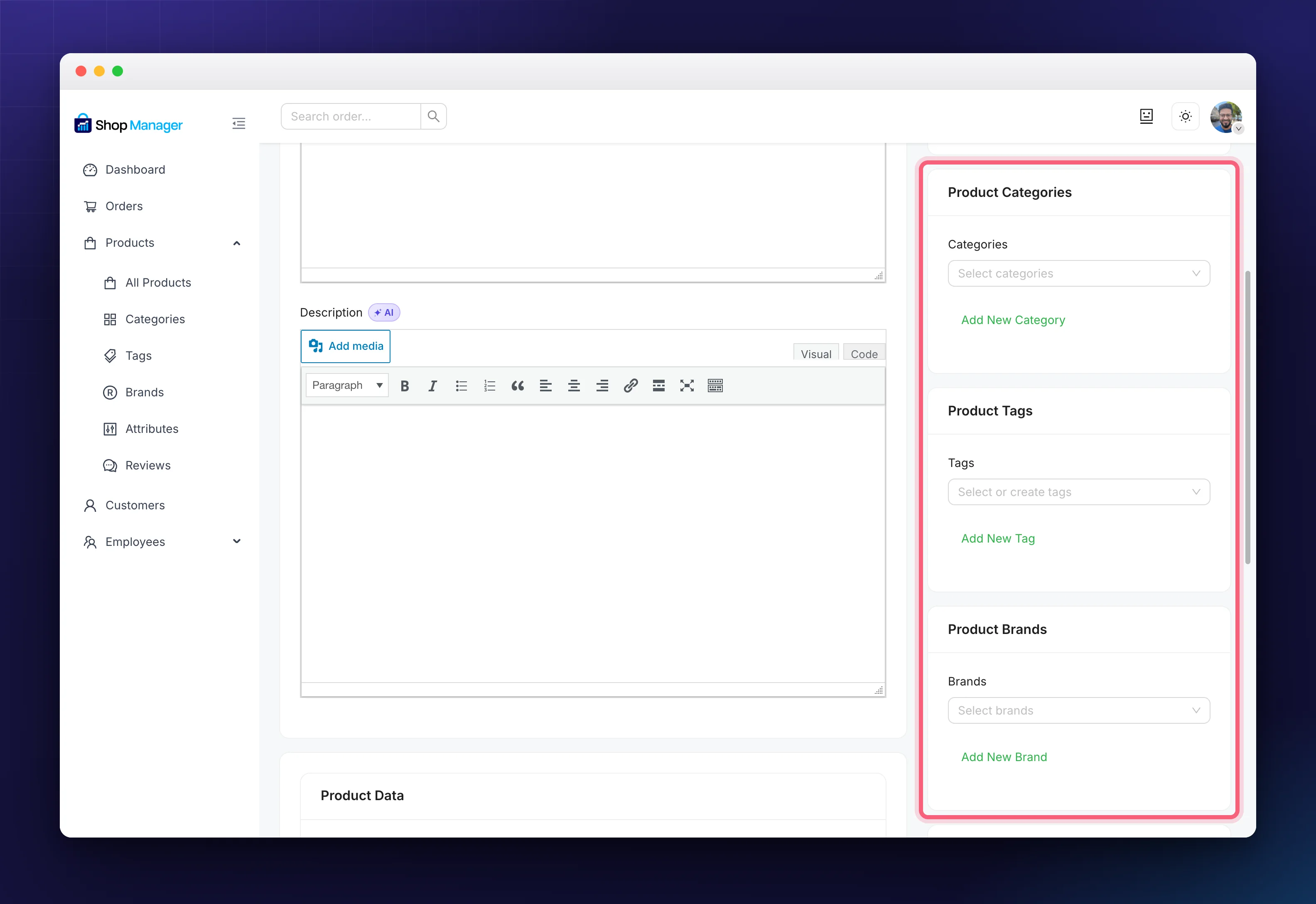
In the sidebar of the form you can assign the product’s categories, tags, and brands. Each box has an Add New link, so you can create one on the fly without leaving the form. See WooCommerce Product Categories, Tags & Brands.
Product Visibility
Below the taxonomy boxes, Product Visibility controls where the product shows up:
- Catalog Visibility, for example Shop and search results.
- Featured Product.
- Product Status: Published, or Draft to save without going live.
Saving the Product
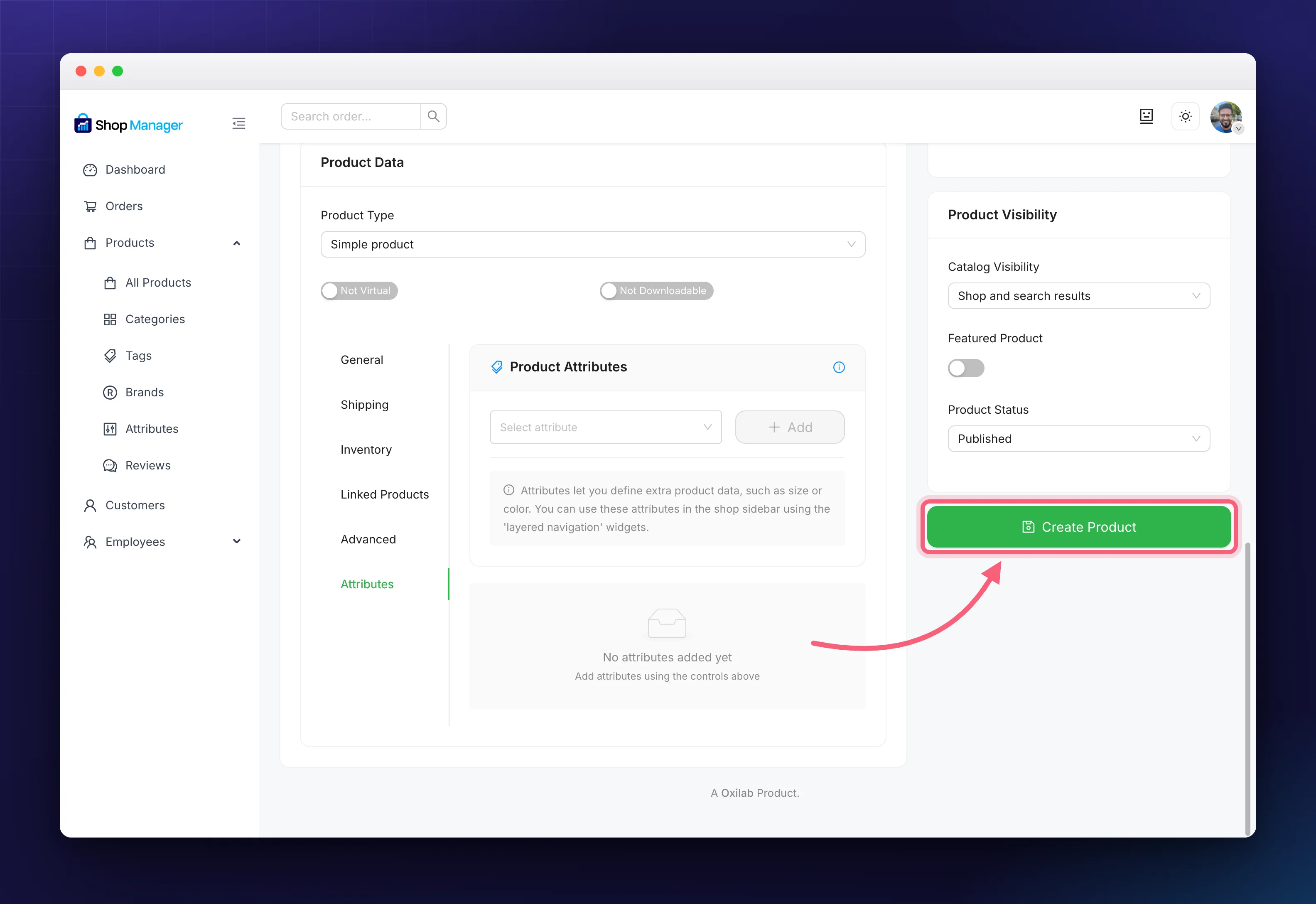
Click Create Product. What you get is a real WooCommerce product, so it appears in your All Products list straight away, and on your storefront once published.
Adding Many Products at Once
To create a batch of products from a spreadsheet instead of one at a time, click Bulk Upload at the top of the form and drop in a CSV file. Download Sample Template in the window gives you a file already laid out correctly.
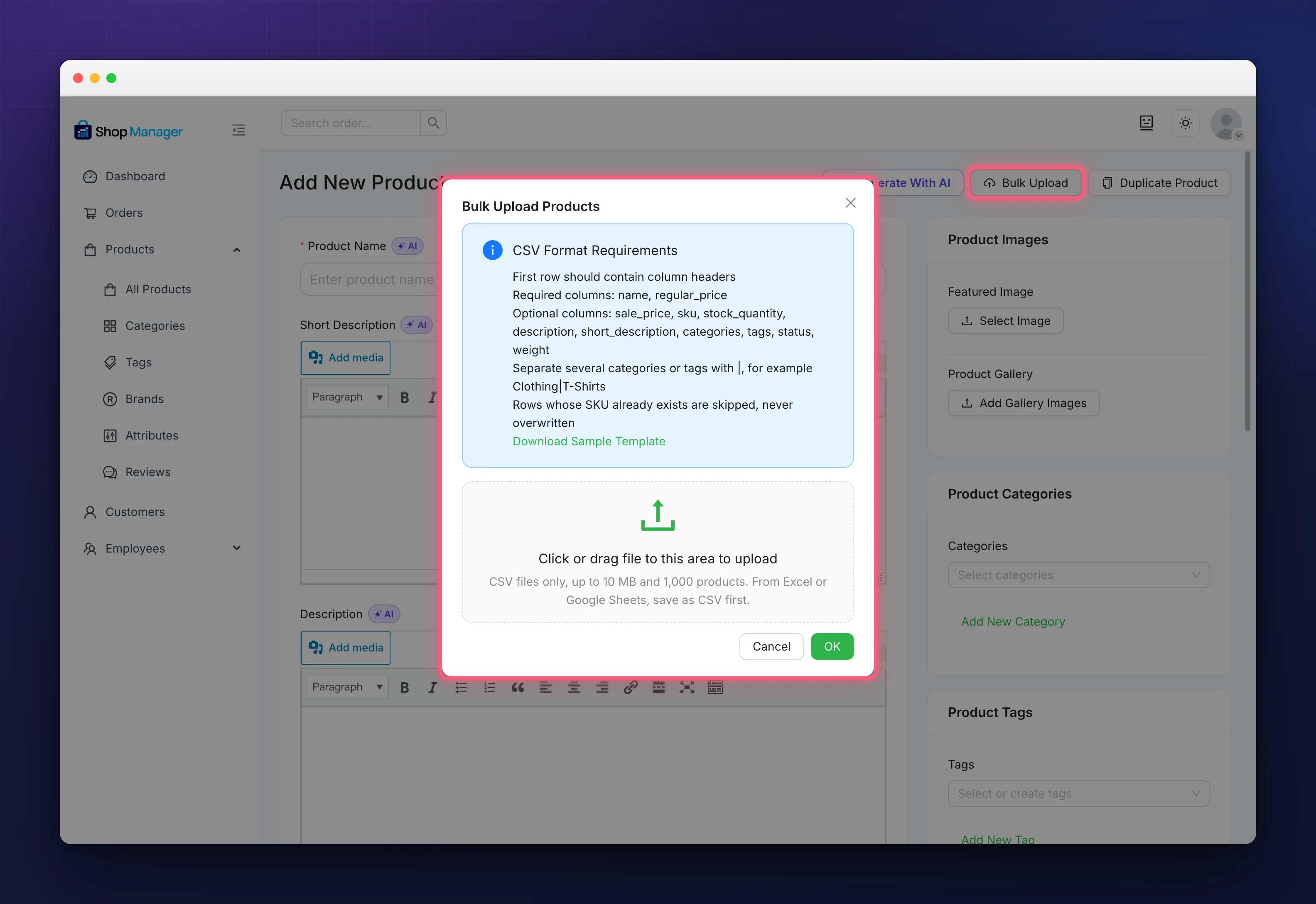
- The first row holds the column names. name and regular_price are required; sale_price, sku, stock_quantity, description, short_description, categories, tags, status and weight are optional.
- Put several categories or tags in one cell separated by
|, for exampleClothing|T-Shirts. Ones that do not exist yet are created if your role may add them, and listed as left off if it may not. - status can be publish, draft, pending or private, and is publish when empty. An empty sku takes the next Auto SKU Prefix number, just as this form does, and a stock_quantity switches on stock management for that product.
- A row whose SKU already belongs to a product is skipped, never used to overwrite it, so uploading the same file twice is safe.
- CSV files only, up to 10 MB and 1,000 rows each. From Excel or Google Sheets, save or download the sheet as CSV first.
When it finishes you see how many products were created and, line by line, every row that was skipped and why, so you can fix those rows and upload just them. Everything is created as a simple product; variable products still need the form.
Editing a Product
Nothing here is permanent. To change a product later:
- Open Products → All Products.
- Click the product name, or use its ⋮ → Edit.
- Make your changes and save.
- Use View Product to open its public page in a new tab and check your work.
Troubleshooting
My images won’t attach.
Make sure you have permission to upload files, and that the media library opens. Try a smaller image if uploads fail.
I don’t see the Variations tab.
Variations only appear for Variable products. Set the product type to Variable and add attributes first.
The Shipping tab is greyed out.
Shipping is disabled for Virtual products (they don’t ship). Turn off Virtual if the product needs shipping.
Frequently Asked Questions
Can I create variable products with options like size and color?
Yes. Choose the Variable product type, add attributes, then generate variations on the Variations tab.
Why will it not take a sale price above the regular price?
A sale price has to be lower to be a discount, so the form rejects it.
Can I save a product without publishing it?
Yes. Set Product Status to a draft in the Product Visibility panel before you click Create Product.
Does it appear on my storefront?
Yes. There is no separate copy: this is the same product WooCommerce stores.
Related Documentation
- WooCommerce Product Management from Frontend: the full product list.
- WooCommerce Product Categories, Tags & Brands: organise your catalogue.
- Manage WooCommerce Product Attributes Easily: attributes for variations.
- AI Product Description Generator for WooCommerce: write content with AI (Pro).