Resend WooCommerce Order Emails in One Click
Customers lose emails, or never get them. Shop Manager can send any WooCommerce order email again, for one order or a batch, without leaving the dashboard. It is free, and it needs the Resend Email permission on your role, which administrators and store managers already have.
One Order
Open the order and click Resend Email in its header.
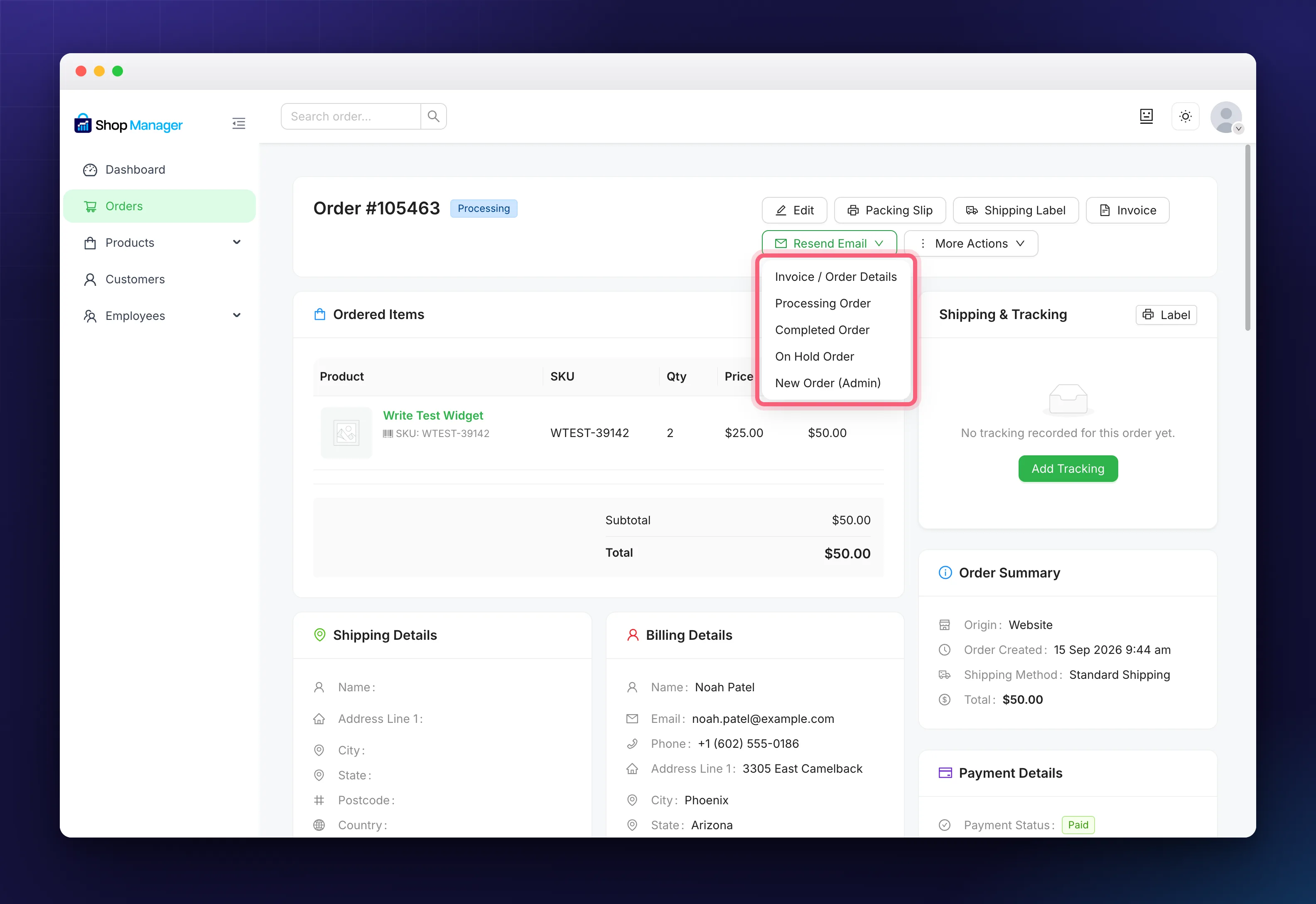
Pick the email you want from the menu and confirm. Five types are available:
- Invoice / Order Details: the order summary sent to the customer.
- Processing Order: confirmation that you are working on it.
- Completed Order: the order is finished.
- On Hold Order: the order is waiting.
- New Order (Admin): the new-order notice, which goes to your store’s admin address rather than the customer.
Choose the one that matches where the order actually is. Sending “Completed Order” for something still being packed only confuses people.
Several Orders at Once
Tick the orders on the order list, then click Resend Email in the bulk bar.
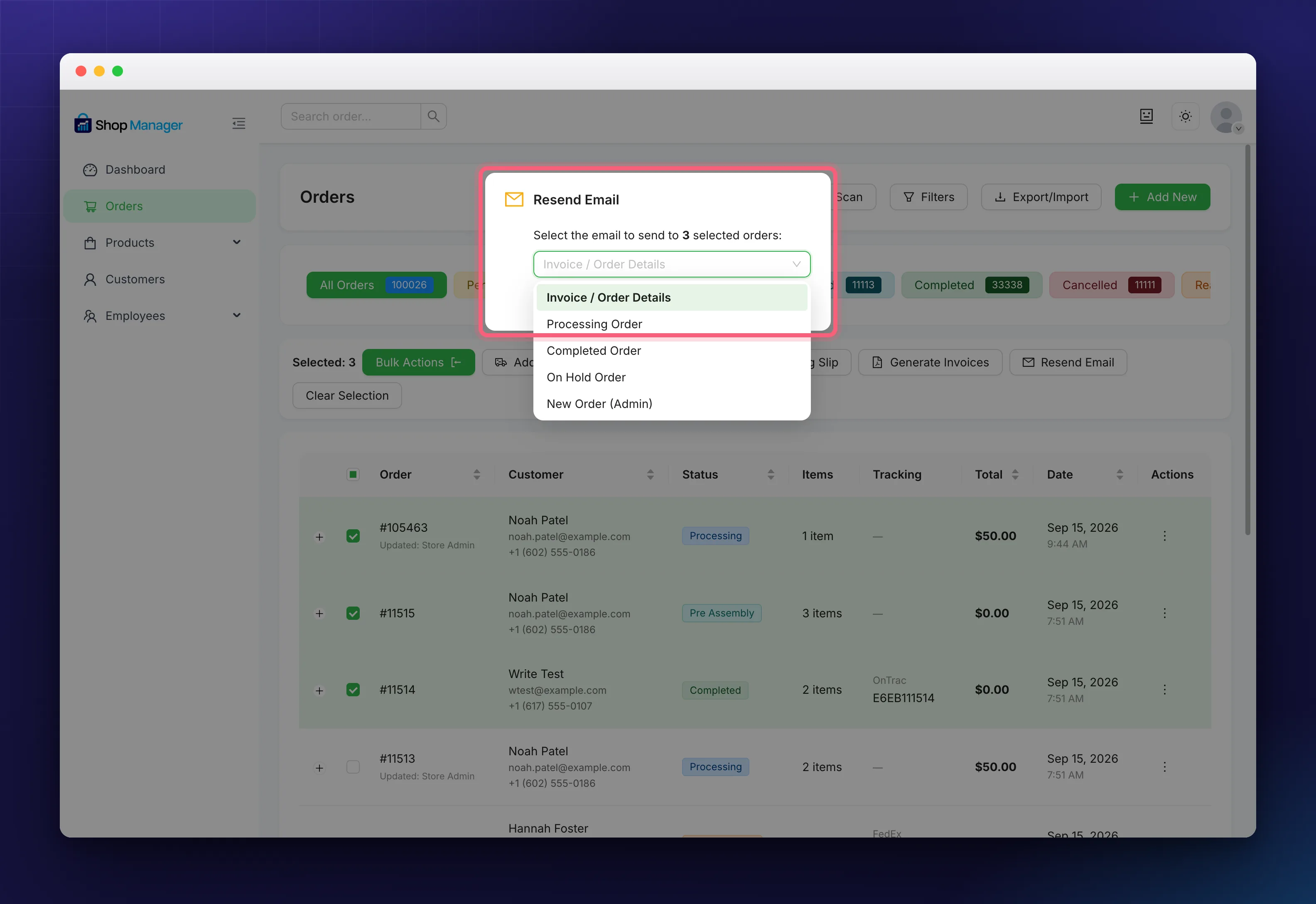
The same five types are offered. Pick one and press Send Emails, and every selected order gets it. This is the quick fix after a mail problem: once delivery is working again, re-send confirmations to a batch of recent orders in one go.
Resending a notification does not touch the order. Nothing about the payment, the status or the items changes, and the customer is not charged again.
Troubleshooting
The customer still has not received it.
This is nearly always email delivery rather than Shop Manager. Plenty of WordPress hosts cannot send mail reliably on their own, so an SMTP plugin is the usual fix. Check WooCommerce’s own emails arrive, then resend. Ask the customer to look in spam too.
There is no Resend Email button.
Your role is missing the Resend Email permission. An administrator can add it.
It arrived but looks wrong.
The wording and styling come from WooCommerce’s own email templates, not from Shop Manager. Edit them under WooCommerce → Settings → Emails.
I need it to go somewhere else.
The email follows the order’s billing address, or your admin address for the New Order notice. Change the order’s billing email first, then resend.
I wanted to send the PDF invoice.
That is a different thing. See WooCommerce PDF Invoices, which can also attach the PDF to these emails automatically.
Related Documentation
- WooCommerce Order Management: where the resend tools sit.
- WooCommerce PDF Invoices: attach a PDF to these emails.
- All order management guides