WooCommerce PDF Invoices: Generate & Download
Shop Manager Pro turns any order into a branded PDF invoice, one order or a whole batch. You set the look once, then every invoice follows it. PDF invoices need Shop Manager Pro; without it the invoice buttons carry a PRO tag.
Setting Up the Invoice
In your WordPress admin, go to Shop Manager → Settings → Invoice. Settings are on the left, and a Live Preview of the finished PDF sits on the right, updating as you change things. Above the preview you can switch the sample between paid and unpaid, and it tells you which page size and template you are looking at.
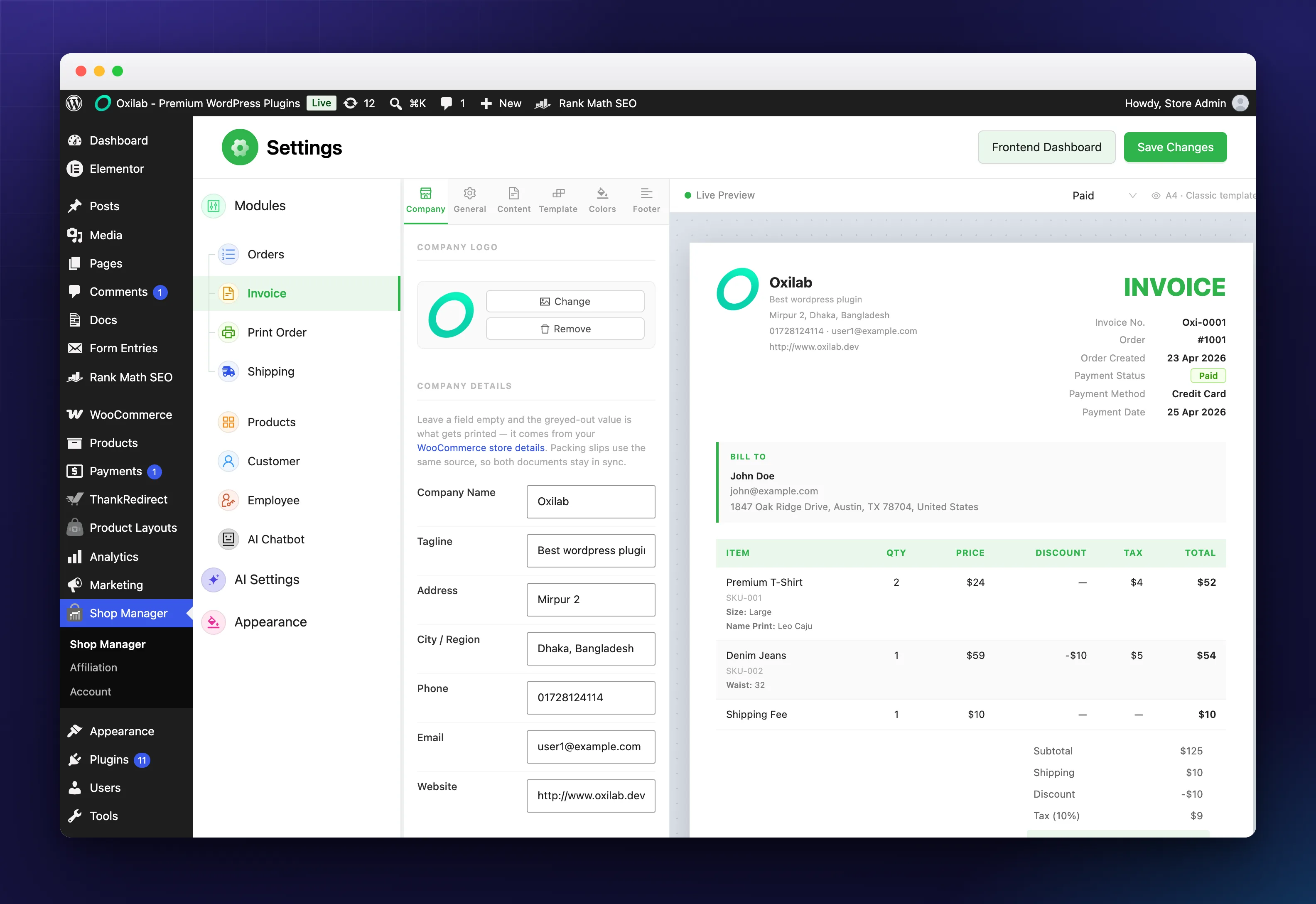
The settings are split across six tabs:
- Company: your logo, name, tagline, address, phone, email and website. Leave a field empty and the greyed-out value is what gets printed, taken from your WooCommerce store details, so invoices and packing slips stay in step.
- General: invoice numbering (a prefix such as
INV-and how many digits to pad to), page size (A4, Letter or Legal), payment terms, and whether to generate an invoice automatically on a new order. - Content: which parts appear. Columns in the item table (quantity, SKU, tax, discount) and the rows and blocks around it (logo, tax breakdown, shipping, discount, customer notes, payment method, payment status, order number, item meta).
- Template: one of four designs.
- Colors: eight ready-made palettes, or your own primary, accent and body text colours.
- Footer: a footer message, terms and conditions, and payment information.
The product name and unit price are always on the invoice, so they have no switch. Press Save Changes when you are happy, because the preview updates before you save and it is easy to walk away thinking you are done.
Choosing a Template
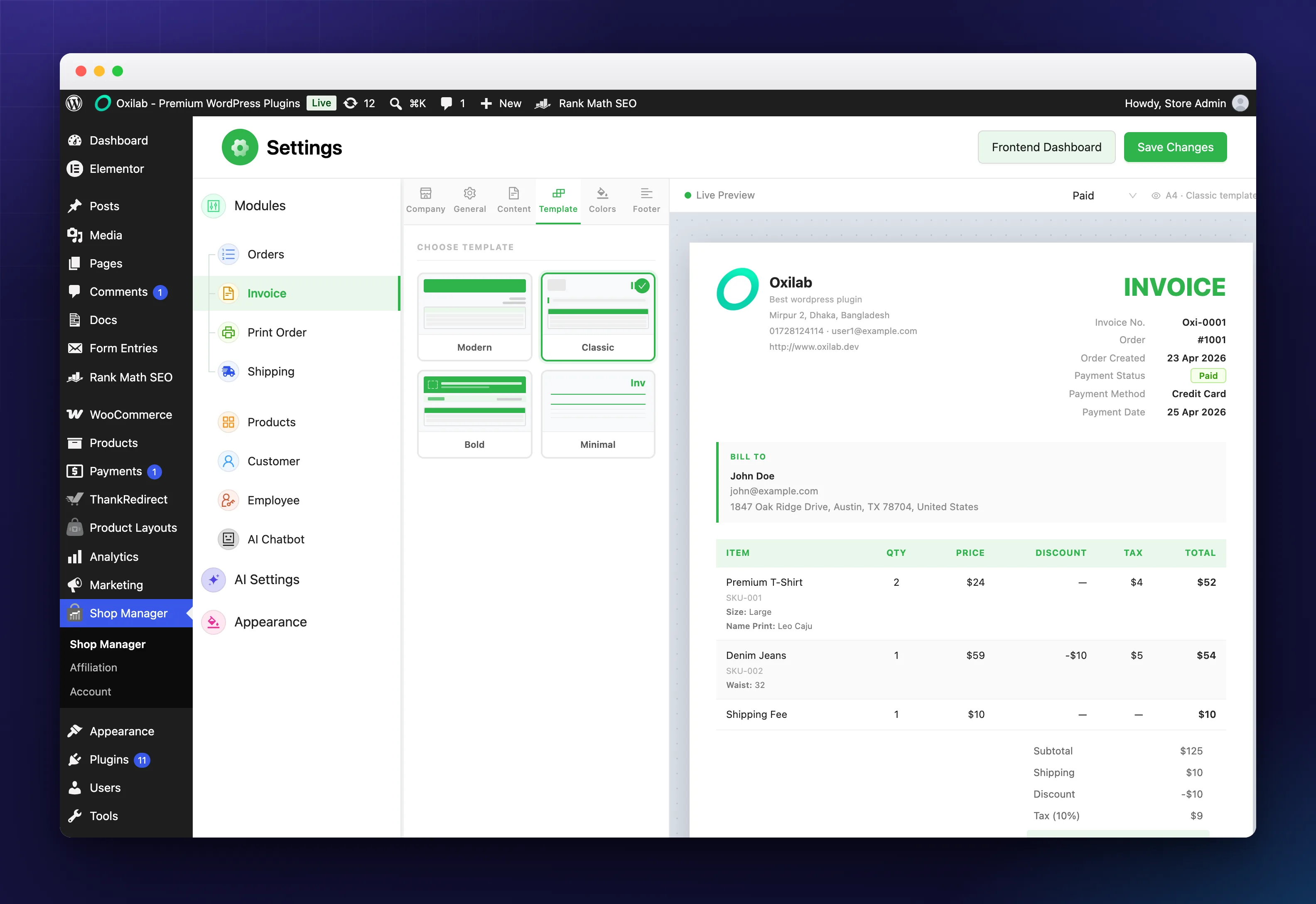
- Modern: a bold coloured header band carrying your logo and details.
- Classic: a traditional layout with a company block and an invoice details table.
- Bold: a strong coloured top bar with a highlighted meta strip.
- Minimal: understated, with thin accent lines.
The choice is purely visual, so pick whichever suits your brand and watch the preview.
Making an Invoice
One order. Open it from the order list and click Invoice. The PDF opens in a new tab to view, print or save.
A batch. Tick the orders you want on the order list, then click Generate Invoices in the bulk bar.
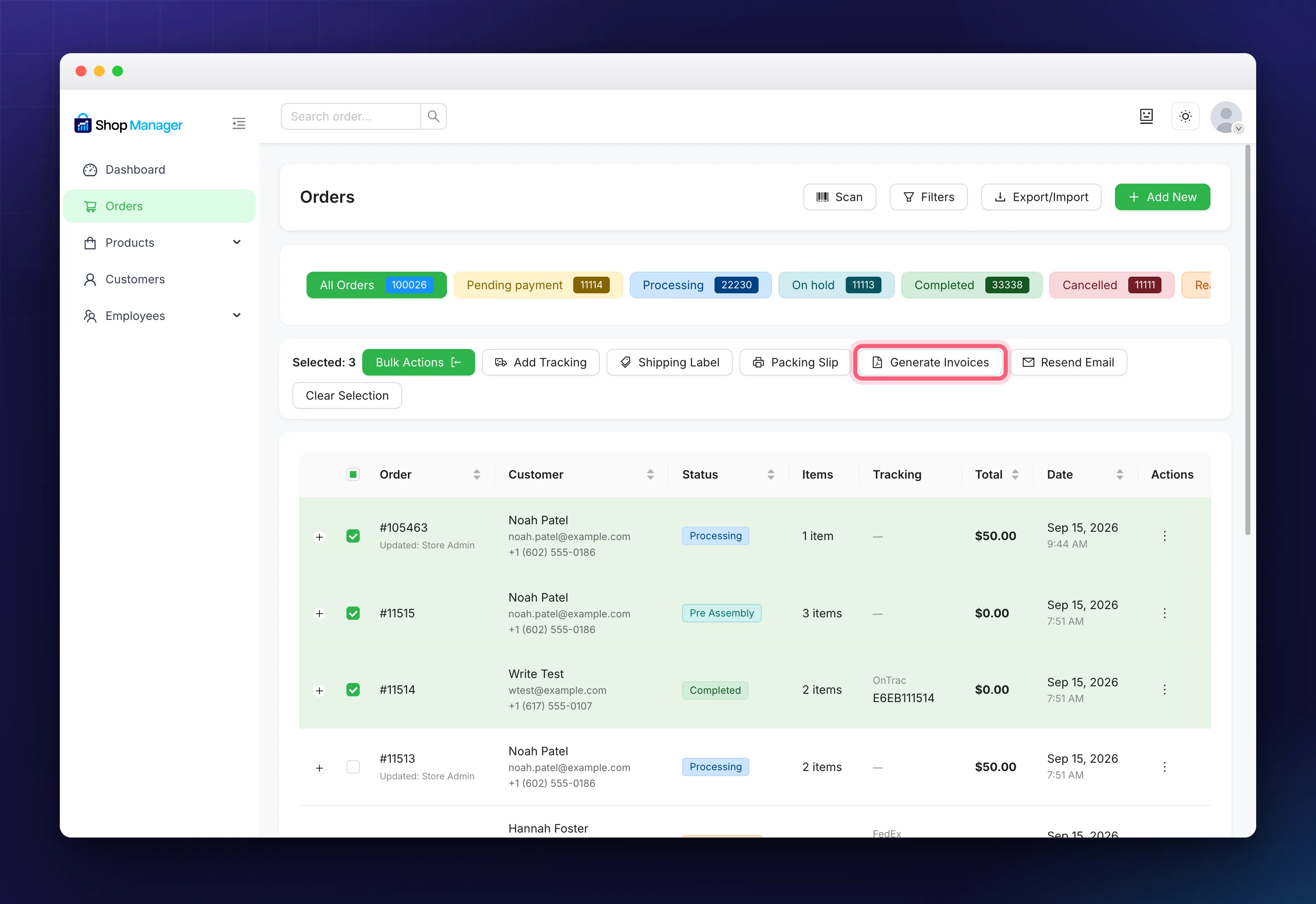
You get one merged PDF with a page per order, which is what you want at the end of a day or when handing a month to your accountant.
Attaching Invoices to Order Emails
Under Invoice → General, turn on Send PDF with Email and save. From then on the PDF is attached to the customer’s invoice, processing and completed order emails, so nobody has to send one by hand.
Troubleshooting
The Invoice button is locked with a PRO tag.
Invoicing needs Pro. See Install & Activate Shop Manager Pro.
The PDF does not open.
It opens in a new tab, so your browser is probably blocking the popup. Allow popups for your site and try again.
My logo or company details are missing.
Check the Company tab has them, that the logo is switched on under Content, and that you saved.
A very large batch fails.
Generate in smaller batches. Bulk generation handles big sets, but a few hundred orders at once can hit your server’s limits.
Tax is missing from the PDF.
The tax row and tax column have their own switches under Content. Turn on the ones you need.
Related Documentation
- WooCommerce Order Management: where the invoice buttons sit.
- Resend Order Emails: send an order email, with the invoice attached.
- All order management guides