


 Product Layouts
 ThankRedirect
 Image Hover
 Flipbox
How to run buy one get one free and lunchtime deals in WooCommerce
The short answer
In Shop Manager Pro, open a coupon and pick Buy X Get Y as the discount type for buy one get one free, with the free item put into the cart by itself. Days and hours let a coupon work only at set times, such as weekday lunch. First order only and one use per person stop the same shopper using a code twice. A coupon can also work by link, apply by itself, or make up to 1,000 single use codes at a time.
Ravi's story
Runs a small cafe that takes orders online. Ravi is a made-up example.
Ravi runs a cafe and takes orders for pickup on his WooCommerce site. He wants a few simple deals.
Buy one bag of coffee beans, get one free. 15 percent off between 12 and 2 on weekdays, when the cafe is quiet. A welcome code for first orders.
WooCommerce coupons cannot do any of these on their own. There is no buy one get one, no time of day, and a "one per customer" code works again with a new email address.
Then his welcome code turns up on a coupon website, and people who have ordered many times use it again and again.
Sound familiar?
- You want a buy one get one deal but WooCommerce has no such coupon.
- You switch a deal on and off by hand at the same time every day.
- The same people use a "first order" code again with a new email.
Here is how to do it
-
Make a buy one get one deal
Open a coupon's window with Add coupon or Edit on the Coupons page. In Discount type, pick Buy X Get Y. Type how many they buy and how many they get. 100 in Off what they get makes those items free. Turn on Add the free item to the cart by itself, so the shopper does not have to add it. The cheapest items are always the ones they get.
Ravi types 1 and 1: buy one bag, get one free.
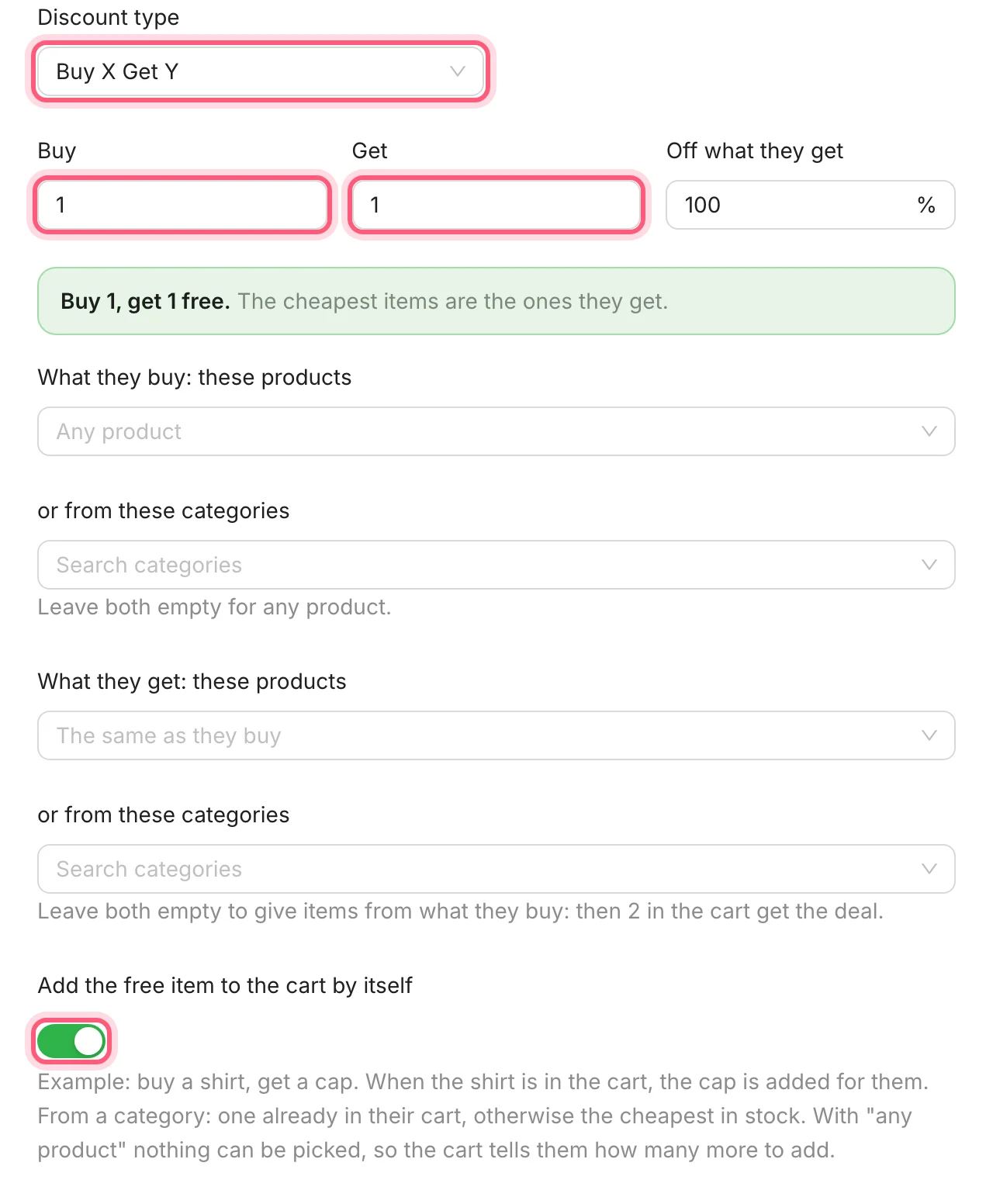
Pick Buy X Get Y, fill in Buy and Get, and turn on the switch. All four are marked. -
Let a deal work only at lunchtime
Under Days and hours, tick the days and pick a From and an Until time. The times are your store's time. Outside them the coupon is refused at checkout.
Ravi ticks Monday to Friday and picks 12:00 to 14:00.
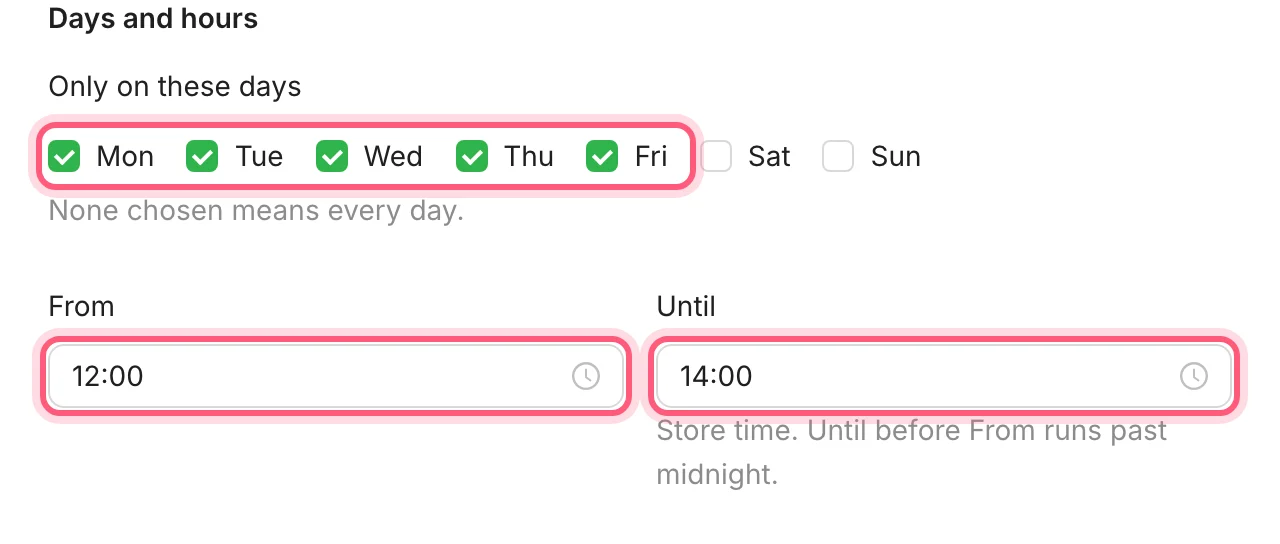
Tick the days and pick the times. The marked parts are filled in for the picture only. -
Choose who can use it
Turn on First order only for a welcome code: it works only for customers with no paid order yet, and guests are checked by their email. Under One use per person, tick Email and Phone, so the same person cannot use it again with a new email. Gmail dots and +tags count as the same email. You can also allow only some roles or chosen customers. All of this is checked when the order is placed.
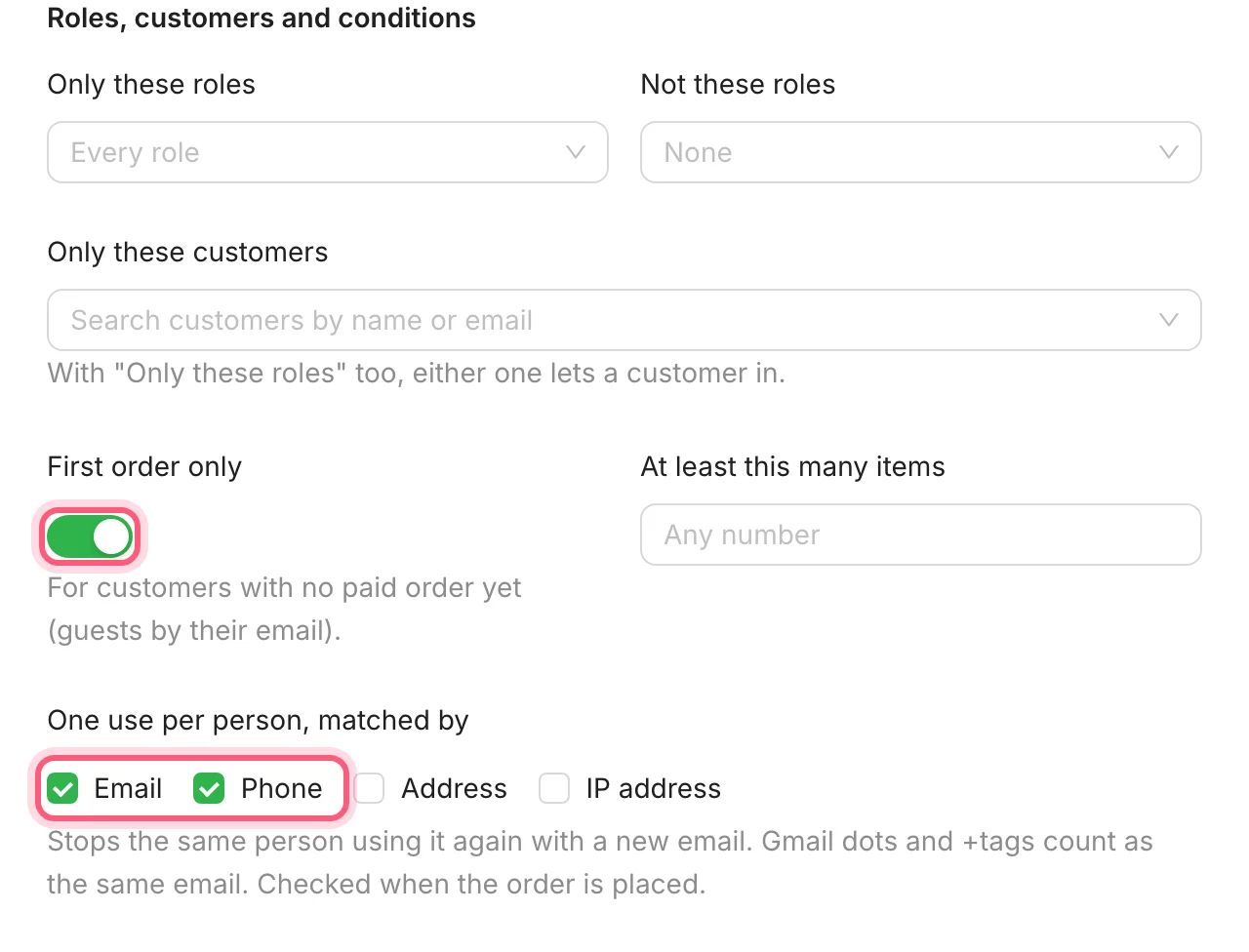
Turn on First order only and tick Email and Phone. Both are marked. -
Share it by link, or let it apply by itself
Under How shoppers get it, turn on Works by link and copy the link. Anyone who opens it gets the coupon in their cart, with no code to type. Or turn on Applies by itself, and the coupon goes into every cart that fits its rules.
Ravi puts the link on the cafe's Instagram page.
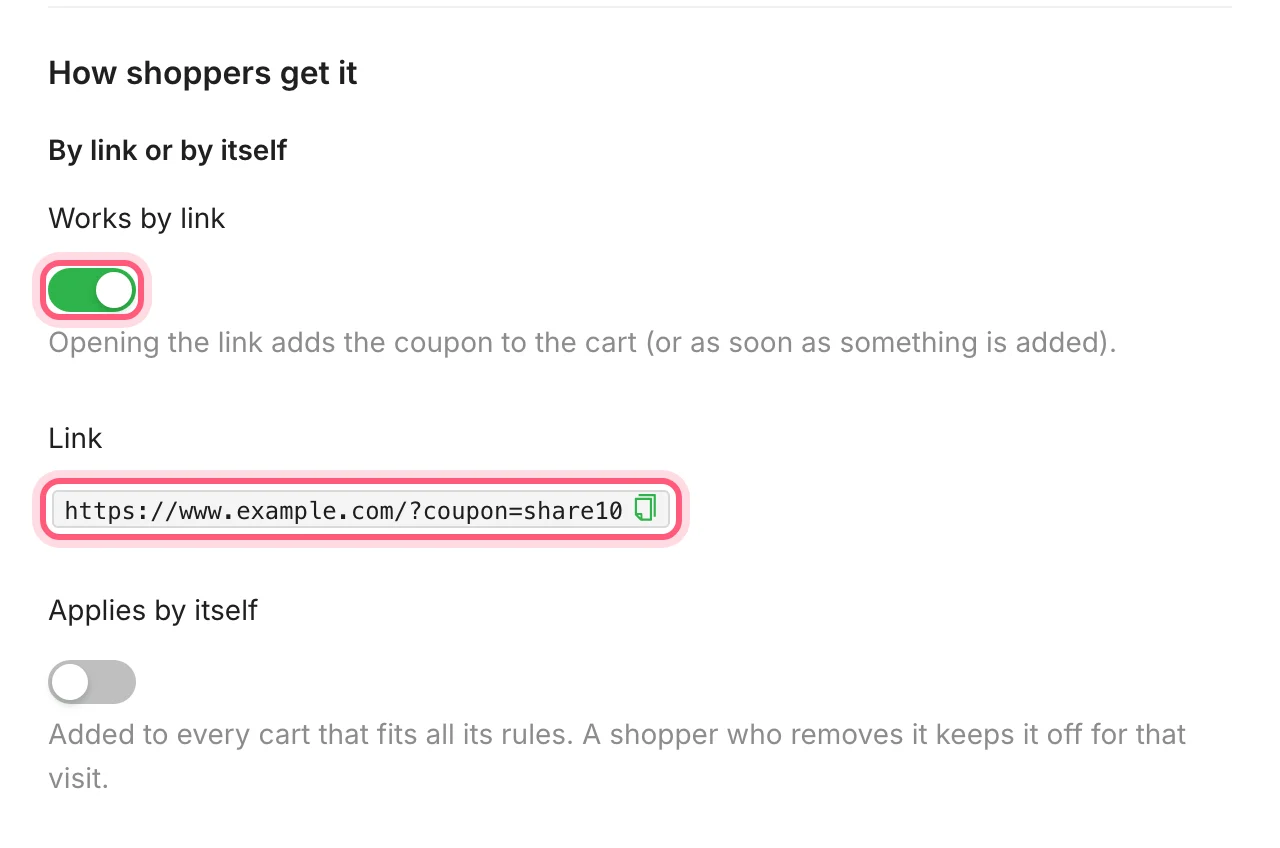
Turn on Works by link and copy the marked link. The picture shows a demo store address. -
Make single use codes for a flyer
Open the coupon's page and click Generate codes. Type how many you want, up to 1,000 at a time, and click Generate. Each code works once and has the same rules as the coupon. Then download them as a CSV file. Worried a code will leak? Under Limits, set an alert for more uses in an hour than you expect, and the bell tells you, with a quick way to turn the coupon off.

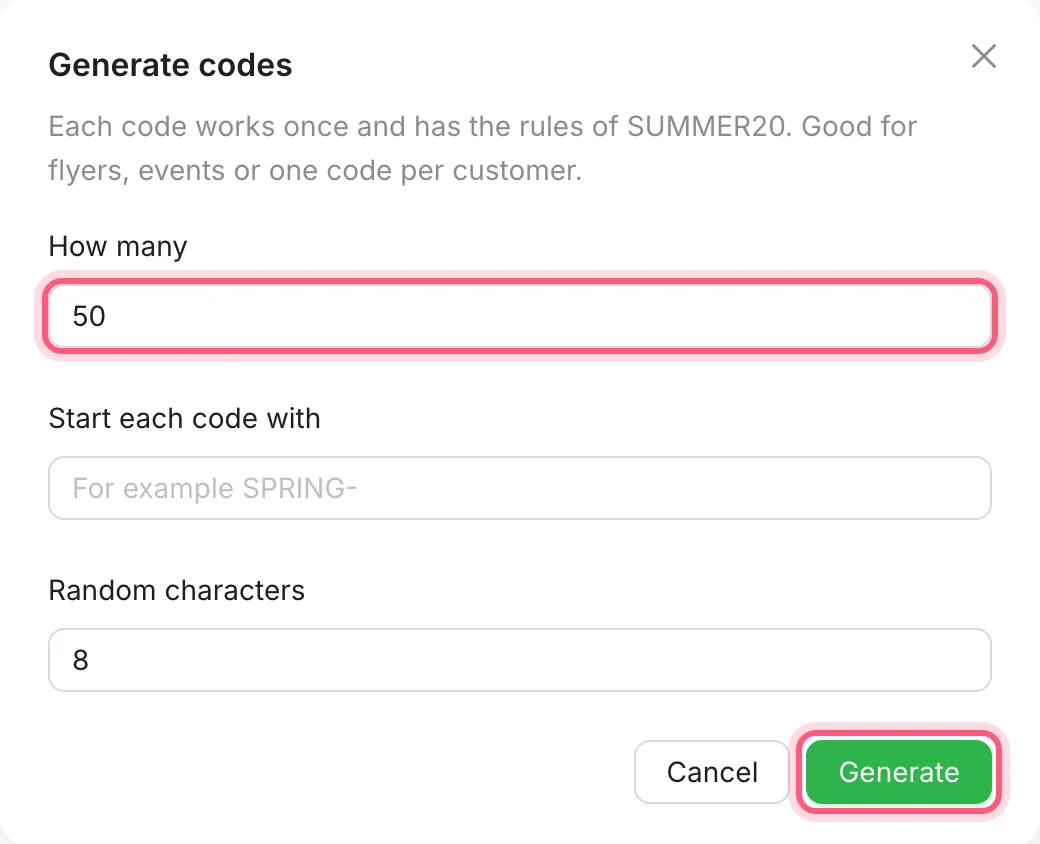
First click Generate codes. Then type how many and click Generate. Both are marked.
Ravi's four deals, as an example
| The deal | What he sets |
|---|---|
| Buy one bag of beans, get one free | Buy X Get Y, buy 1, get 1, 100% off, the free item added by itself |
| 15% off at lunchtime on weekdays | Days and hours: Monday to Friday, 12:00 to 14:00 |
| A welcome code | First order only, one use per person by email and phone |
| A flyer for a market stall | 100 single use codes, downloaded as a CSV |
How Ravi's story ends
The lunch deal turns itself on at 12 and off at 2, with no one at the laptop. The welcome code now works once for each person, even if it is shared. Each deal has its own page that shows what it sold, so Ravi keeps the ones that work and drops the rest.
Set up your first deal
Advanced coupons come with Shop Manager Pro. Every plan has every Pro feature, with a 14-day money-back guarantee.
What you need
- Plan
- Pro
- Coupons
- WooCommerce's own, with extra rules
- Checked
- When the order is placed
- Codes
- Up to 1,000 at a time, as a CSV
Features used on this page
- Choose who can use a coupon, and when
- Buy X Get Y, links and coupons that apply by themselves
- Hundreds of single-use codes, and a warning when one leaks
Checked against the plugin in .
Questions people ask
Can WooCommerce do buy one get one free on its own?
No. WooCommerce coupons have percentage and fixed amount discounts only. Shop Manager Pro adds Buy X Get Y, such as buy 2 get 1 free, or buy a shirt and get a cap at half price.
Which item is free?
The cheapest items are the ones they get. With Add the free item to the cart by itself, the item is put in for them: from a category, one already in their cart, otherwise the cheapest one in stock. With any product, nothing can be picked, so the cart tells them how many more to add.
Do failed or cancelled orders count for one use per person?
No. Failed, cancelled and draft orders do not count, so a shopper whose payment failed can still use the code.
What time do days and hours use?
Your store's time, from your WordPress settings. If Until is before From, the deal runs past midnight.
What does a coupon link look like?
Your shop address with ?coupon= and the code on the end. It works once the coupon is Active, and the coupon goes into the cart as soon as something is added.
More stories
- You sent a discount code to 400 people. Did anyone use it? Run a coupon sale and see what it sold Free
- Customers ask for a gift voucher, and you have nothing to sell them. Sell gift cards for the holidays Needs Pro
- Most of your customers buy once and never come back. Reward customers with points Needs Pro