


 Product Layouts
 ThankRedirect
 Image Hover
 Flipbox
How to sell gift cards in WooCommerce
The short answer
In Shop Manager Pro, make a simple product for each value and mark it as a gift card on the Gift card products tab. Each one bought becomes a gift card worth its price, emailed to the person it is for when the order is paid. They type the code at checkout, and what they do not spend stays on the card. You can also issue a card yourself and see every card's balance and history.
Lena's story
Sells loose leaf tea. Lena is a made-up example.
Lena sells tea online. Every December her inbox fills with the same question: "Do you sell gift vouchers?"
Last year she made coupon codes by hand and emailed them one by one. A 50 voucher used on a 30 order was gone, because a coupon cannot keep what is left.
Then a customer wrote to ask how much was left on her voucher. Lena had no idea.
Sound familiar?
- Customers ask you for gift vouchers.
- You email voucher codes by hand.
- You cannot tell how much is left on a voucher.
Here is how to do it
-
Turn a product into a gift card
Make a simple product for each value, such as 25, 50 and 100. In your dashboard open Gift Cards and click the Gift card products tab. Pick the product in the Make a product a gift card box. It becomes virtual, so there is nothing to ship.
Lena makes three products: 25, 50 and 100.
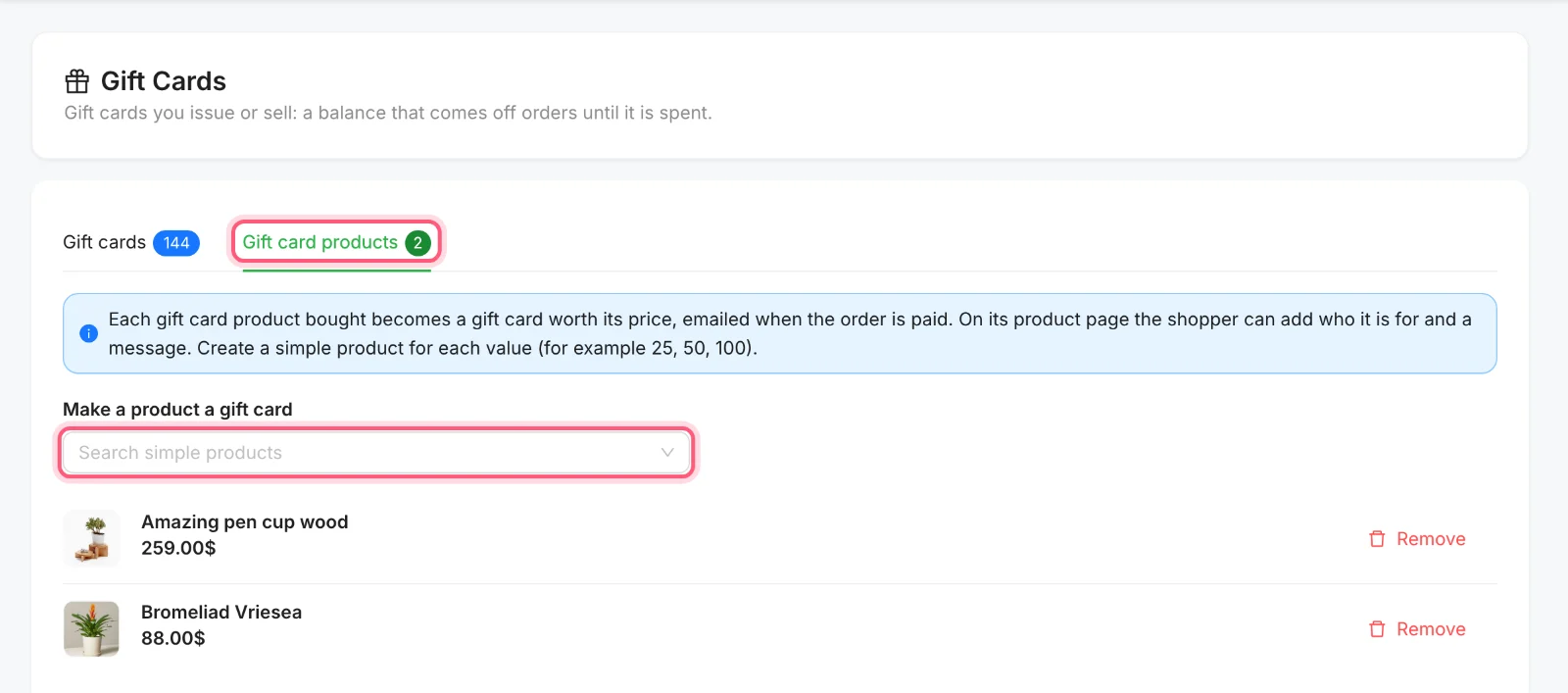
Click Gift card products, then pick a product in the marked box. -
What the shopper does
On the product page the shopper adds who the card is for and a message. When the order is paid, the card is emailed to that person with its code. They type the code at checkout. What they do not spend stays on the card for their next order.
-
Issue a card yourself
For a prize, or to say sorry, click Issue gift card at the top of the Gift Cards page. Type the amount and their email, and click Issue gift card. Leave Ends on empty and the card never ends.
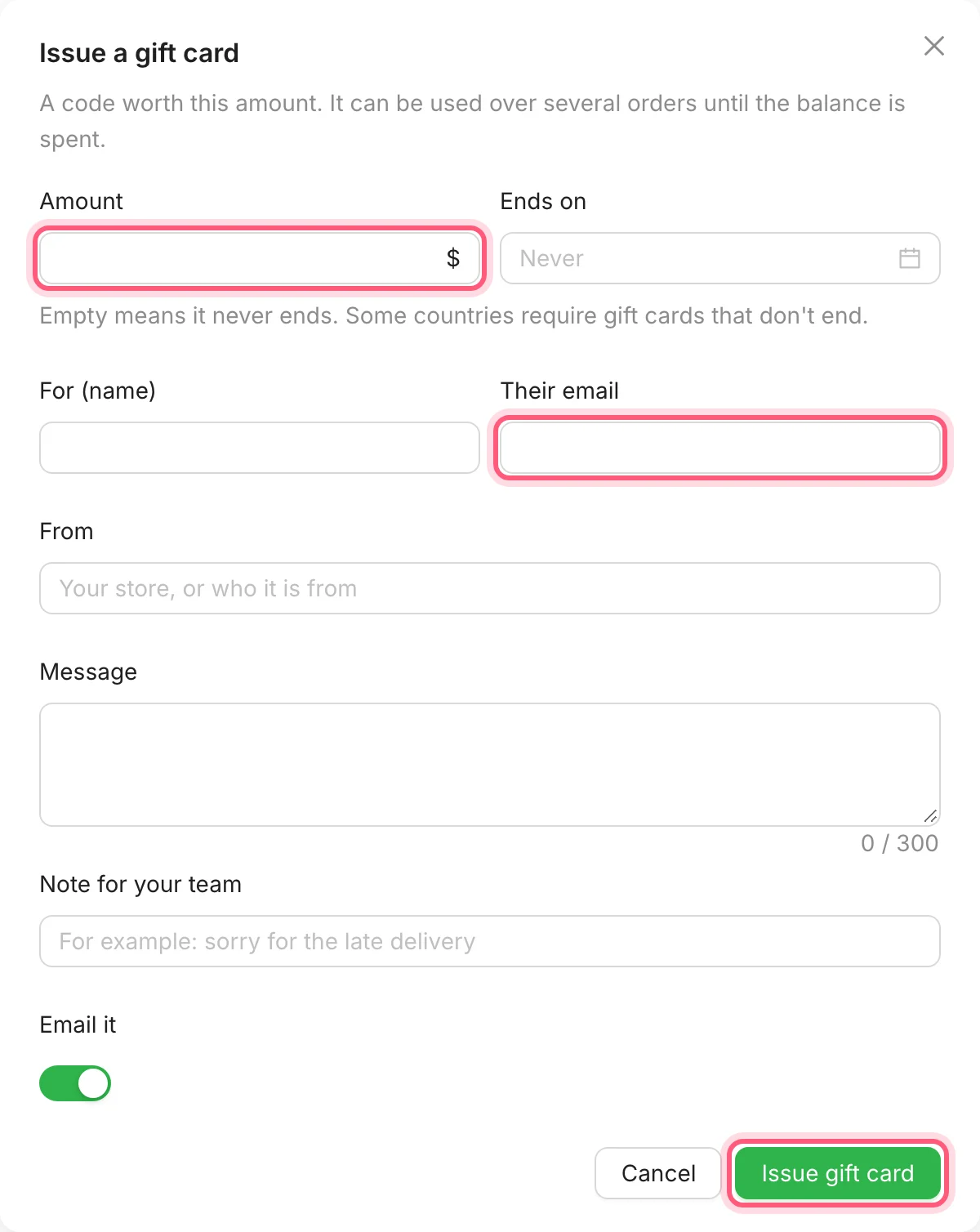
Fill in the two marked boxes and click Issue gift card. -
Check a card or change its balance
Click View on a card. You see its balance, who it is for and who it is from, and every time it was used. To add or take off money, type an amount and why, and click Change balance. A minus amount takes off. You can also email it again or turn it off.
When the customer asks how much is left, Lena looks it up in a few clicks.
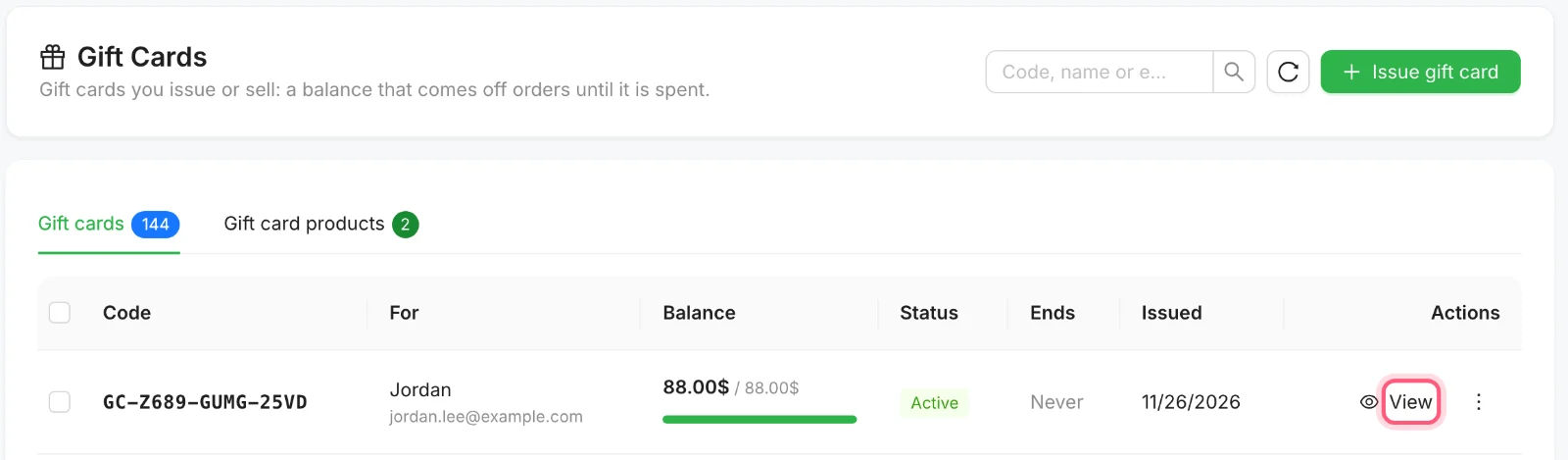
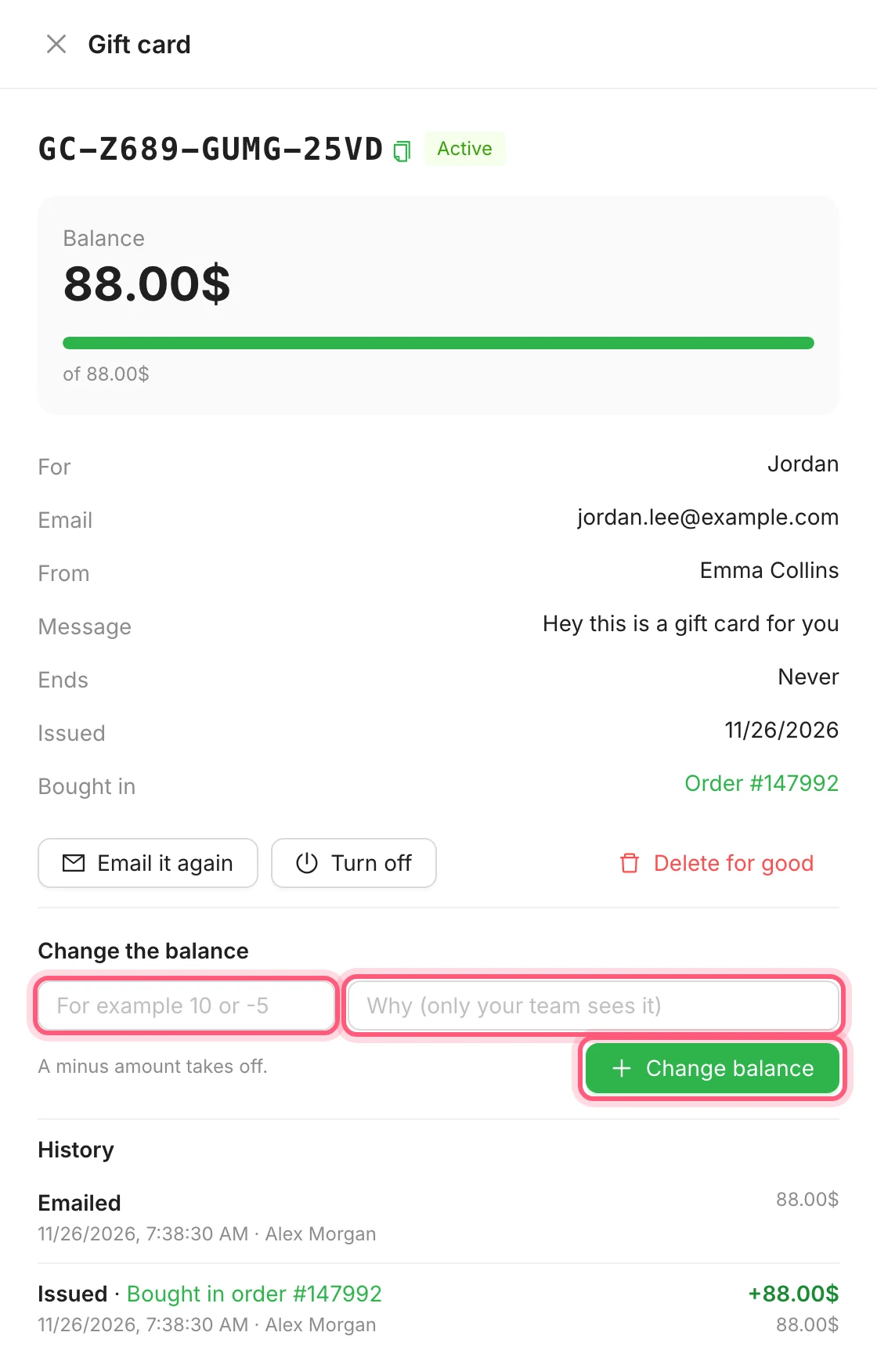
First click View. Then type an amount and why, and click Change balance. All are marked. -
Choose how gift cards work
In Shop Manager's Settings, Gift Cards, choose when bought cards end. Never is the default and the safest, as many places require that. Coupons cannot take money off gift cards unless you allow it. Cards pay after tax and shipping, like cash, unless you choose before tax. The gift card email is there too, with ready texts.
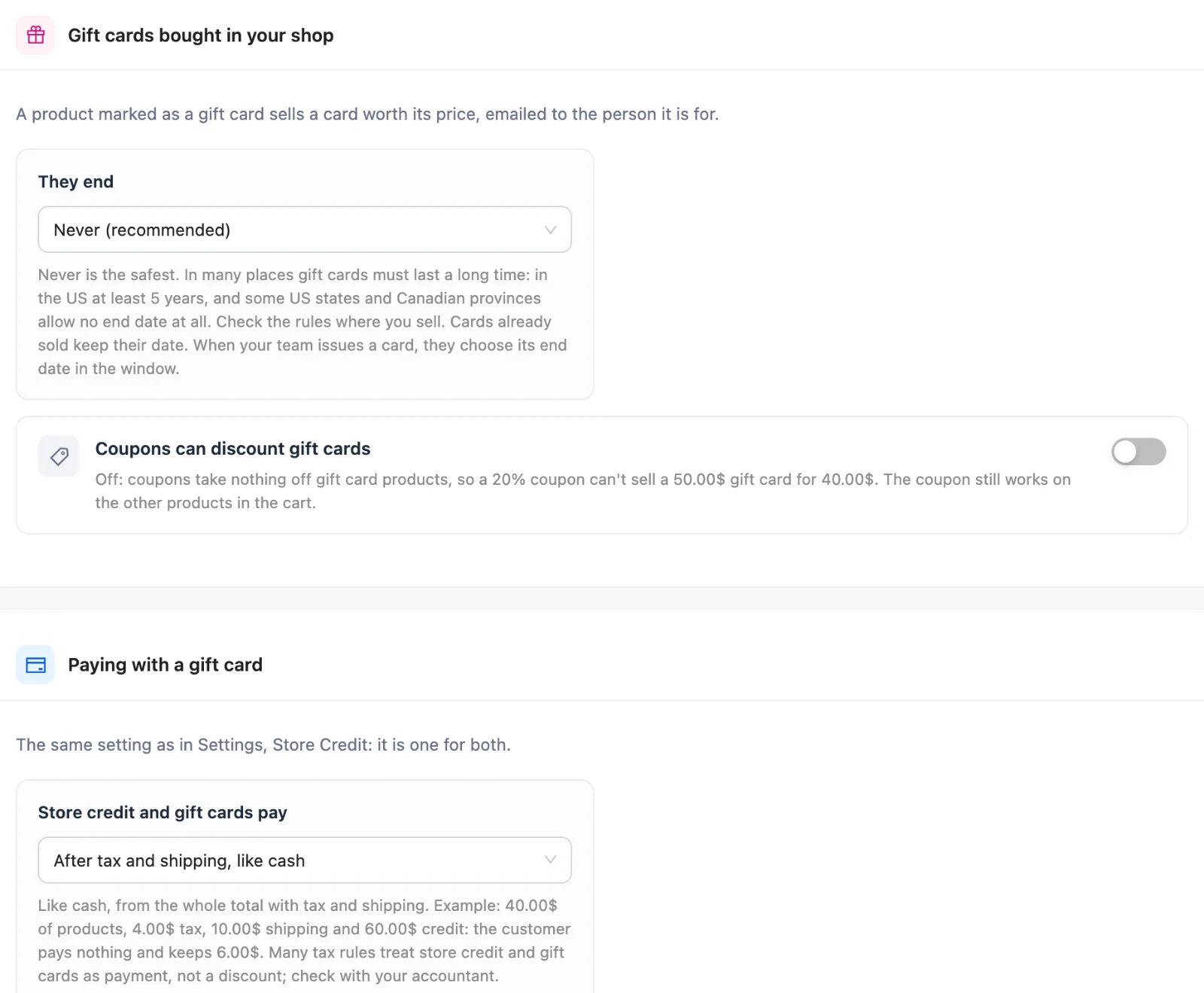
The gift card settings, as on a new store.
One 50.00 gift card, as an example
| When | Card pays | Left on the card |
|---|---|---|
| Bought and emailed | Nothing yet | 50.00 |
| First order of 32.00 | 32.00 | 18.00 |
| Second order of 25.00 | 18.00, the customer pays 7.00 | 0.00 |
How Lena's story ends
In December the gift cards sell themselves. Each one goes straight to the person it is for, with the buyer's message. When someone asks what is left on a card, Lena opens it and tells them. She writes no codes by hand.
Sell your first gift card
Gift cards come with Shop Manager Pro. Every plan has every Pro feature, with a 14-day money-back guarantee.
What you need
- Plan
- Pro
- Products
- A simple product for each value
- Codes
- Made for you, one per card
- A WooCommerce email you can change
Features used on this page
Checked against the plugin in .
Questions people ask
Can a gift card be used over more than one order?
Yes. What the customer does not spend stays on the card until it is used up.
Do gift cards end?
Not unless you choose. Never is the default for bought cards, and when you issue a card yourself you can leave its end date empty.
Can a coupon take money off a gift card?
Not by default, so a 20% coupon cannot sell a 50.00 card for 40.00. You can allow it in Settings, Gift Cards, for a planned gift card sale.
Who gets the email when someone buys a card for a friend?
The friend, at the email the buyer typed on the product page. If none was typed, the buyer gets it. You can email any card again from its window.
Can my staff issue gift cards?
Yes, with the Gift Cards permissions in Roles & Access: see the page, issue cards, edit them and delete them.
More stories
- The shoes were the wrong size. The customer wants another pair, not their money back. Refund to store credit instead of the card Needs Pro
- Most of your customers buy once and never come back. Reward customers with points Needs Pro
- Your 10% code is on a coupon website, and strangers use it every day. Run buy one get one and lunchtime deals Needs Pro