


 Product Layouts
 ThankRedirect
 Image Hover
 Flipbox
How to make a WooCommerce coupon and see what it sold
The short answer
Open Marketing, then Coupons, in the Shop Manager dashboard and click Add coupon. Type the code and the amount, pick an end date and click Create coupon. Later, click the code in the list to open its own page: uses, paid orders, sales after refunds, the discount given and every order that used it. All of this is free and works with WooCommerce's own coupons.
Maya's story
Sells hand poured candles. Maya is a made-up example.
Maya makes candles and sells them online. Every few months she runs a weekend sale with a discount code in her newsletter.
Making the code is the easy part. The hard part comes after. Did the code bring in any orders? How much money did it make, and how much did she give away?
WooCommerce shows how many times a code was used. It does not show what those orders were worth, or which ones were refunded later.
And once, the sale ended on Sunday, but the code kept working until Wednesday, because she forgot to switch it off.
Sound familiar?
- You make coupons but never know what they brought in.
- A code kept working after the sale was over.
- Your helper needs your WordPress admin login just to make a coupon.
Here is how to do it
-
Open Coupons and click Add coupon
In your Shop Manager dashboard, open Marketing in the menu and click Coupons. You see every coupon in your store, sorted into Active, Scheduled, Expired, Used up and Drafts. They are WooCommerce's own coupons, so nothing is copied: a change made here is the same in WooCommerce. Click Add coupon.
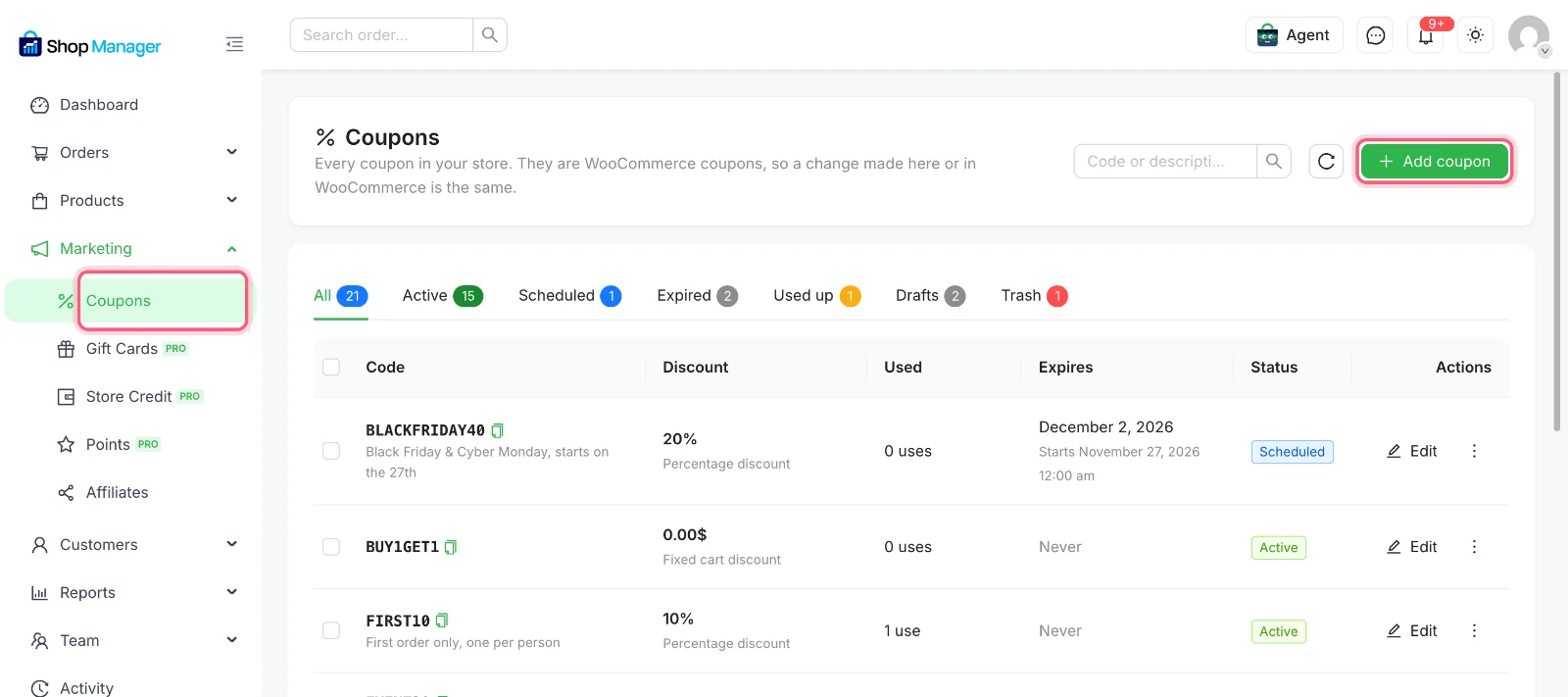
Click Coupons, then Add coupon. Both are marked. -
Fill in the code, the amount and the end date
Type a code, or use the Generate button for a random one. Pick a discount type: a percentage, an amount off the whole order, or an amount off each item. Type the amount. Then pick the End date. The coupon stops working at 00:00 on that day, store time, so pick the day after your sale. Further down you can set a minimum spend, keep sale items out, or limit how many times it can be used. Click Create coupon.
Maya types WEEKEND15 and 15 percent. Her sale runs to the end of Monday, so she picks the Tuesday.
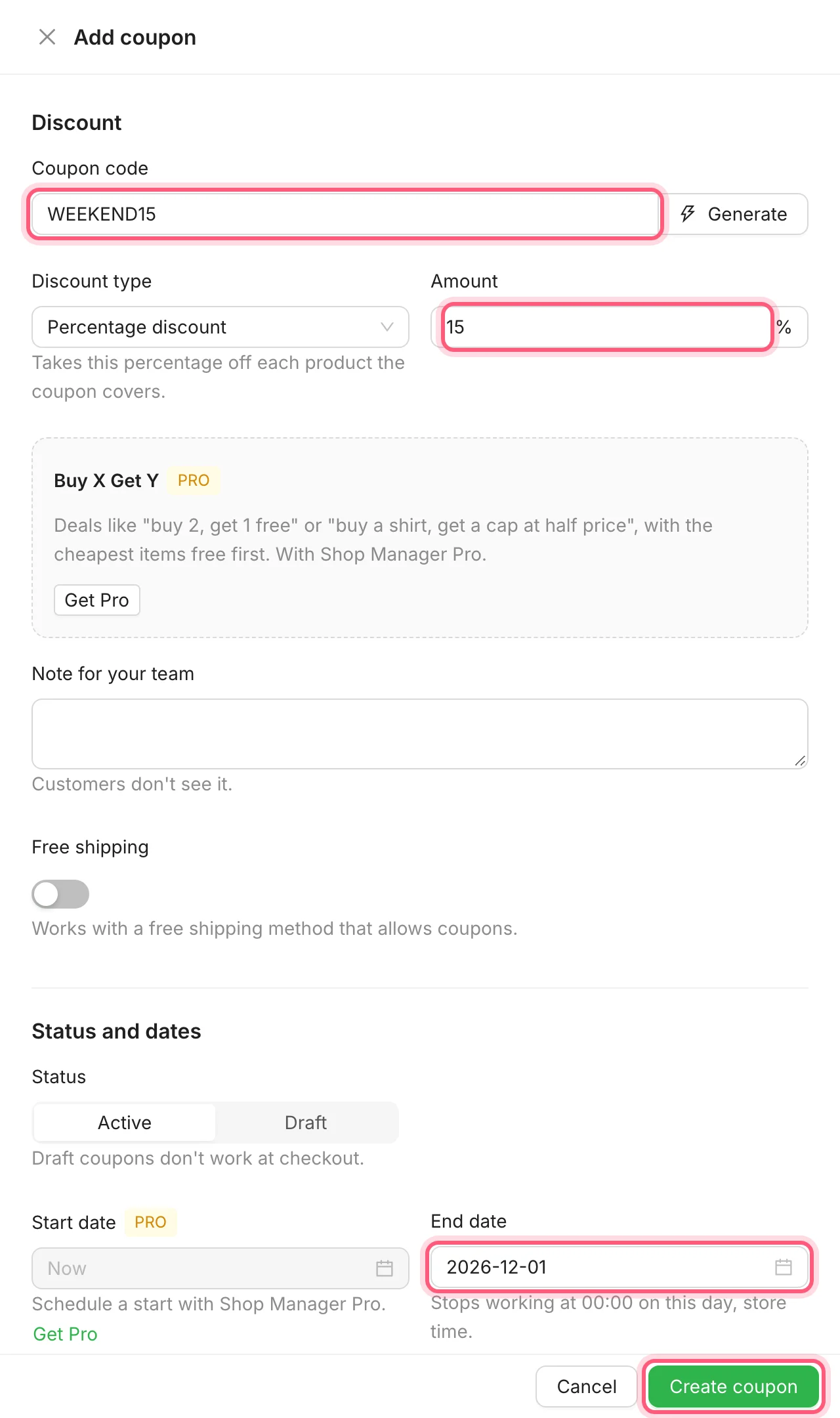
Fill in the three marked boxes, then click Create coupon. -
Find the coupon after the sale
Back on the Coupons page, type the code in the search box. Click the code to open the coupon's own page.
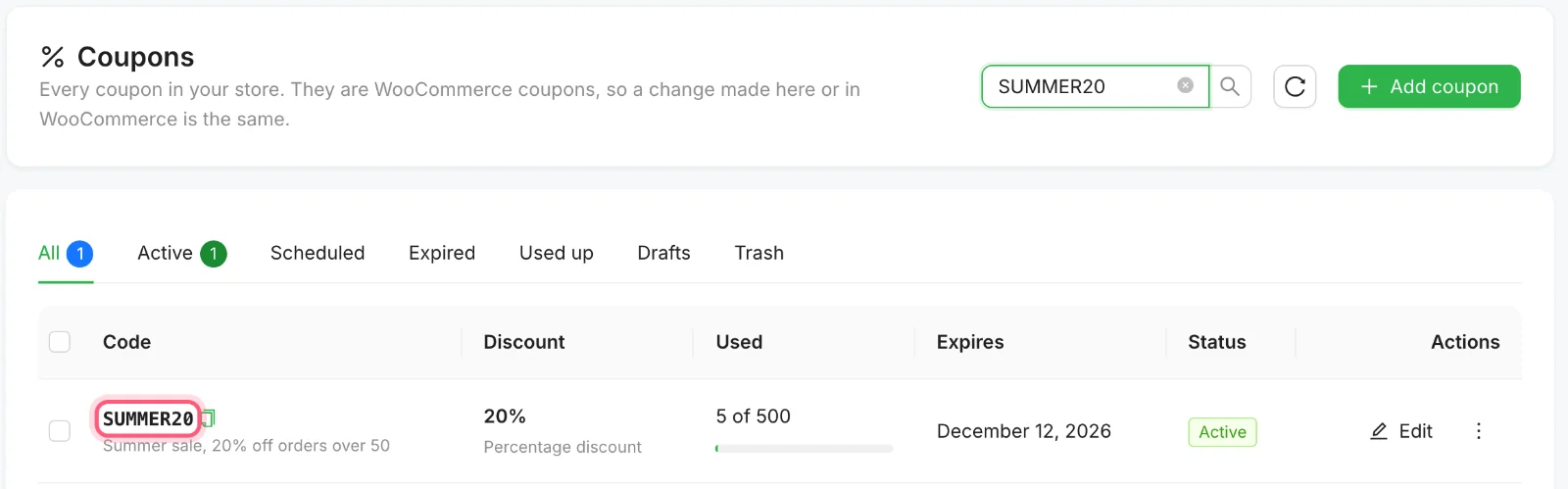
Click the code. It is marked. The picture shows a sample coupon. -
See what it sold
The page reads the numbers from the orders themselves: how many times the code was used, how many of those orders were paid, what the paid orders brought in after refunds, the discount you gave, how many customers used it and the average order. Below that is every order that used the code, and on the right are the coupon's rules and the first and last time it was used.
Maya can now see whether the sale was worth it, without a spreadsheet.
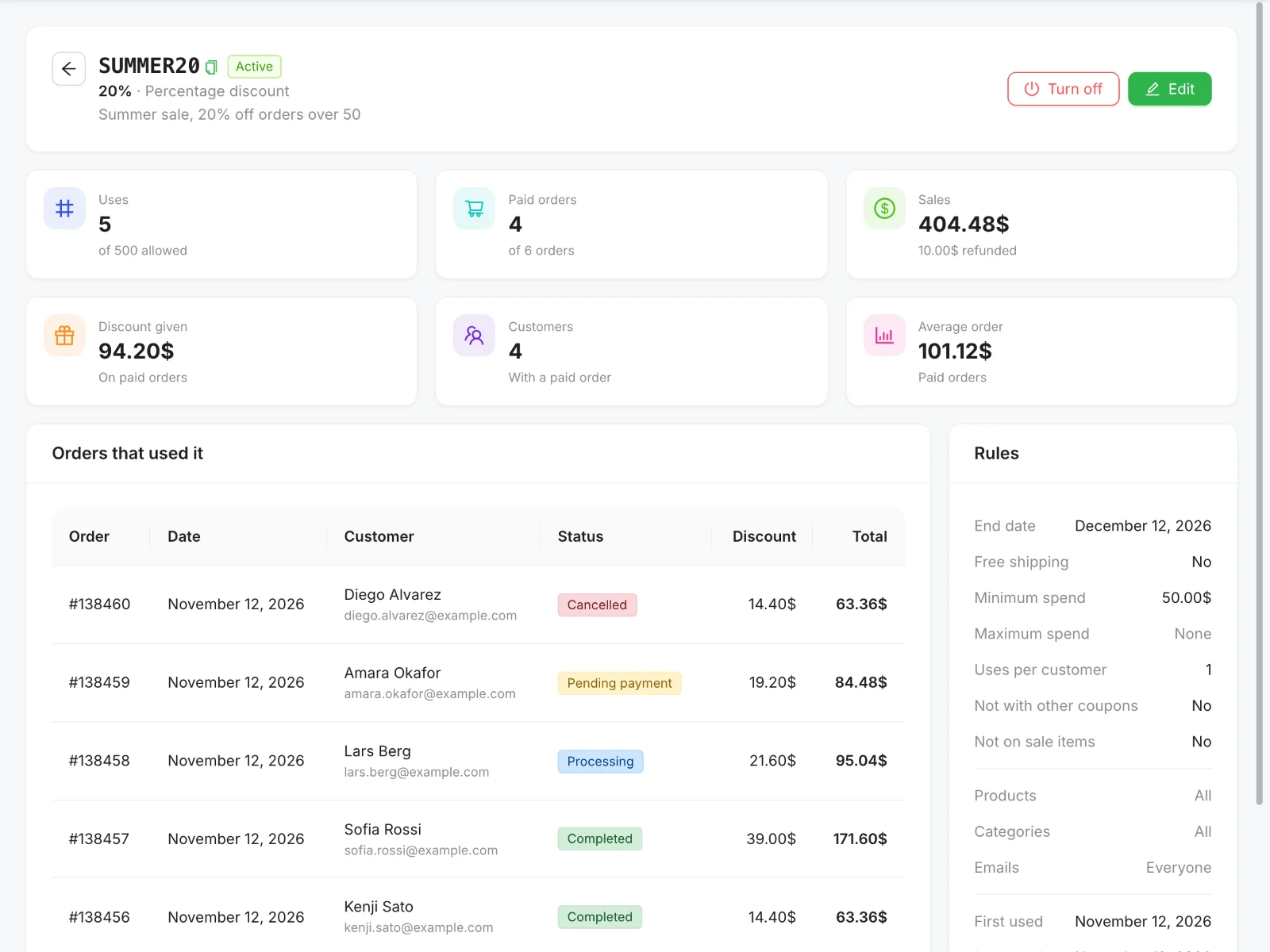
A sample coupon on its own page. The numbers come from the demo store. -
Stop it early if you need to
On its end date the coupon stops working by itself and moves to the Expired tab. To stop it sooner, click Turn off at the top of its page. It becomes a draft, and draft coupons do not work at checkout. You can turn it on again later.

Click Turn off. It is marked.
What each number on the coupon page means
| Number | What it counts |
|---|---|
| Uses | How many times the code was used, and the limit if you set one |
| Paid orders | Orders with the code that are Processing or Completed |
| Sales | What those paid orders brought in, after refunds |
| Discount given | How much the code took off the paid orders |
| Customers | How many different customers have a paid order with it |
| Average order | Sales divided by paid orders |
How Maya's story ends
On Tuesday morning the code stops by itself. Maya opens WEEKEND15 and sees how many paid orders it brought, what they were worth after refunds and how much she gave away. Next time she wants to try free shipping instead, and she can compare the two coupons side by side.
Run your next sale this way
Shop Manager is free on WordPress.org. Install it, open Coupons and look at the codes you already have.
What you need
- Plan
- Free
- Coupons
- WooCommerce's own, nothing is copied
- Where
- Marketing, Coupons, in the dashboard
- Staff
- Coupon permissions in Roles & Access
Features used on this page
Checked against the plugin in .
Questions people ask
Is the Coupons page free in Shop Manager?
Yes. Making, editing, turning on and off, copying and deleting coupons, and each coupon's own page with its numbers, are all in the free plugin.
Are these the same coupons as in WooCommerce?
Yes. Shop Manager reads and saves WooCommerce's own coupons. A coupon changed here or in WooCommerce is the same coupon, and if you turn Shop Manager off, every coupon keeps working.
Why does Sales differ from the WooCommerce coupon report?
Shop Manager counts only paid orders, those that are Processing or Completed, and takes refunds off. It reads the orders themselves, so a new use shows at once.
Can my staff make coupons without my admin login?
Yes. Roles & Access has four coupon permissions: see, create, edit and delete. The ready-made SM: Store Manager role has all four. Every coupon change is saved in the Activity log with who made it.
Can a coupon start on a set day, or work only at lunchtime?
Those are part of Shop Manager Pro: a start date and time, some weekdays or hours, Buy X Get Y, coupons that apply by themselves and single-use codes in bulk.
More stories
- Your 10% code is on a coupon website, and strangers use it every day. Run buy one get one and lunchtime deals Needs Pro
- Most of your customers buy once and never come back. Reward customers with points Needs Pro
- Everyone uses your login. Something changed last night, and nobody knows who did it. Give staff access, keep your password Free