


 Product Layouts
 ThankRedirect
 Image Hover
 Flipbox
How to update WooCommerce products and stock without WordPress admin
The short answer
In Shop Manager, open Products. Use Filters to find items by stock status, category, type, brand or tag. Open a product to change its price, stock or details, then click Update Product. Click Add Product for a new one, or use Bulk Upload with a CSV file. This is free.
Tomas's story
Sells homeware. Tomas is a made-up example.
Tomas sells homeware from a small unit. Every two weeks a delivery comes in.
Then the computer work starts. He opens the product list in WordPress. He looks for what ran out. He opens one product, finds the Inventory tab, changes the number and saves. Then the next one.
Halfway through, he gets a call from his helper, who needs to change a price. Tomas does not want to give anyone the full admin login, so he says, "Send it to me. I will do it tonight."
By tonight he has forgotten.
Sound familiar?
- You do product updates at night because nobody else can.
- Finding what is out of stock takes too many clicks.
- You keep a list of small product changes to do later.
Here is how to do it
-
Find what needs work
Open Products and click Filters. Under Stock Status, choose In Stock, Out of Stock, On Backorder or Low Stock, and each one shows how many products it has. You can add category, type, brand, tag and date as well.
Tomas starts with Out of Stock.
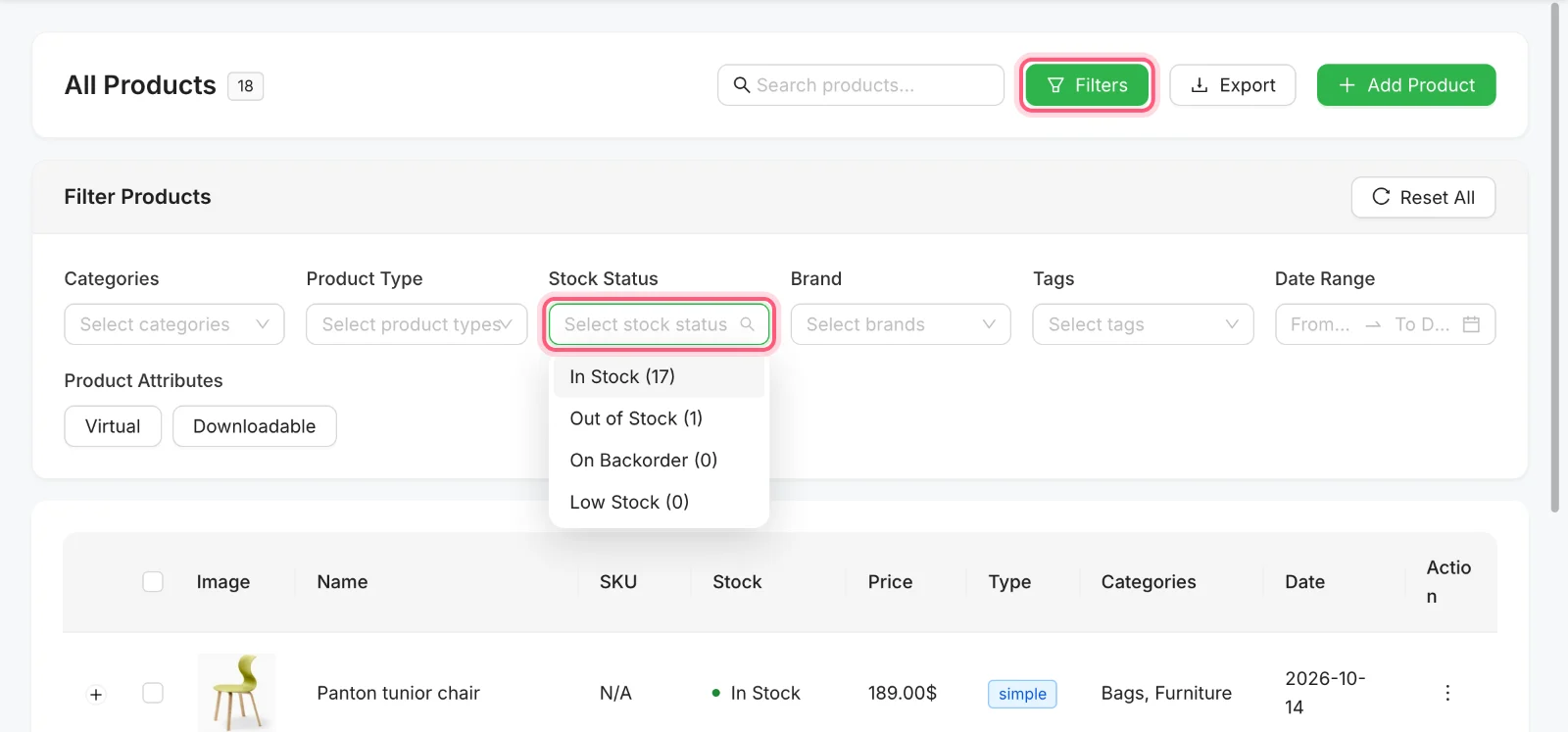
Click Filters, then open Stock Status. Both are marked. -
Change the price or the details
Open the menu at the end of a product row and click Edit. The name, descriptions, images and categories are all on one page, and the price is under the product data below them. When you are done, click Update Product. You can see that button in the next step.
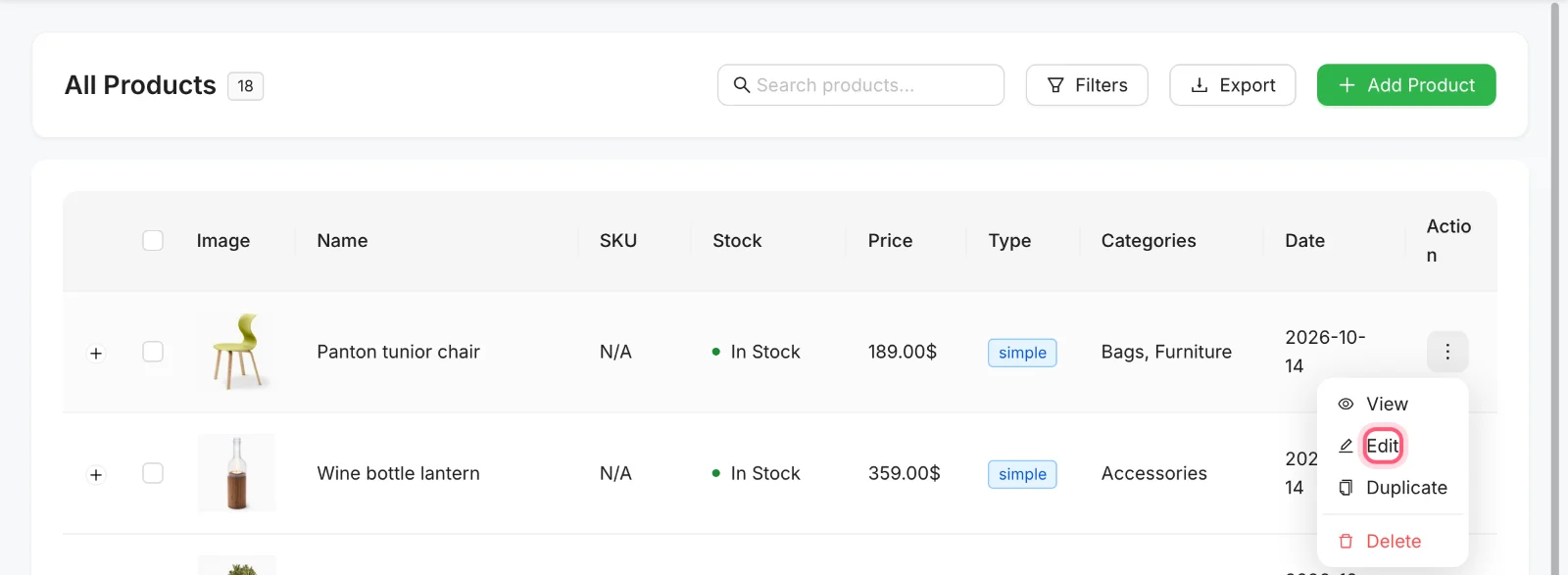
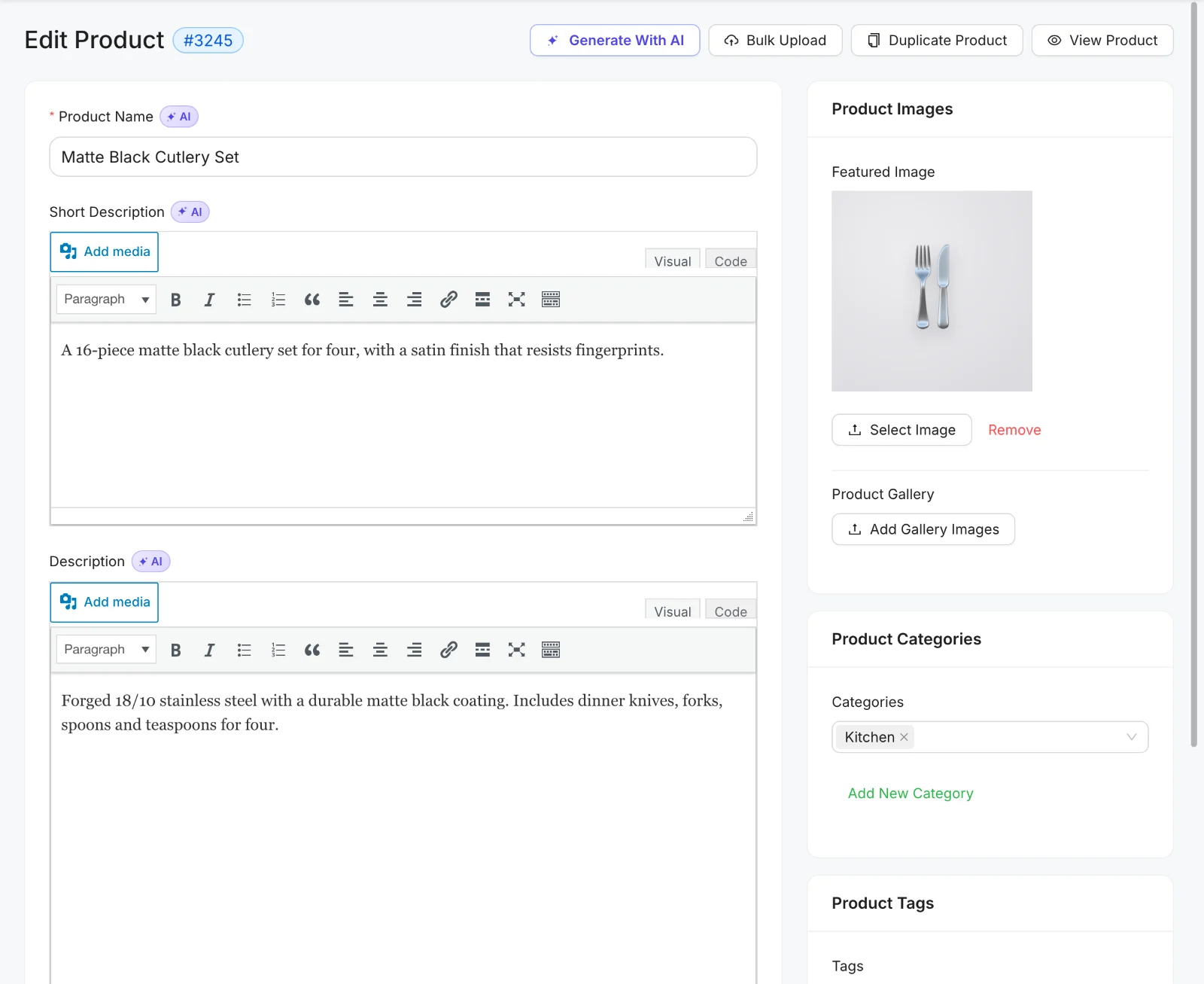
First click Edit in the row menu. Then you get this form. Generate With AI needs Pro, and the rest is free. -
Update the stock
Further down the same page, click Inventory. Turn on Manage Stock and type the Stock Quantity. You can also set backorders here, and limit a product to one per order. Then click Update Product.
Tomas works down his delivery note, one product at a time.
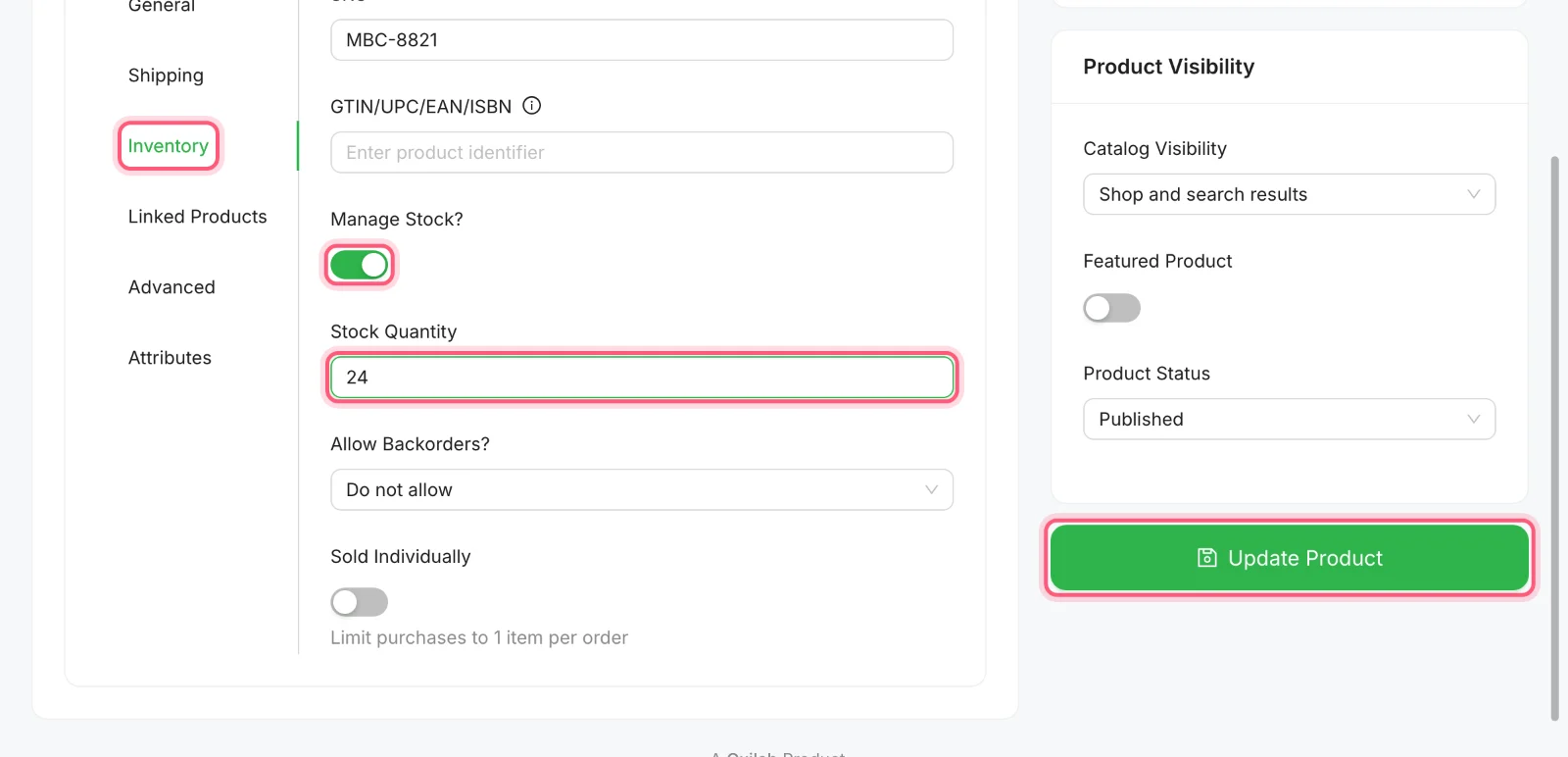
Inventory, Manage Stock, Stock Quantity, then Update Product. All four are marked. -
Add new products
Click Add Product to make one by hand. It handles simple and variable products, with their categories, tags, brands and attributes. To add many at once, open the product form, click Bulk Upload and send a CSV file. The file needs at least name and regular_price, and there is a sample to download.


Add Product is above the product list. Bulk Upload is at the top of the product form. -
Deal with reviews and exports
Under Products, open Reviews. The menu at the end of a row lets you approve a review, reply to it, mark it as spam or trash it. In the product list, Export gives you a CSV of all your products or just the ones you ticked.
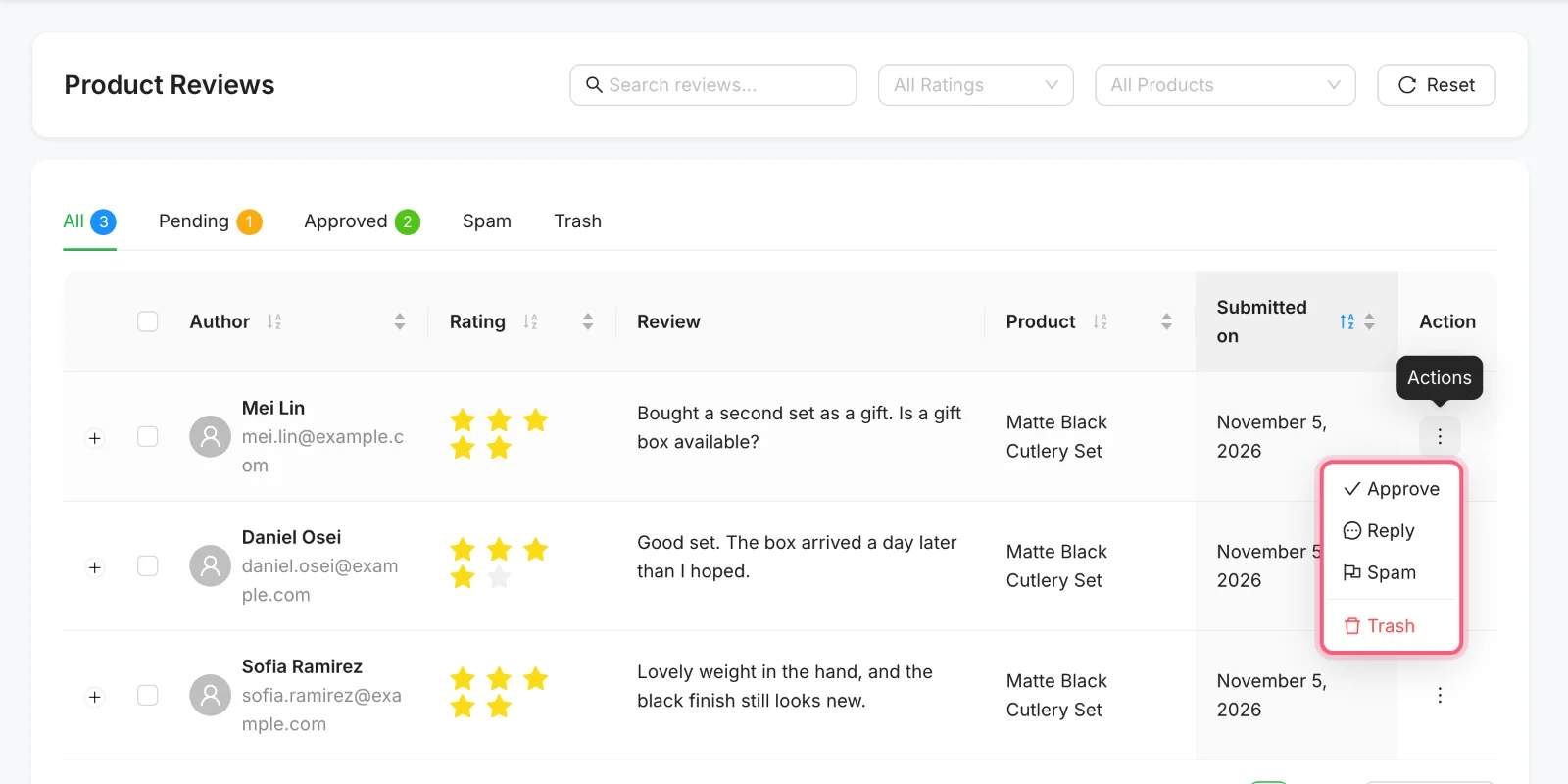

The row menu on a sample review, and the Export button above the product list.
Tomas's delivery day
This is a made-up delivery, to show which tool fits which job.
| The job | The tool |
|---|---|
| 12 items came back in stock | Filter by Out of Stock, then Inventory on each one |
| 1 item has a new price | Open the product and change the price |
| 30 new items arrived | Bulk Upload with a CSV file |
| His helper needs to change products | Add them as an employee with the Product Manager role |
How Tomas's story ends
The next delivery comes in on a Thursday. Tomas gives his helper their own login with the Product Manager role, so the helper can change prices without touching anything else. Tomas stops keeping his list, and his evenings are his again.
Do your next delivery this way
Shop Manager is free on WordPress.org. Try the Stock Status filter first and see what it finds.
What you need
- Plan
- Free (Generate With AI needs Pro)
- WordPress admin
- Not needed
- CSV upload
- Adds new products, never overwrites
- Role for staff
- Product Manager
Features used on this page
- Add, edit and delete products
- Variations, categories, brands, tags and attributes
- See what is out of stock
- Manage product reviews
- Export and upload your catalogue
Checked against the plugin in .
Questions people ask
Can I edit price and stock right in the product list?
No. Open the product to change them. The list is for finding and sorting out products.
Can I change many prices at once?
Not in the product list. Its bulk actions are delete and export. You change prices one product at a time.
Will Bulk Upload update my existing products?
No. It only adds new ones. A row whose SKU already exists is skipped, so it never overwrites anything.
When is a product low in stock?
When its count reaches your Low Stock Threshold, which is in the Products tab of the Shop Manager settings. It is the same number WooCommerce uses.
Can my staff add new products?
The ready-made Product Manager role can view and edit products. To let them add new ones, tick Add New for that role in Roles & Access.
More stories
- Forty products have no description, and writing them is the job you keep putting off. Write product copy and ask your store with AI Needs Pro
- Every morning you click through five screens to find out if anything went wrong. Check your store each morning Free
- Everyone uses your login. Something changed last night, and nobody knows who did it. Give staff access, keep your password Free