


 Product Layouts
 ThankRedirect
 Image Hover
 Flipbox
How to check how your WooCommerce store is doing each morning
The short answer
Open your Shop Manager dashboard. Warning cards at the top show orders that are stuck, low stock, a jump in refunds, a drop in revenue and reviews waiting for you. Below them are your revenue, orders and top products for the period you choose, and the bell lists what happened while you were away. This is free.
Hana's story
Sells kitchenware. Hana is a made-up example.
Hana sells kitchenware. Each morning she has a coffee and checks on the store.
She looks at the orders. She opens the reports. She checks the stock on the two or three things that sell fastest. Then the first customer email comes in and she stops.
One Thursday a customer writes: "I ordered four days ago. Has it been sent?" Hana looks it up. The order has been sitting in Processing since Monday. Nobody noticed.
She did check the store that morning. She just did not look in that one place.
Sound familiar?
- Your morning check takes more than one screen.
- Customers tell you about stuck orders before you see them.
- You learn something ran out of stock when someone complains.
Here is how to do it
-
Read the warning cards first
Log in, and the cards are at the top. They tell you about orders pending for more than 2 hours, orders in Processing for more than 24 hours, low stock, a jump in refunds, a drop in revenue and reviews waiting for approval. Click View on a card to go straight to those orders. If you do not need a card today, close it and it stays away for 24 hours.
Hana would have seen those stuck orders on Tuesday morning.
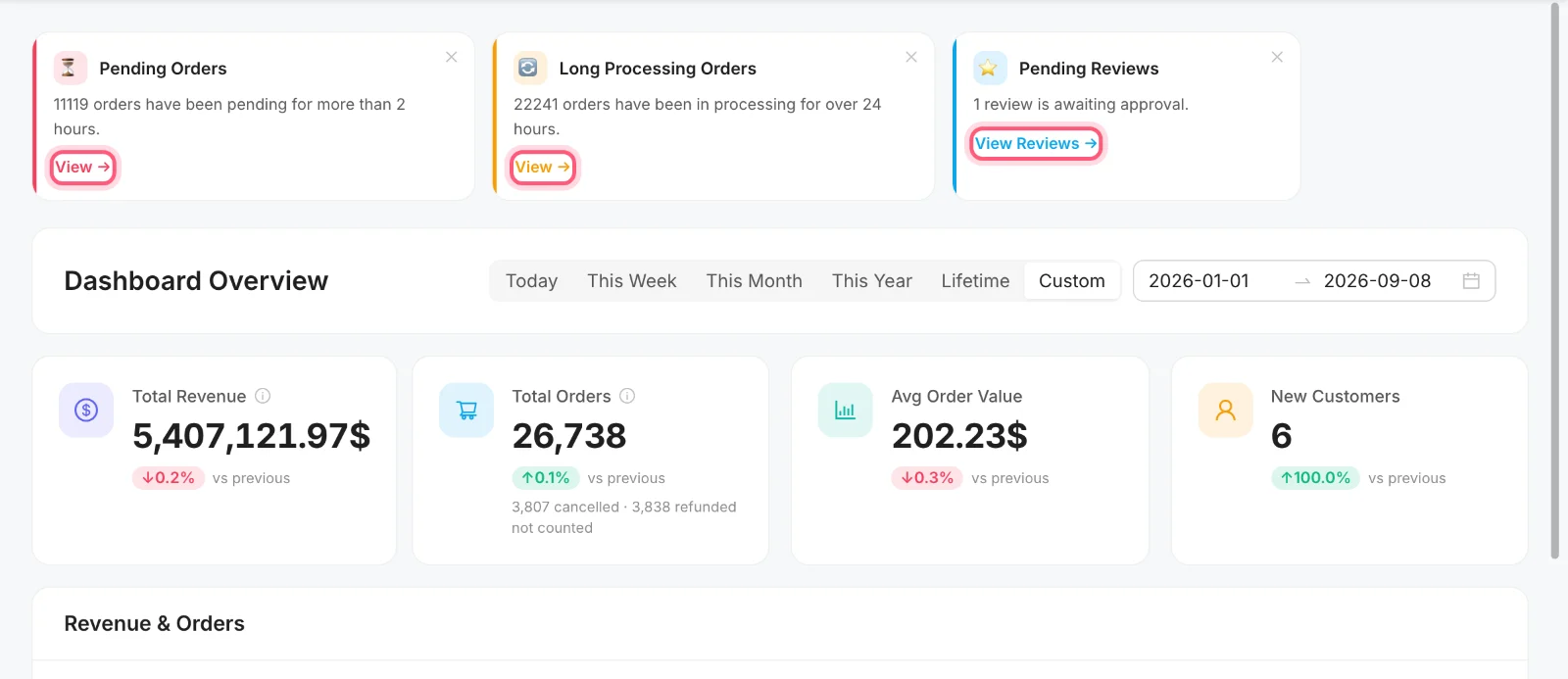
Click a marked link to see those orders or reviews. Our test store has far more stuck orders than a real one. -
Check your numbers
Choose Today, This Week, This Month, This Year, Lifetime or your own dates. You see revenue, orders, average order value and new customers, each compared with the period before. Cancelled and refunded orders are not counted in the totals, and the card tells you how many were left out.
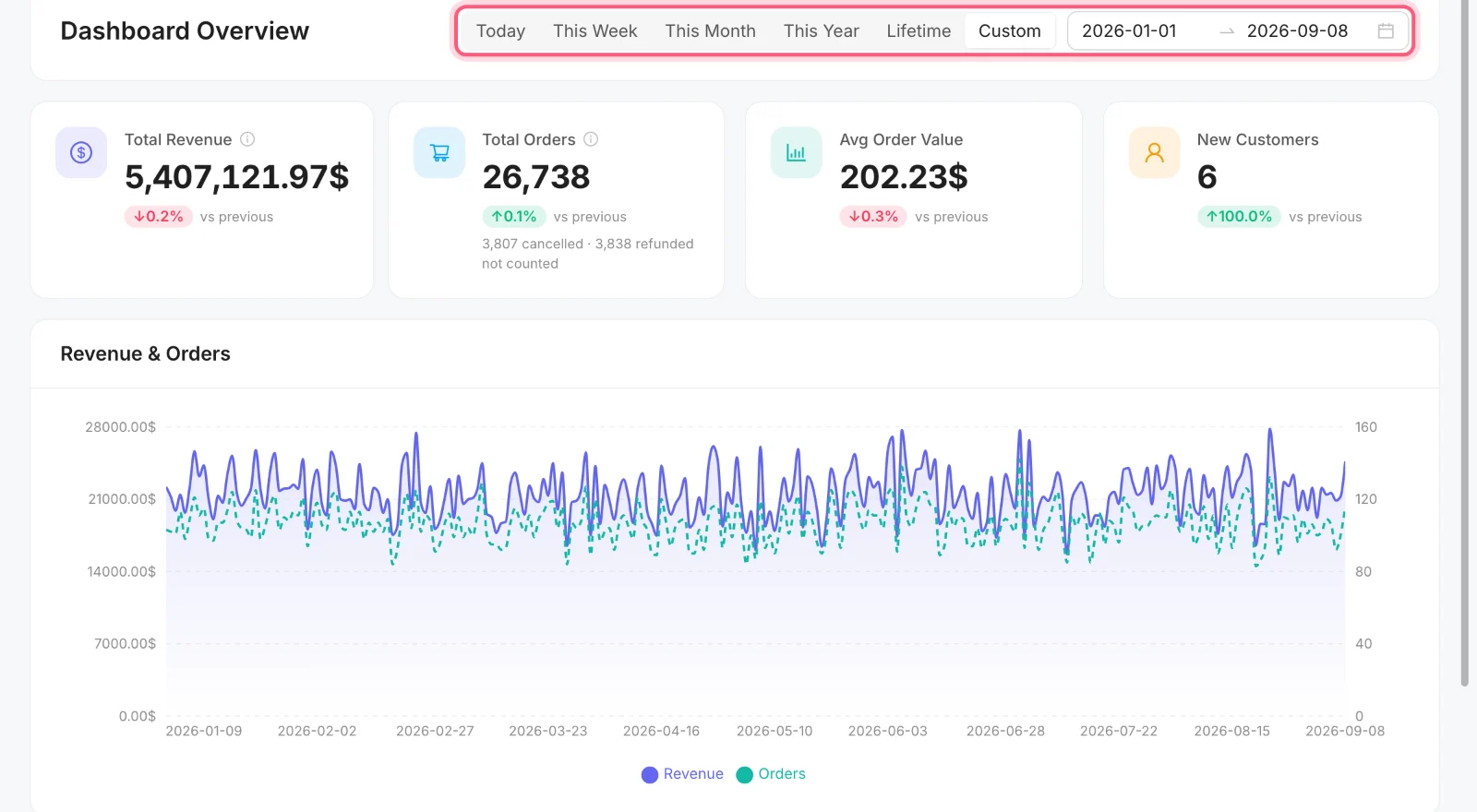
Pick a period from the marked buttons. Sample numbers from our test store. -
See where your orders are
Orders by Status shows how many orders sit at each status. Top Products shows what is bringing in the money. Recent Orders is further down.
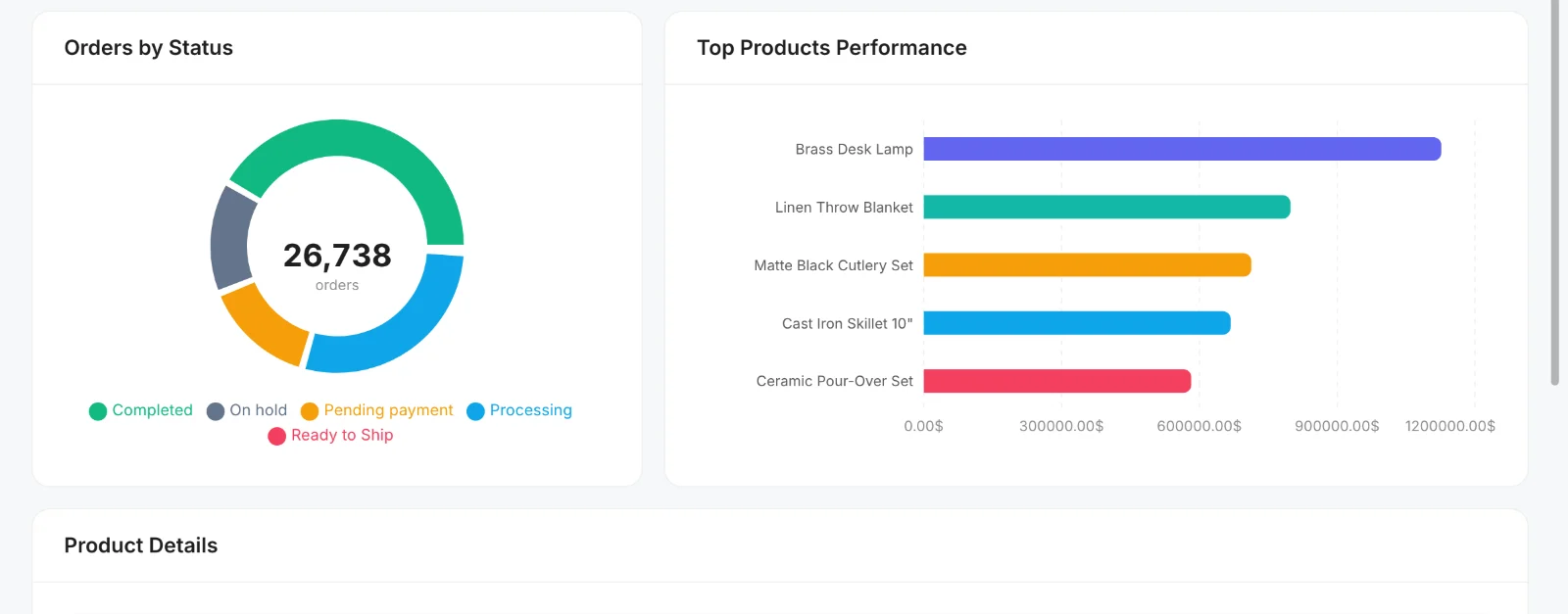
Sample numbers from our test store. -
Open the bell
Click the bell at the top of the dashboard. It lists new orders, failed payments, cancelled and refunded orders, customer notes, low stock, out of stock and new reviews. It leaves out what your own team did, because that is on the Activity page. While the dashboard is open it checks for news every 60 seconds.
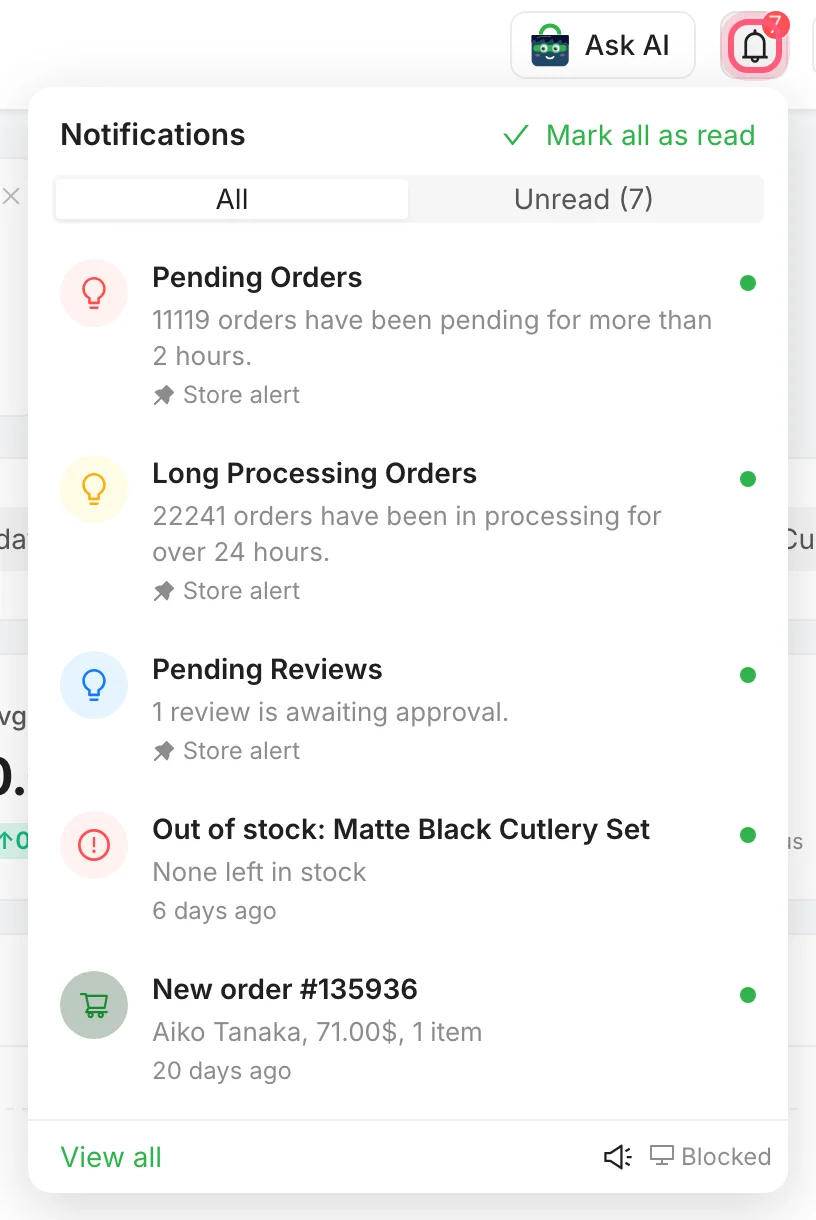
The marked bell opens this list. From our test store.
Hana's Tuesday morning
This is a made-up morning, to show how it fits together.
| What she sees | What she does |
|---|---|
| Long Processing Orders: 3 orders | Clicks View and gets them moving |
| Low Stock Alert | Orders more of that item |
| Pending Reviews: 2 reviews | Reads them and approves them |
| Revenue this week, up on last week | Finishes her coffee |
How Hana's story ends
The next Monday an order gets stuck again. On Tuesday morning the card is at the top of her screen before her coffee is cool. She sends it that day, and the customer never has to ask.
Start tomorrow morning this way
Shop Manager is free on WordPress.org. Install it today, and the cards will be waiting for you tomorrow.
What you need
- Plan
- Free
- AI key
- Not needed, these are simple rules
- Screens to check
- One
- Permission for staff
- Dashboard
Features used on this page
- Revenue and orders from your own store
- Orders that are stuck come and find you
- Plain-English summaries
- Where all your orders are sitting
- A bell for what happened while you were away
Checked against the plugin in .
Questions people ask
Can I change when an order counts as stuck?
Not at the moment. Pending payment counts after 2 hours and Processing after 24 hours.
How up to date are the numbers?
They come from your store, with a short cache: about 2 minutes for most periods and 15 minutes for This Year and Lifetime. The warning cards can be up to 15 minutes old, and they refresh when orders change. The page reloads its numbers every 5 minutes while it is open.
How many warning cards can show at once?
Up to 6, with the most serious ones first.
Can I set the low stock number?
Yes. Low Stock Threshold is in the Products tab of the Shop Manager settings. It uses the same number as WooCommerce.
Does it make a sound for new orders?
Yes, while the dashboard is open, and only for new orders. You can mute it from the bell.
Can my accountant see this?
Yes. The ready-made Accountant role gets the dashboard and its analytics.
More stories
- You are away from your desk, an order needs you now, and WordPress admin is hard to use on a small screen. Run your store from your phone Free
- The delivery came in. Now you have stock counts to change and new products to add. Keep products and stock up to date Free
- Some of your best customers stopped buying months ago. Nothing told you. Find your best customers and the quiet ones Free