


 Product Layouts
 ThankRedirect
 Image Hover
 Flipbox
How to give WooCommerce staff access without sharing your admin password
The short answer
In Shop Manager, open Employees and click Add Employee. Enter the person's name and email, then pick a role such as Fulfillment Staff. They get an email with a link to set their own password, and they work only in the dashboard on your site. WordPress admin stays closed to them. This is free.
Tunde's story
Sells running shoes online. Tunde is a made-up example.
Tunde sells running shoes online. For years he ran the store alone, so one WordPress login was enough.
Then orders picked up. He hired Maya to pack boxes, Lena to keep the products up to date and Sam to do the books. Making accounts felt like a job for later, so he sent them his admin password in a chat message.
It worked for a while. Then one Monday the shipping prices on the site are wrong. Who changed them? Nobody can say. All four of them log in as Tunde, so as far as the store can tell, everyone is Tunde.
A month later Maya leaves for a new job. She still has the password to the whole site. So Tunde changes it, and then has to tell everyone else the new one.
Sound familiar?
- More than one person uses the same WordPress login.
- A helper can reach your plugins, payments and settings.
- When something changes, you cannot tell who did it.
Here is how to do it
-
Add the person
Open Employees in your dashboard and click Add Employee. Type their name and email, pick a role and click Create Employee. They get a welcome email with a link to set their own password. The link works for 24 hours.
Tunde adds Maya with the Fulfillment Staff role.

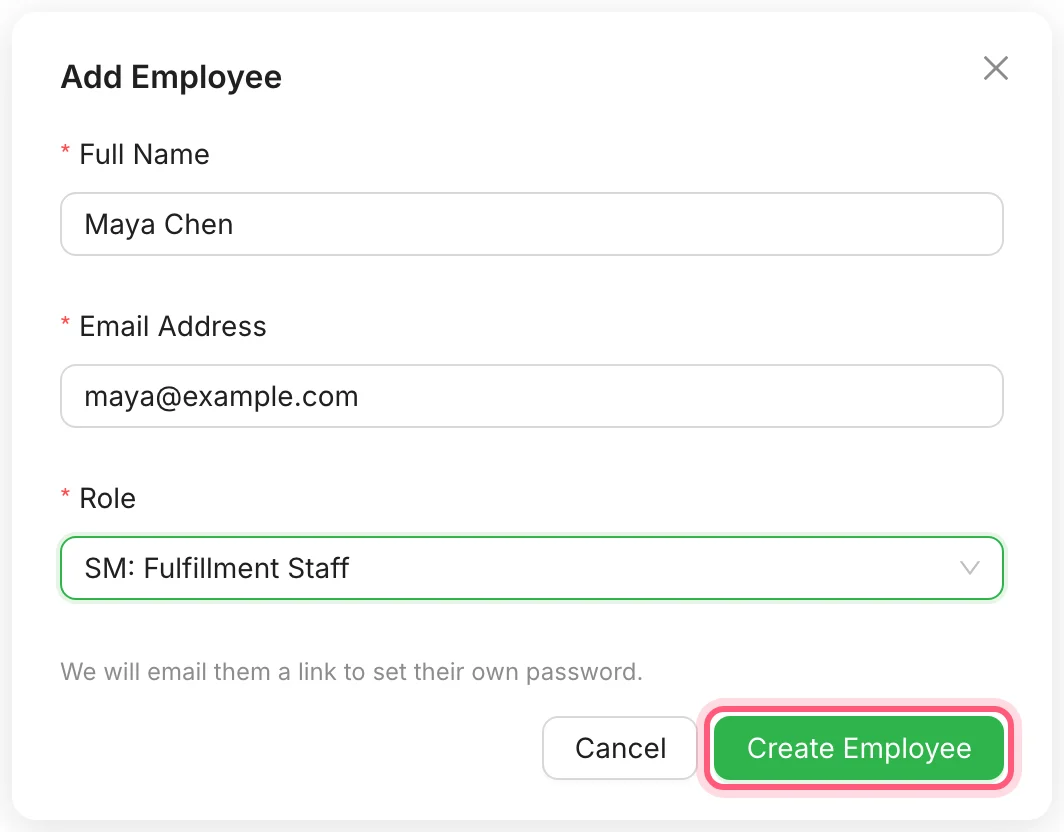
First click Add Employee. Then fill in the three fields and click Create Employee. -
Pick the role that fits the job
Four roles are ready to use. Fulfillment Staff gets orders, tracking and labels. Product Manager can view and edit products. Accountant gets the dashboard and its analytics. Store Manager gets orders, products, customers and the dashboard.
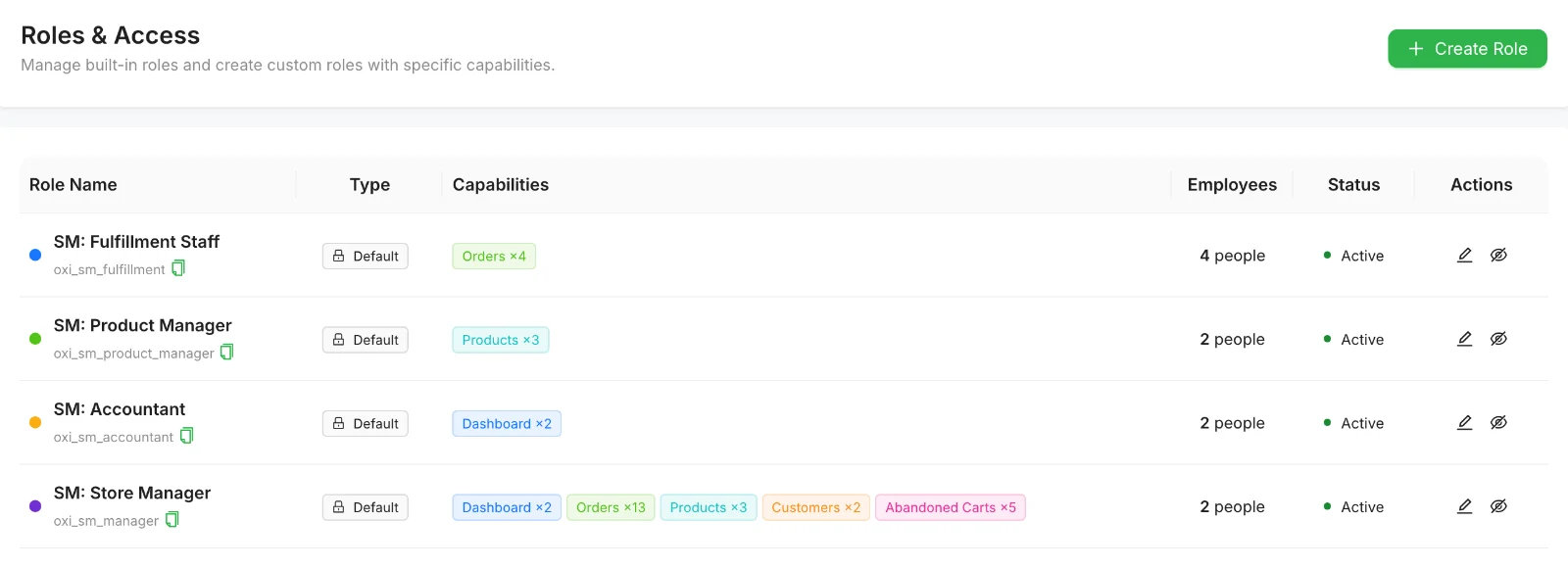
The four ready-made roles on the Roles & Access page. You pick one when you add the person, so there is nothing to click here. -
Change what a role can do
Not quite right? Open Roles & Access and click the pencil next to a role. Turn parts on or off, down to single actions like Export or Move to Trash, then click Save Changes. Changing the ready-made roles is free. Making new roles of your own needs Pro.
Tunde wants Maya to print order sheets too, so he ticks Print Order.
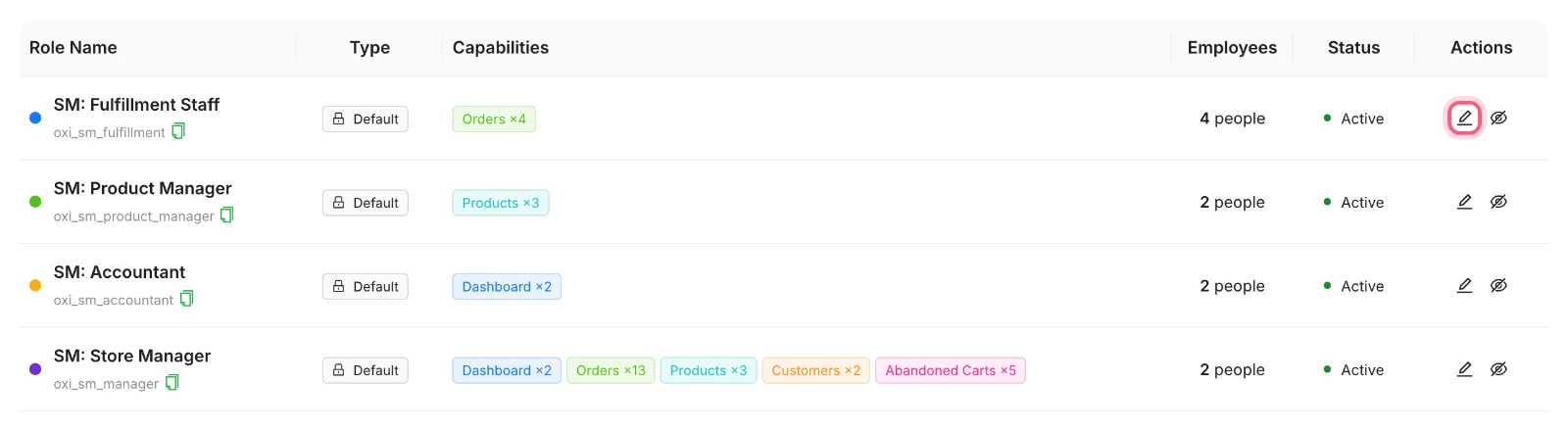
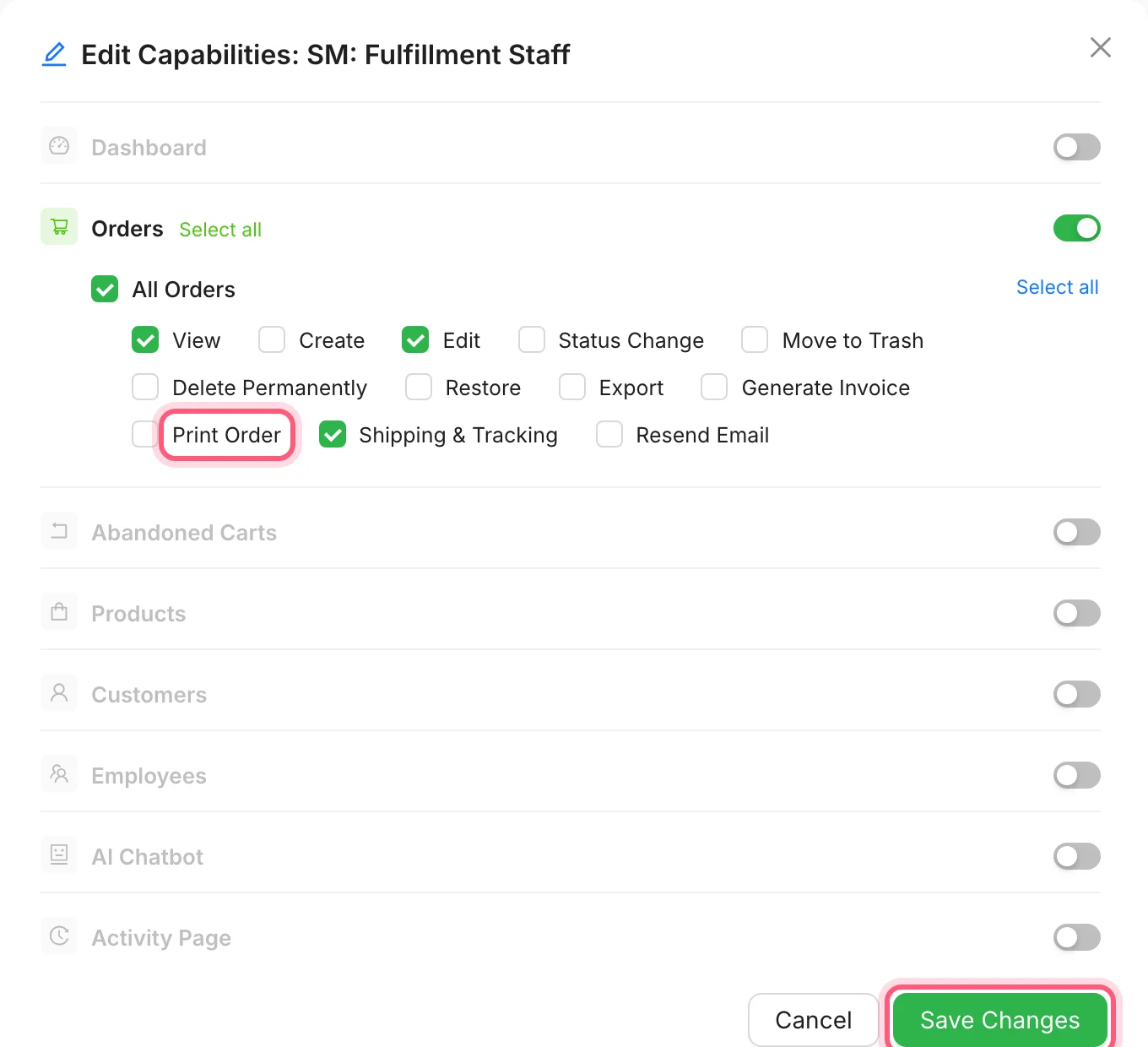
First click the pencil. Then tick Print Order and click Save Changes. What is ticked here is how the role starts on a new install. -
They log in to the dashboard, not WordPress
Staff log in on the dashboard page of your site. They see only the parts their role allows. If they try to open WordPress admin, they are sent back to the dashboard. It works on a phone as well as a computer.
Maya packs orders from the stock room with her phone in her hand.
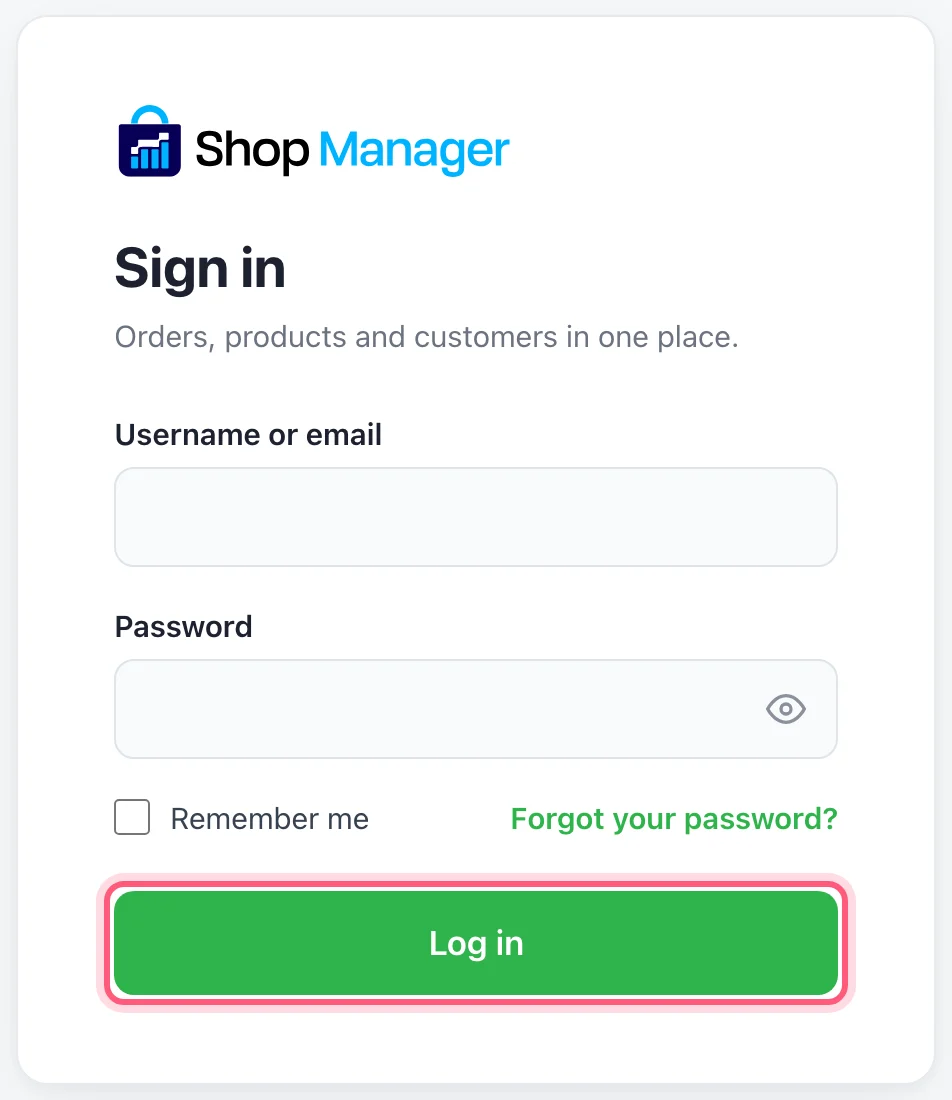
The login page staff see, on your own site. They fill it in and click Log in. -
See who did what
Open Activity in your dashboard to see what people did in Shop Manager. Each line shows when it happened, who did it and what they did, such as signing in, printing a label or generating an invoice.
Now what each person does in Shop Manager shows under their own name.
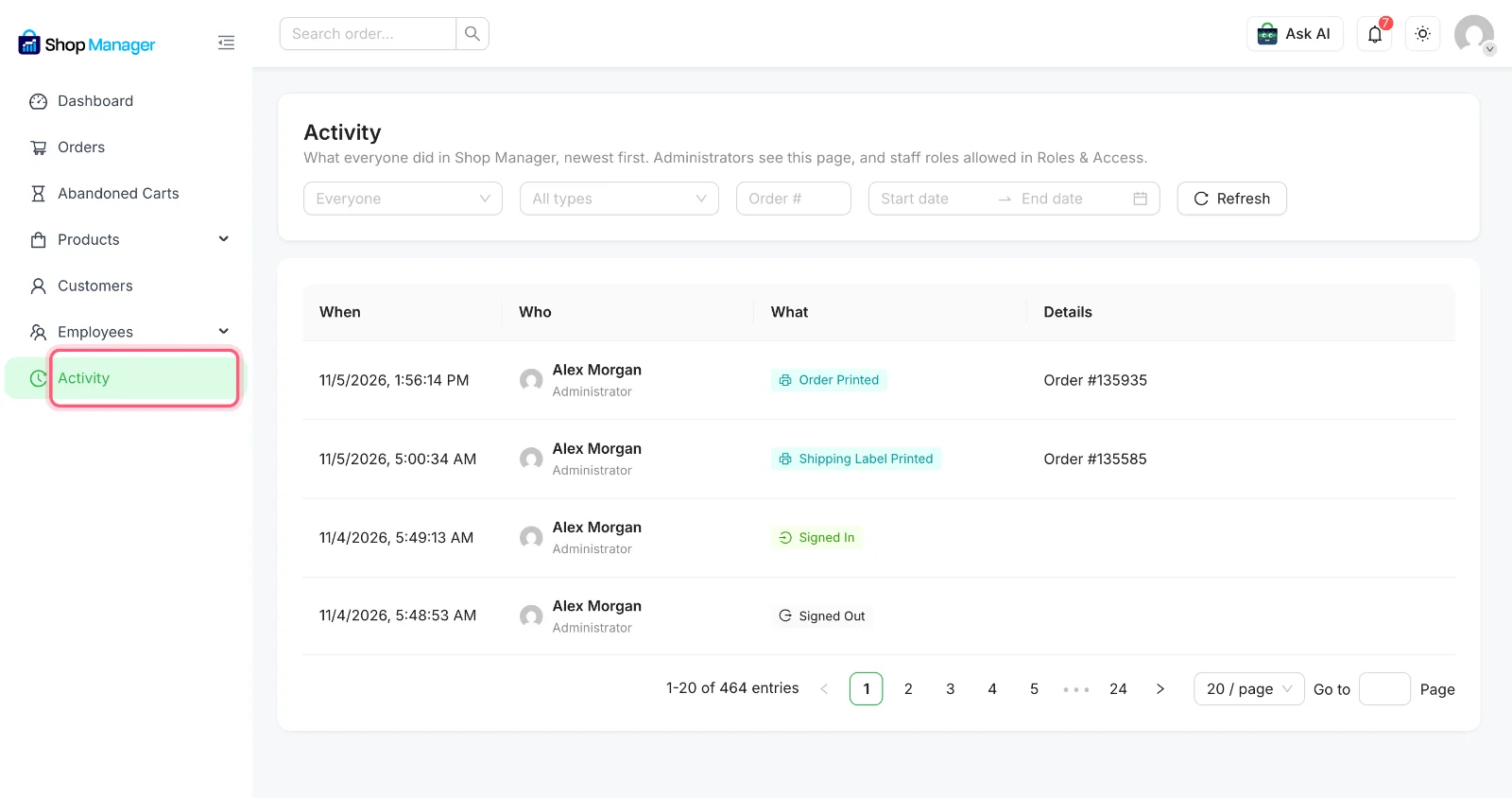
Click Activity in the menu. The names are demo names.
Who sees what in Tunde's store
| Person | Role | What they can use |
|---|---|---|
| Maya, packs boxes | Fulfillment Staff | Orders, tracking and labels |
| Lena, keeps products up to date | Product Manager | Viewing and editing products |
| Sam, does the books | Accountant | The dashboard and its analytics |
None of them can open WordPress admin, so your plugins, payment settings and theme stay yours. Want Lena to add new products too? Tick Add New for that role.
How Tunde's story ends
This time, when someone leaves, Tunde opens Employees and deletes that one account. Nobody else changes a password. Nobody else even notices. On Monday he adds the new packer, and the new packer sets a password Tunde never sees.
Stop sharing your admin password
Shop Manager is free on WordPress.org. Add one person today and see what they see.
What you need
- Plan
- Free (making your own roles needs Pro)
- Ready-made roles
- 4
- Staff limit
- None
- WordPress admin
- Staff do not need it
- Devices
- Computer, tablet or phone
Features used on this page
- Add your staff, free
- Decide exactly who can do what
- Nobody needs your admin password
- Build your own roles
- Nothing is lost if your licence lapses
- See who did what
Checked against the plugin in .
Questions people ask
Can staff get into WordPress admin?
No. Anyone with a Shop Manager role is sent to the dashboard if they try to open WordPress admin, and the WordPress admin bar is hidden for them.
Is adding staff free?
Yes. Adding employees, the four ready-made roles and changing what those roles can do are all free. Only making new roles of your own needs Pro.
How many staff can I add?
As many as you need. The plugin has no limit on staff accounts.
What happens when someone leaves?
Open Employees and delete their account. Their login stops working, and nobody else has to change a password.
What if the welcome link runs out?
The link works for 24 hours. After that, they can click Forgot your password? on the dashboard login page and get a new one by email.
What happens to my own roles if my Pro licence ends?
Roles you made with Pro become inactive, and staff with those roles see a message saying so. Renew and they work again. The four ready-made roles keep working either way.
Can a packer see customer details?
Fulfillment Staff can see the name and address on each order, because they need them to ship it. They do not get the Customers pages unless you turn them on for that role.
More stories
- You are away from your desk, an order needs you now, and WordPress admin is hard to use on a small screen. Run your store from your phone Free
- The courier comes at 4. You have 20 boxes packed and not one label printed. Ship a whole day of orders at once Free
- Every morning you click through five screens to find out if anything went wrong. Check your store each morning Free