


 Product Layouts
 ThankRedirect
 Image Hover
 Flipbox
How to add tracking and print labels for many WooCommerce orders at once
The short answer
Tick the orders in the Shop Manager order list. Click Add Tracking, choose the courier once and paste one number for each order. Then click Shipping Label to print a label for every order you ticked. All of this is free, and you do not need a courier account or an API key.
Sara's story
Sells house plants from home. Sara is a made-up example.
Sara sells house plants from her spare room. She packs every box herself.
Most days that works fine. Then a small sale brings in 20 orders in one morning. By 3 pm all the boxes are packed. The courier comes at 4.
Now the slow part starts. Open an order. Copy the address. Write the label. Type the tracking number. Save. Go back. Open the next order.
At order 12 she types a 7 where a 1 should be, and she does not notice. Three days later a customer writes to her: "Where is my plant?"
Sound familiar?
- You open orders one by one to add tracking numbers.
- You copy addresses by hand or keep them in a spreadsheet.
- Customers write to you to ask where their parcel is.
Here is how to do it
-
Tick the orders you packed
Open Orders in your Shop Manager dashboard. Click Processing to see only the orders waiting to ship. Tick the ones you packed. A bar opens above the list with Add Tracking, Shipping Label and more.
Sara ticks all 20 orders from this morning.
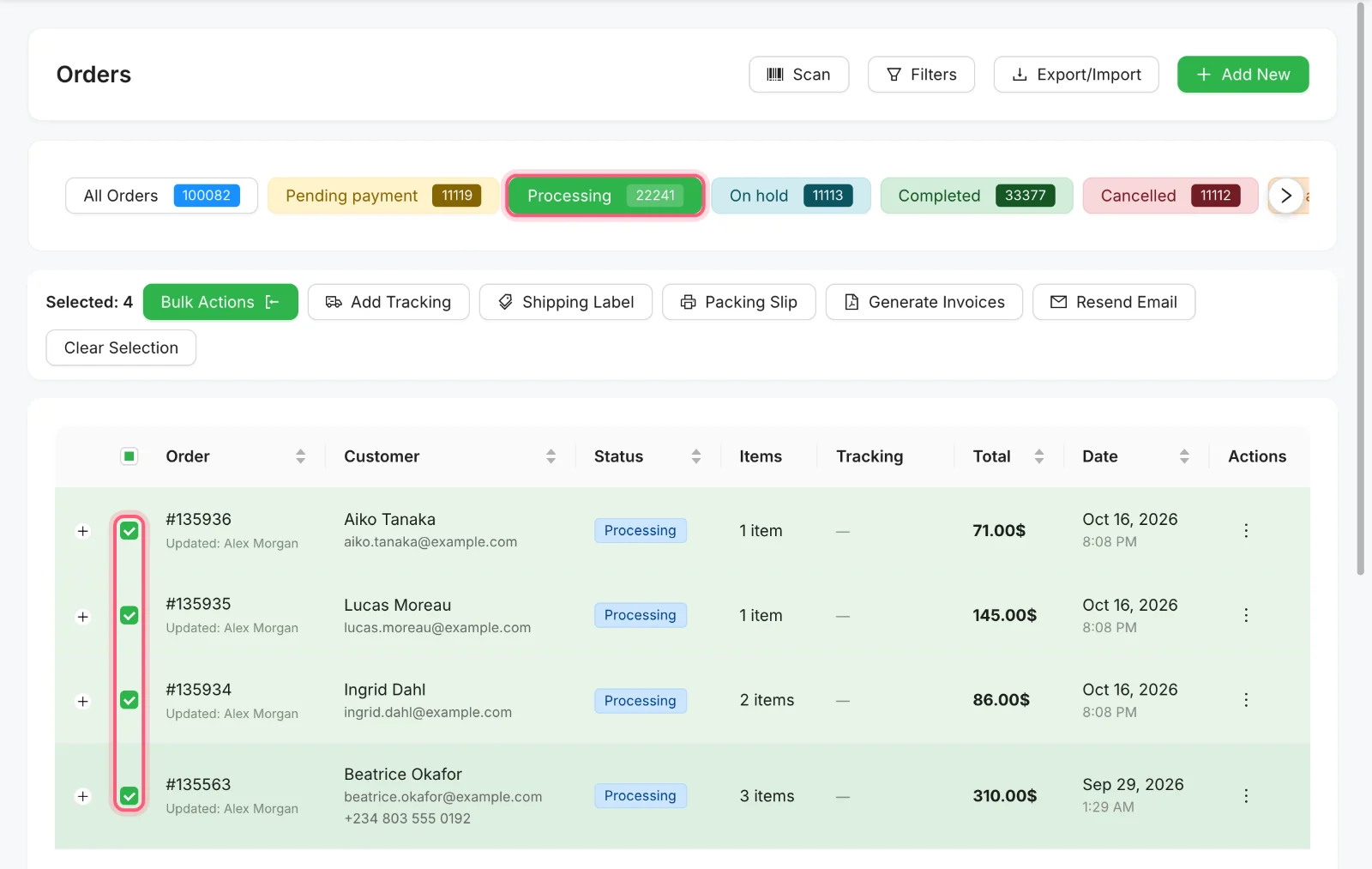
Click Processing, then tick the orders. Both are marked. -
Add all the tracking numbers on one screen
Click Add Tracking. Choose the courier once and it applies to every row. Then paste or type a number next to each order. If a box is not ready, leave its row empty and that order is skipped. Your courier is not on the list of 151? Choose Custom carrier and type its name. Then click the Save button.
Sara types in the 20 numbers from the list her courier gave her.

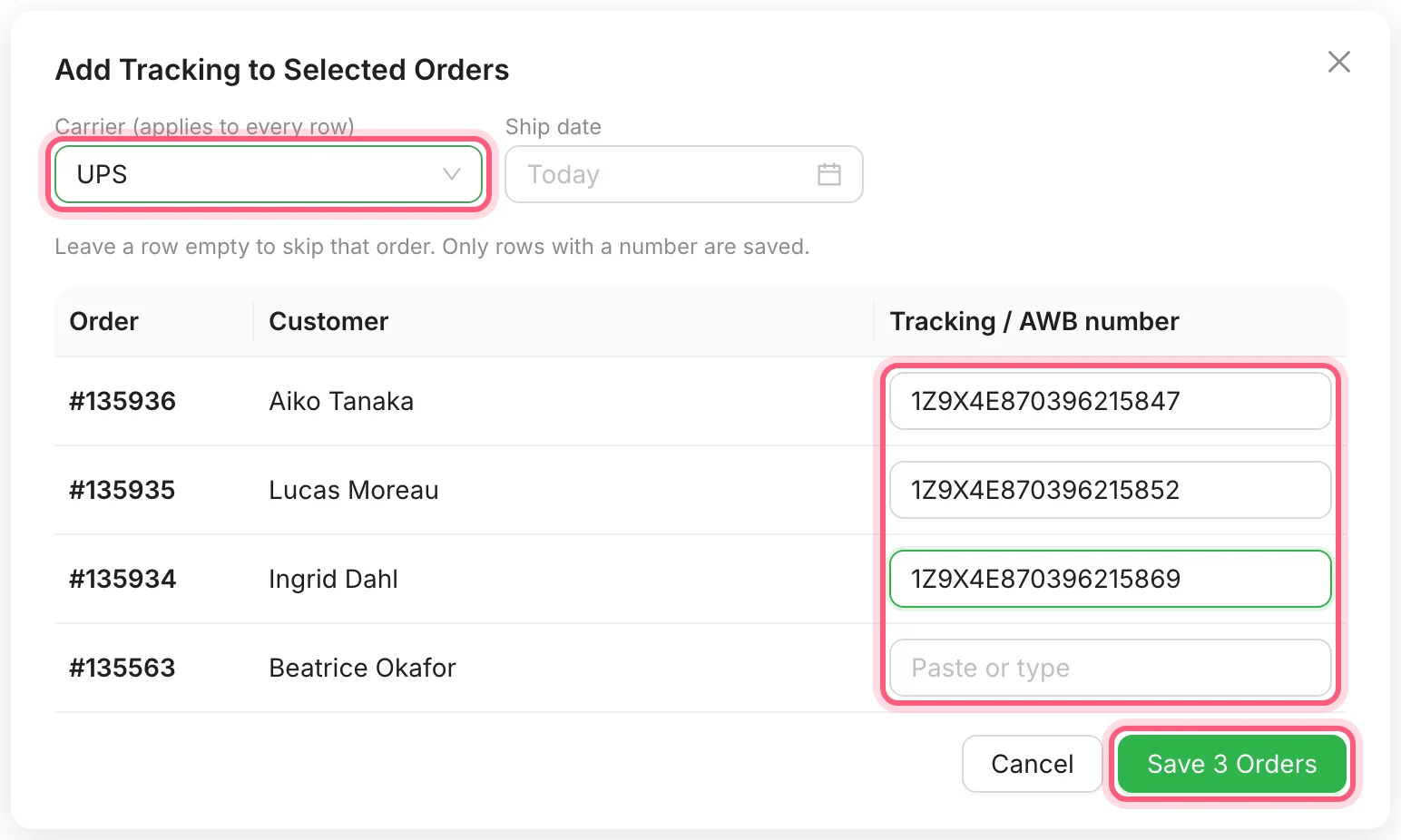
First click Add Tracking. Then fill in the marked boxes and click Save. One row is left empty, so the button says Save 3 Orders. -
Print every label in one go
Click Shipping Label. All the labels open in one document in a new tab, up to 100 at a time, and the print window opens. Labels print on A4 unless you pick A5, 4x6 inch, or an 80 mm or 58 mm roll in the Shipping settings. Each label has the delivery address, your address, what is in the box and a barcode with the tracking number. You do not need a PDF plugin.
Sara does not own a label printer, so she prints on plain A4 paper.

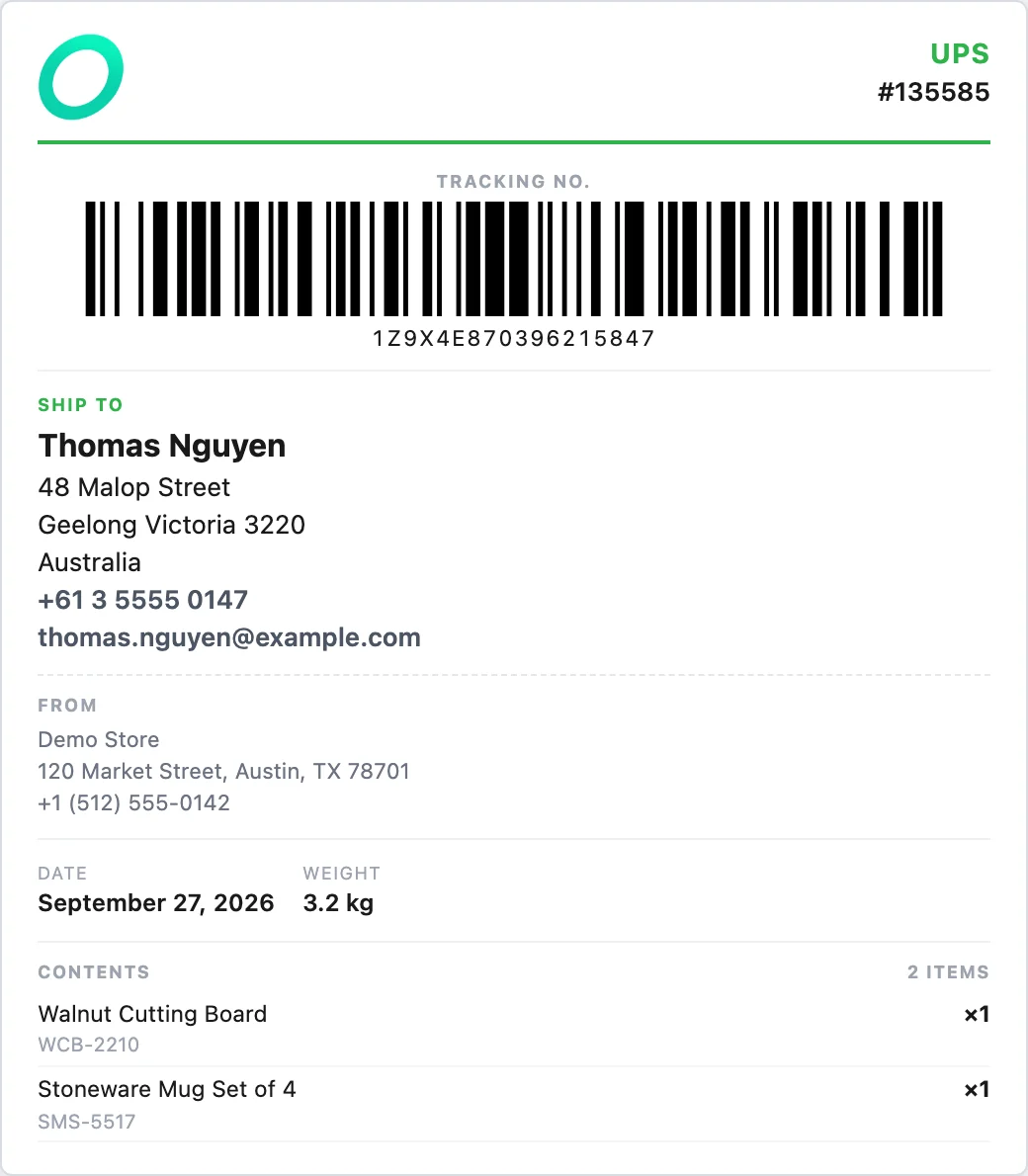
Click Shipping Label, and you get a label like this one, shown with a demo store and customer. -
Let your customers know
With the orders ticked, open Bulk Actions and change the status to Completed. WooCommerce sends its normal order email, and Shop Manager adds the tracking number to it. If the courier has a tracking page, a Track your parcel link goes with it. Customers also see the tracking on the My Account page.
Sara does not write a single email.
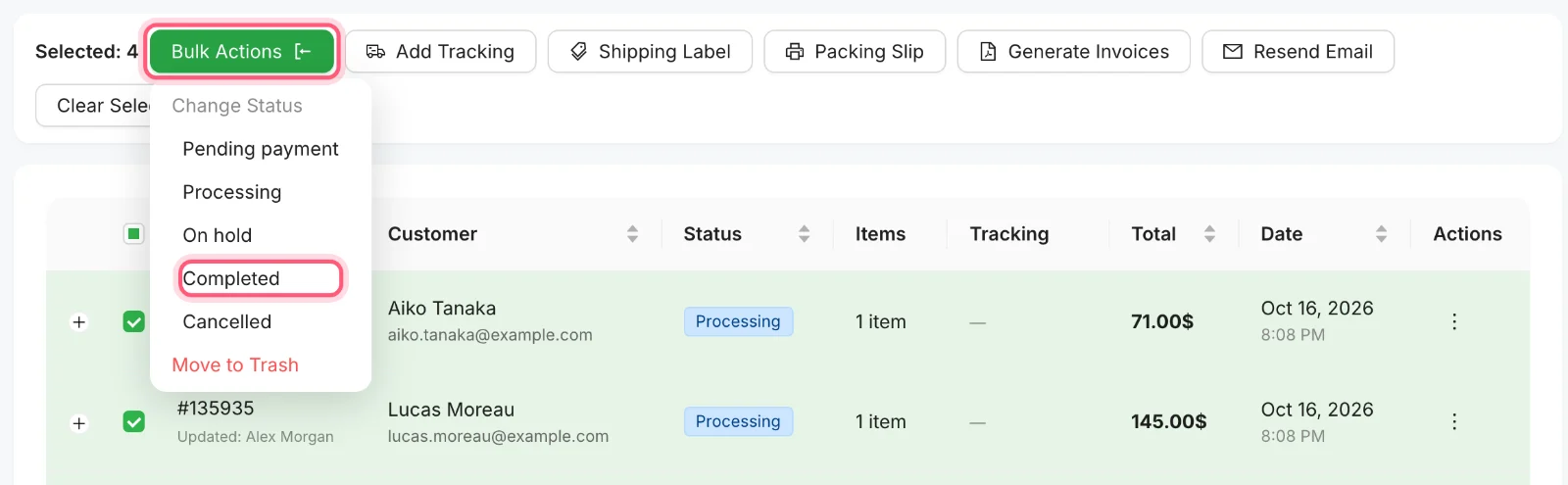
Open Bulk Actions, then click Completed. Both are marked.
Sara's 20 orders, before and after
| The job | Before | With Shop Manager |
|---|---|---|
| Tracking numbers | Open 20 orders, one at a time | One screen for all 20 |
| Labels | Copy out 20 addresses by hand | One click opens all 20, ready to print |
| Telling customers | Wait for them to ask | The tracking is in their order email |
How Sara's day ends
At 4 pm the courier takes the boxes. Every box has a clear printed label. Every customer has their tracking number. If a box ever comes back, Sara can click Scan in her order list, scan the label with a USB scanner and find the order. She shuts her laptop and goes to make tea.
Ship your next batch this way
Shop Manager is free on WordPress.org. Install it, open your Processing orders and try it on a few boxes.
What you need
- Plan
- Free
- Courier account
- Not needed
- API key
- Not needed
- Couriers
- 151 in 55 countries, or add a custom one
- Paper
- A4, A5, 4x6 inch, 80 mm or 58 mm rolls
Features used on this page
- Every order in one fast list
- Change many orders at once
- Tracking numbers for 151 couriers
- Shipping labels with scannable barcodes
- Customers get the tracking in their order email
Checked against the plugin in .
Questions people ask
Is adding tracking to many orders free in Shop Manager?
Yes. Adding tracking numbers, printing shipping labels and printing packing slips are all in the free plugin.
Does Shop Manager buy postage or book the courier?
No. You still book and pay your courier the way you do now. Shop Manager keeps the tracking number, shares it with your customer and prints your own label with the address and a barcode. If your courier needs its own label on the box, use that one too.
What if my courier is not on the list?
Choose Custom carrier in the Carrier list and type its name. The list has 151 couriers in 55 countries, but a small local courier may not be on it. Your customer still gets the tracking number.
Do I need a label printer?
No. Labels print from your browser on normal A4 or A5 paper. If you have a label printer, pick 4x6 inch or an 80 mm or 58 mm roll in the Shipping settings.
Can someone on my team do this for me?
Yes. Give them the ready-made Fulfillment Staff role. They can view and edit orders, add tracking and print labels, and they never need your WordPress admin login. To let them mark orders Completed as well, tick Status Change for that role in Roles & Access.
I already use Advanced Shipment Tracking. Will customers get the tracking twice?
No. When that plugin is active, Shop Manager adds nothing to your emails and passes each tracking number to it, so customers see it once.
More stories
- Thirty boxes to pack, and your slips still print one order at a time. Print a batch of packing slips Free
- Forty parcels are leaving today, and someone has to mark every one of them as sent. Scan labels to find and move orders Free
- Everyone uses your login. Something changed last night, and nobody knows who did it. Give staff access, keep your password Free