


 Product Layouts
 ThankRedirect
 Image Hover
 Flipbox
How to manage your WooCommerce store from your phone
The short answer
Shop Manager's dashboard is a page on your own site, and it fits a phone screen. Open it in your phone browser, log in, and you can see your numbers, open orders, change a status and answer the bell. You do not install an app, and it is free.
Kofi's story
Sells leather bags, online and at markets. Kofi is a made-up example.
Kofi sells leather bags online. On Saturdays he also has a stall at the market.
This Saturday a customer writes while he is setting up. "Can you change my address? The courier comes today."
Kofi opens WordPress admin on his phone. He zooms in. He scrolls sideways, taps the wrong thing and goes back. A person at the stall asks about a bag. He puts the phone away and forgets.
The bag goes to the old address.
Sound familiar?
- You try to use WordPress admin on your phone and give up.
- Orders wait until you get back to your desk.
- You run your store around another job or your family.
Here is how to do it
-
Open the dashboard in your phone browser
Go to your dashboard page and log in. By default that address is your site followed by /sm-dashboard/. There is nothing to install.
Kofi saves the page in his browser so it is one tap away.
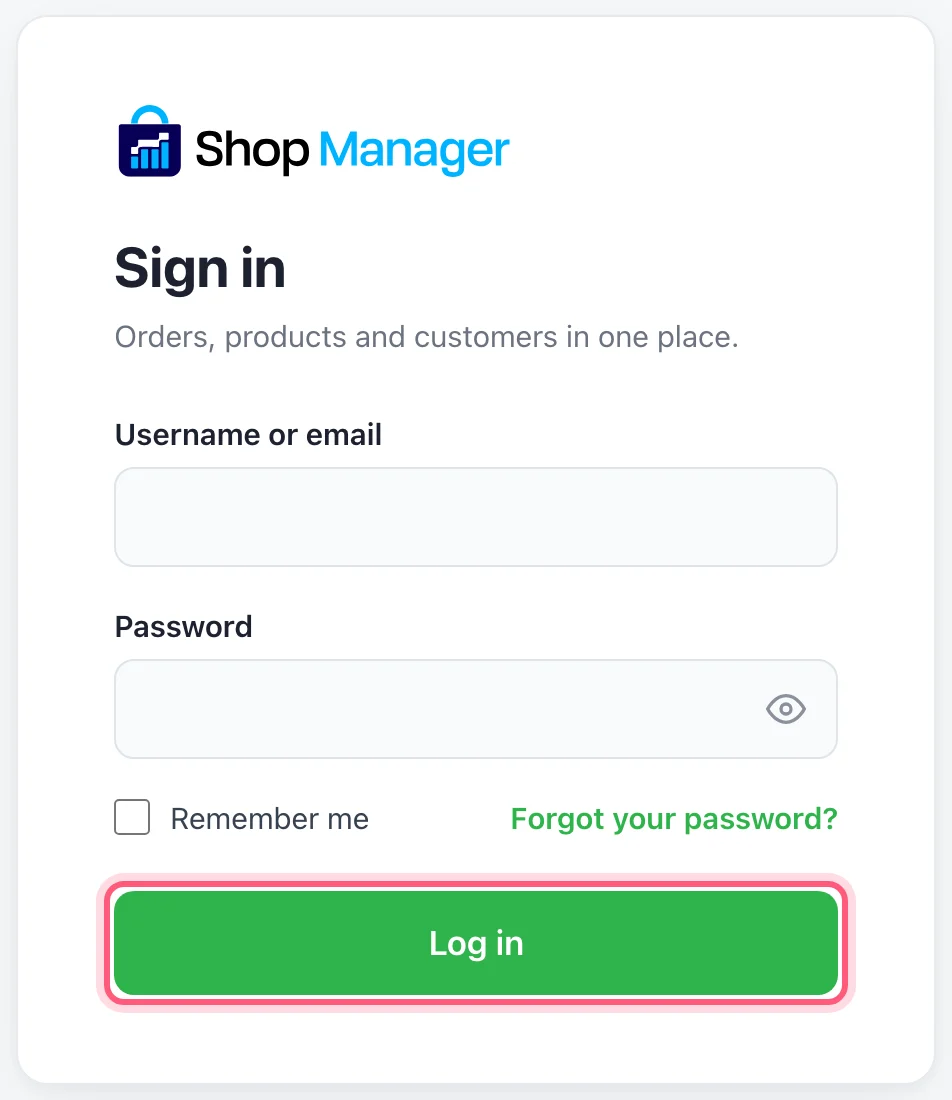
The login page, on your own site. Click Log in when you have filled it in. -
See how the store is doing
The dashboard shows your warning cards and your totals, one under the other. The menu folds away behind the icon at the top left. The bell, Ask AI and search stay at the top.
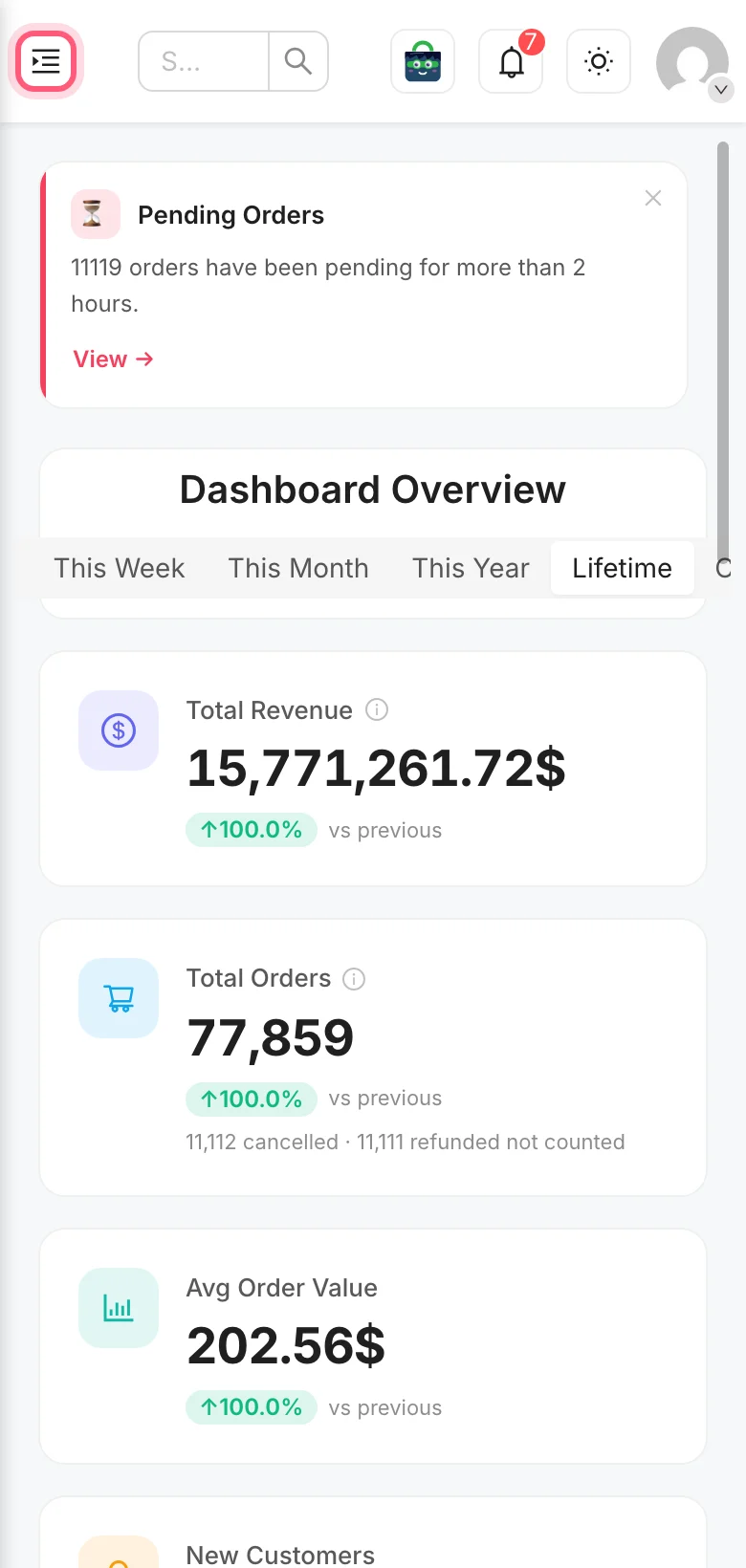
The marked icon opens the menu. Our test store at phone width. -
Find the order
Open Orders. Search by name or number, or tap a status to see only those orders. The table slides sideways to show more columns.
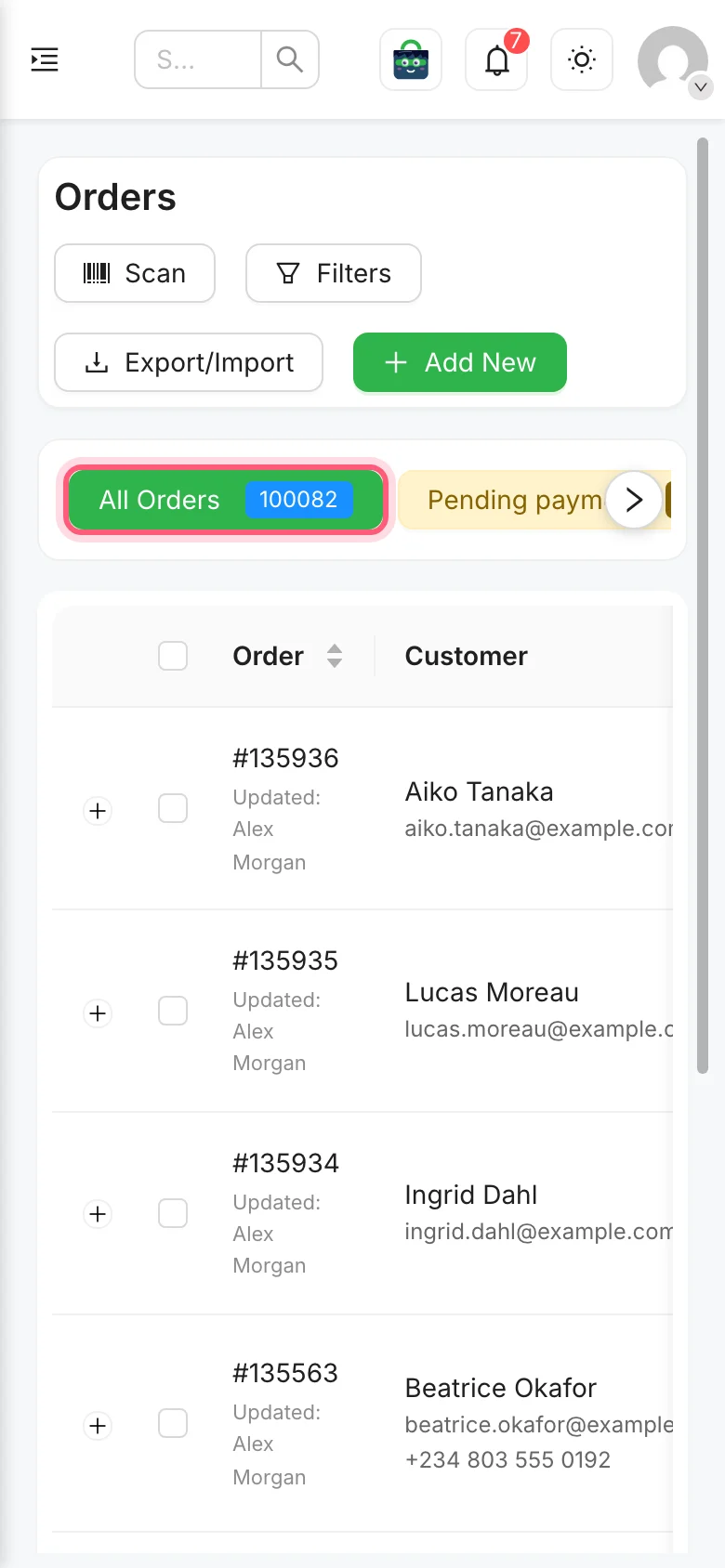
Tap a status button, such as the marked one. Slide the row sideways for the others. -
Do what the order needs
Open the order. The buttons stack at the top, so they are easy to tap. Edit the address, send an email again, or use More Actions to change the status.
Kofi fixes the address between two customers at the stall.
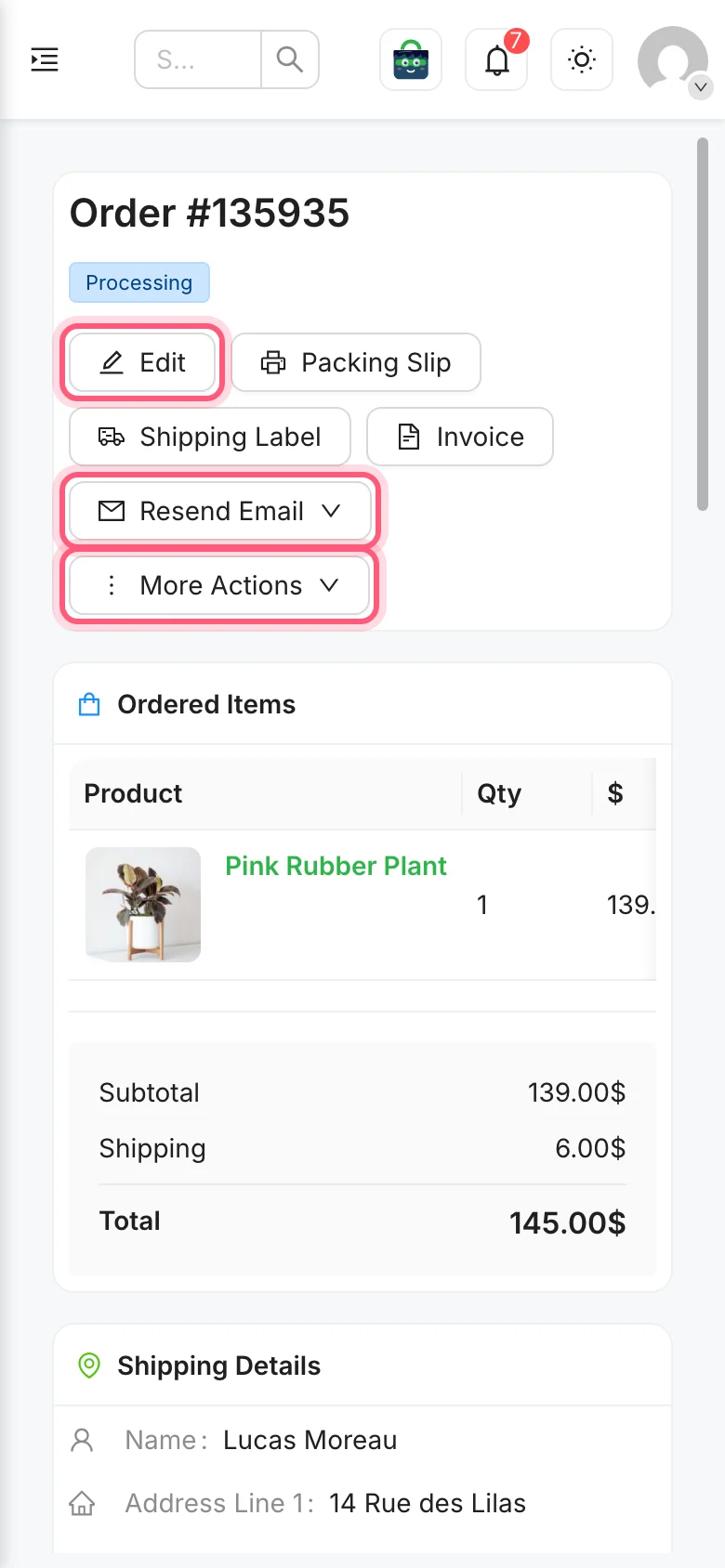
The three buttons named above are marked. This is one order at phone width. -
Hide what you never use
On a computer, open the Shop Manager settings in WordPress and go to Modules. Turn off the parts you do not use and click Save Changes, and they leave the dashboard. Your phone screen then has less on it.
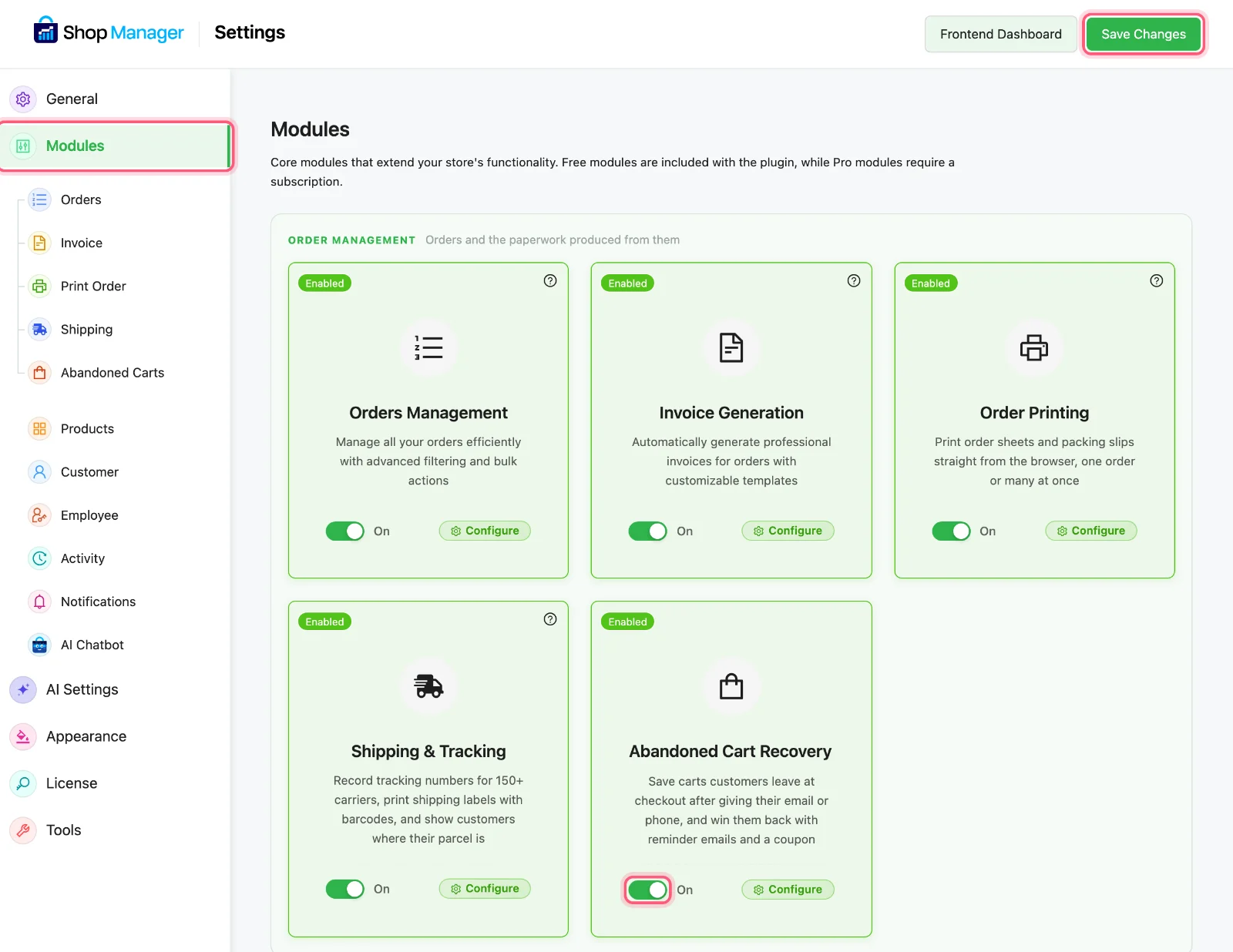
Click Modules, use a switch like the marked one, then click Save Changes.
What Kofi can do from the market
| What comes up | What he taps |
|---|---|
| A customer has a new address | Orders, the order, Edit |
| A customer did not get the email | Orders, the order, Resend Email |
| An order has been sent | Orders, the order, More Actions |
| He wants to know how today is going | Dashboard, Today |
How Kofi's story ends
Next Saturday the same kind of message comes in. Kofi opens the order, fixes the address and puts the phone back in his pocket. It takes less time than wrapping a bag. The courier gets the right address.
Leave the laptop at home
Shop Manager is free on WordPress.org. Install it from your computer once, then open it on your phone.
What you need
- Plan
- Free
- App
- None, it runs in your browser
- Devices
- Phone, tablet or computer
- WordPress admin
- Only for settings
Features used on this page
- A dashboard on the front of your site
- Works on your phone as well as your desk
- Turn off what you do not use
- Ready for your language
- Built for modern WooCommerce
Checked against the plugin in .
Questions people ask
Is there a Shop Manager mobile app?
No. It is a page on your own website that you open in a phone browser. There is nothing to install or update on the phone.
What can I not do on a phone?
Settings such as Modules, Print Order and Shipping are in WordPress admin. Those are easier on a computer.
Can my staff use it on their phones?
Yes. They see the same dashboard, with only the parts their role allows.
Can I use it in my language?
The plugin is ready for translation with the normal WordPress tools, but a few labels are not yet translatable.
Does it work with High-Performance Order Storage?
Yes. Shop Manager declares itself compatible with WooCommerce High-Performance Order Storage, and there is nothing to set up.
More stories
- Every morning you click through five screens to find out if anything went wrong. Check your store each morning Free
- A customer is on the phone and wants to order right now. You need a simple form, fast. Take a phone order and fix order mistakes Free
- Everyone uses your login. Something changed last night, and nobody knows who did it. Give staff access, keep your password Free