


 Product Layouts
 ThankRedirect
 Image Hover
 Flipbox
How to set up Shop Manager and import WooCommerce products
The short answer
The first time you activate Shop Manager, a setup wizard asks for your dashboard page, logo, colours and modules in four short steps. To bring products in, export them from the old store in WooCommerce, Products, Export, then click Bulk Upload on the All Products page in Shop Manager and drop the file in. Every product type comes in, with variations, attributes, custom fields and pictures. Both are free.
Ben's story
Builds WooCommerce stores for clients. Ben is a made-up example.
Ben builds stores for small businesses. His newest client is moving to a new WooCommerce site and has about 300 products, many with sizes and colours.
The set up is always the slow part: settings page after settings page, before the client can use anything.
And product imports often go wrong. Variations come in as separate products, pictures go missing, and products already in the new store are made twice.
Sound familiar?
- You spend an hour in settings before a client can start.
- Imports lose variations or pictures.
- Importing again makes the same products twice.
Here is how to do it
-
Follow the setup wizard
The first time you activate Shop Manager, a setup wizard opens. Click Start setup. There are four short steps: the dashboard page and how many rows each list shows, your logo and icon, the colours and layout, and the modules you want. Skip any step, or Skip all to go straight to Getting Started. Every choice can be changed later in the settings.
Ben turns off the modules his client will not use, so the dashboard stays simple.
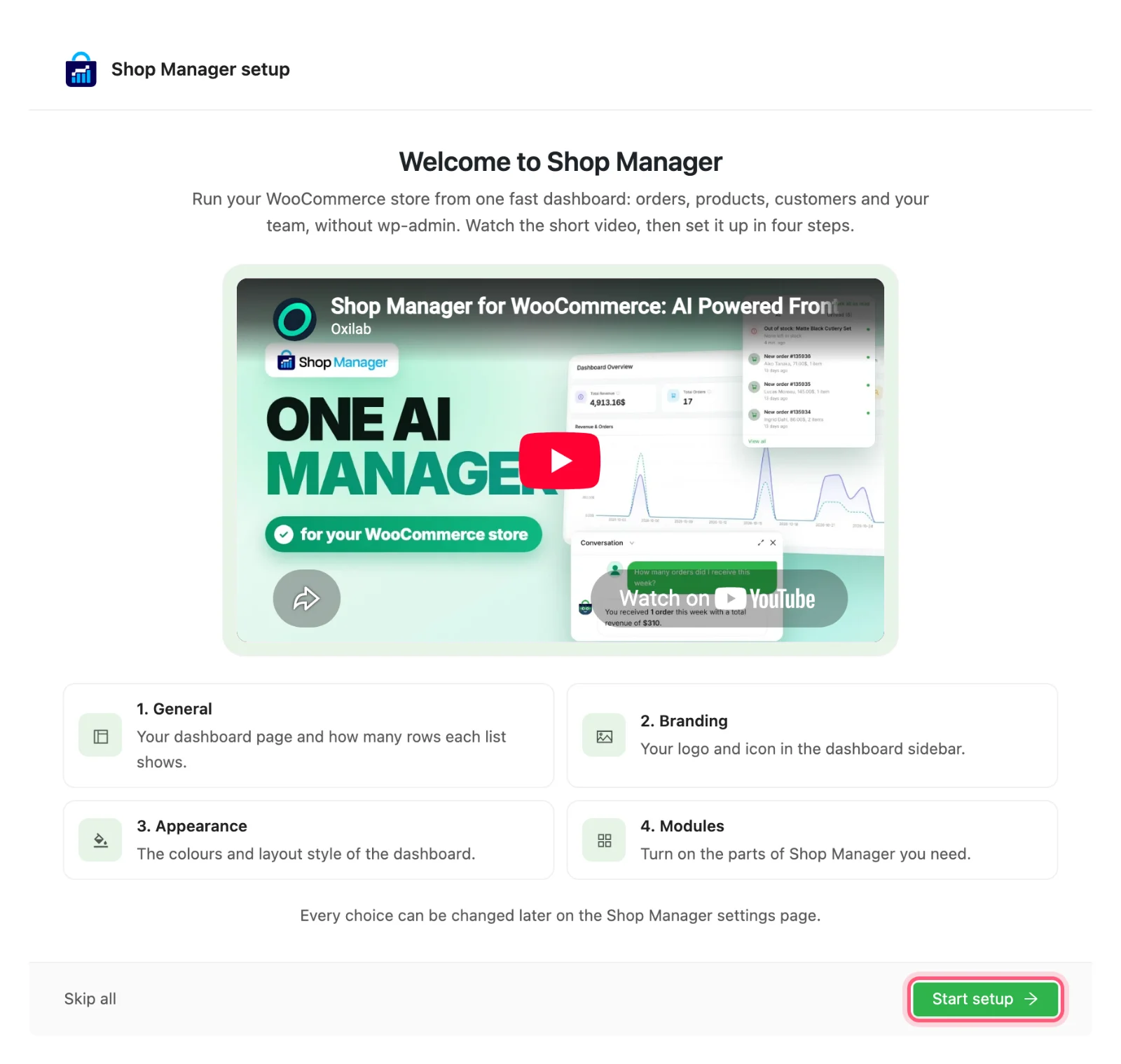
Click Start setup. It is marked. -
Export the products from the old store
In the old store's WordPress admin, open Products, then Export. Tick Yes, export all custom meta, so custom fields come too, and click Generate CSV.
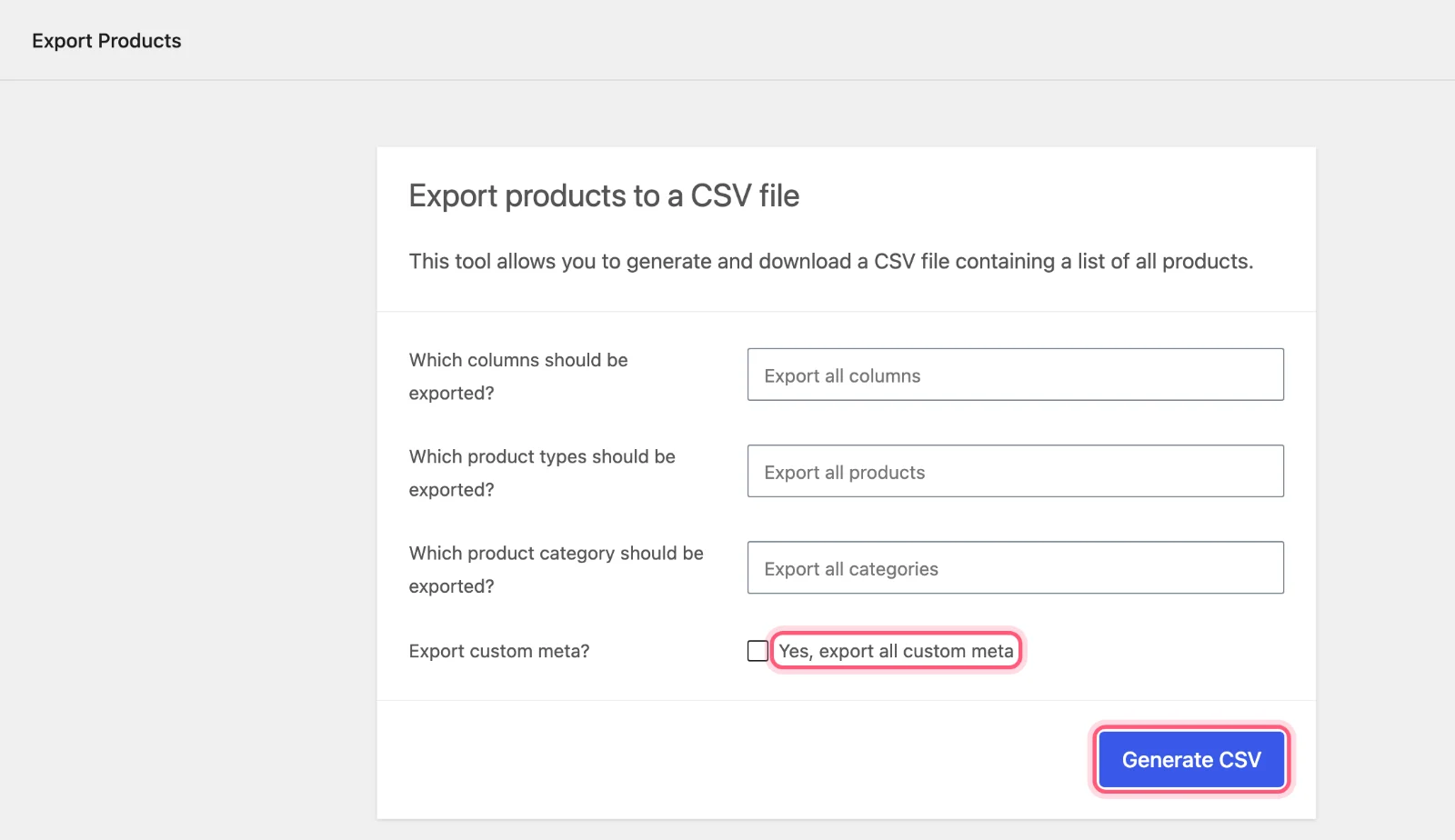
Tick the marked box and click Generate CSV. This page is part of WooCommerce. -
Upload the file
In the new store's Shop Manager dashboard, open All Products and click Bulk Upload. Drag the file into the box, or click the box to pick it, then click Import. The file can be up to 10 MB. A spreadsheet from Excel or Google Sheets works too, saved as CSV.

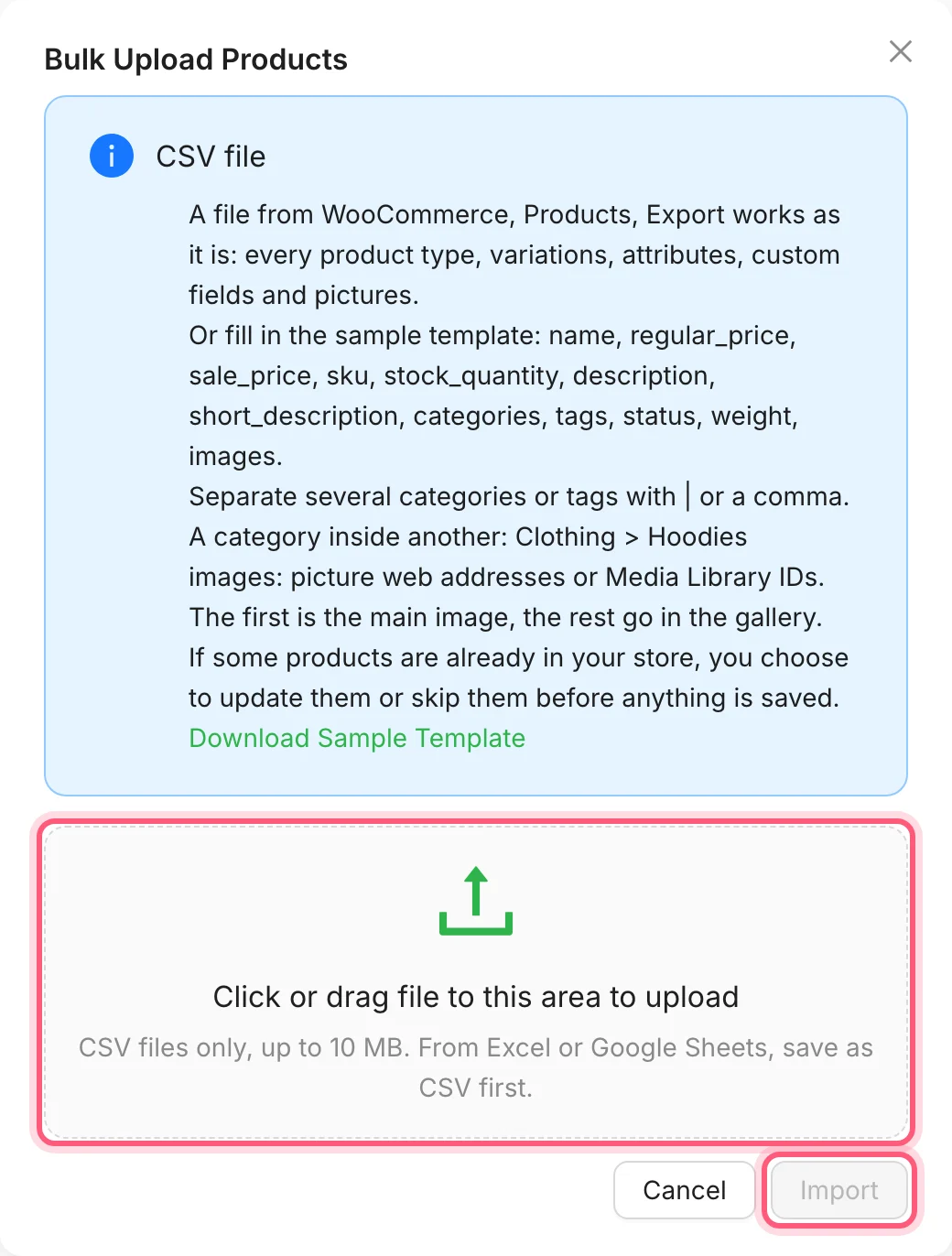
First click Bulk Upload. Then drop the file in the marked box and click Import. -
Update or skip, then let it run
If some products are already in the store, you choose to update them or skip them before anything is saved, so nothing is made twice. Big files go in parts with a progress bar. At the end you see how many products were created, updated or skipped.
What comes in from a WooCommerce export
| In the file | Comes in |
|---|---|
| Simple and variable products | Yes, with their variations |
| Attributes such as size and colour | Yes |
| A category inside another, such as Clothing > Hoodies | Yes, as WooCommerce does |
| Pictures | Yes: the first is the main image, the rest go in the gallery |
| Custom fields | Yes, when the export has custom meta |
How Ben's story ends
The dashboard has the client's logo and colours and only the parts they need. All 300 products are in, with their sizes, colours and pictures. When the client adds products to the old store by mistake, Ben imports again and skips the ones already there.
Set up your next store this way
Shop Manager is free on WordPress.org. Install it on a new store and follow the wizard.
What you need
- Plan
- Free
- Wizard
- New installs, the first time you activate
- File
- CSV, up to 10 MB
- From
- WooCommerce's own export, or the sample template
Features used on this page
Checked against the plugin in .
Questions people ask
Do stores that update Shop Manager see the wizard?
No. It opens only the first time Shop Manager is activated, and every choice can be changed later in the settings.
Will importing again make the same products twice?
No. If products are already in the store, you choose to update them or skip them before anything is saved.
Can I import from a spreadsheet?
Yes. Download the sample template from the Bulk Upload window, fill it in and save it as CSV. Put picture web addresses or Media Library IDs in the images column.
Is the import free?
Yes. Bulk Upload and the setup wizard are both in the free plugin.
More stories
- The delivery came in. Now you have stock counts to change and new products to add. Keep products and stock up to date Free
- Everyone uses your login. Something changed last night, and nobody knows who did it. Give staff access, keep your password Free
- You sent a discount code to 400 people. Did anyone use it? Run a coupon sale and see what it sold Free