


 Product Layouts
 ThankRedirect
 Image Hover
 Flipbox
How to refund a WooCommerce order to store credit
The short answer
In Shop Manager Pro, open the order and click Refund to store credit. Choose the items coming back and the amount, and click the refund button. The money goes to the customer's store credit, the items go back in stock, and the order shows Refunded and Net total. The credit comes off their next order by itself, with no code to type.
Omar's story
Sells running shoes. Omar is a made-up example.
Omar sells running shoes. Sizes differ between brands, so some pairs come back.
Most of those customers do not want their money back. They want the next size up. But WooCommerce can only send the money back to the card, so Omar refunded, the customer ordered again, and sometimes they did not.
When he tried a coupon instead, customers lost the code or forgot it, and wrote to ask for it.
Sound familiar?
- Returns turn into refunds, and the customer never comes back.
- You make coupon codes by hand for exchanges.
- Customers lose the codes you send them.
Here is how to do it
-
Open the order and click Refund to store credit
Open the order in your Shop Manager dashboard and click Refund to store credit. The same choice is in WooCommerce's own refund box. It needs a customer account, so a guest order cannot have one, and the order must be paid.

Click Refund to store credit. It is marked. -
Choose what comes back and the amount
Type how many of each item comes back. The amount fills in for you, and Put them back in stock is ticked, so your stock is right again. You see the customer's credit before and after. Add a reason if you like: the customer sees it. Then click the refund button.
One pair comes back, so Omar types 1.
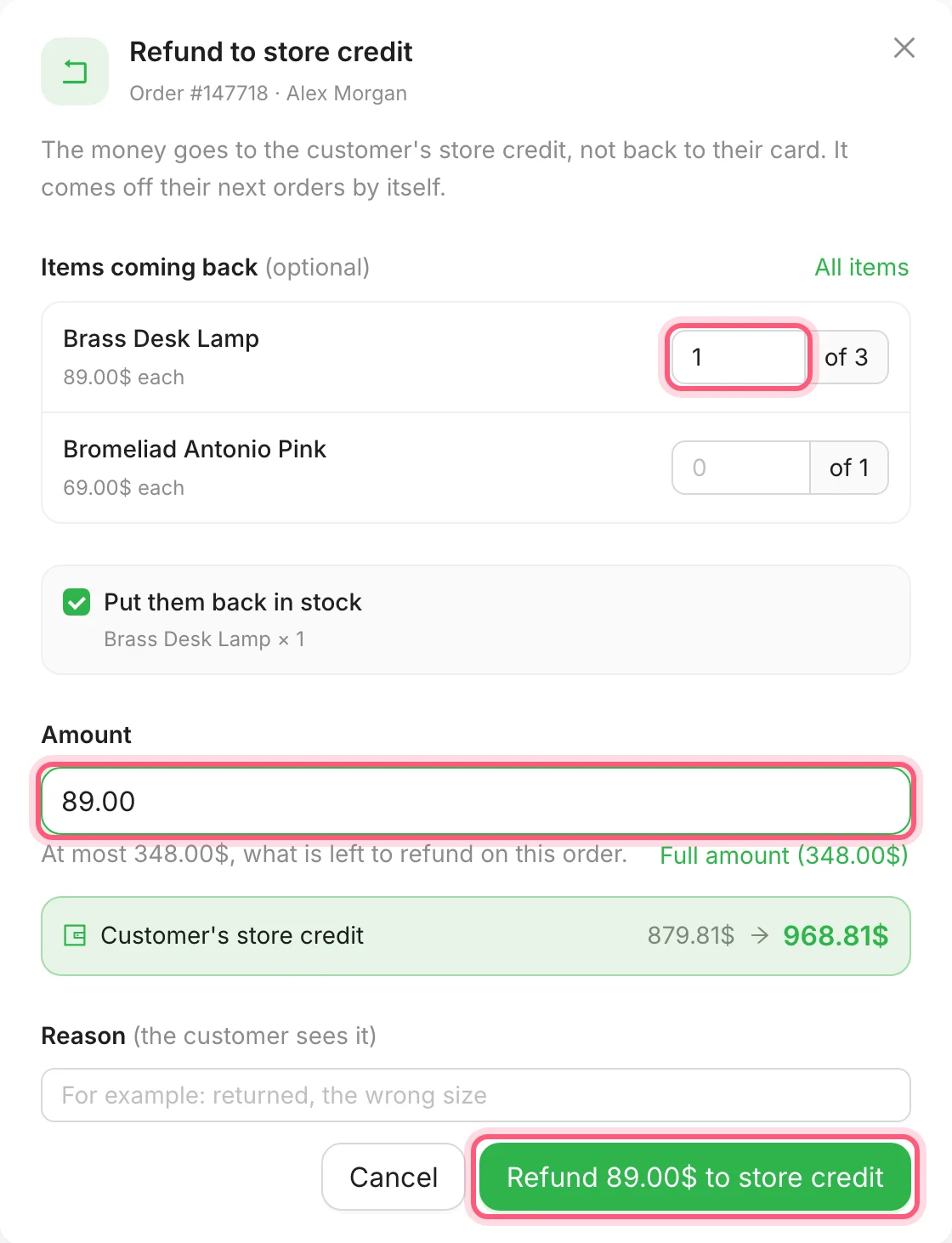
Type how many come back, check the amount and click the marked button. -
See the refund on the order
The order shows how many of each item were refunded, and Refunded and Net total under the total. A Refunds card lists each refund with its items, method and reason. The packing slip marks refunded items too, and the shipping label leaves them out.
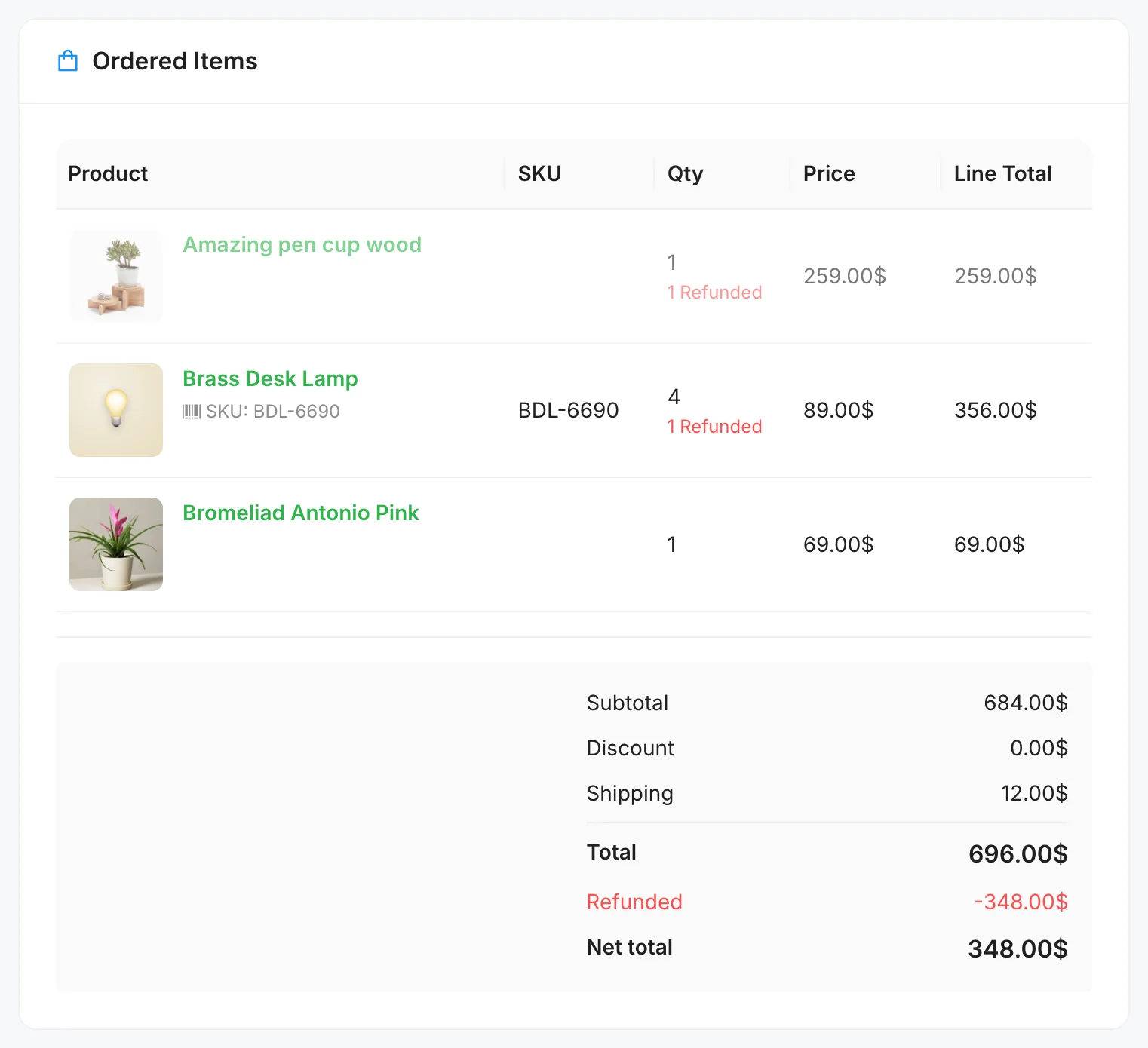
An order after a refund. This view is in the free plugin. -
The credit comes off their next order by itself
The customer needs no code. In the cart and at checkout they see a Store credit line with what is left after this order, and they can choose to use less and keep the rest. Their credit and its history are on a Store credit page in My Account. In Settings, Store Credit, open the Cart & Checkout tab to name the line and choose what they see.
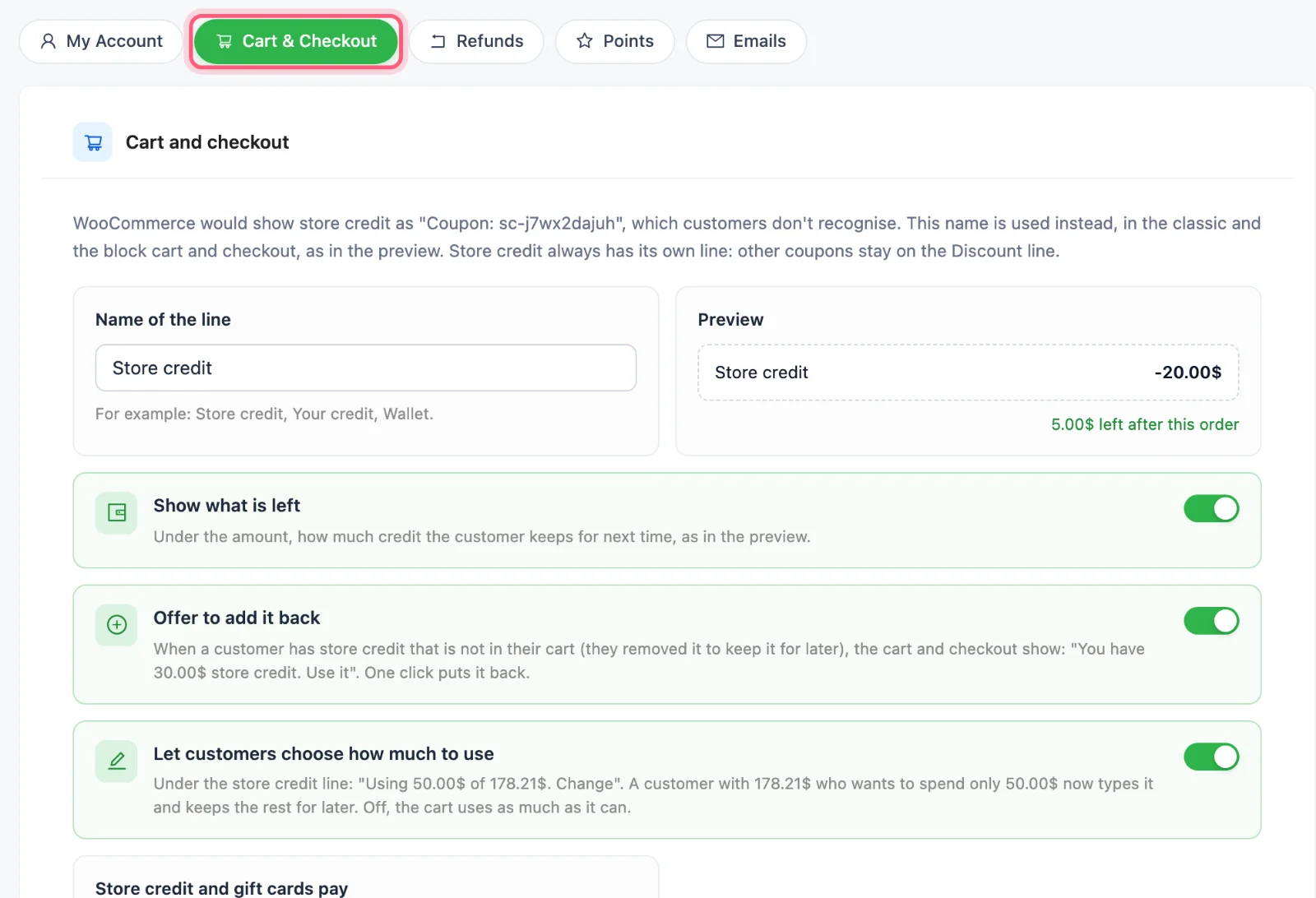
Open the marked tab. The preview shows the line customers see. -
Give credit without a refund
To say sorry for a late parcel, or to thank a loyal customer, open Store Credit and click Give store credit.
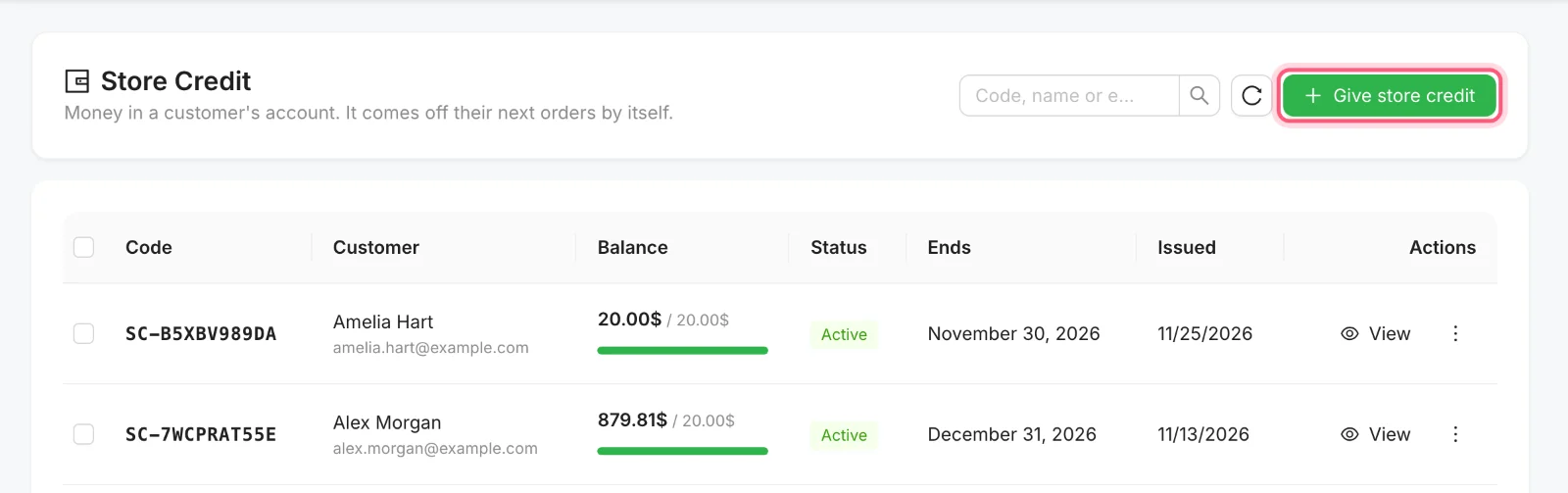
Click Give store credit. It is marked.
Omar's exchange, as an example
| What happens | Money | Store credit |
|---|---|---|
| The customer buys two pairs | Pays 120.00 | 0.00 |
| One pair comes back | Nothing goes back to the card | 60.00 |
| They order the next size for 65.00 | Pays 5.00 | 0.00 |
How Omar's story ends
The returned pair is back on the shelf, and the stock count is right. The customer orders the next size the same day, and the credit comes off by itself. Omar never sends a code.
Turn your next return into a sale
Store credit comes with Shop Manager Pro. Every plan has every Pro feature, with a 14-day money-back guarantee.
What you need
- Plan
- Pro (the refunds view on the order page is free)
- Customer
- A customer account, on a paid order
- Permission
- Refund to Credit in Roles & Access
- Code
- None: the credit comes off by itself
Features used on this page
Checked against the plugin in .
Questions people ask
Is a refund to store credit a real WooCommerce refund?
Yes. It is saved as a WooCommerce refund on the order, so your reports and the order total are right, and the Refunds card shows store credit as its method.
Does the customer hear about it?
The refund email says the money went to their store credit. You can also send the store credit email, in Settings, Store Credit, Refunds.
Can I still refund to the card?
Yes. WooCommerce's normal refund is still there. Store credit is a choice, not a replacement.
Can the customer keep some credit for later?
Yes. In the cart they can choose how much to use, for example 50.00 of 178.21, and keep the rest. If they take it off the cart, a "Use it" message brings it back with one click.
Does the refunds view need Pro?
No. Seeing what was refunded on the order page, the orders list and the packing slip is free. Refunding to store credit needs Pro.
More stories
- Customers ask for a gift voucher, and you have nothing to sell them. Sell gift cards for the holidays Needs Pro
- Most of your customers buy once and never come back. Reward customers with points Needs Pro
- Some of your best customers stopped buying months ago. Nothing told you. Find your best customers and the quiet ones Free