


 Product Layouts
 ThankRedirect
 Image Hover
 Flipbox
How to create and edit WooCommerce orders without WordPress admin
The short answer
In Shop Manager, open Orders and click Add New. Fill in the customer's address, add the products, then choose a payment method and status and click Create Order. To fix an order later, open it and click Edit. This is free, and you stay out of WordPress admin.
Leila's story
Makes and sells candles. Leila is a made-up example.
Leila makes candles in a small studio. Most orders come through her website, but her older customers like to phone.
One of them calls. She wants six candles for a wedding, and she wants them this week. Leila says yes and opens WooCommerce.
Where was that screen again? She clicks through the menus while the customer waits. "One moment, please." She finds the form and adds the customer. Then she looks for the product. "One more moment."
The next day another customer writes to say the house number on an order is wrong. Back to the menus she goes.
Sound familiar?
- You take orders by phone, chat or in person.
- Adding one order means hunting through WooCommerce menus.
- Customers ask you to change something after they order.
Here is how to do it
-
Start a new order
Open Orders in your dashboard and click Add New. Type the customer's name, email and address in the Billing Address box. Add a different shipping address only if they need one.
Leila has the customer's address typed in before the call feels long.

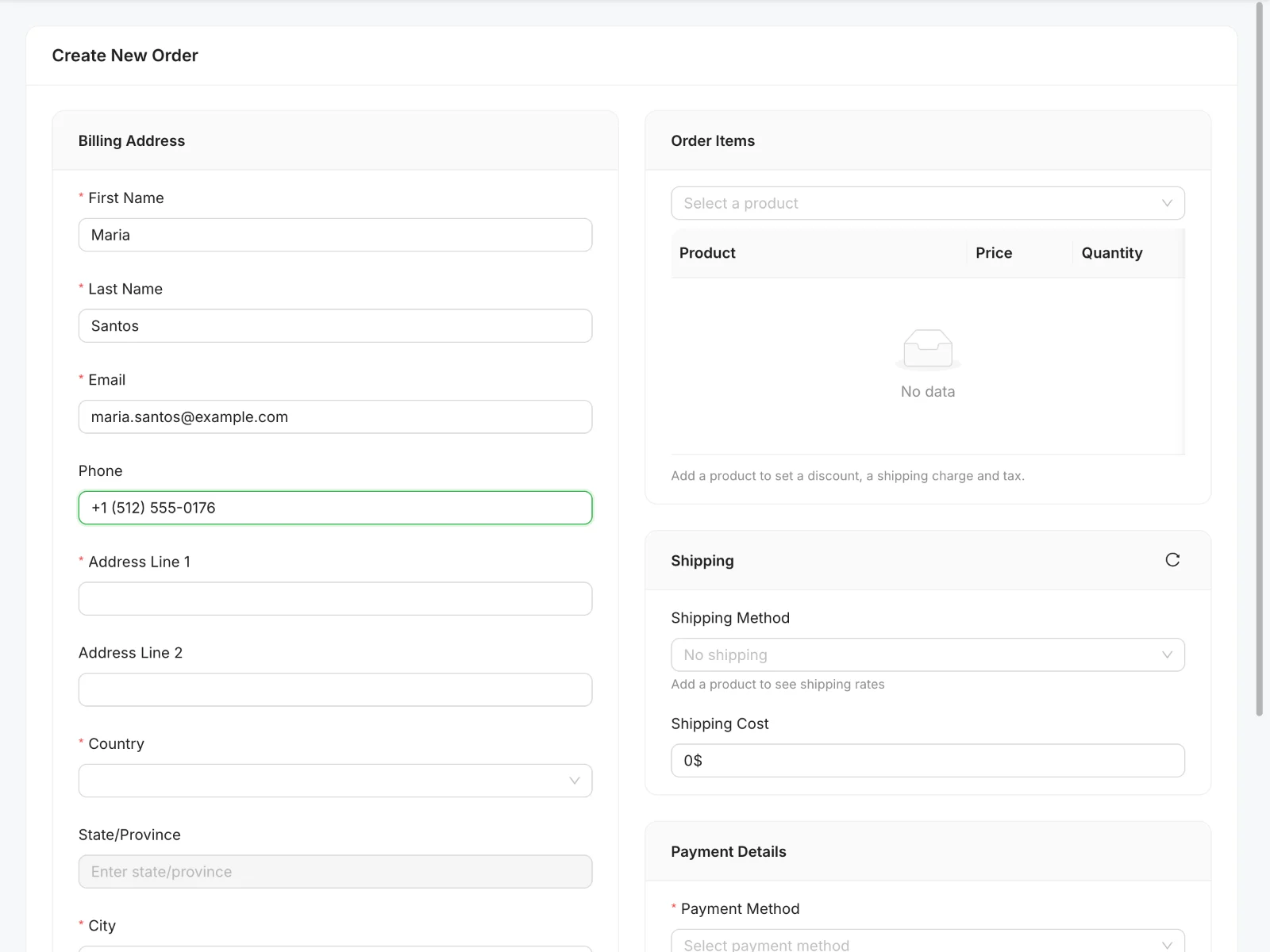
First click Add New. Then you get this form, shown here with a made-up customer. -
Add the products
Pick a product under Order Items and set the quantity. If it has variations, you choose which one. Then you can add a discount or a coupon. Shipping rates for the address are offered for you to choose, and you can change the cost. The Order Summary keeps the total up to date.
-
Choose payment and save
Under Payment Details, choose a payment method from the ones your store has on, pick an order status, and click Create Order. There are two note boxes on the form as well: Customer Note and CMS Note.
The customer will pay by bank transfer, so Leila picks that and sets the order to Pending payment.
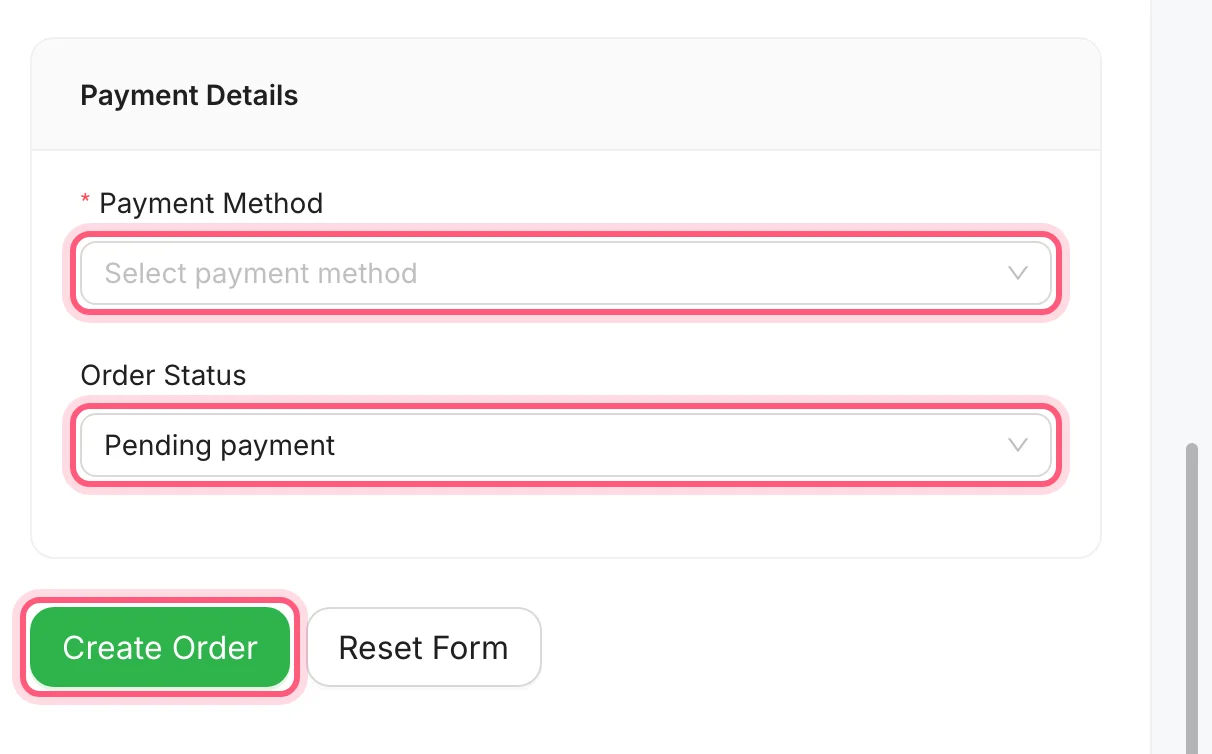
Pick from the two marked lists, then click Create Order. -
Send the customer the details
Open the order and click Resend Email. Choose Invoice / Order Details to send that email to the customer. You can use the same button to send the Processing or Completed order email again.
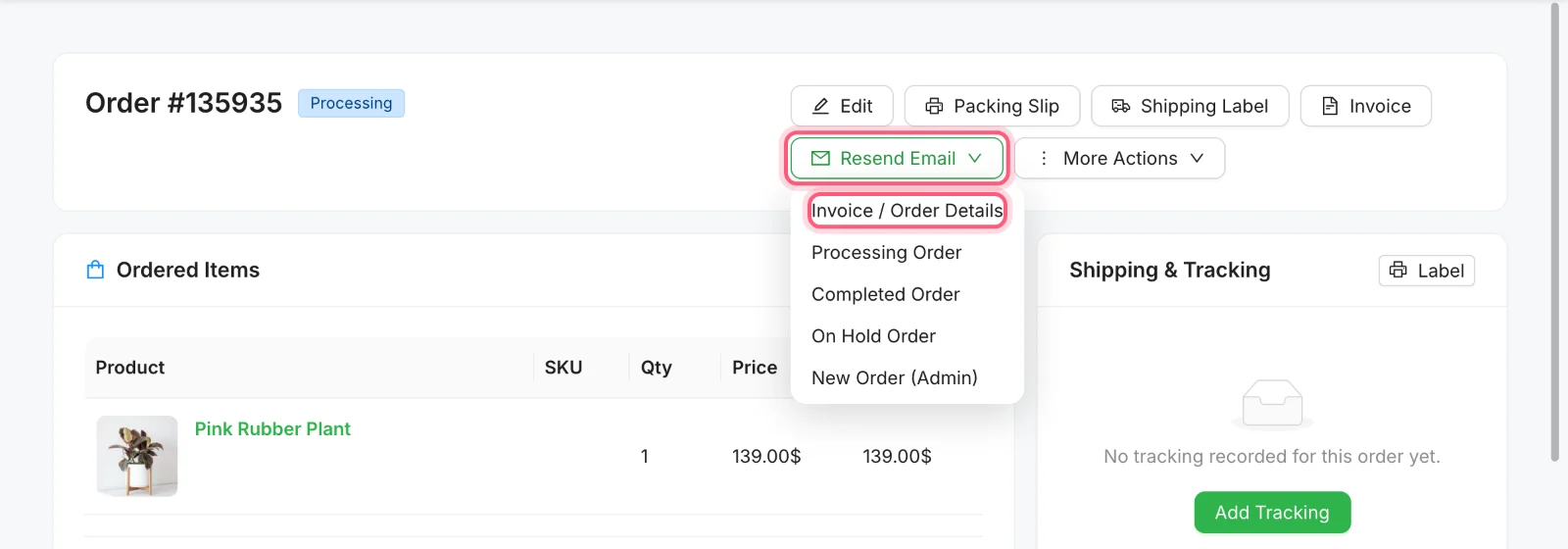
Click Resend Email, then Invoice / Order Details. Both are marked. -
Fix a mistake later
Open the order and click Edit. Change the address, add or remove a product, change a quantity, then click Update Order. Coupons are the one limit: WooCommerce only lets you change them while the order is Pending payment or On hold.
Leila corrects the house number while the customer is still on the phone.

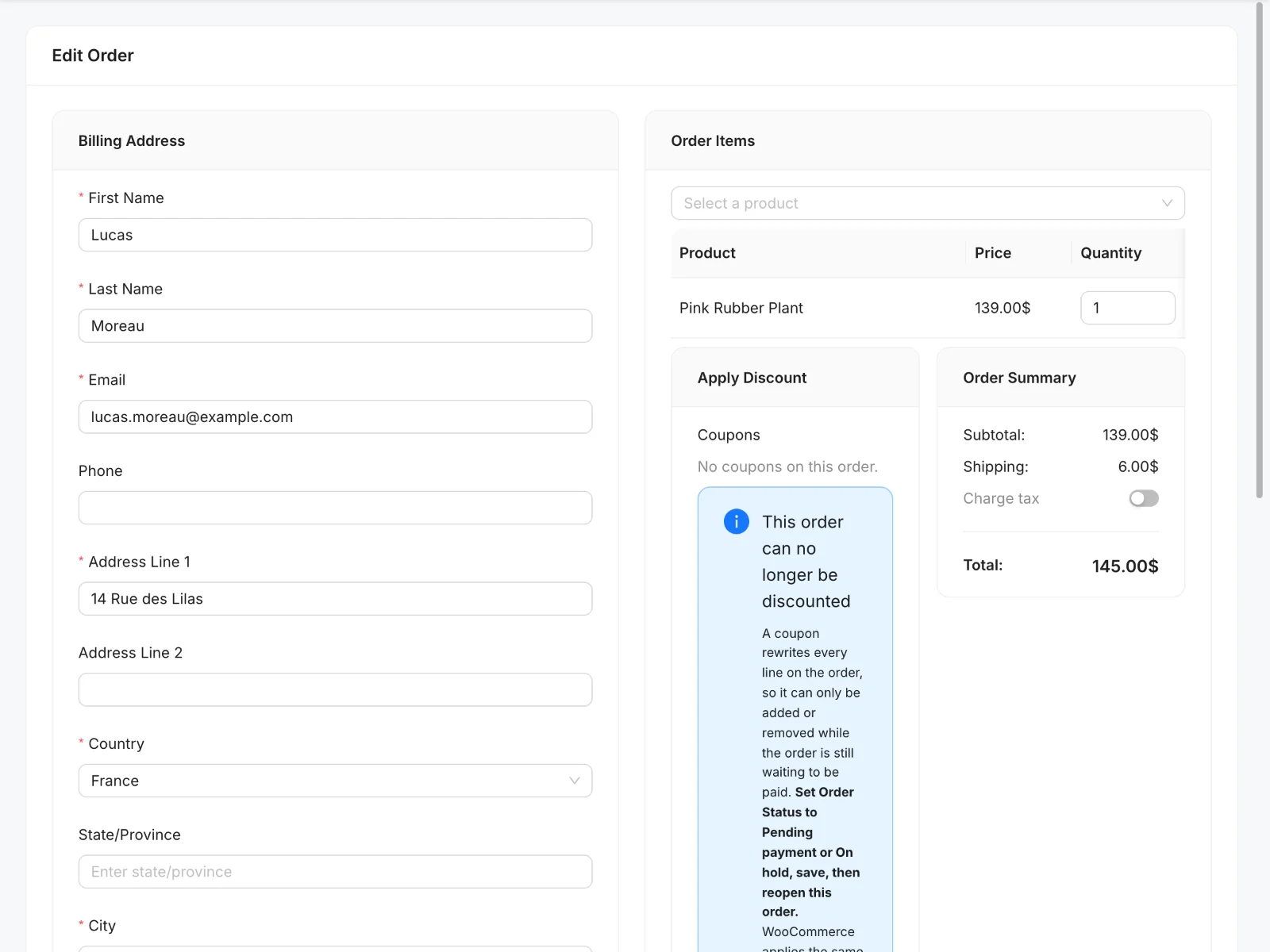
Click Edit. Change what you need on the form, then click Update Order at the end of it.
Leila's phone call, on the form
| What the customer says | Where it goes |
|---|---|
| "Send them to my daughter's house" | Shipping Address |
| "Six of the lavender ones" | Order Items |
| "Do I still get my 10% off?" | Apply Discount |
| "I will pay by bank transfer" | Payment Details |
How Leila's story ends
The next time the phone rings, Leila opens the order form while she says hello. She types as the customer talks. When they hang up, the order is already in the list with all the others, and she goes back to her candles.
Take your next phone order this way
Shop Manager is free on WordPress.org. Try it with one order and see how long it takes.
What you need
- Plan
- Free
- WordPress admin
- Not needed
- Permission for staff
- Create and Edit, under Orders
Features used on this page
- Create and edit orders yourself
- Every order in one fast list
- The full order, including add-on fields
- Notes and a timeline on every order
- Delete without the fear
Checked against the plugin in .
Questions people ask
Can I create orders for free in Shop Manager?
Yes. Creating and editing orders is in the free plugin.
Can I change an order after it has been paid?
Yes, you can edit the address and the items. Coupons are the limit. To add or remove one, the order must be Pending payment or On hold.
Does the customer get an email when I create an order?
Emails follow your WooCommerce email settings and the order status. You can also send one yourself with the Resend Email button.
What if I delete an order by mistake?
Orders go to the Trash first. You can restore them from there.
Can my staff take phone orders?
Yes, if their role has the Create permission under Orders. It is off for the ready-made Fulfillment Staff role at first, and you can tick it in Roles & Access.
Does it charge tax?
There is a Charge tax switch in the Order Summary when your store has tax turned on. It is off by default on this form. When it is on, tax is worked out from your WooCommerce tax settings.
More stories
- Thirty boxes to pack, and your slips still print one order at a time. Print a batch of packing slips Free
- You are away from your desk, an order needs you now, and WordPress admin is hard to use on a small screen. Run your store from your phone Free
- Some of your best customers stopped buying months ago. Nothing told you. Find your best customers and the quiet ones Free