


 Product Layouts
 ThankRedirect
 Image Hover
 Flipbox
How to find your best WooCommerce customers and win back the quiet ones
The short answer
Shop Manager tags your customers by how they buy: VIP, Loyal, New, Big Spender, Frequent, At Risk and Inactive. Open Customers and filter by a tag, then open a profile to see their spending, orders and notes. You write to them yourself from your own email. It is free, it uses rules you can change, and it needs no AI key.
Priya's story
Sells loose leaf tea. Priya is a made-up example.
Priya sells loose leaf tea. She knows many of her customers by name.
One day she is packing an order for a woman called Grace, and she stops. Grace used to order every month. When was the last time?
She looks it up. Five months ago. Priya had not noticed, and she wonders who else has gone quiet.
She could go through her orders and make a spreadsheet of who bought what and when. She starts one on a Sunday and gets as far as the letter C.
Sound familiar?
- You do not know who your best customers are.
- Regulars stop buying and you only notice much later.
- Your customer list is in a spreadsheet, if it is anywhere.
Here is how to do it
-
Open your customer list
Open Customers. Each customer shows their country, orders, total spent, last order and tags. Click Orders, Total Spent or Last Order to sort by that column. The first time, tags fill in as you go through the pages.
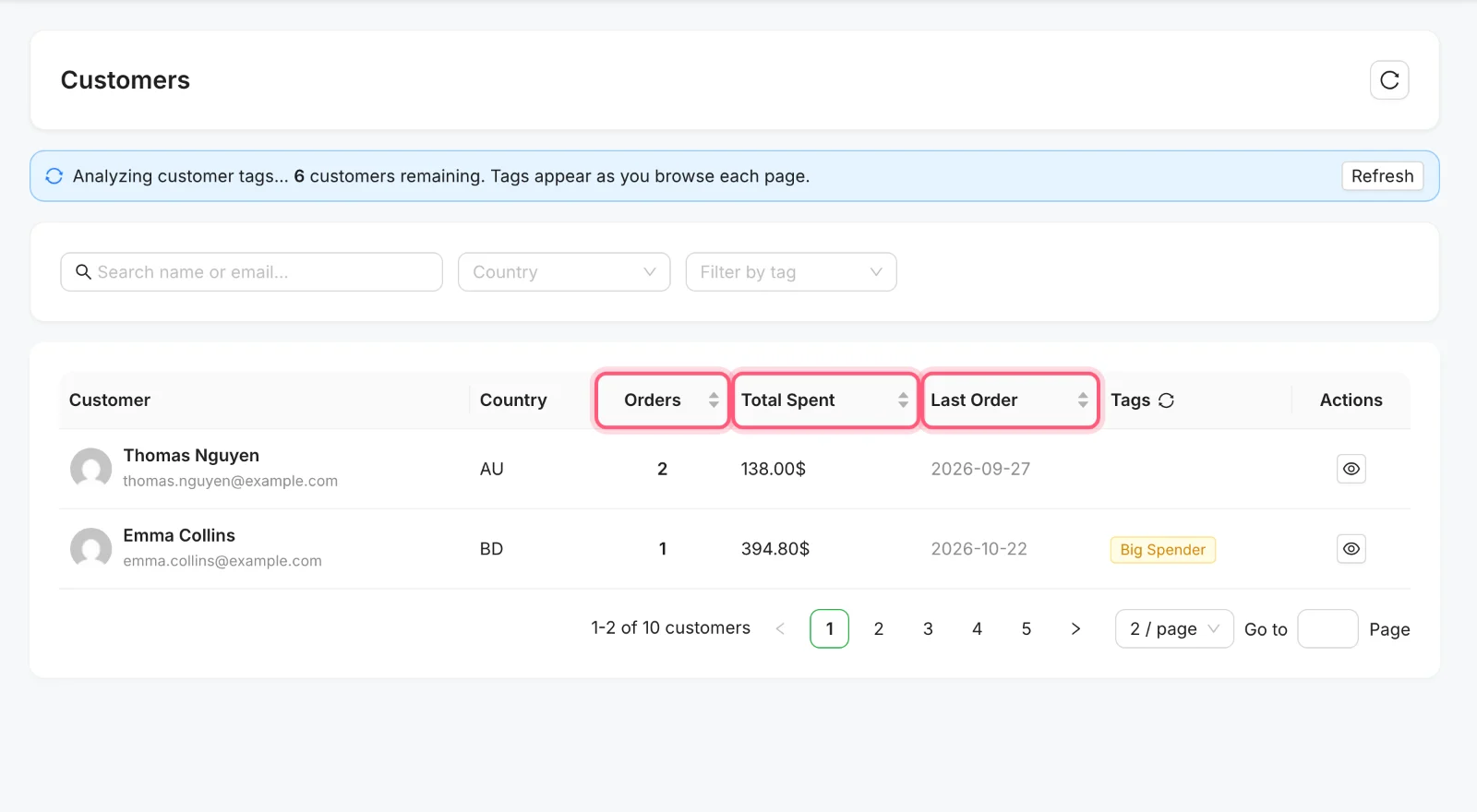
Click a marked column heading to sort by it. From our test store. -
Filter by a tag
Choose a tag in Filter by tag. At Risk shows customers whose last order was 90 to 180 days ago, so they are the ones to write to now. You can also search by name or email, or filter by country.
Priya chooses At Risk.
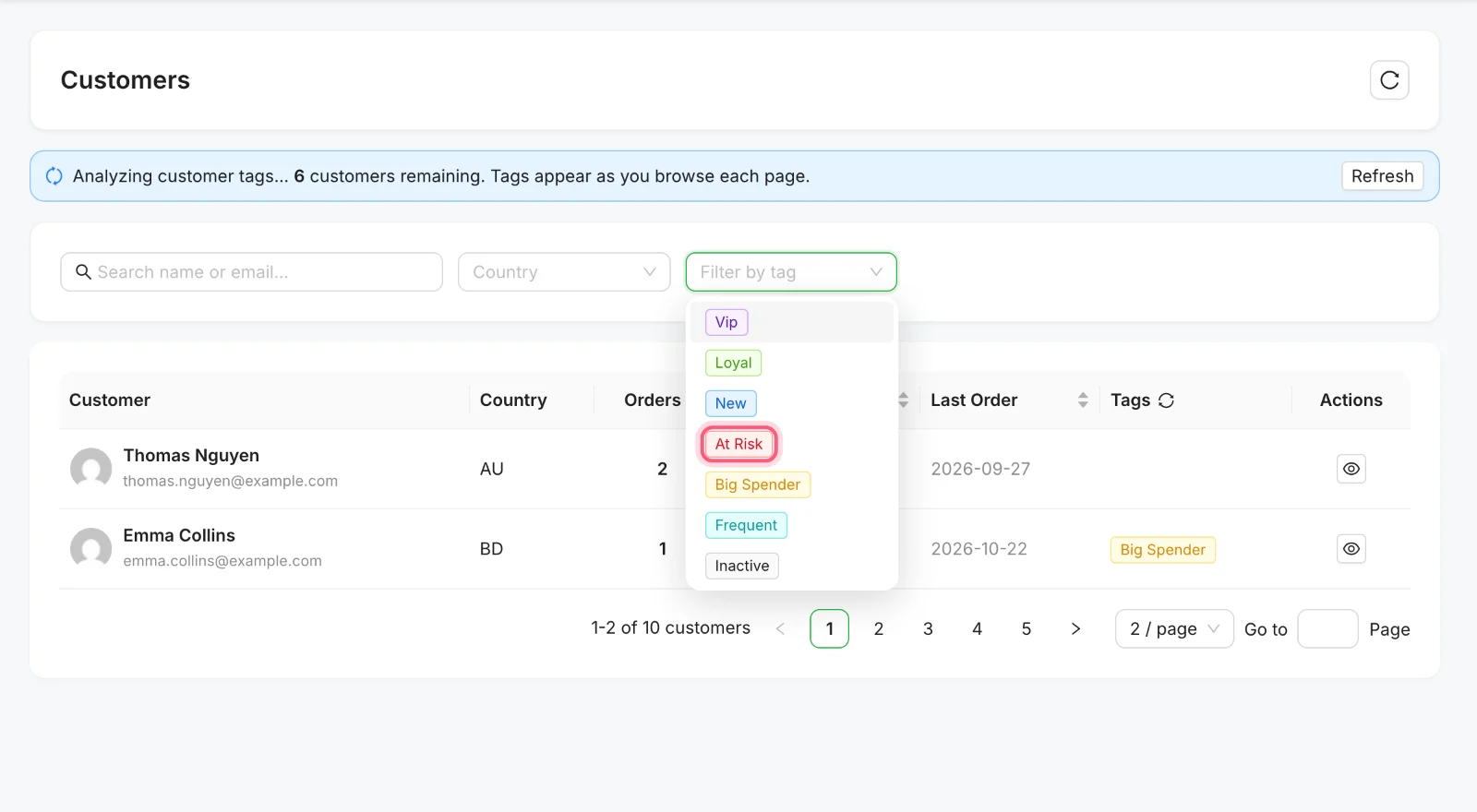
Open Filter by tag and click a tag. At Risk is marked. -
Read the customer's profile
Click the eye icon. You see what they have spent, how many orders they placed, their average order, their refunds, their tags and their orders.
Grace's last order was Earl Grey, so Priya knows what to write about.
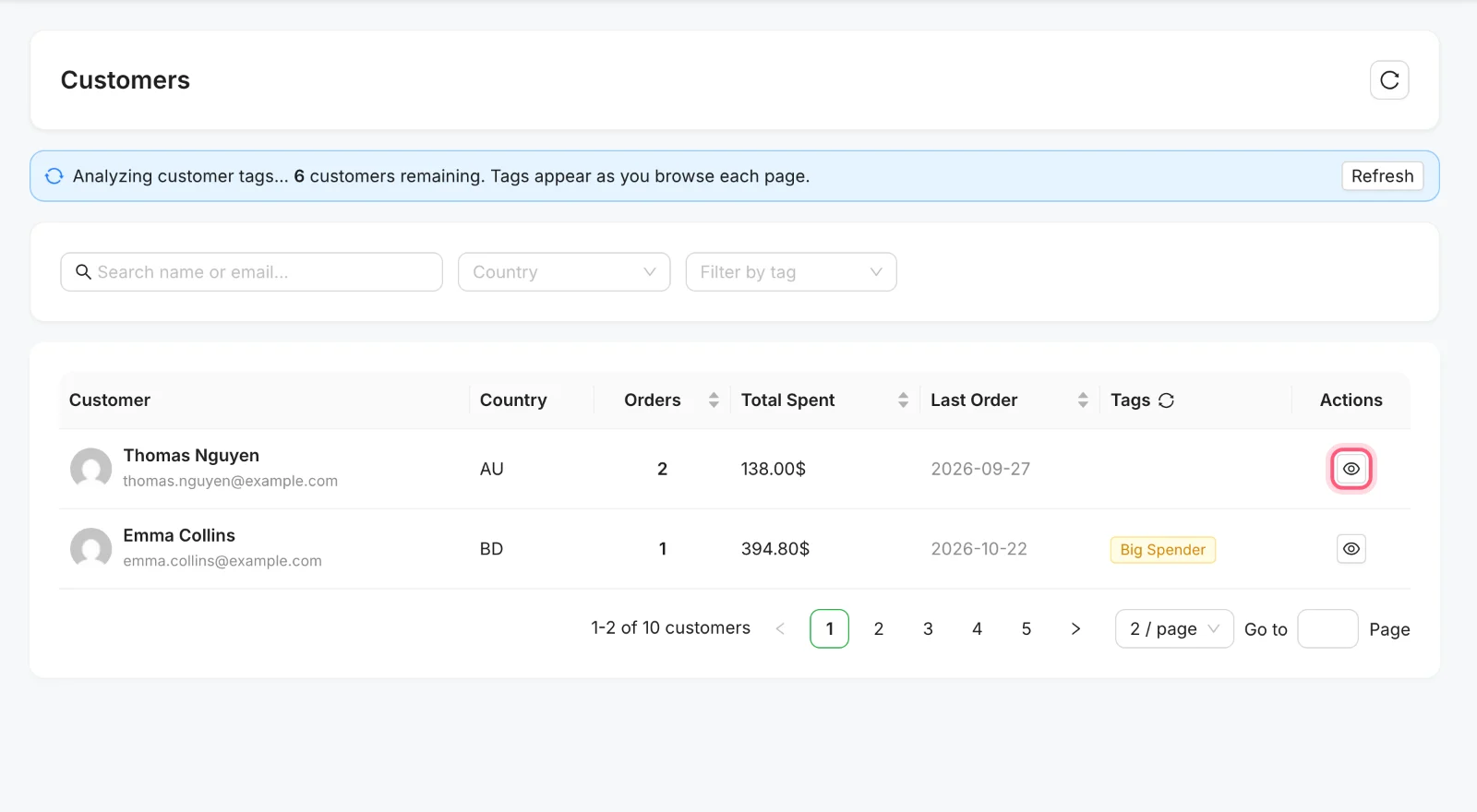
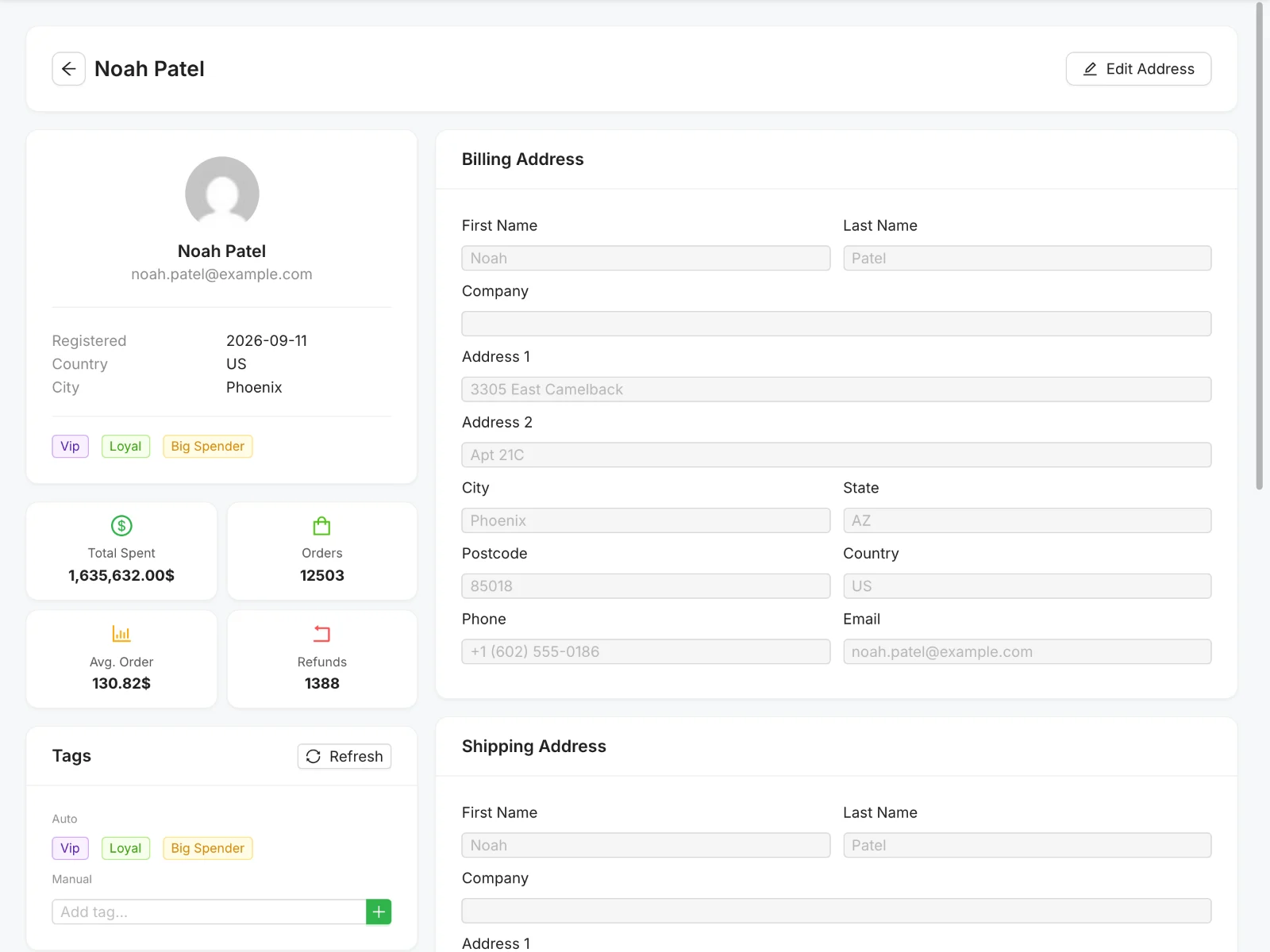
First click the eye. Then you see this. A demo customer on our test store, which has far more orders than a real one. -
Write to them, and keep a note
Shop Manager does not send these emails for you. Copy the address and write from your own email, as a person would. Then add a line under Private Notes on the profile, so anyone on your team can see you did. You can add your own tags as well.
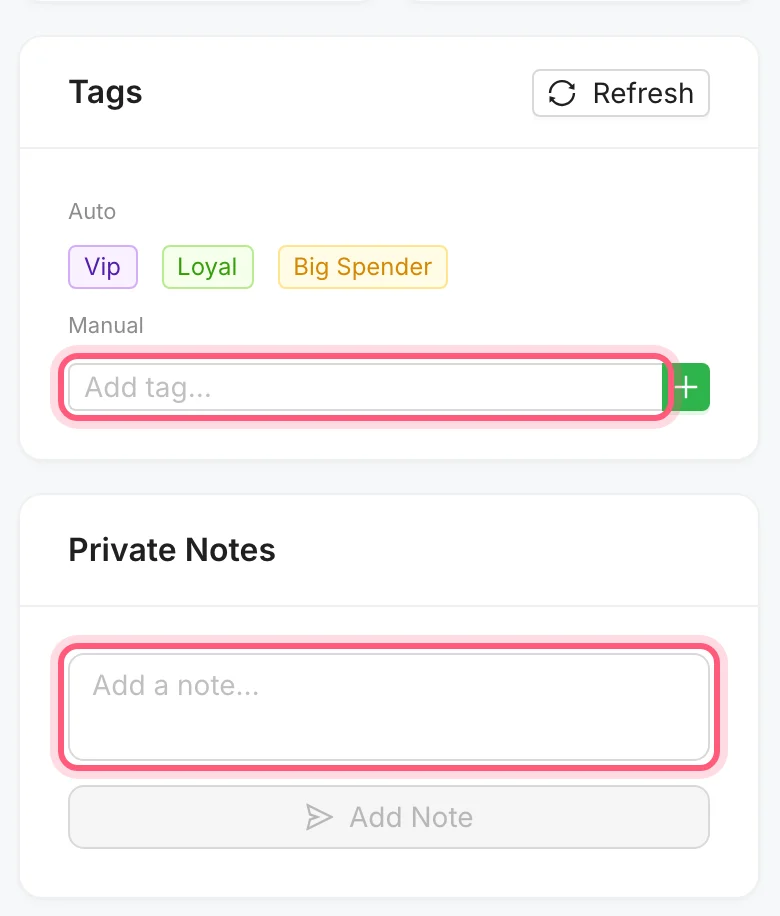
The marked parts add a tag or a private note. -
Change the rules if you need to
Open the Shop Manager settings in WordPress and click Customer. Change the numbers behind each tag to fit your store, then click Save Changes. A tea shop and a furniture shop do not have the same idea of a big spender.
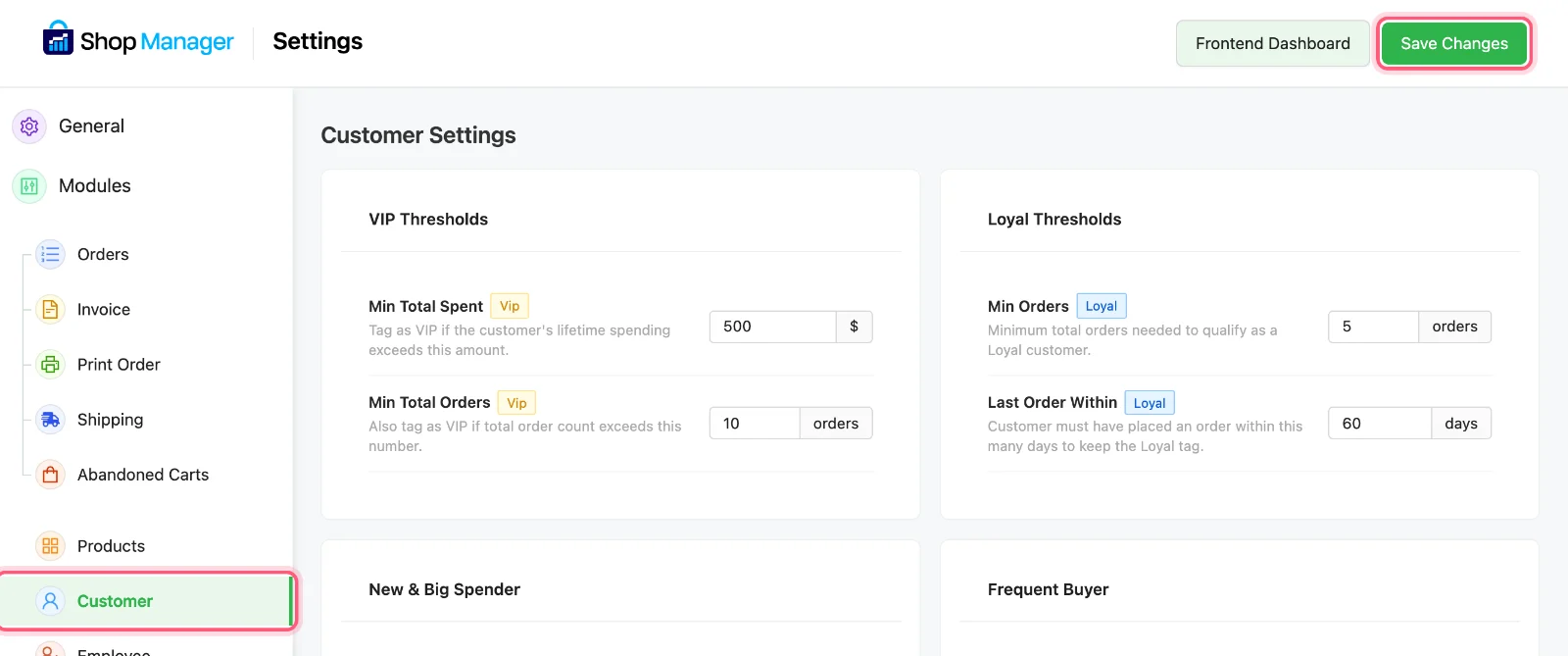
Click Customer, change a number, then click Save Changes. These are two of the tag rules, at their starting values.
What each tag means at first
These are the starting rules. You can change the numbers.
| Tag | Who gets it |
|---|---|
| VIP | Spent over 500 in total, or more than 10 orders |
| Loyal | At least 5 orders, with the last one in the past 60 days |
| New | Registered in the past 30 days, with at least one order |
| Big Spender | One order over 200 |
| Frequent | At least 3 orders in 30 days |
| At Risk | Last order between 90 and 180 days ago |
| Inactive | No order for 180 days |
How Priya's story ends
Priya writes to Grace that evening. It is a short note: "We have a new Earl Grey in. I thought of you." She does not know if Grace will order, but she knows who to write to next, and she no longer needs the spreadsheet.
See who has gone quiet
Shop Manager is free on WordPress.org. Install it, open Customers and look at the At Risk tag.
What you need
- Plan
- Free
- AI key
- Not needed
- Email tool
- Your own, Shop Manager does not send these
- Role for staff
- Store Manager, or tick Customers
Features used on this page
- A full profile for every customer
- Customers label themselves
- Find the customers you want to talk to
- Keep private notes on every customer
Checked against the plugin in .
Questions people ask
Are the customer tags free?
Yes. Tags, filters, profiles and notes are in the free plugin. They use simple rules, so they need no AI key.
Does Shop Manager send emails to these customers?
No. It shows you who to contact, and you write to them yourself. For shoppers who left a cart, Shop Manager Pro has reminder emails.
Are guest customers included?
The list shows customers with an account. If someone placed a guest order with the same email as their account, that order counts towards their profile. A guest with no account is not on the list.
When do tags update?
When an order is placed or its status changes. At Risk and Inactive depend on the date, so they are worked out again at least once a day. A Refresh button on the profile does it right away.
Can I export my customer list?
There is no customer export in Shop Manager at the moment.
Can I keep some people out of the tags?
Yes. In the Customer settings you can leave out chosen user roles.
More stories
- Someone filled a cart, typed their email and left. You never knew they were there. Win back shoppers who left at checkout Needs Pro
- Every morning you click through five screens to find out if anything went wrong. Check your store each morning Free
- Forty products have no description, and writing them is the job you keep putting off. Write product copy and ask your store with AI Needs Pro