


 Product Layouts
 ThankRedirect
 Image Hover
 Flipbox
How to print WooCommerce packing slips in bulk
The short answer
In Shop Manager, go to Print Order in the settings, name the document Packing Slip and turn Prices off. Then tick your orders and click that button in the order list. You get one document with one order on each page, up to 100 orders at a time. It prints from your browser, it is free, and you do not need a PDF plugin.
Diego's story
Sells coffee gear with his brother. Diego is a made-up example.
Diego and his brother sell coffee gear. Every morning they print a slip for each box.
So Diego opens an order and prints it. He goes back, opens the next one and prints that. On a busy day this takes longer than the packing.
Then a customer writes to him. "I sent that grinder to my sister as a gift. The slip in the box showed her what I paid."
Diego looks at the paper in his hand. It is the normal order sheet, and the prices are right there on it.
Sound familiar?
- You open and print orders one at a time.
- Your packing slips show prices you would rather hide.
- Some of your orders are gifts.
Here is how to do it
-
Name your document
Open the Shop Manager settings in WordPress and click Print Order. On the General tab, change Document Title from Order to Packing Slip, and choose your paper size. The button in your order list takes this name.
Diego does this once and never has to look at it again.
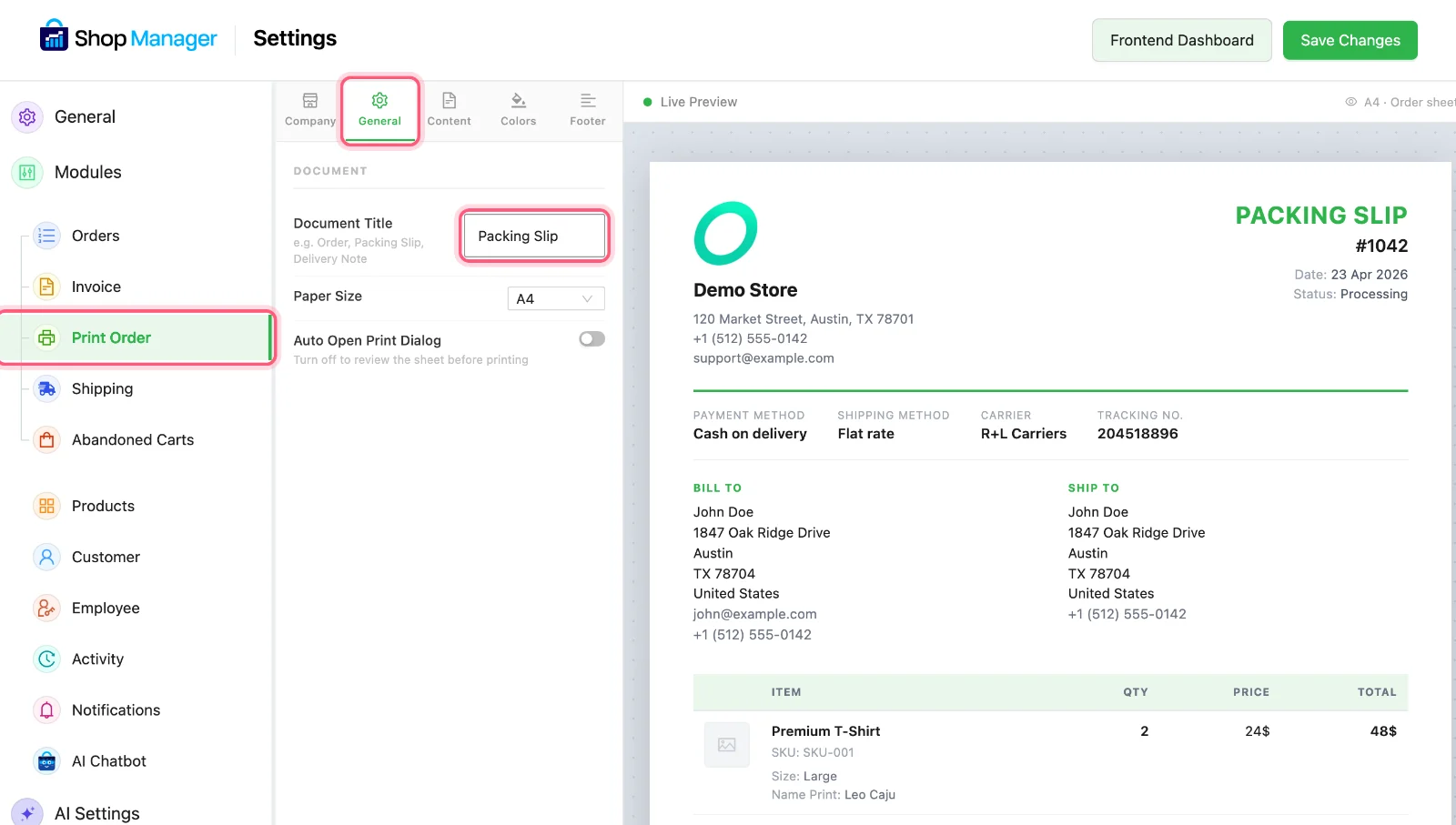
Print Order, then General, then Document Title. All three are marked. -
Take the prices off
Click the Content tab and turn Prices off. Prices and totals disappear from the page, and the preview shows you the change straight away. Product names and quantities always stay. Click Save Changes when it looks right.
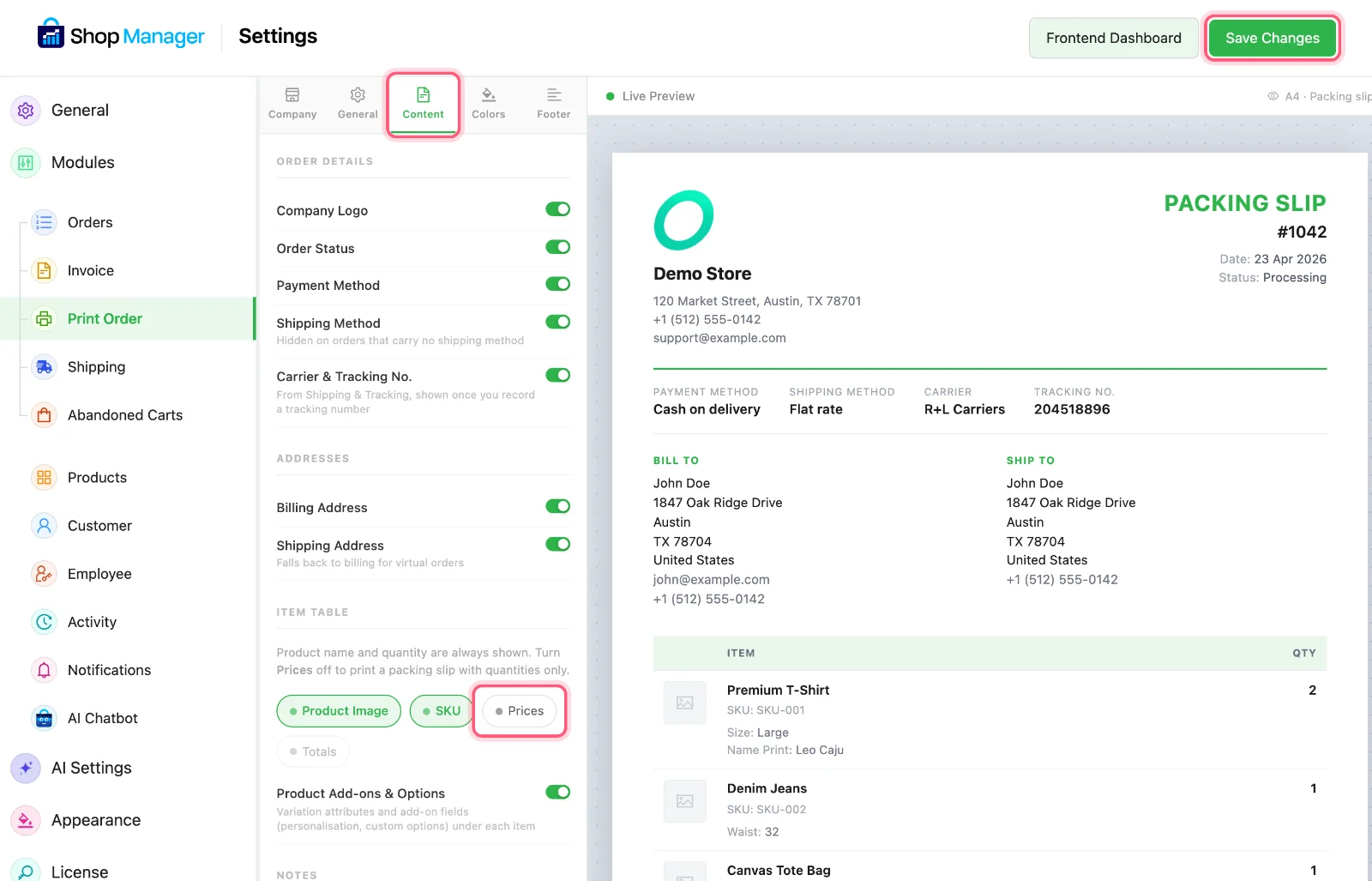
Content, then the Prices switch, then Save Changes. All three are marked. -
Tick the orders and print
Open Orders in your dashboard and click Processing. Tick the orders you are packing. Then click the button with your document name, which is Packing Slip here. All of them open in one document in a new tab, with one order on each page, and the print window opens by itself. You can print up to 100 orders at a time.
Diego ticks the morning orders and clicks Packing Slip.
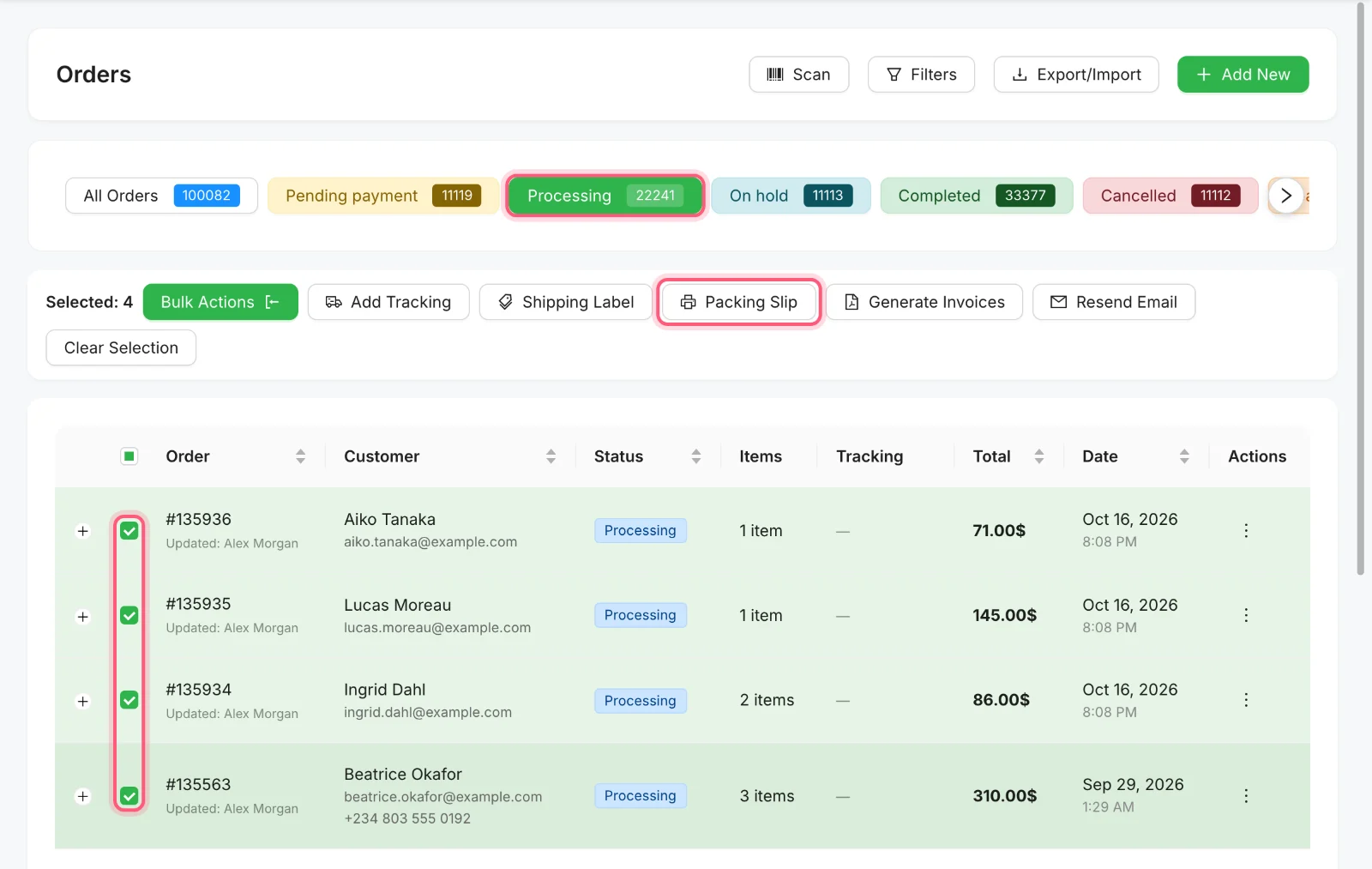
Click Processing, tick the orders, then click Packing Slip. There is no button called Print: it takes your document name. -
Put one in each box
Each page has the order number, the delivery address, and the items with their quantities. If a customer chose options for a product, those show under the item too. You can turn these parts on or off on the Content tab.
What is on the page
| On the page | Normal order sheet | Packing slip with Prices off |
|---|---|---|
| Delivery address | Yes | Yes |
| Product names and quantities | Yes | Yes |
| Prices and totals | Yes | No |
How Diego's story ends
The next morning Diego ticks the orders, clicks one button and takes the pile from the printer. His brother packs. The grinder for the next gift goes out with a slip that says what is in the box, and nothing about what it cost.
Print your next batch in one go
Shop Manager is free on WordPress.org. Set up your packing slip once and use it every morning.
What you need
- Plan
- Free
- PDF plugin
- Not needed
- Orders at a time
- Up to 100
- Pages
- One order on each page
Features used on this page
- Print orders and packing slips, free
- Design the printed page and watch it change
- One switch turns it into a packing slip
- Change many orders at once
Checked against the plugin in .
Questions people ask
Is printing packing slips free in Shop Manager?
Yes. Printing order sheets and packing slips is in the free plugin. It does not need Pro or a PDF plugin.
Can I print a normal order sheet as well as a packing slip?
There is one print design for the store. To print with prices again, turn Prices back on in the Print Order settings.
Can I add my logo and address?
Yes. Use the Company tab in the Print Order settings. If you leave a field empty, it uses your WordPress and WooCommerce store details.
Can staff print packing slips?
Yes, if their role has the Print Order permission. It is off for the ready-made Fulfillment Staff role at first, and you can tick it in Roles & Access.
How many orders can I print at once?
Up to 100 in one document.
More stories
- The courier comes at 4. You have 20 boxes packed and not one label printed. Ship a whole day of orders at once Free
- Forty parcels are leaving today, and someone has to mark every one of them as sent. Scan labels to find and move orders Free
- A customer is on the phone and wants to order right now. You need a simple form, fast. Take a phone order and fix order mistakes Free