Using the Native Gutenberg Block
Since v9.11.6, Image Hover Effects Ultimate includes a native Gutenberg block with live preview directly in the block editor canvas. No shortcodes, no placeholders, just select your style and see it render immediately.
Adding the Block
- Open any page or post in the Gutenberg block editor.
- Click the + button to open the block inserter.
- Search for “Image Hover” or browse the Media category.
- Click the Image Hover Effects block to insert it.
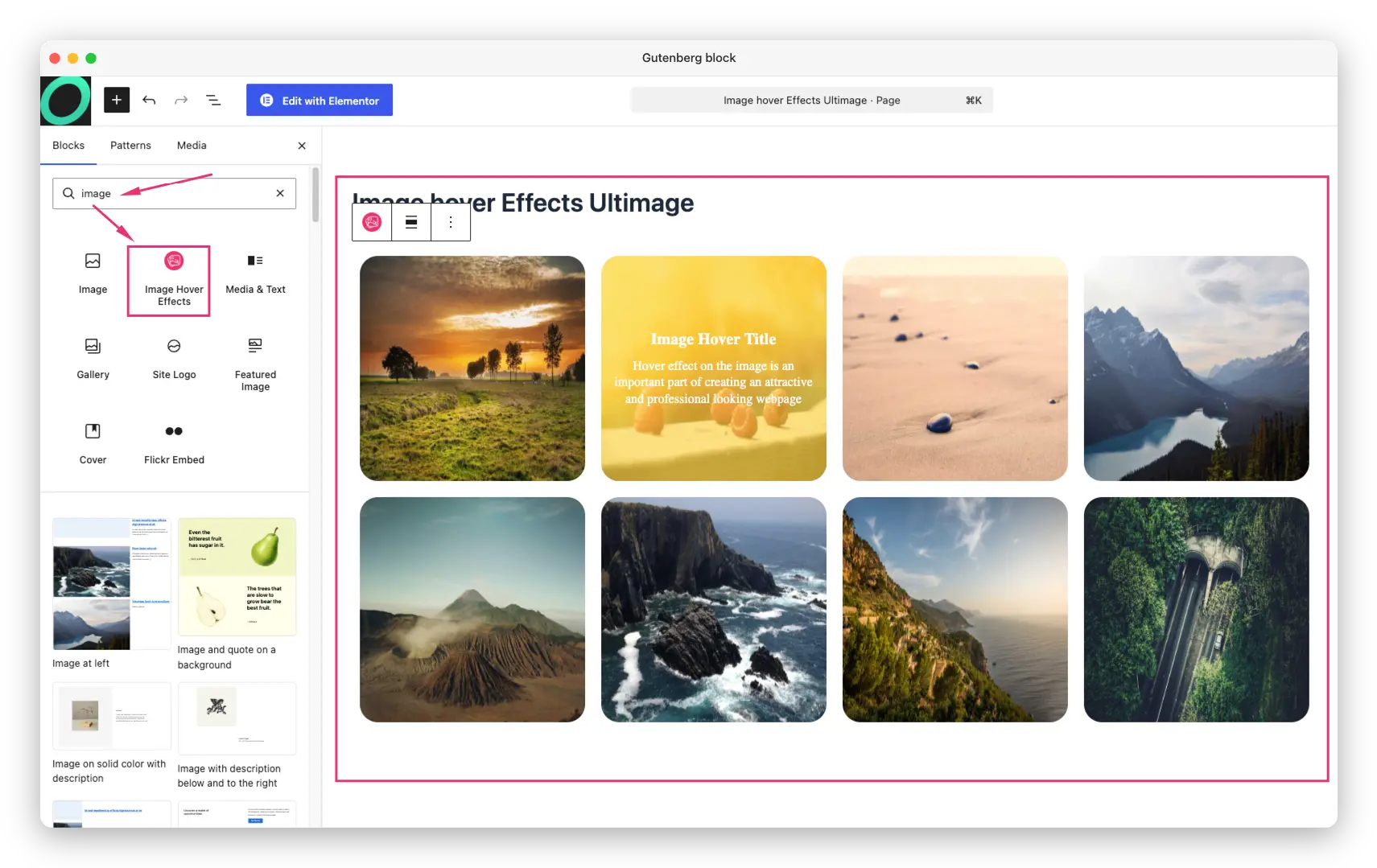
Selecting a Style
- After inserting the block, open the block settings panel on the right sidebar (if it’s not visible, make sure the block is selected).
- Under the Image Hover Effects panel, use the Select a Style dropdown to choose one of your saved hover effect styles.
- The gallery renders live in the editor canvas: no page reload or preview tab needed.
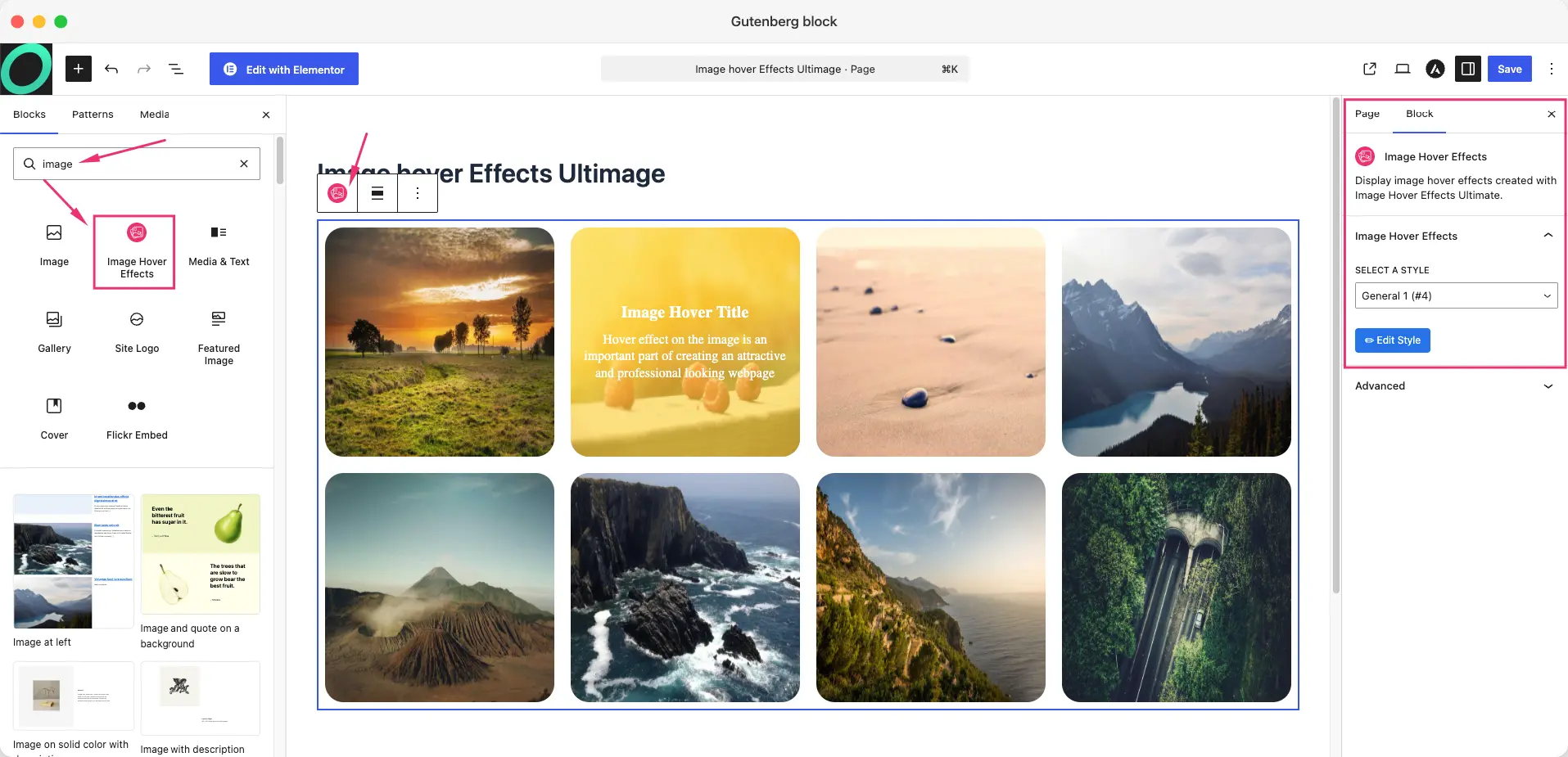
Editing a Style from the Editor
After selecting a style, an Edit Style button appears in the sidebar panel. Click it to open the Image Hover Effects style editor in a new tab. Make your changes, save, then come back to the Gutenberg editor, select the block and the preview will refresh automatically.
Full Width & Wide Alignment
The block supports Wide and Full Width alignment (if your theme supports it):
- Select the block.
- In the block toolbar at the top, click the Align icon.
- Choose Wide width or Full width.
This is ideal for full-bleed gallery sections that span the entire page width.
Frontend Rendering
What you see in the editor canvas is exactly what visitors see on the frontend, the same HTML, same CSS, same hover animations. There is no difference between the editor preview and the published page.
Don’t Have a Style Yet?
Go to Image Hover Ultimate → Getting Started in your WordPress admin to create your first hover effect style. Once saved, it will appear in the block’s style dropdown.
Troubleshooting
- Block not appearing in the inserter: Make sure Image Hover Effects Ultimate v9.11.6 or later is active. Hard-refresh the editor with Ctrl+Shift+R (Windows) or Cmd+Shift+R (Mac).
- Dropdown shows no styles: You haven’t created any hover effect styles yet. Go to the Image Hover Ultimate admin and create at least one style first.
- Preview shows a spinner and never loads: Check for JavaScript errors in the browser console. Try disabling other plugins temporarily to rule out conflicts.
- Hover animations not working in the editor preview: CSS hover effects require mouse interaction and may not fully replicate in the editor. The published frontend will work correctly.
- Block shows “This block has encountered an error”: Hard-refresh the editor. If the problem persists, try switching to a default WordPress theme to diagnose a theme conflict.