Understanding Shortcodes
The Image Hover Effects shortcode is the easiest way to place any hover effect anywhere on your WordPress site. Image Hover Effects Ultimate uses a simple, single shortcode to embed any style you create, and this guide explains everything you need to know about it.
The Main Image Hover Effects Shortcode
Every style you create in Image Hover Effects Ultimate gets its own unique ID. To display a style, use this shortcode:
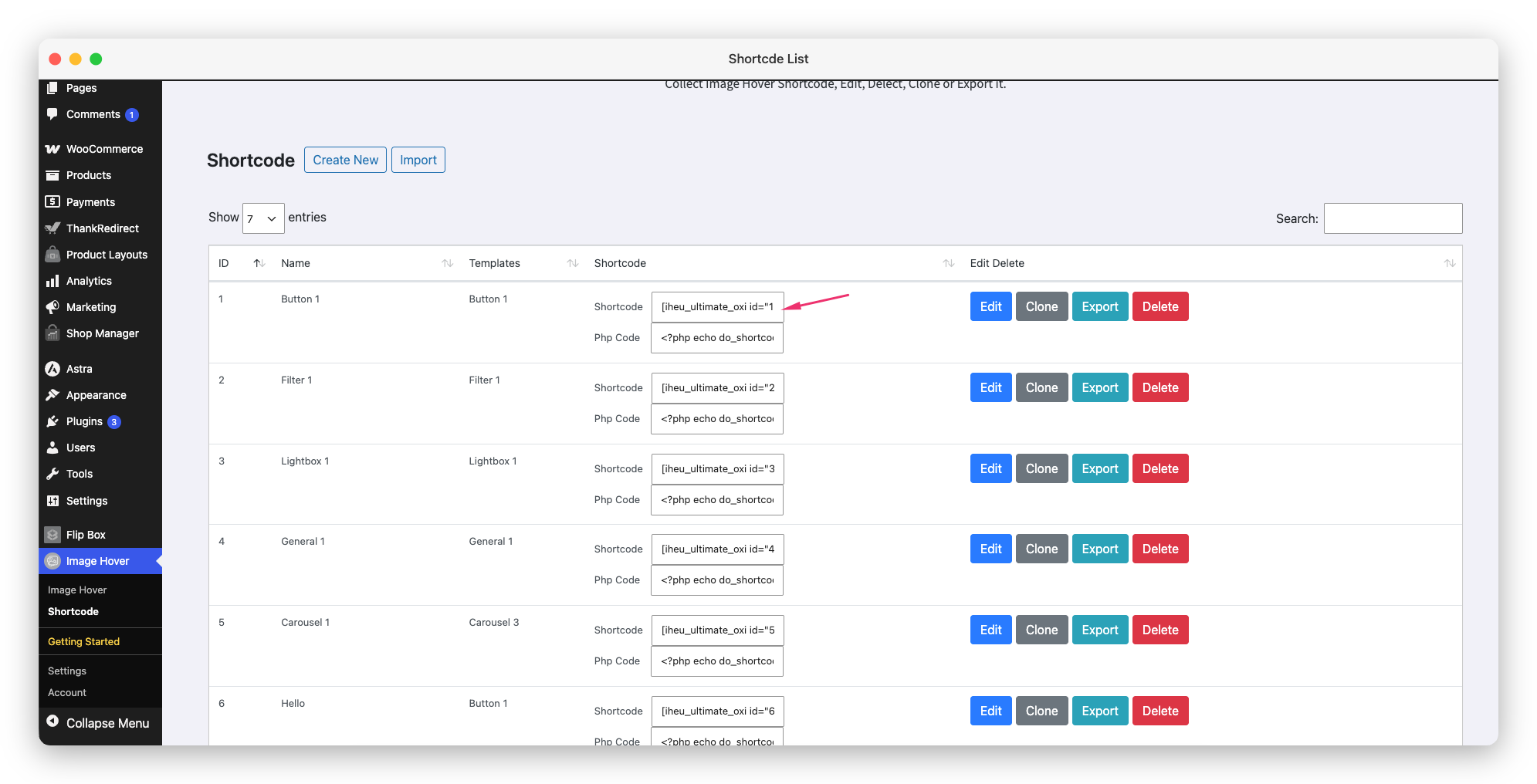
[iheu_ultimate_oxi id="1"]Replace 1 with the ID of the style you want to display. You can find the ID next to each style in the plugin’s main admin list.
Where to Find Your Shortcode
You can find the Image Hover Effects shortcode for any style in two places:
- Styles list page: The shortcode is displayed next to each style in the main list.
- Style editor: After saving a style, the shortcode appears at the top or bottom of the editor.
Where You Can Use the Shortcode
The Image Hover Effects shortcode works in almost every location on your WordPress site:
In WordPress Pages & Posts
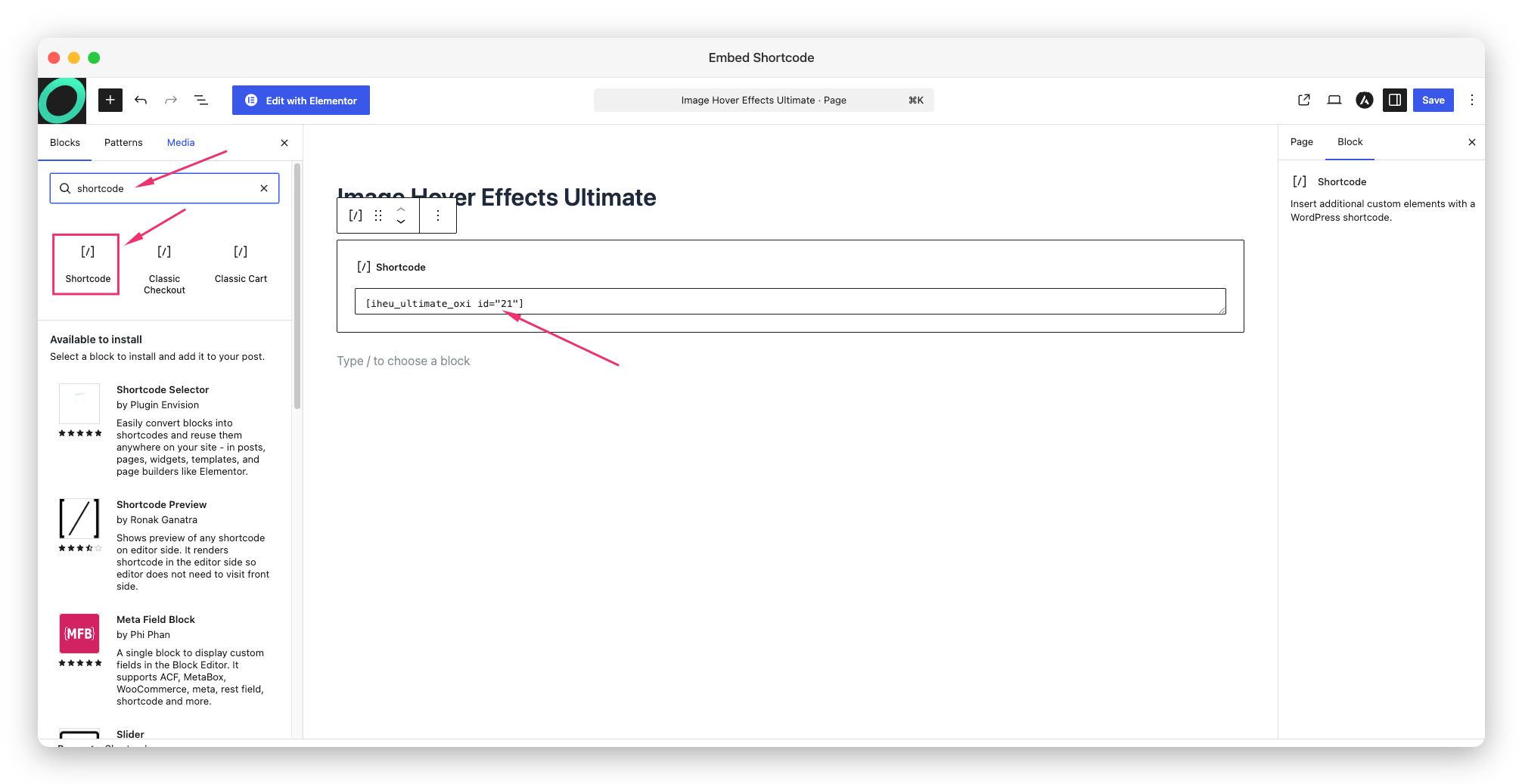
Add a Shortcode block in the Gutenberg editor, paste the shortcode, and publish. Or in the Classic Editor, switch to Text mode and paste it directly.
In Elementor
Drag a Shortcode widget onto your page, paste the shortcode in the field, and click Update. The effect renders immediately in the Elementor preview. Prefer a no-code option? You can also use the native Elementor widget.
In WPBakery / Visual Composer
Image Hover Effects Ultimate has a built-in WPBakery element. Search for “Image Hover Ultimate” in the element list, add it, and select your style from the dropdown, no shortcode typing needed. See how to use it with WPBakery for the full walkthrough.
In Sidebar Widgets
Go to Appearance → Widgets and add the Image Hover Effects Ultimate widget to any widget area. Enter your style ID in the widget settings.
In PHP Templates
Developers can embed the shortcode anywhere in a PHP template using WordPress’s built-in do_shortcode() function:
<?php echo do_shortcode('[iheu_ultimate_oxi id="1"]'); ?>In Text Widgets
WordPress text widgets support shortcodes by default. Simply paste the shortcode in a Text widget.
Visual Composer Shortcode
If you’re using WPBakery Page Builder (Visual Composer), there’s also a dedicated shortcode:
[iheu_oxi_VC id="1"]This works the same way as the standard shortcode but is used internally by the Visual Composer integration.
Displaying Multiple Styles on One Page
You can use as many Image Hover Effects shortcodes as you want on a single page, each displaying a different style:
[iheu_ultimate_oxi id="1"]
[iheu_ultimate_oxi id="2"]
[iheu_ultimate_oxi id="5"]
Each shortcode loads only its own styles, keeping things clean and performant.
Do Shortcodes Affect Page Speed?
No. Image Hover Effects Ultimate only loads its CSS and JavaScript on pages where the shortcode is actually used. Pages without a hover effect stay completely untouched, so your site stays fast and lightweight. This is why the Image Hover Effects shortcode approach is so efficient: you add visual effects exactly where you need them, without slowing down the rest of your site.
Common Shortcode Mistakes to Avoid
- ❌ Wrong ID: Double-check the number matches the style ID in the plugin admin. Using a deleted or non-existent ID will show nothing.
- ❌ Smart quotes: Some editors auto-convert straight quotes (
") to curly quotes (“). Always paste shortcodes in plain text mode to avoid this. - ❌ Placing in wrong mode: In the Classic Editor, make sure you’re in Text mode, not Visual mode, when pasting shortcodes.
- ❌ Shortcode in page title: Shortcodes only work in content areas, not in titles or meta fields.
Pro Tip: Clone Styles for Reuse
If you want a similar effect in multiple places but with slight differences (different colors, different images), use the Clone feature in the plugin admin. It duplicates a style with a new ID, so you can customize each version independently while keeping the same base layout.
Next Steps
Now that you understand the Image Hover Effects shortcode, explore the Effect Types to see all the different hover animations you can create and embed.